First steps with Customer Support
Connect your first channels, bring in your agents and answer your first customer from one inbox. A checklist for your first day.
Updated on
On this page
Customer Support puts every message from your customers in one shared inbox: chat on your website, Zalo, Facebook Messenger, Instagram, TikTok, WhatsApp, Telegram, LINE, X and email. This checklist takes you from an empty inbox to your first answered conversation. You need to be an owner or admin, or have Customer Support: Manage.
Before you start, make sure Customer Support is on in Settings → Business settings → Modules (Turn modules on and off).
1. Add your website
Conversations belong to a website in Ha Tang, even those that come from Zalo or Facebook: it decides which reports, distribution rules and automation apply. So add your website first, even if you will not put the chat widget on it yet.
- Open Customer Support → Channels.
- Click Add channel, then Website.
- Follow Install the chat widget to put the chat bubble on your site. If your site has sign-in, ask your developer to also recognise logged-in users so they show as Verified in the Inbox.
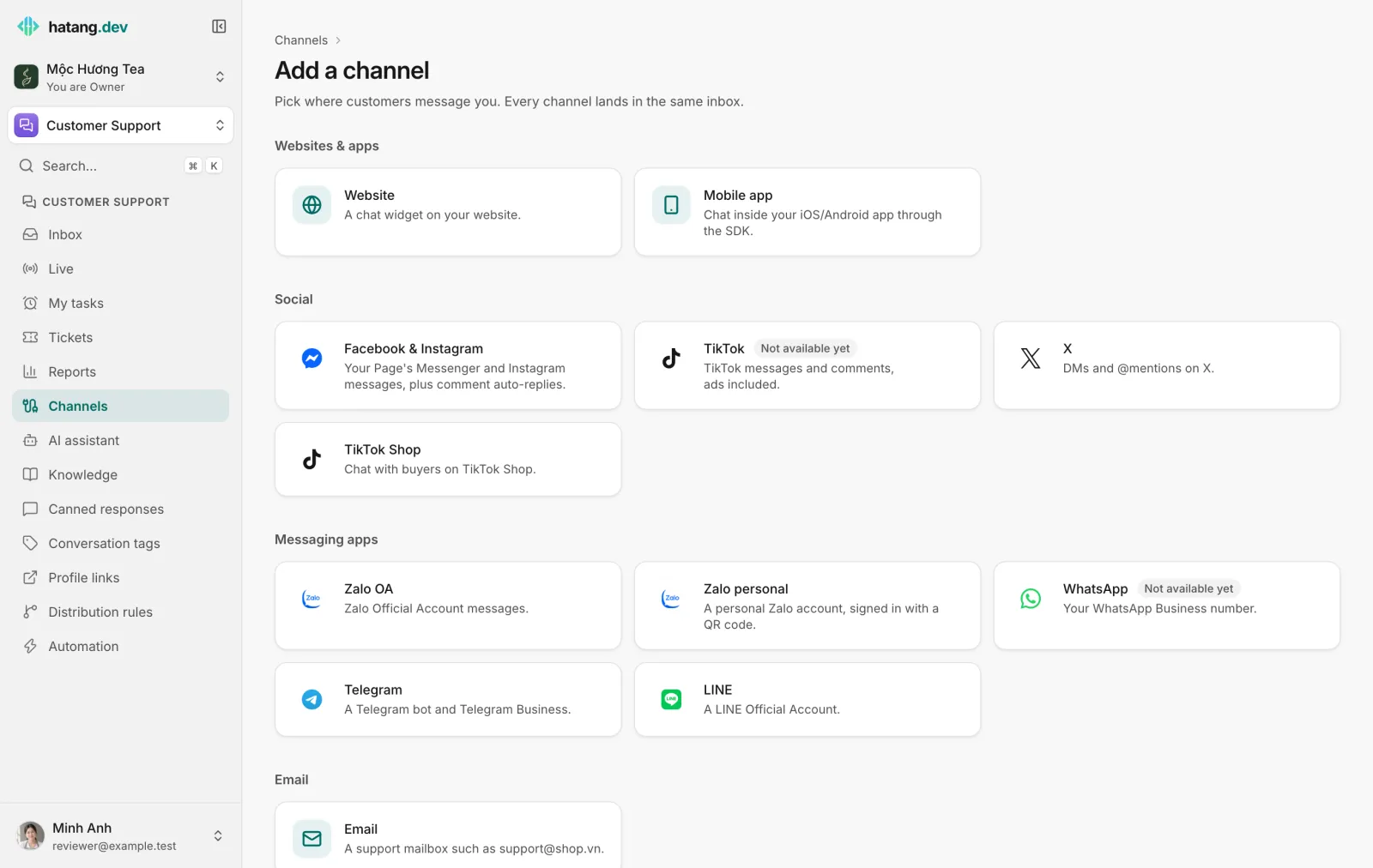
2. Connect the channels your customers use
Back in Customer Support → Channels → Add channel, connect the accounts where customers write to you today. Each one has a step-by-step guide:
| Channel | Guide |
|---|---|
| Zalo Official Account | Connect a Zalo OA |
| A personal Zalo account | Connect personal Zalo |
| Facebook Page and Instagram | Connect Facebook and Instagram |
| TikTok and TikTok Shop | TikTok, TikTok Shop |
A support mailbox such as [email protected] |
Connect a support mailbox |
New messages from a connected channel arrive in the inbox from then on. See How channels work for what each channel supports.
3. Invite your agents
Open Settings → Employees → Invite employee and invite each person who answers customers. The Support template gives them Customer Support: Work: they can reply and take conversations but cannot change channels or settings (Invite employees).
4. Decide who answers what
- Set up distribution rules so new conversations go to the right person automatically, or let agents take them from the inbox.
- Write canned responses for the questions you answer every day: prices, opening hours, shipping fees.
- Optional: let the AI assistant answer first, from your own knowledge, and hand over to your team when it should.
5. Answer your first conversation
- Send yourself a test message, for example from your phone to your Zalo OA or through the chat bubble on your website.
- Open Customer Support → Inbox. The conversation is at the top of the list.
- Click it, type your reply and press Enter.
The reply reaches the customer in the channel they wrote from. Learn the rest of the inbox in The inbox.
6. Get notified
So that no customer waits, turn on browser push and sounds in your notification settings, and install the Ha Tang app on your phone.
Useful next steps
Was this article helpful?
Related articles
- How channels workEvery place customers write to you, from your website to Zalo, Facebook and email, lands in one inbox. See what you can connect and how.
- Get to know the inboxOne list for every conversation from your website, Zalo, Facebook, TikTok, email and the other channels, with filters, statuses and team views.
- Add the chat widget to your websiteCreate a website channel, paste its code on every page and check that visitors can chat with your team from the Inbox.
Not finding what you are looking for?
Our team answers in the chat, in English or Vietnamese.