Canned responses
Save answers you send often, like opening hours or shipping fees, keep your own, and insert them with / or the lightning button on the web, phone and Mac.
Updated on
On this page
Canned responses are replies you write once and reuse: opening hours, shipping fees, how to pay by bank transfer. Agents insert them by typing / and a short code, or pick them from a list, and can edit the text before sending. They can greet the customer by name.
There are two kinds:
- Your own: every agent keeps their own replies, and only they see them. Anyone with Work access to Customer Support can add, edit and delete their own.
- The team's: shared with everyone in the business. Only people with Manage access add and change them.
Create a canned response
You need Work access to Customer Support for your own responses, and Manage access for the team's.
- Go to Customer Support → Canned responses.
- Fill in the form at the top:
- Shortcut (optional): what you type after
/, for examplegio: lower-case letters, digits and hyphens. Leave it empty and Ha Tang makes one from the title, "Giờ mở cửa" becominggio-mo-cua; - Title: what agents see in the list, for example "Giờ mở cửa";
- Email subject (optional): used when the response goes into an email reply that has no subject yet;
- Content: the message itself.
- Shortcut (optional): what you type after
- Managers tick Only for me to keep it private; everyone else's responses are always their own.
- Click Add response.
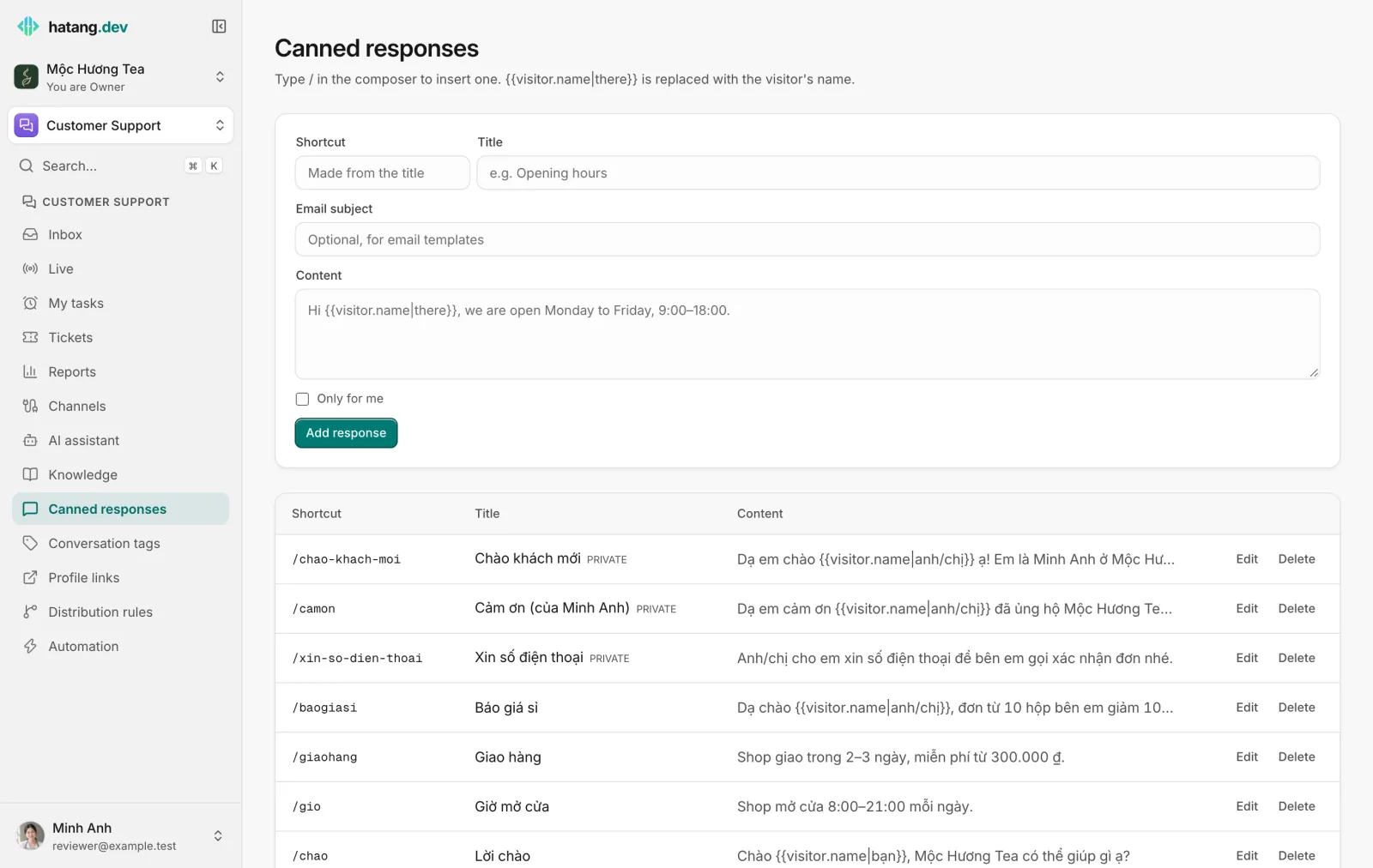
Edit or delete a canned response
- In the list, click Edit next to the response.
- Change any field, including the shortcut and Only for me, and click Save.
The new text is used the next time someone types /; messages already sent keep their old text. A shortcut another response already uses is refused with "Shortcut /… already exists". Delete removes the response for everyone. Private responses of other employees do not appear in the list, so only their author can edit them. Without Manage access you can edit and delete only your own.
Greet the customer by name
Write {{visitor.name|bạn}} where the customer's name should go. When an agent inserts the response, it becomes the customer's name, or the word after | if Ha Tang does not know it. {{visitor.email}} inserts their email address the same way.
Xin chào {{visitor.name|bạn}}, Mộc Hương Tea mở cửa 8:30–21:30 mỗi ngày.
becomes "Xin chào Thu Hà, Mộc Hương Tea mở cửa 8:30–21:30 mỗi ngày."
Use a canned response
You need Work access to Customer Support.
- In the reply box, type
/at the start of a line. Up to six matching responses appear; keep typing the shortcut to narrow them down. - Pick one with the arrow keys and
EnterorTab, or click it. - The text replaces what you typed. Edit it if you need to, then send.
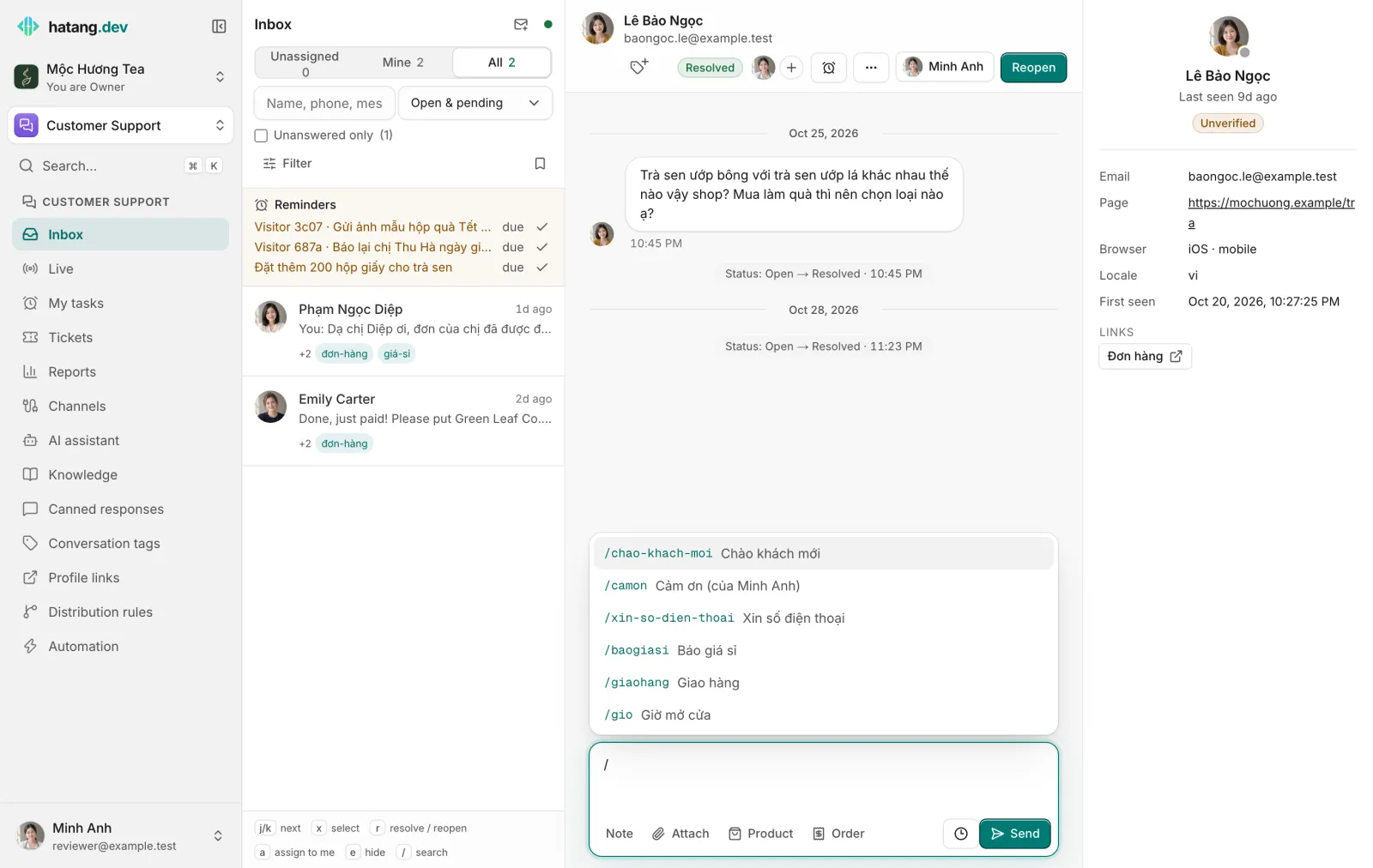
Canned responses work in internal notes and email replies too.
On the phone and Mac apps
You create and pick canned responses right in the conversation, without going to the web.
- In the reply box, tap the lightning button (on the Mac, click it or press
⌘/). The list shows Mine first, then Team. Search by name, shortcut or text, accents optional. - Tap a response to put it in the reply box. Edit it if you need to, then send.
- To add one, tap New. Give it a Name and a Message; Customer name and Customer email insert the customer's details, and the preview shows what the customer reads. The shortcut is made from the name; change it under Advanced.
- Wrote a reply worth keeping? With the text still in the reply box, open the list and tap Save this message as a canned response.
- To edit or delete one of yours, press and hold it (on the Mac, right-click). On the phone, More → Canned responses lists them all: tap to edit, swipe left to delete.
Managers also see Share with the team in the editor.
Tips
- Keep shortcuts short and memorable:
gio,ship,ck(chuyển khoản),baogiasi. - Write the response the way your team actually talks to customers, so it does not stand out from the rest of the conversation.
- For answers the AI assistant should give on its own, add them to the assistant's knowledge instead (see AI assistant overview).
Was this article helpful?
Related articles
- Reply to customersWrite replies, use canned responses and quick commands, quote a message, recall one, and understand reply windows and delivery ticks.
- Tag conversationsLabel conversations by topic, such as orders, wholesale or returns, to find them later, measure them and let the AI apply tags for you.
- Keyboard shortcutsMove through the inbox, resolve, assign and reply without the mouse.
Not finding what you are looking for?
Our team answers in the chat, in English or Vietnamese.