Tag conversations
Label conversations by topic, such as orders, wholesale or returns, to find them later, measure them and let the AI apply tags for you.
Updated on
On this page
Tags say what a conversation is about: đơn-hàng for orders, giá-sỉ for wholesale questions, đổi-trả for returns. With tags you can filter the inbox, see the top topics in reports, and start distribution rules and workflows from them.
Tag a conversation
You need Work access to Customer Support.
At the top of the conversation:
- Open the conversation in Customer Support → Inbox.
- Under the customer's name at the top of the conversation, click the tag button with a plus (it reads Add tag when the conversation is wide; once there are tags, it is the + after them).
- Type a tag name, or pick one from the suggestions, and press
Enter.
From the reply box: type @ and the tag name at the start of a line, for example @giá-sỉ, then press Enter. A tag that does not exist yet is created ("Add a new tag").
The tag appears on the conversation in the list and the timeline records "Tag added: …". To remove a tag, click it (it shows an ×) on the tags line at the top of the conversation.
Tag names are saved in lower case. Pick one style and keep to it, for example words joined by hyphens, so đơn-hàng and đơn hàng do not end up as two tags.
Find tagged conversations
In the inbox click Filter and choose a Tag. Save the filter to keep it one click away (see Get to know the inbox). Reports list the most used tags under Top tags (Support reports).
Manage the tag catalogue
The catalogue gives each tag a colour and a description, so the whole team uses the same tags the same way. You need Manage access to Customer Support.
- Go to Customer Support → Conversation tags.
- Type the tag name, pick a Colour (Gray, Red, Yellow, Green, Blue or Accent) and write when to use it, for example "Khách hỏi giá sỉ hoặc mua từ 10 hộp trở lên".
- Click Add tag.
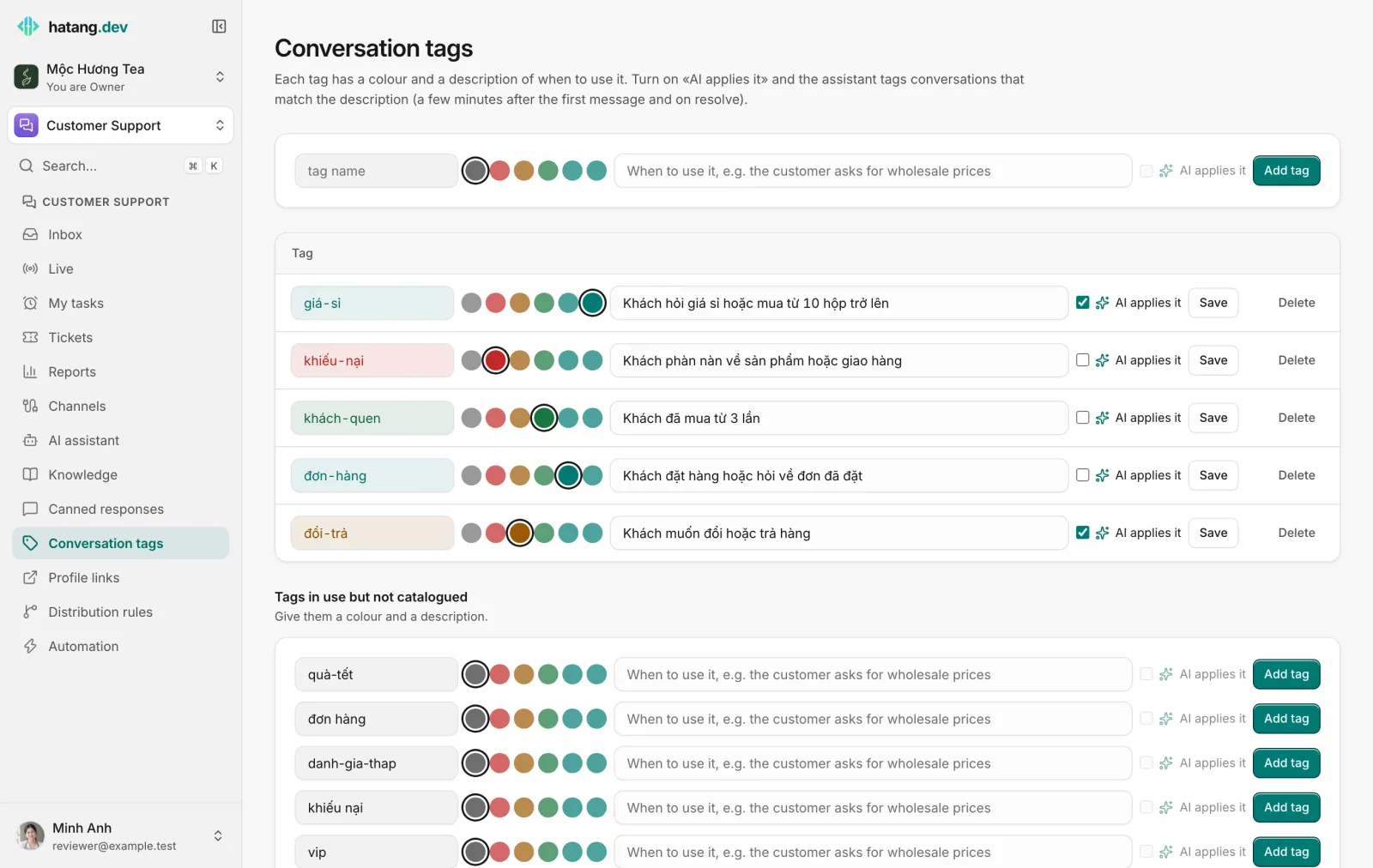
- Renaming a tag renames it on every conversation that has it.
- Deleting a tag asks "Remove it from every conversation?" and removes it everywhere.
- Tags in use but not catalogued lists tags agents typed that are not in the catalogue yet. Give them a colour and a description to add them.
Let the AI apply tags
Turn on AI applies it for a tag and the AI assistant tags conversations that match its description. It needs a description to know when. The assistant reads the conversation a few minutes after the customer's first message and again when the conversation is resolved, and adds only tags whose description clearly fits. It never removes a tag. Tags added this way show in the timeline like any other.
Write descriptions the way you would explain the tag to a new employee, with concrete signals: "customer asks for a price for 10 boxes or more", not "wholesale".
Spam conversations are never tagged by the AI.
Was this article helpful?
Related articles
- Get to know the inboxOne list for every conversation from your website, Zalo, Facebook, TikTok, email and the other channels, with filters, statuses and team views.
- Canned responsesSave answers you send often, like opening hours or shipping fees, keep your own, and insert them with / or the lightning button on the web, phone and Mac.
- Support reportsSee how many conversations your team handled, how fast it answered, what the AI did, how satisfied customers were and what it sold, for any period.
- Distribute conversations with rulesDecide automatically who gets each new conversation, by channel, keywords, tags and office hours, with round robin or the least busy agent.
Not finding what you are looking for?
Our team answers in the chat, in English or Vietnamese.