Get to know the inbox
One list for every conversation from your website, Zalo, Facebook, TikTok, email and the other channels, with filters, statuses and team views.
Updated on
On this page
The Inbox is where your team answers customers. Messages from the website widget, your mobile app, Zalo, Messenger, Instagram, TikTok, WhatsApp, Telegram, LINE, X and email all arrive in one list, and you reply from the same place whatever the channel.
Open it from Customer Support → Inbox.
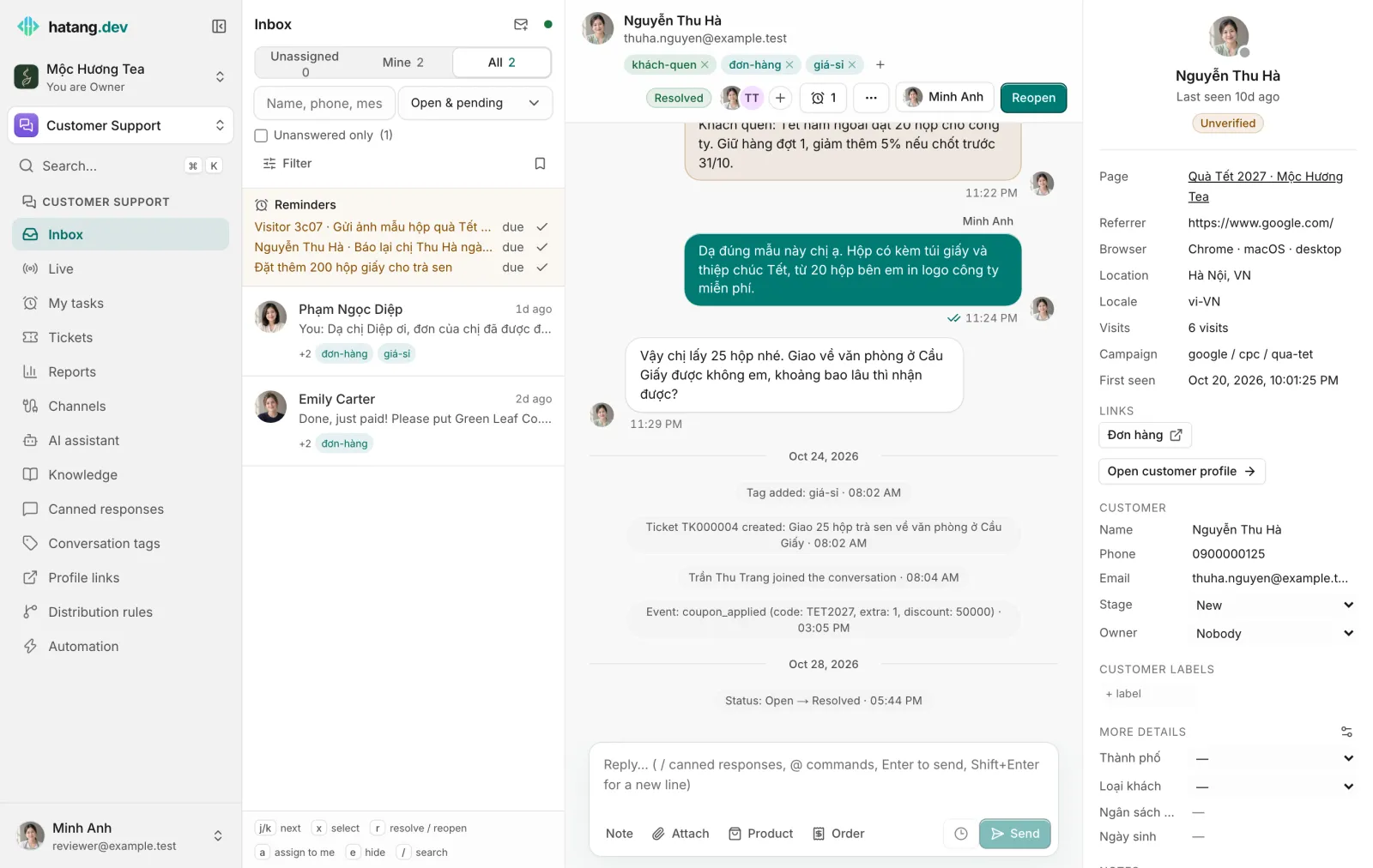
The three columns
- The conversation list on the left. The newest activity is at the top. Each row shows the customer's name, the channel (for example Zalo or Messenger; website chats have no label, chats from your app show App), the last message and how long ago it came in. A number in a circle counts the messages you have not read yet.
- The conversation in the middle: the customer's name, the action buttons and the conversation's tags at the top, then messages, internal notes and events such as "Assigned to Minh Anh" or "Tag added", with the reply box at the bottom. Chats from your website or app can start with Before writing, the pages and steps that led the customer to write (see Show your team what customers did before writing).
- The customer panel on the right: who the customer is, the page they are on, tickets, orders and earlier conversations. It appears on screens at least 1280 pixels wide. See The customer panel.
The dot next to the Inbox title shows your live connection: green when connected, amber while connecting, red when offline. New messages appear without reloading the page while it is green.
Find the conversations you need
Unassigned, Mine and All
The three tabs at the top split open and pending conversations by owner, with a count on each:
| Tab | Shows |
|---|---|
| Unassigned | Conversations no employee owns yet, including those the AI assistant is answering |
| Mine | Conversations assigned to you, or where a teammate invited you |
| All | Every open and pending conversation |
Status and search
- The status menu next to the search box switches between Open & pending (the default), Pending only, Resolved, Closed and All. Hidden shows snoozed conversations and Spam shows spam.
- Unanswered only keeps the conversations where the customer wrote last. The number next to it counts them.
- The search box (press
/to jump to it) looks for a name, email, phone number or words in any message. It ignores Vietnamese accents, so "bao gia" also finds "Báo giá". When a match is inside the conversation, the row shows the matching message.
Filters and saved filters
Click Filter to narrow the list by Channel (or one connected account, for example one Zalo OA), Tag, Assignee, Time (Today, Last 7 days, Last 30 days), Website (when you have more than one), source (App or Website) and Unread conversations only. Clear filters resets them.
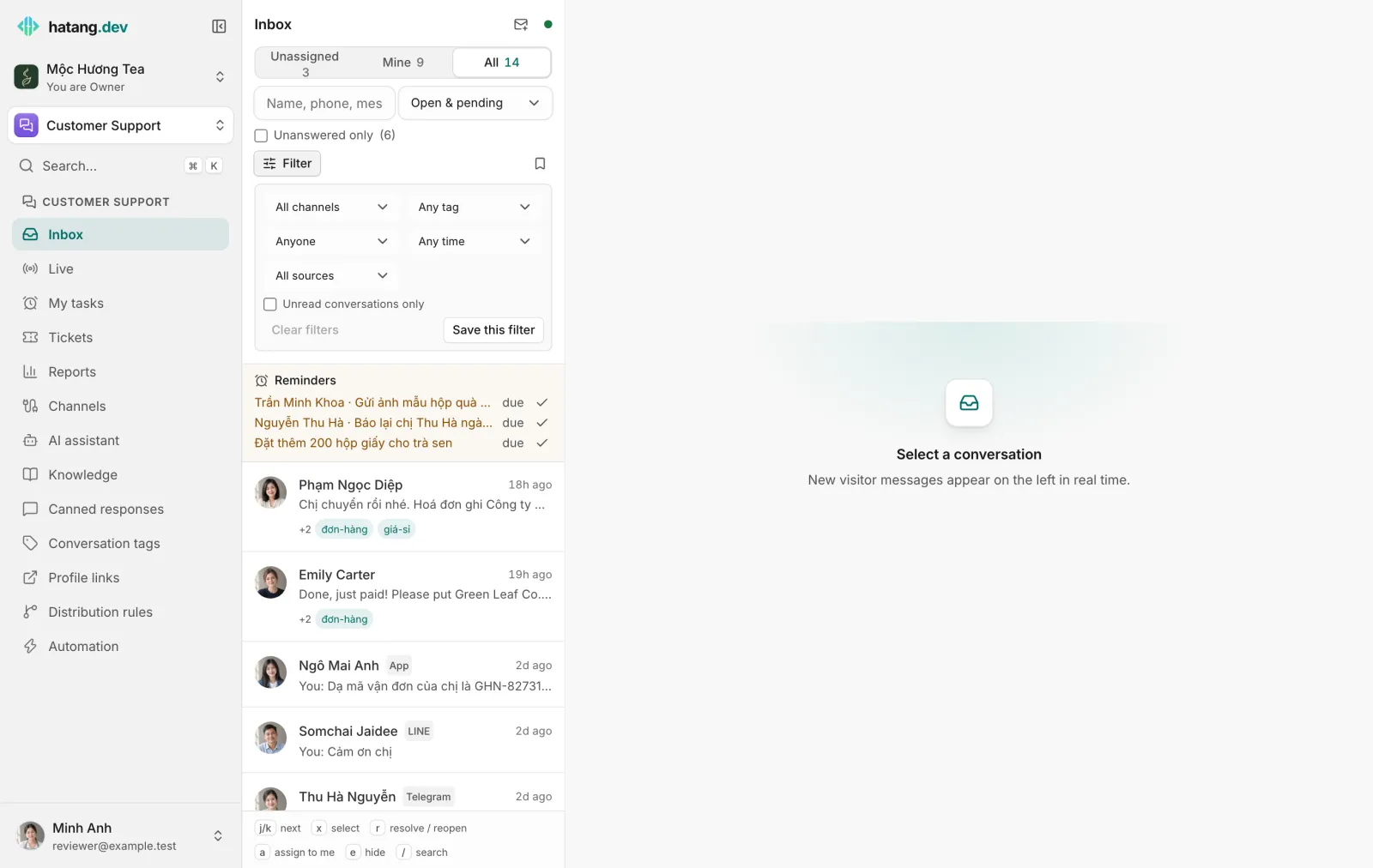
To keep a filter, set it up, click Save this filter and give it a name. Saved filters are pinned above the list as one-click chips. The bookmark icon lists them all, where you can pin, unpin or delete each one. Saved filters are personal: teammates do not see yours.
What a row tells you
| You see | It means |
|---|---|
| Bold name and a number | Unread customer messages |
| pending | The customer wrote while nobody was available. A reply or a new customer message makes it open again |
| bot | The AI assistant is answering it |
| back with a time | Snoozed until then |
| +1, +2 | Teammates invited into the conversation |
| Coloured chips | Its tags |
| "You:" before the message | Your team sent the last message |
Conversation statuses
| Status | Meaning |
|---|---|
| Open | Needs attention. New conversations start here |
| Pending | The customer wrote through the website chat or your app while your team was offline (outside office hours or nobody online) and nobody owns it yet. Ha Tang emails the team about it |
| Resolved | Done for now. If the customer writes again it comes back as open |
| Closed | Finished for good. It takes no more messages |
See Resolve, close and reopen conversations.
Work on many conversations at once
Hover a row and tick its checkbox, or press x on the open conversation. Shift-click selects a range. A bar appears above the list with Resolve, Assign to me, Hide and Spam (and Restore when you are looking at hidden or spam conversations). Clear drops the selection.
Who can do what
What an employee can do in the inbox depends on their access to the Customer Support module (Module access):
| Access | In the inbox |
|---|---|
| View | Read conversations. The reply box says "You have read-only access to this inbox" |
| Work | Reply, add notes, assign, tag, snooze, resolve and close, create tickets, block customers, keep their own canned responses |
| Manage | Everything above, plus channels, the AI assistant, the team's canned responses, tags, distribution rules and the blocklist |
Owners and admins can do everything.
On your phone and Mac
The Ha Tang apps for iPhone, Android and Mac have the same inbox, with push notifications even when the app is closed. See Mobile and desktop apps.
Useful next steps
Was this article helpful?
Related articles
- Reply to customersWrite replies, use canned responses and quick commands, quote a message, recall one, and understand reply windows and delivery ticks.
- Assign and transfer conversationsGive a conversation an owner, take one yourself, hand it to a teammate, or send it back through the distribution rules.
- Resolve, snooze, close and reopen conversationsMark a conversation done, park it until later, close it for good, and what happens when the customer writes again.
- The customer panelEverything about the customer beside the conversation: contact details, what they did before writing, attributes, CRM fields, notes, tickets and orders.
Not finding what you are looking for?
Our team answers in the chat, in English or Vietnamese.