The customer panel
Everything about the customer beside the conversation: contact details, what they did before writing, attributes, CRM fields, notes, tickets and orders.
Updated on
On this page
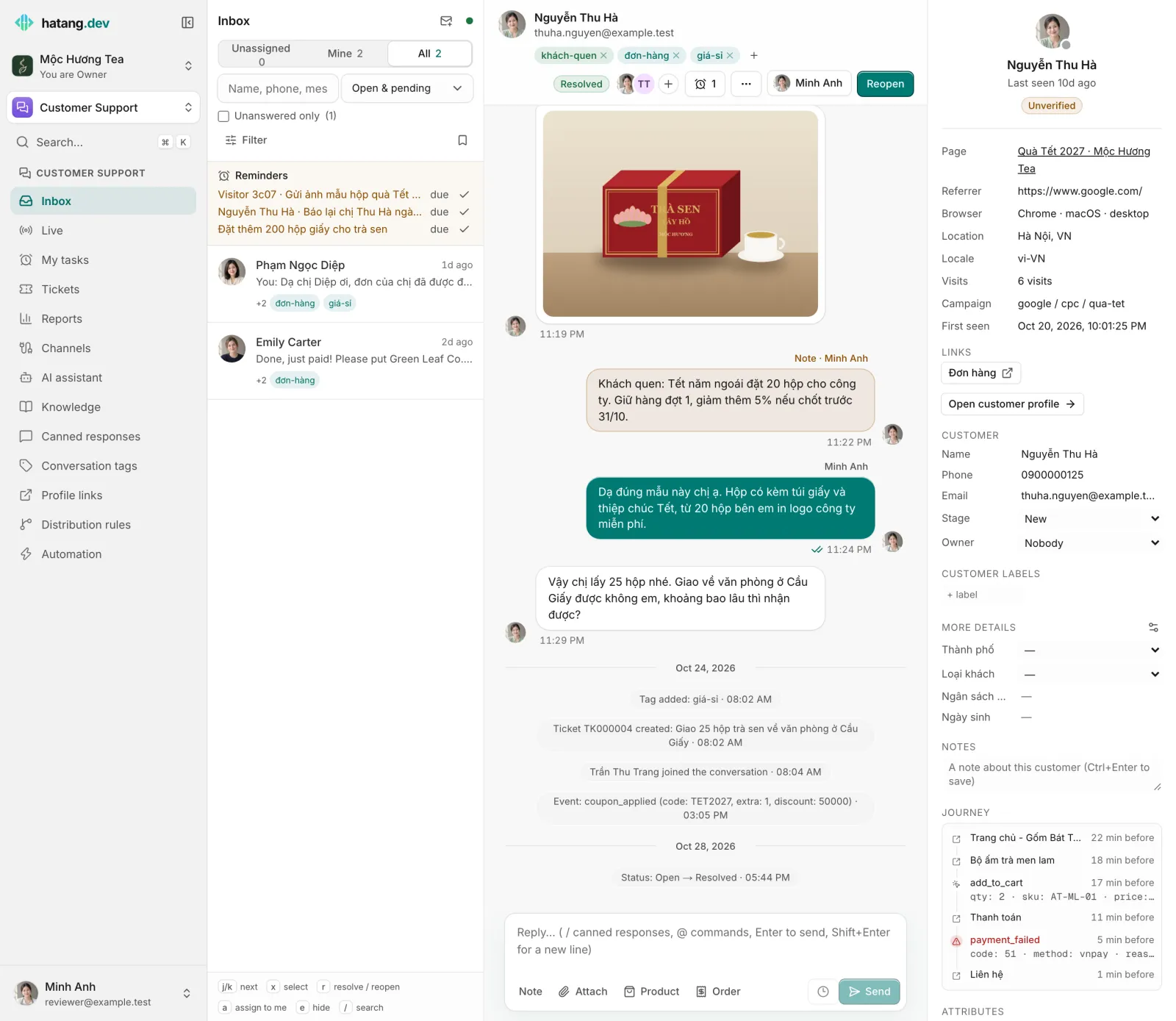
The panel on the right of a conversation tells you who you are talking to before you reply: their name and contact details, what they are looking at, what they bought and what they asked before. It appears on screens at least 1280 pixels wide. The conversation's tags are not here but on the line under the customer's name at the top of the conversation, since a tag belongs to the chat, not the customer (see Tag conversations).
Who and where
At the top: the customer's name, a green dot and Online now while they are on your website or app (otherwise Last seen and how long ago), and for website visitors a badge:
- Verified: your website's server identified the customer with a signed hash, so it really is their account.
- Unverified: the visitor typed their name, email or phone themselves. Check before treating it as their account (for example before sharing order details).
See Identify users to verify customers who are signed in to your website.
Below that, whatever Ha Tang knows about the visit: Page (the page they are on, linked), Referrer, Browser (or Device in an app), Location, Locale, Visits, Campaign (UTM source, medium and campaign) and First seen. App users also show App, Screen and Push (whether their phone can receive replies as notifications). Fields with no value are not shown. Social channels such as Zalo or Messenger pass little more than a name and avatar.
Links holds buttons that open the customer in your own admin or tools, when your business has set them up. See Open the customer in your own admin.
Open customer profile opens the full profile.
Journey and attributes
For customers who write from your website or app:
- Journey lists what the customer did before writing, oldest first, up to 20 steps: pages they opened (click one to open it in a new tab), screens in your app and events your developer reports, with how long ago each happened. Events that look like a problem, such as a failed or declined payment, are highlighted. The same steps open the conversation as Before writing.
- Attributes shows the details your website or app sent about the customer, such as their plan or last order, as a table. A long value is cut short; point at it to read it in full.
The panel shows a card only when there is something in it. To have your website or app send events and attributes, see Show your team what customers did before writing.
The customer card
When the Customers (CRM) module is on and you have at least View access to it, the panel shows the customer's record. With Work access to Customers you edit it right here:
- Name, Phone, Email: click to edit;
Entersaves,Esccancels. - Stage (New, Contacted, Qualified, Customer, Lost) and Owner. See Stages and owners.
- Customer labels: type in + label and press
Enter; click a label to remove it. - More details: your custom fields. The settings icon (Choose fields) lets you hide fields and change their order; this is saved in your browser only.
- Notes: notes about the customer that stay with them across conversations. Press
Ctrl+Enterto save. You can delete your own notes. - Conversations on every channel: their other conversations, on any channel, with status.
Same person?
When a customer types a phone number or email that already belongs to another customer record, the card asks "The customer just sent …, which belongs to «…». Same person?":
- Merge joins the two records into one. You can undo it on the customer page.
- Not them dismisses the question.
- View that record opens the other record first.
Phone numbers and emails a customer types in the chat are also saved to their record on their own; the timeline shows "Saved … to the customer's record". See Merge customers.
Tickets and orders
- Tickets linked to this conversation, with status; an overdue one shows in red. See Tickets.
- Orders for this customer (up to five), with total and whether they are paid.
- Previous conversations, when the customer card is not shown.
On a smaller screen
Below 1280 pixels wide the panel is hidden: widen the window, or find the customer under Customers. In the Ha Tang apps for phone and Mac, choose Customer profile in the conversation's menu.
Was this article helpful?
Related articles
- Customer profilesEvery person who writes to you gets one profile across all channels, with contact details, stage, owner, labels, notes and history.
- Show your team what customers did before writingThe inbox shows the pages, app screens and events that led a customer to write, plus details your website or app sends about them.
- Merge duplicate customersFold two profiles of the same person into one, from the duplicate suggestions, the profile page or the inbox, and undo a merge if it was a mistake.
- Custom fieldsAdd your own fields to every customer profile, such as city, customer type or budget, and let the AI assistant fill them in from the conversation.
Not finding what you are looking for?
Our team answers in the chat, in English or Vietnamese.