What tickets are for
Tickets track requests that take longer than one conversation, such as a return, a wholesale order or a bug, with an owner, a priority and SLA deadlines.
Updated on
A conversation is the chat itself. A ticket is a piece of work that comes out of it and needs following up: exchanging a dented gift box, preparing a 25-box wholesale order, fixing a problem on your website. Tickets have an owner, a type, a priority, a status and deadlines, so nothing is forgotten after the chat ends.
Use a ticket when the request:
- cannot be finished while you are chatting (you need stock, a delivery, a colleague, a refund),
- involves someone outside the support team,
- has a promise of time attached ("we'll call you back today").
For a simple follow-up of your own, a reminder is enough.
The Tickets page
Go to Customer Support → Tickets.
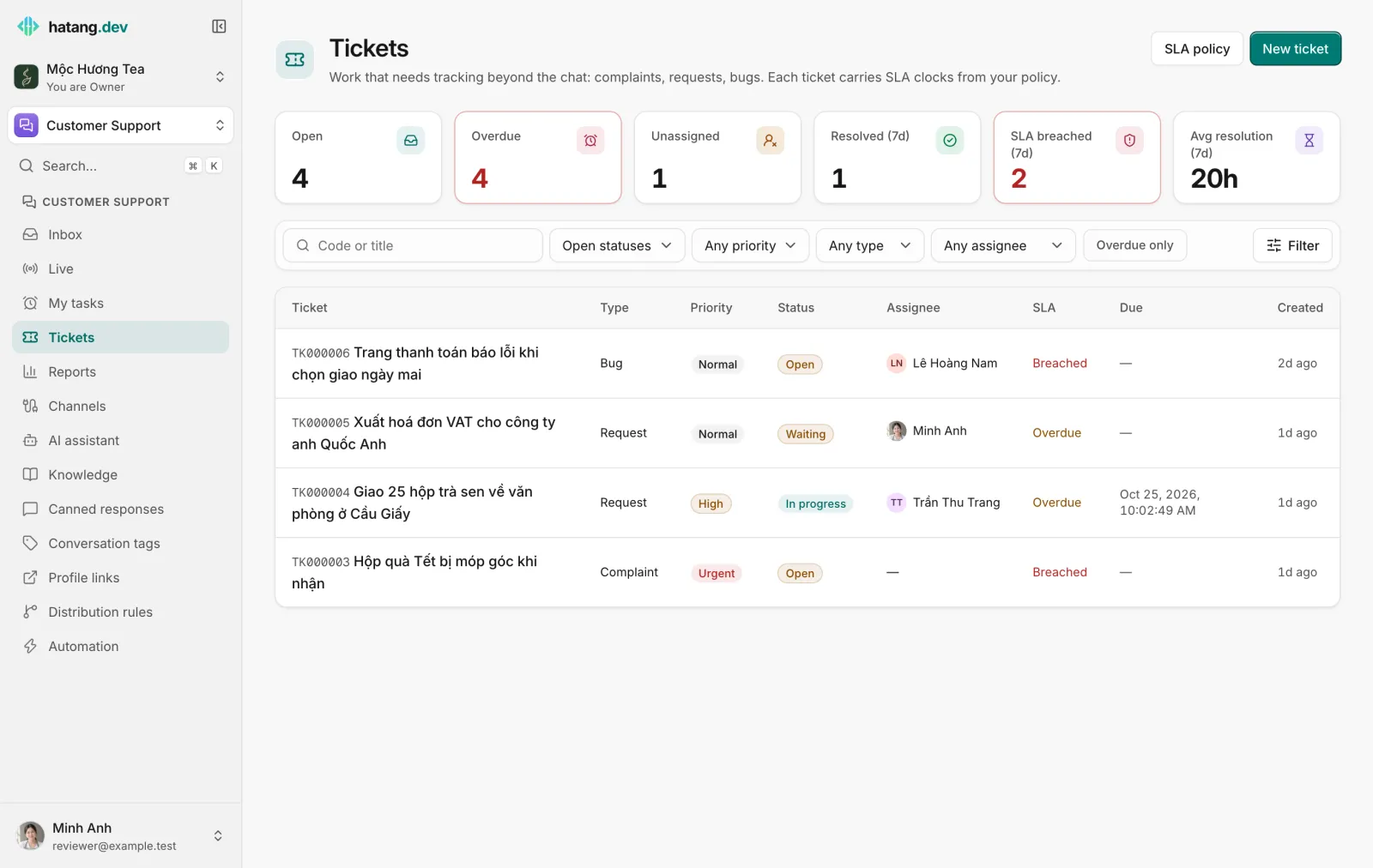
At the top, counters for right now (Open, Overdue, Unassigned) and for the last 7 days (Resolved (7d), SLA breached (7d), Avg resolution (7d)). Click Open, Overdue, Unassigned or Resolved (7d) to filter the list.
The list shows open tickets first (open, in progress and waiting on the customer), newest first. Filter it by code or title, status, priority, type, assignee and Overdue only, then click Filter.
| Column | Shows |
|---|---|
| Ticket | Its code (TK000001, TK000002… numbered per business) and title |
| Type | Question, Bug, Complaint, Request or Other |
| Priority | Low, Normal, High or Urgent |
| Status | See Ticket statuses |
| Assignee | Who is responsible |
| SLA | Breached, Overdue, Met, or how long is left to resolve it. See SLA deadlines |
| Due | The due date you set, if any |
| Created | How long ago it was opened |
Tickets and conversations
A ticket created from a conversation stays linked to it:
- The conversation's timeline records "Ticket TK000004 created: …" and every status change ("Ticket TK000004: Open → Resolved").
- The customer panel lists the conversation's tickets under Tickets, in red when overdue.
- The ticket page links back to the Conversation and the Customer profile.
- A public reply in that conversation counts as the ticket's first response.
- For email conversations, when the ticket is resolved the customer gets a short email in the same thread saying their request has been resolved.
Who can do what
| Access to Customer Support | Tickets |
|---|---|
| View | See tickets |
| Work | Create, edit, change status, assign and delete tickets |
| Manage | All of the above, and change the SLA policy |
New tickets, status changes, resolutions and SLA breaches can also be sent to your other tools with webhooks.
Useful next steps
Was this article helpful?
Related articles
- Create a ticketOpen a ticket from a conversation in two clicks, or from the Tickets page, and fill in type, priority, owner and due date.
- Ticket statusesOpen, in progress, waiting on the customer, resolved and closed, and what each one does to the SLA clocks.
- SLA deadlines and breachesSet how fast tickets must get a first response and be resolved per priority, and what happens when a deadline is missed.
- Get to know the inboxOne list for every conversation from your website, Zalo, Facebook, TikTok, email and the other channels, with filters, statuses and team views.
Not finding what you are looking for?
Our team answers in the chat, in English or Vietnamese.