Create a ticket
Open a ticket from a conversation in two clicks, or from the Tickets page, and fill in type, priority, owner and due date.
Updated on
On this page
Most tickets start from a conversation, so the ticket is linked to the customer and the chat from the start. You can also create one on its own, for example for a problem a colleague noticed.
You need Work access to Customer Support.
From a conversation
- Open the conversation in Customer Support → Inbox.
- Click ⋯ (More) in the header and choose Create ticket.
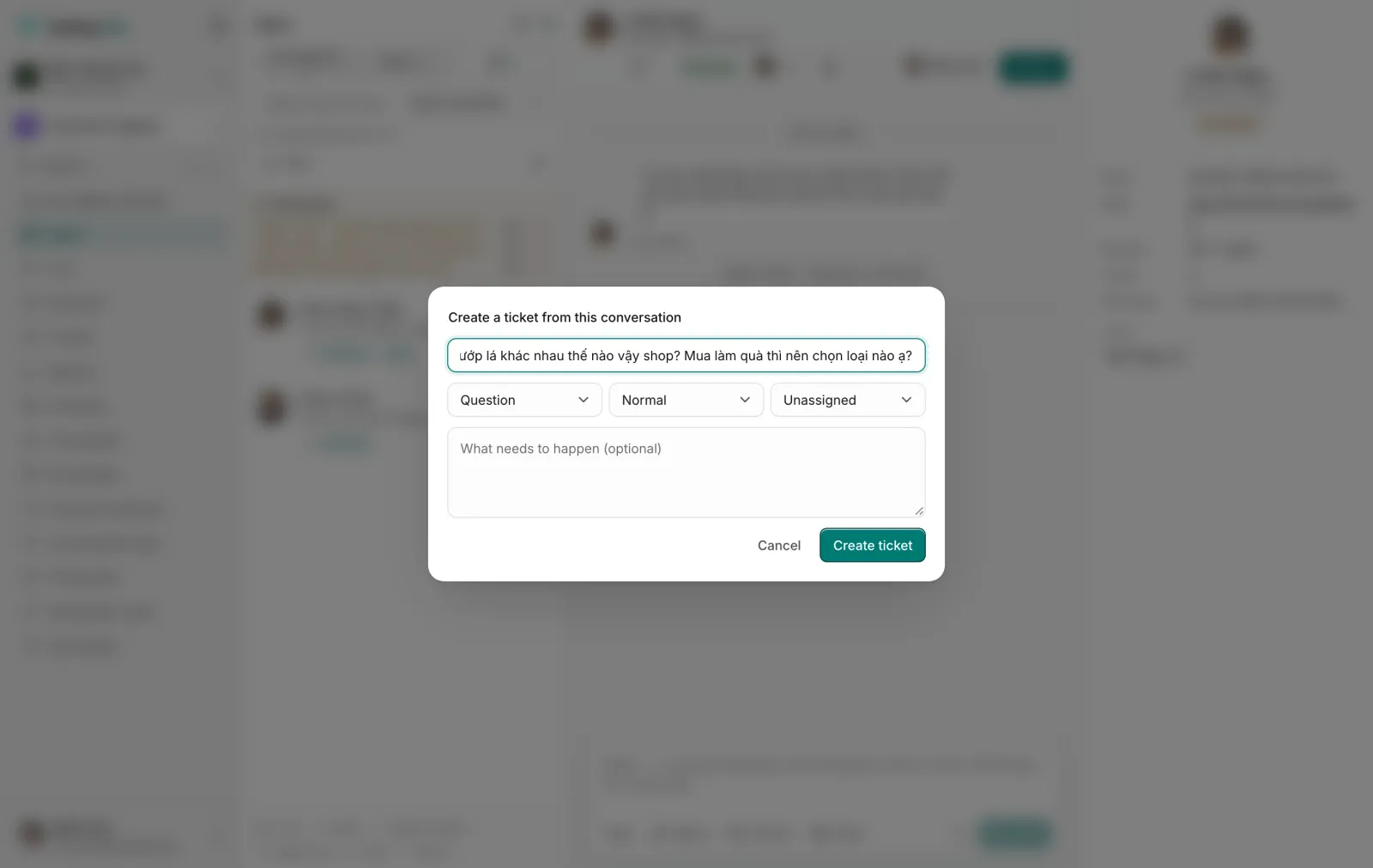
- Check the title. It is filled in with the customer's last message; shorten it to what needs doing, for example "Đổi hộp quà bị móp cho anh Tâm".
- Choose the type (Question, Bug, Complaint, Request, Other), the priority (Low, Normal, High, Urgent) and who is responsible (or leave it Unassigned).
- Optionally describe what needs to happen.
- Click Create ticket.
"Ticket TK000008 created. SLA clocks started from the team policy." appears, with a link to the ticket. The conversation's timeline records it, and the ticket shows under Tickets in the customer panel. The customer is not told.
From the Tickets page
- Go to Customer Support → Tickets and click New ticket.
- Fill in Title and, if you like, Description.
- Choose Type, Priority, Status and Assignee.
- Optionally set a Due date (optional) and Tags (comma separated).
- Click Create ticket.
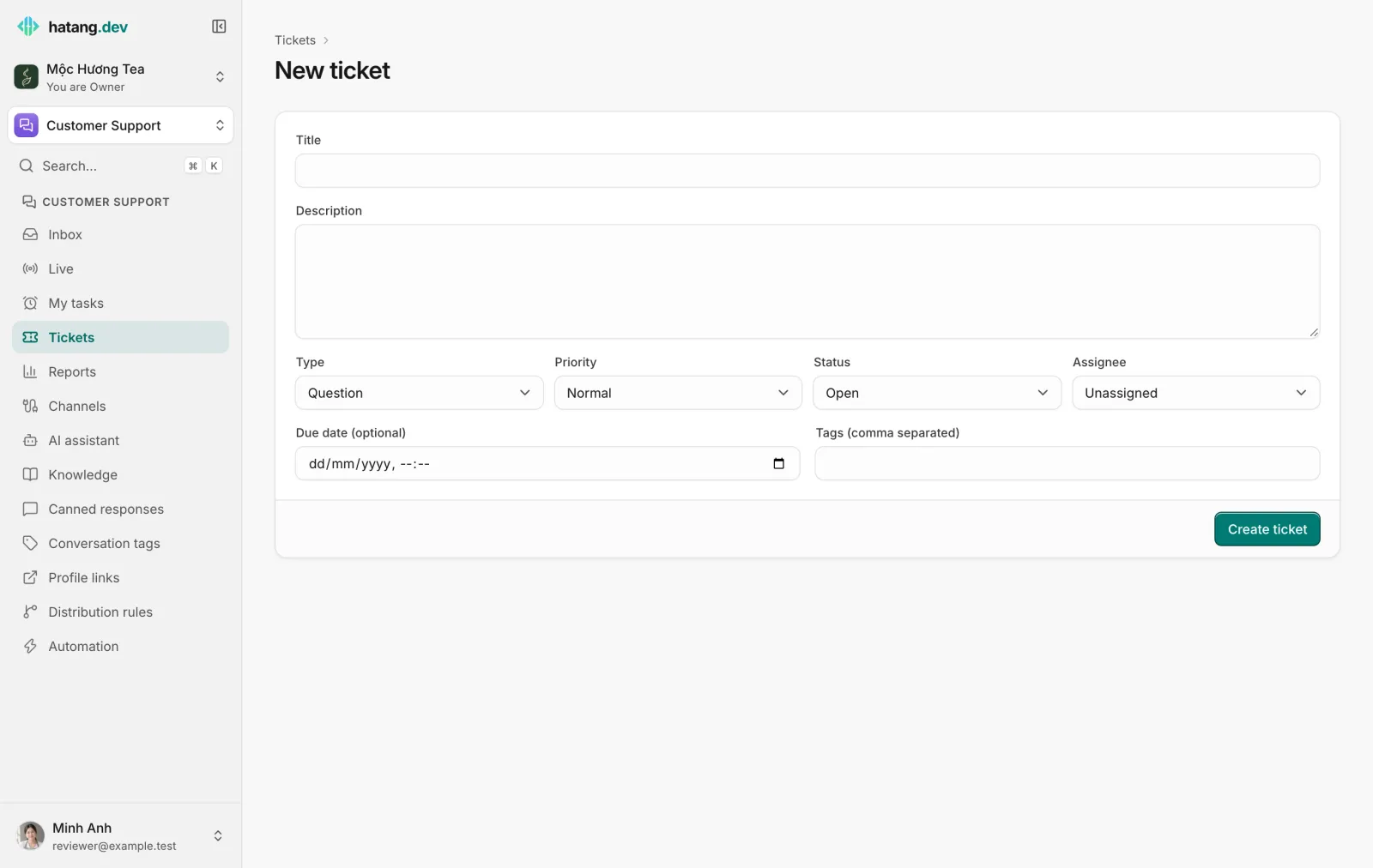
The ticket page opens. A ticket created here is not linked to a conversation ("No conversation linked").
Choosing the priority
Priority decides the SLA deadlines (see SLA deadlines). With the default policy:
| Priority | First response within | Resolved within |
|---|---|---|
| Urgent | 15 minutes | 4 hours |
| High | 1 hour | 8 hours |
| Normal | 4 hours | 1 day |
| Low | 1 day | 3 days |
Keep Urgent for things that cost money or customers right now, such as a wrong delivery for a gift that is due today. If everything is urgent, nothing is.
Edit a ticket
Open the ticket from the list, change any field and click Save. "Saved." confirms it. Changing the priority recalculates the SLA deadlines from when the ticket was created.
Delete removes the ticket for good. Resolve or close it instead if you want to keep the history.
Due date and tags
- The Due date is your own deadline, separate from the SLA. Past the due date, an open ticket counts as Overdue.
- Tags label the ticket, for example
đổi-trả, and go out with it in webhooks. They are separate from conversation tags.
Useful next steps
Was this article helpful?
Related articles
- What tickets are forTickets track requests that take longer than one conversation, such as a return, a wholesale order or a bug, with an owner, a priority and SLA deadlines.
- Ticket statusesOpen, in progress, waiting on the customer, resolved and closed, and what each one does to the SLA clocks.
- SLA deadlines and breachesSet how fast tickets must get a first response and be resolved per priority, and what happens when a deadline is missed.
- Assign and transfer conversationsGive a conversation an owner, take one yourself, hand it to a teammate, or send it back through the distribution rules.
Not finding what you are looking for?
Our team answers in the chat, in English or Vietnamese.