Assign and transfer conversations
Give a conversation an owner, take one yourself, hand it to a teammate, or send it back through the distribution rules.
Updated on
On this page
Every conversation can have one owner, the assignee. Assigning makes it clear who answers, keeps conversations from being answered twice, and puts them in the owner's Mine tab. Transferring is the same action: you assign the conversation to someone else.
Most conversations are assigned automatically by your distribution rules when the customer first writes. You can always change the owner by hand.
Assign a conversation
- Open the conversation in Customer Support → Inbox.
- Click the assign button in the header, next to Resolve. It reads Assign when nobody owns the conversation, Bot while the AI assistant is answering, or the owner's name.
- Choose Assign to me, a teammate, or Unassign.
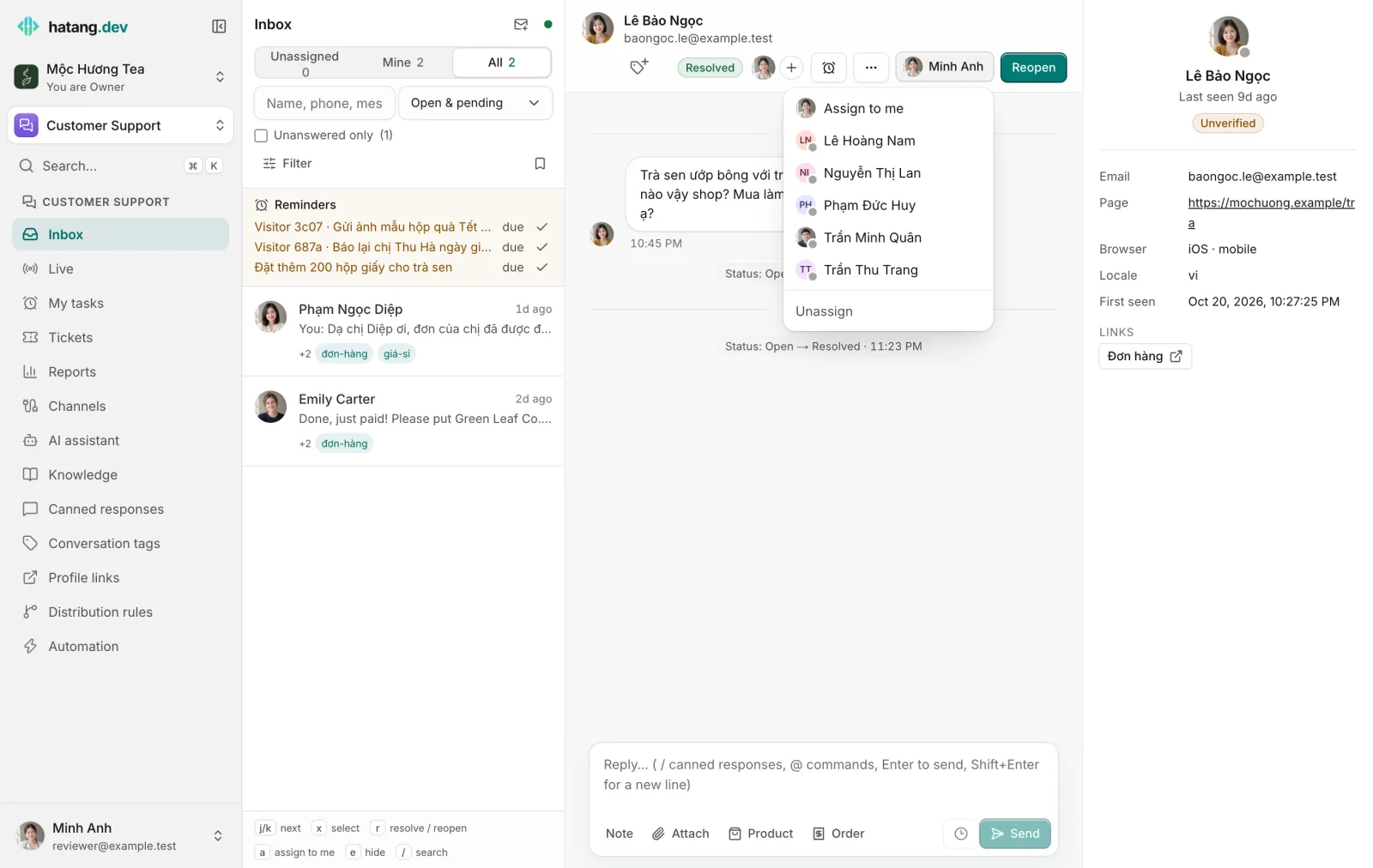
A green dot next to a name means that teammate is online in Ha Tang right now.
The button shows the new owner's name and the timeline records "Assigned to …". The new owner gets a notification ("Assigned to you") in their browser and in the Ha Tang apps, unless they are already looking at that conversation.
Quicker ways:
- Press
ato assign the open conversation to yourself. - Tick several conversations in the list and click Assign to me.
- Just reply: if nobody owns the conversation, or the AI assistant does, your first reply makes you the owner.
Transfer to a teammate
Open the assign menu and pick the teammate. The conversation leaves your Mine tab and appears in theirs, with the whole history, notes and tags. Leave an internal note first so they know what is going on, for example "Customer wants 25 boxes delivered Monday, quote sent".
To get help without handing the conversation over, invite the teammate instead.
Who can be assigned
The menu lists every employee with Work or Manage access to Customer Support, plus owners and admins. Employees with View access cannot own conversations. To change someone's access, see Module access.
See why a conversation went to someone
Click ⋯ (More) → Conversation info. It shows the Distribution rule that matched (or No rule matched), the Result (for example "Assigned to Lê Hoàng Nam" with the reason, such as round robin or least busy agent) and when it was routed.
Re-route removes the assignee and invited teammates and runs the current distribution rules again. Use it after you change the rules, or when the owner is away.
Unassigned and AI conversations
- Unassigned conversations wait in the Unassigned tab for anyone to pick up.
- While the AI assistant is answering, the button reads Bot and the list shows a bot chip. When the assistant hands the conversation to a person, a banner explains why. See AI hand-off.
- If a resolved conversation was resolved automatically, or its owner has left the business, the customer's next message is routed again by the rules instead of going back to the old owner.
Troubleshooting
| Problem | Cause | What to do |
|---|---|---|
| A teammate is missing from the menu | They have View access to Customer Support, or are not an employee of this business | Give them Work access in their employee settings |
| There is no assign button | You have View access | Ask an owner or admin for Work access |
| New conversations are not assigned to anyone | No distribution rule matched, or the rule leaves them unassigned | Check Conversation info, then your distribution rules |
| The new owner was not notified | Their notifications are off for this device or set to Never | See Notifications not arriving |
Useful next steps
Was this article helpful?
Related articles
- Distribute conversations with rulesDecide automatically who gets each new conversation, by channel, keywords, tags and office hours, with round robin or the least busy agent.
- Internal notes, @mentions and inviting teammatesLeave notes only your team sees, @mention a colleague so they are notified, and bring a colleague into a conversation without handing it over.
- When the AI hands off to your teamWhy the assistant passes a conversation to a person, what the customer and your agents see, and how to take over or give it back.
- Set an employee's module accessChange an employee's role, or give a member None, View, Work or Manage in each module. Changes apply at once.
Not finding what you are looking for?
Our team answers in the chat, in English or Vietnamese.