Notifications are not arriving
Check, step by step, why you are not hearing about new messages, assignments, mentions or reminders in the browser, on your phone or by email.
Updated on
On this page
Ha Tang tells you about new customer messages in four ways. Each has its own switch, so when one stays quiet, find which one below.
| Way | When | Set it in |
|---|---|---|
| Sound in the inbox tab | A customer writes while the inbox is open | Settings → Business settings → Notifications → Inbox sounds |
| Browser push | A customer writes, a conversation is assigned to you or you are invited into one, a colleague mentions you in a note, a reminder is due, a ticket of yours breaches its SLA | Settings → Business settings → Notifications → Browser push, once per browser |
| Ha Tang apps (iPhone, Android, Mac) | The same, plus SLA breaches of your tickets | The app's Settings → Notifications |
| A website or app chat arrives while your team is offline and nobody has answered, or a colleague mentions you while you are not online | Settings → Business settings → Notifications → Email |
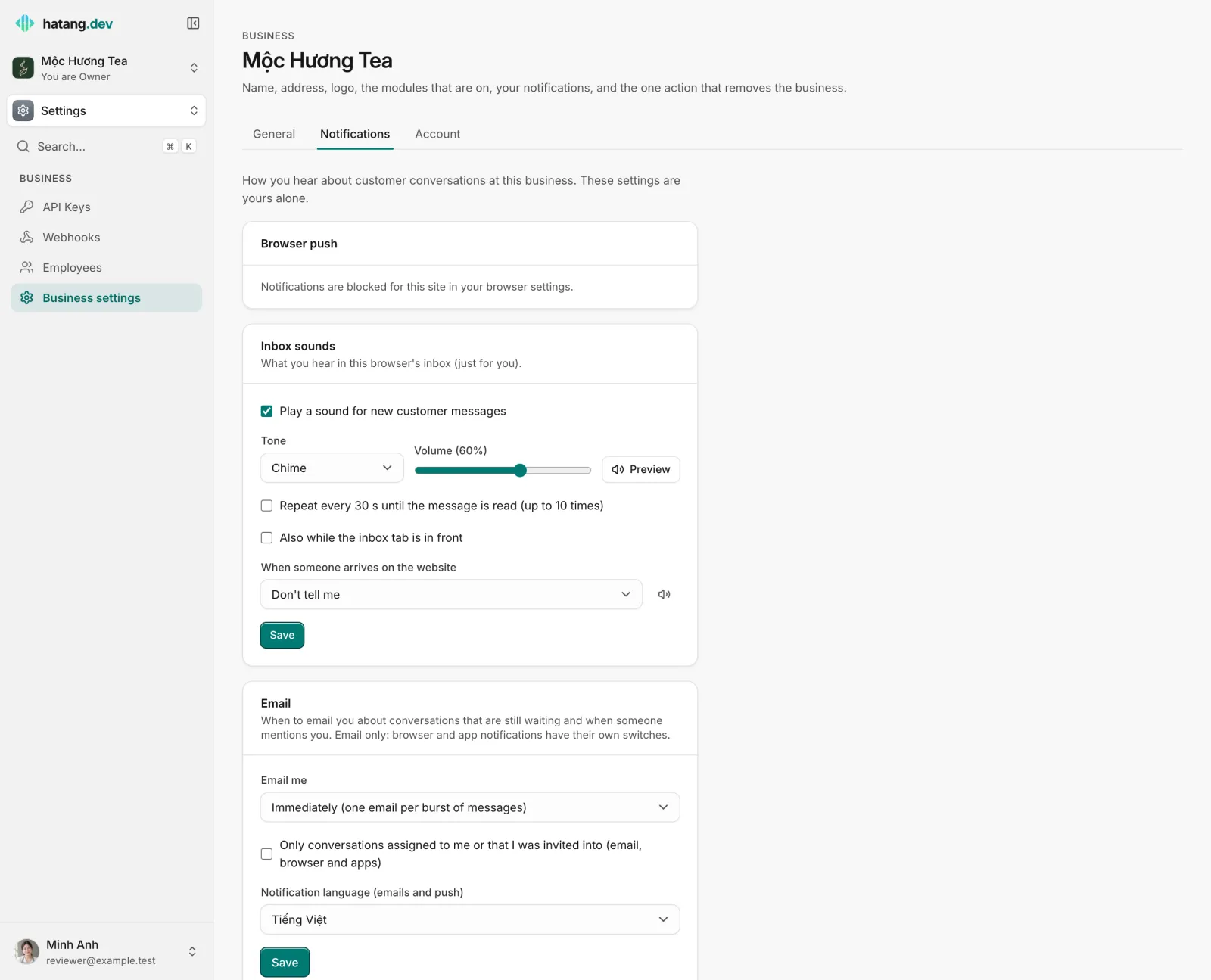
These settings are yours alone and per business. Pushes and emails come in the language you choose under Notification language (emails and push), Vietnamese until you change it. See Notification settings.
First, check these
| Check | Why |
|---|---|
| You have Work or Manage access to Customer Support | Employees with View access are not notified about conversations |
| You are looking at the right switch | Email me only decides about emails: Never stops emails and nothing else. Browser and app notifications have their own switches, below |
| Only conversations assigned to me or that I was invited into (email, browser and apps) | When ticked, you only hear about conversations assigned to you or that you were invited into, everywhere. Mentions still reach you |
| The conversation is not muted | ⋯ → Mute this conversation stops notifications about it for you. The same menu shows Unmute |
| You are not looking at it | Ha Tang does not notify you about the conversation that is open on your screen |
| It is not spam or closed | Spam (including blocked customers) and closed conversations never notify |
Browser push
- Go to Settings → Business settings → Notifications.
- Under Browser push, click Enable on this device and allow notifications when the browser asks. It should say "Push notifications are on for this browser."
The banner at the top of the inbox ("Turn on notifications so you never miss a visitor…") does the same.
| The page says | What to do |
|---|---|
| "Notifications are blocked for this site in your browser settings." | Open the browser's site settings for the dashboard (the icon left of the address), allow notifications, reload |
| "This browser does not support push notifications." | Use a current Chrome, Edge, Firefox or Safari |
| "To get notifications on an iPhone, open this page in Safari, tap Share → Add to Home Screen…" | On iPhone and iPad, web push only works from the Home Screen. Or install the Ha Tang app |
| "Could not turn on push in this browser. Try again later." | Reload and try again; check that a VPN or blocker is not stopping it |
Push is per browser and device: turn it on in each one you use. Also check that your computer's own notification settings (Focus or Do Not Disturb on macOS, Focus assist on Windows) allow the browser to show notifications.
Sounds in the inbox
Under Inbox sounds, make sure Play a sound for new customer messages is on, and click Preview to test the volume. By default there is no sound while the inbox tab is in front; turn on Also while the inbox tab is in front if you want one. Repeat every 30 s until the message is read (up to 10 times) helps when you step away. Browsers only play sounds after you have clicked somewhere in the page once.
Phone and Mac apps
In the Ha Tang app, open Settings → Notifications:
- If it says "This phone is not registered for push yet.", tap Enable notifications and allow them.
- Mute this phone or a snooze stops every push until you turn it back on.
- Under What to push, check New customer messages, Assigned to me (which also covers mentions), Reminders and SLA breaches.
- Quiet hours silence pushes during the hours you set.
Also check the phone's own settings: notifications allowed for Ha Tang, and Focus or Do Not Disturb off. See Mobile and desktop apps.
Email notifications
A colleague's mention emails you when Email me is Immediately and you are not online in the inbox. Otherwise, emails only go out for chats from your website or app that arrive while your team is offline (outside the website's office hours, or nobody online in Ha Tang) and the AI assistant is not answering, and only if the conversation is still unanswered about a minute later. With Immediately you get one email per burst of messages, at most a few per hour for the same conversation; with Hourly digest, one email listing the conversations still waiting. Channels such as Zalo or Messenger notify by push only.
If they still do not arrive, look in your spam folder and add the sender to your contacts. A website's owner can also send these emails to shared addresses with Notify these emails about new offline messages in the website's settings (Customer Support → Channels → your website).
Still nothing?
Sign out and back in, then turn browser push off and on again under Settings → Business settings → Notifications. If you use several businesses, remember the settings are per business: switch to the right one first.
Was this article helpful?
Related articles
- Your notification settingsChoose how you hear about customer conversations - browser push, inbox sounds and email - in which language, and set your personal email signature.
- Ha Tang apps for phone and MacAnswer customers from your iPhone, Android phone or Mac, with push notifications, quiet hours and the same inbox as the dashboard.
- Reminders and My tasksGet reminded to follow up on a conversation, set a to-do for yourself or a teammate, and see everything due in My tasks.
- Assign and transfer conversationsGive a conversation an owner, take one yourself, hand it to a teammate, or send it back through the distribution rules.
Not finding what you are looking for?
Our team answers in the chat, in English or Vietnamese.