Reminders and My tasks
Get reminded to follow up on a conversation, set a to-do for yourself or a teammate, and see everything due in My tasks.
Updated on
On this page
A reminder makes sure nothing slips: "send the wholesale quote at 3 pm", "check whether the parcel arrived on Monday". When it is due you get a notification in your browser and on your phone, and the conversation is one click away.
You need Work access to Customer Support.
Remind yourself about a conversation
- Open the conversation in Customer Support → Inbox.
- Click the alarm-clock button (Remind me) in the header.
- Choose In 1 hour, In 3 hours, Tomorrow 9:00 or Next Monday 9:00.
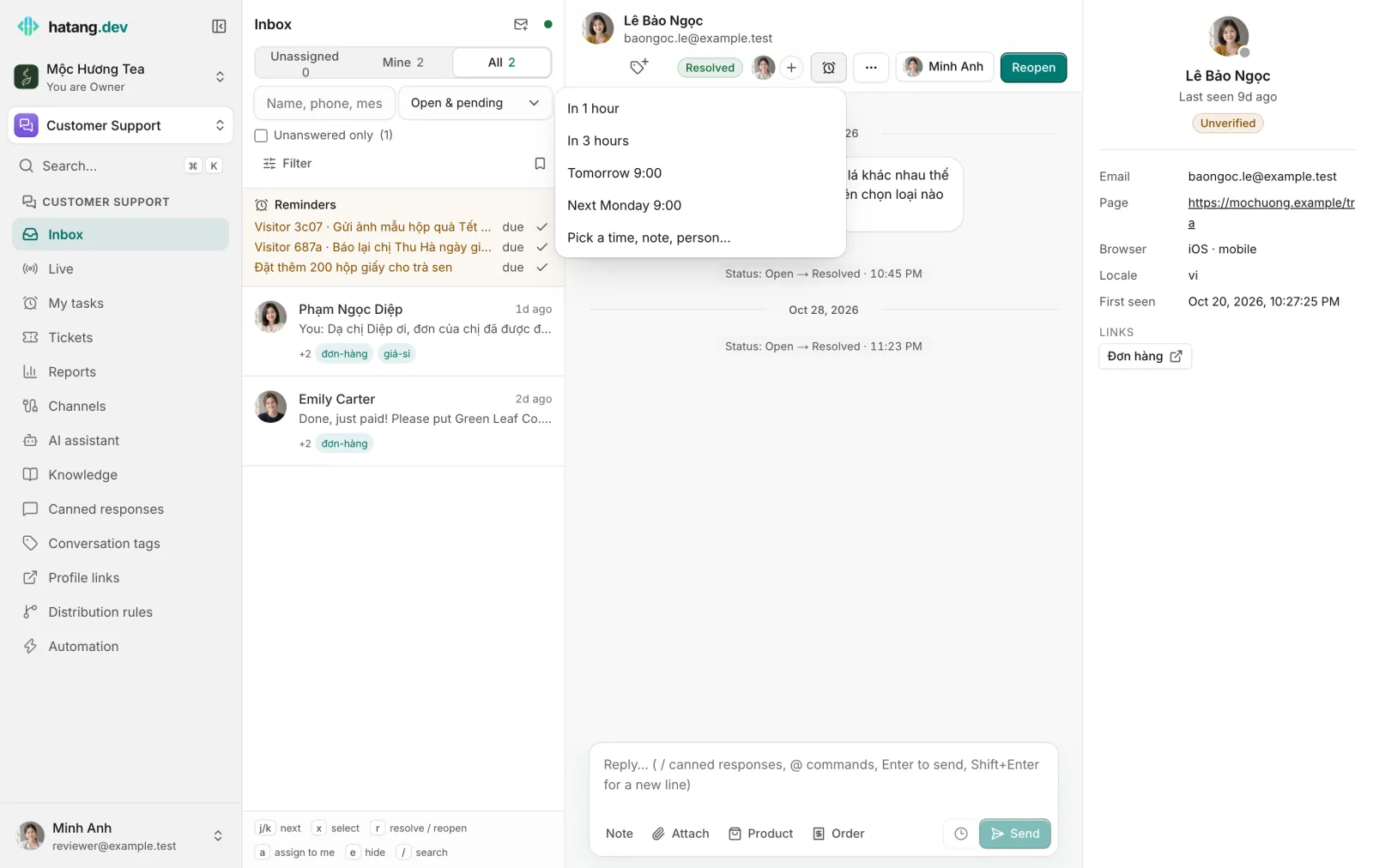
For anything else choose Pick a time, note, person…: set the date and time, write what it is about (optional, up to 500 characters), choose who it is for (Me or a teammate) and click Set reminder.
The button then shows how many open reminders the conversation has; hover it to see the next one. Reminders do not hide the conversation. To take it out of the list until later, snooze it instead.
When a reminder is due
- You get a notification titled "Reminder" with the note (or "Follow up on this conversation") in your browser, if push is on, and in the Ha Tang apps. Tapping it opens the conversation.
- The Reminders box above the conversation list shows your next four reminders, with "in 1h", "in 1d" or due in amber once the time has passed. Click one to open its conversation, or click ✓ to mark it done.
- In the conversation, the reminder menu lists your open reminders as "Done: …". Click one to mark it done.
My tasks
Customer Support → My tasks collects everything in one place.
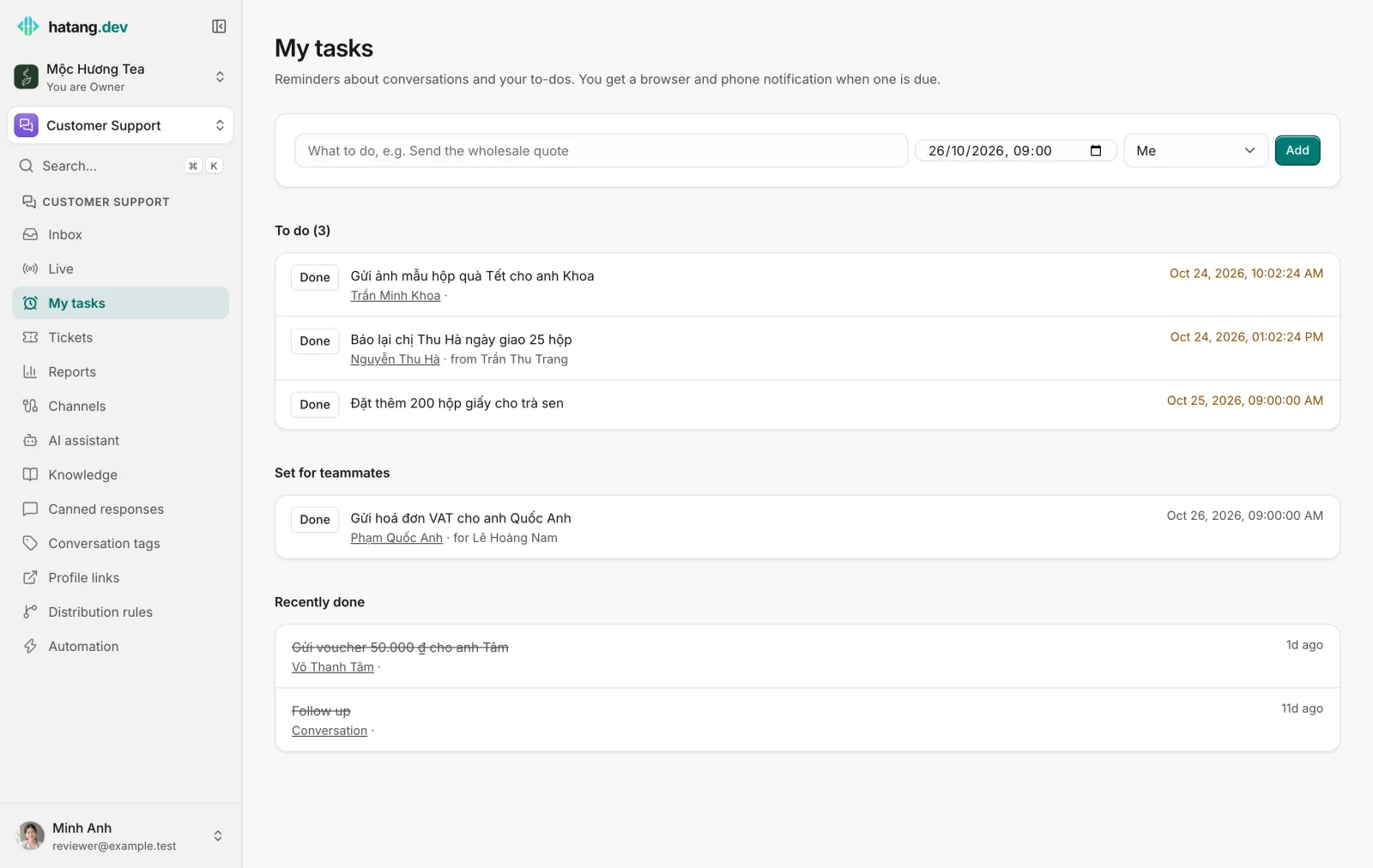
- To do lists your reminders, oldest due first, including ones about a conversation (with a link to it) and plain to-dos. "from Trần Thu Trang" shows a teammate set it for you; Workflow means an automation created it.
- Set for teammates lists the reminders you created for others, with who they are for.
- Recently done shows the last 20 you finished.
Add a to-do that is not about a conversation
At the top of My tasks:
- Write what to do, for example "Đặt thêm 200 hộp giấy cho trà sen".
- Choose When.
- Under For, keep Me or pick a teammate.
- Click Add.
Click Done next to a task when it is finished.
Remind a teammate
Use Pick a time, note, person… in a conversation, or For in My tasks, and choose the teammate. It appears in their To do with "from" and your name, and they get the notification when it is due. You can follow it under Set for teammates.
Not getting reminder notifications?
Reminder notifications go to browsers where you turned push on and to the Ha Tang apps (where Reminders is on in the app's notification settings). See Notifications not arriving.
Was this article helpful?
Related articles
- Resolve, snooze, close and reopen conversationsMark a conversation done, park it until later, close it for good, and what happens when the customer writes again.
- Internal notes, @mentions and inviting teammatesLeave notes only your team sees, @mention a colleague so they are notified, and bring a colleague into a conversation without handing it over.
- Notifications are not arrivingCheck, step by step, why you are not hearing about new messages, assignments, mentions or reminders in the browser, on your phone or by email.
Not finding what you are looking for?
Our team answers in the chat, in English or Vietnamese.