Internal notes, @mentions and inviting teammates
Leave notes only your team sees, @mention a colleague so they are notified, and bring a colleague into a conversation without handing it over.
Updated on
On this page
An internal note is a message for your team inside the conversation: what you checked, what the customer agreed to, who should do what next. The customer never sees it, on any channel.
To get a colleague's attention, @mention them in a note: they are notified straight away. When you need their help for longer, invite them into the conversation. They follow it with you while the conversation stays with its owner.
You need Work access to Customer Support for all three.
Write an internal note
- Open the conversation in Customer Support → Inbox.
- Click Note under the reply box. The box turns amber and says "Private note (the customer never sees it). Type @ to mention a teammate".
- Type the note and press
Enteror click Add note. - Click Note again to go back to replying to the customer.
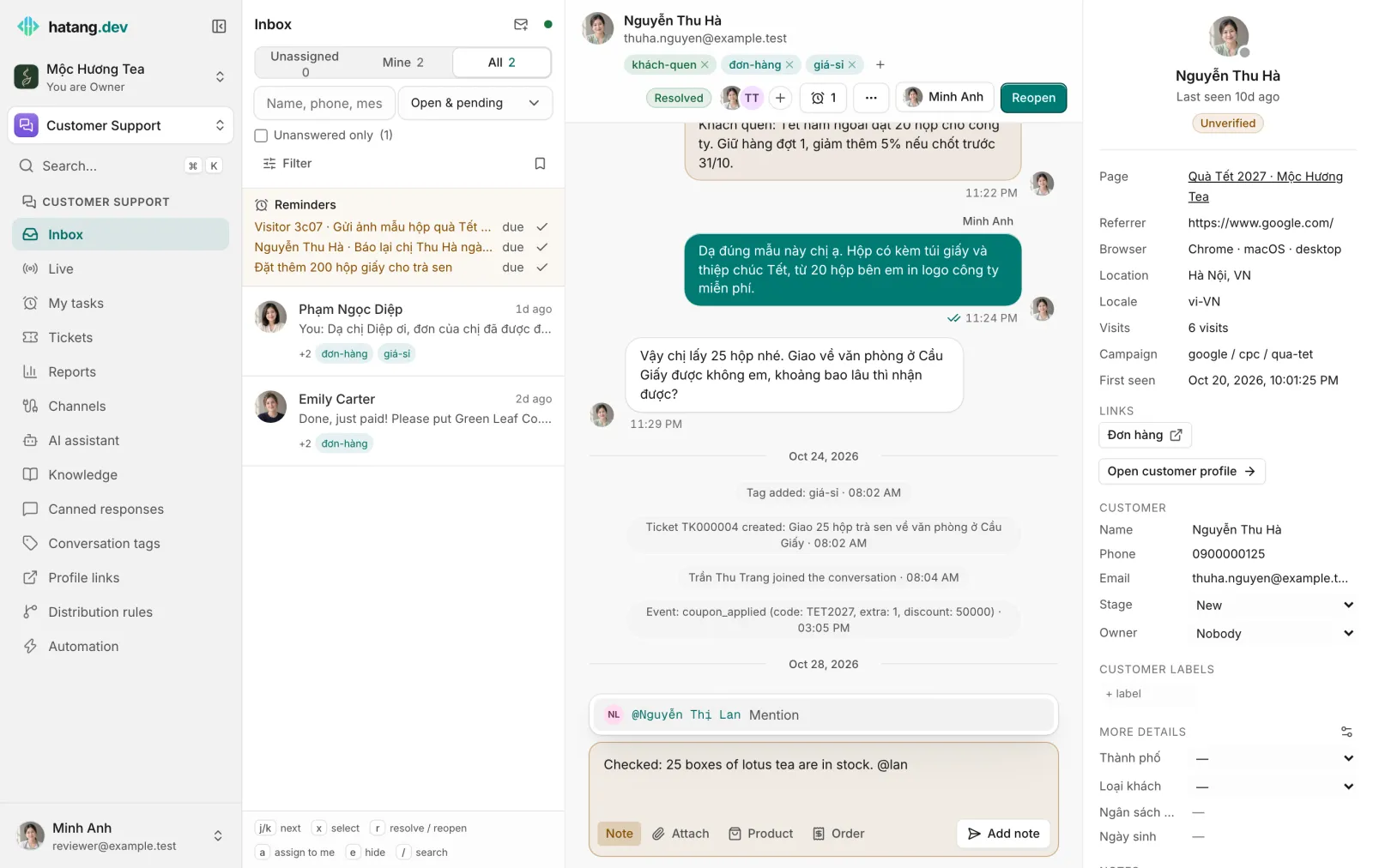
The note appears in amber, labelled Note · and your name, in the same timeline as the messages, so anyone who opens the conversation later reads the whole story in order.
Good to know:
- Notes work even when the platform's reply window has closed. The reply box switches to notes on its own then.
- Notes do not count as an answer: the conversation stays in Unanswered only and the first-response time is not stopped.
- Canned responses (
/) work in notes too. - Ha Tang writes some notes itself, for example when a teammate recalls a message, when a channel refuses a reply because its reply window has closed, or when the AI assistant hands a conversation to a person. Each employee reads these notes in their own dashboard or app language.
Mention a teammate
- In note mode, type
@followed by the first letters of a colleague's name, for example@lanfor Nguyễn Thị Lan. Accents do not matter, and any part of the name works. - Pick the colleague from the list with the arrow keys and
Enter(orTab), or click them. Their name is inserted as@Nguyễn Thị Lan. - Finish the note and click Add note.
The name is highlighted in the note, and the colleague is told:
| Where | What they get |
|---|---|
| The inbox, if they have it open | A sound and a message "Minh Anh mentioned you", or a browser notification when the tab is in the background |
| Browser push and the Ha Tang apps | "Minh Anh mentioned you" with the note. In the apps it follows the Assigned to me switch |
| Only if their Email me setting is Immediately and they are not online in the inbox |
Good to know:
- The list shows employees who can work in Customer Support (Work or Manage access, owners and admins). You cannot mention yourself.
- A mention reaches the colleague even if they chose Only conversations assigned to me. It does not reach them if they muted the conversation.
- Mentions work in notes only. In a reply to the customer,
@at the start of a line still runs quick commands such as@c(resolve) and@ok(handled). In a note, the same commands are listed under the matching colleagues. - Deleting the
@Namefrom the text before sending cancels that mention. - A mention does not add the colleague to the conversation. To have them follow it, invite them as well.
Invite a colleague into a conversation
- In the conversation header, click + (Invite a colleague) next to the status.
- Pick the teammate. They join the conversation and their initial appears in the header.
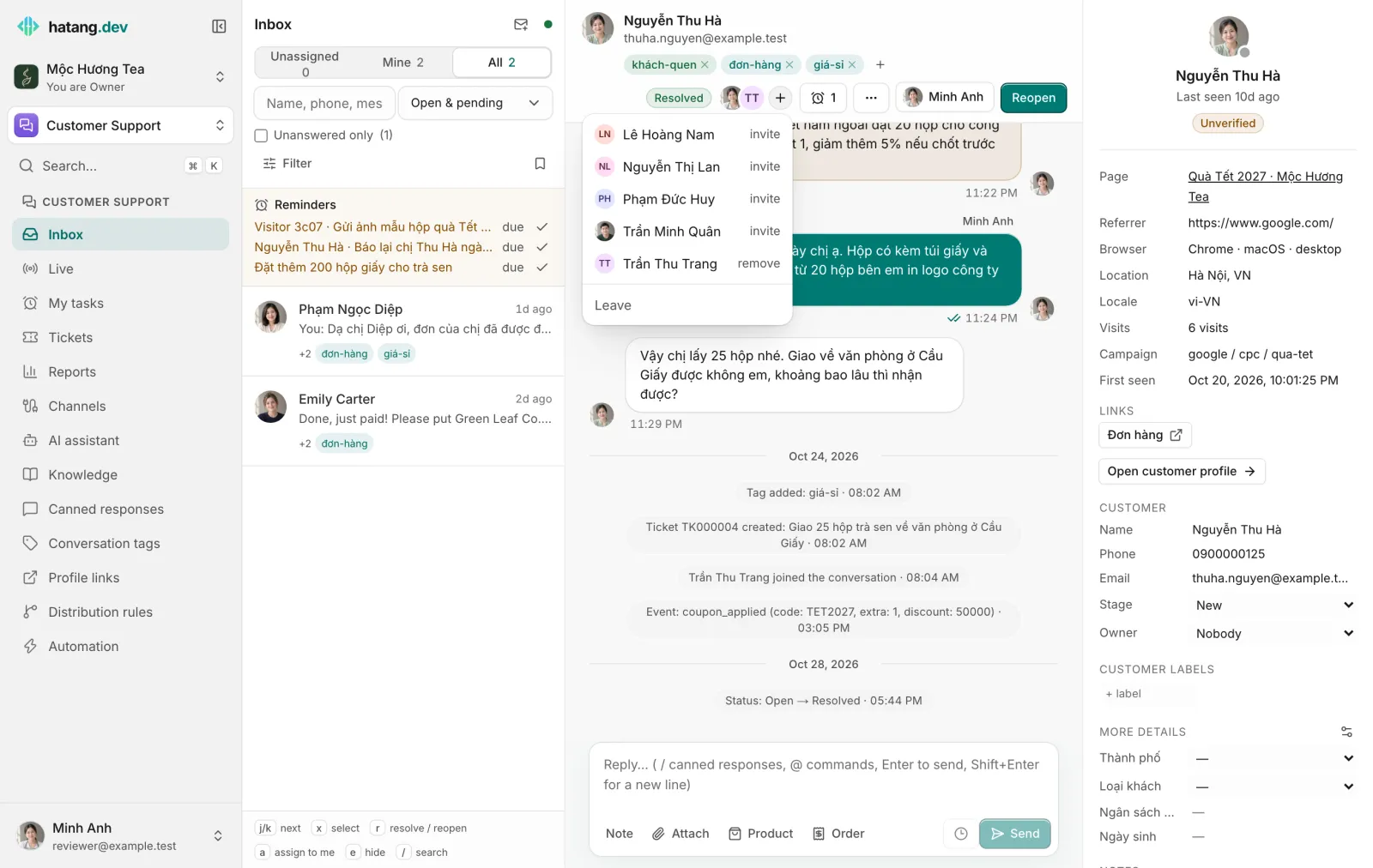
What happens next:
- The timeline records "… joined the conversation".
- The teammate gets a notification ("Added to a conversation") in their browser and in the Ha Tang apps.
- The conversation shows in their Mine tab, and they hear about new customer messages in it even if they only follow conversations assigned to them.
- The assignee does not change. To hand the conversation over completely, assign it instead.
To remove someone, open the same menu and click remove next to their name. To leave a conversation you were invited to, click Leave.
The list shows +1, +2 on conversations with invited teammates.
Notes about the customer, not the conversation
The customer panel on the right has its own Notes section for things that stay true across conversations, such as "prefers delivery after 5 pm". Those notes belong to the customer profile and appear in every conversation with that customer. See The customer panel.
Useful next steps
Was this article helpful?
Related articles
- Assign and transfer conversationsGive a conversation an owner, take one yourself, hand it to a teammate, or send it back through the distribution rules.
- The customer panelEverything about the customer beside the conversation: contact details, what they did before writing, attributes, CRM fields, notes, tickets and orders.
- Reminders and My tasksGet reminded to follow up on a conversation, set a to-do for yourself or a teammate, and see everything due in My tasks.
Not finding what you are looking for?
Our team answers in the chat, in English or Vietnamese.