Reply to customers
Write replies, use canned responses and quick commands, quote a message, recall one, and understand reply windows and delivery ticks.
Updated on
On this page
You answer every channel from the same reply box at the bottom of a conversation. Ha Tang sends your reply back where the customer wrote: into the website chat or your app, as a Zalo, Messenger or WhatsApp message, or as an email in the same thread.
You need Work access to Customer Support to reply.
Send a reply
- Open the conversation in Customer Support → Inbox.
- Type in the reply box. Press
Shift+Enterfor a new line. - Press
Enteror click Send.
Your message shows at once with a clock while it is being sent. On the website chat the customer sees that you are typing while you write.
In chat messages you can write **bold**, _italic_ and `code`. Links become clickable.
Faster replies
-
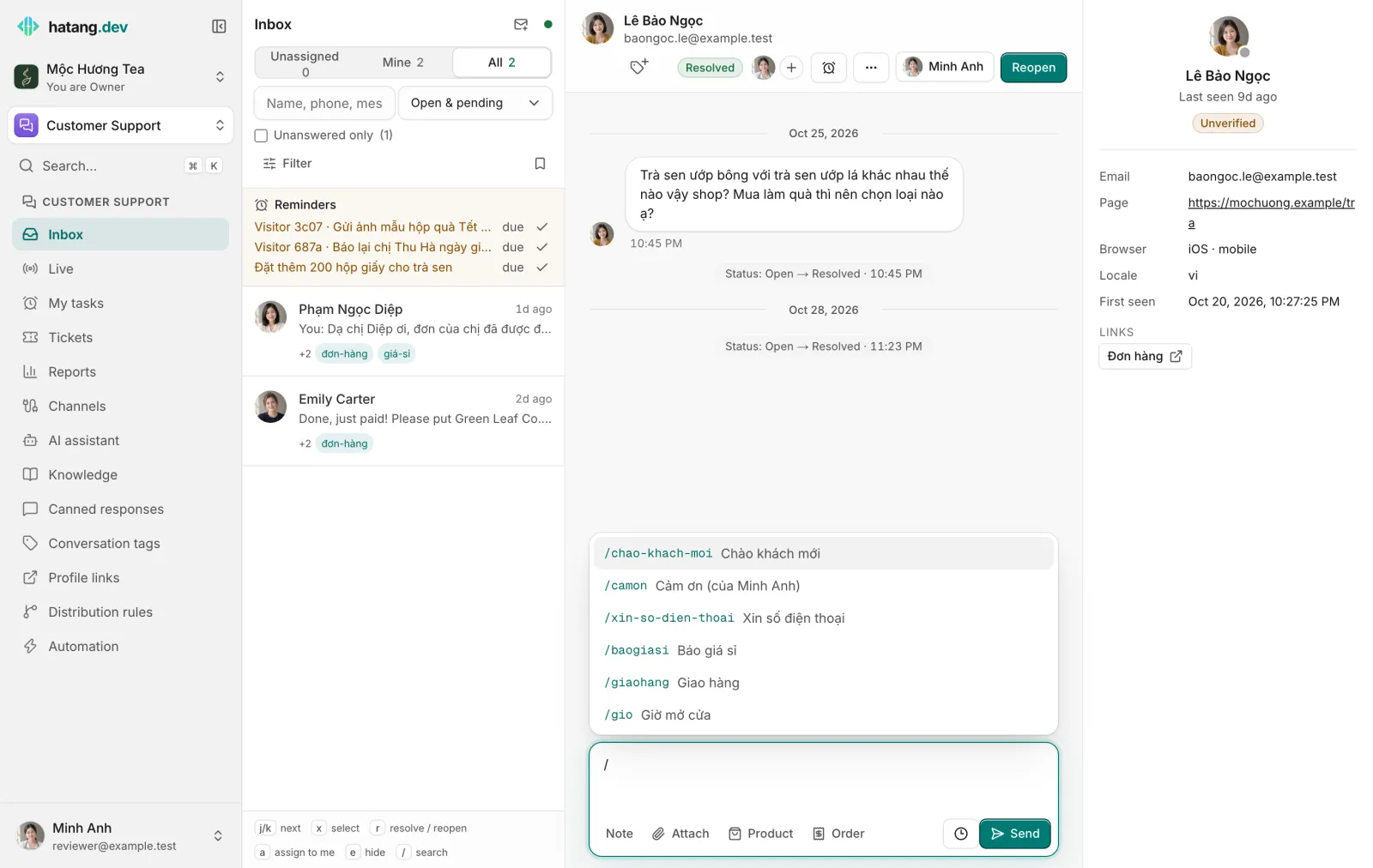
Canned responses. Type
/at the start of a line to pick a saved reply, for example/giofor your opening hours. On the phone and Mac apps, the lightning button opens Mine and Team, and saves the message you are writing as a new one. -
Schedule send. Write now, send later: the clock button next to Send on the web, a long press on the send button on the phone. See Schedule a message. See Canned responses.
-
Quick commands. Type
@at the start of a line to act on the conversation instead of writing:Command Does @cResolves the conversation @okMarks it handled without a reply: it leaves Unanswered only and its unread count is cleared @+ a tag nameAdds that tag, or creates it if it is new (for example @giá-sỉ)Use the arrow keys and
EnterorTabto pick from the list. In an internal note,@also lists your colleagues to mention. -
AI suggestion. When the AI assistant drafts a reply, it appears above the reply box. Click Insert to edit and send it, or Discard.
-
Products and orders. Product sends product cards and Order creates an order with a payment link. See Product cards in chat and Payment in chat.
Quote a message
Hover a message and click the reply arrow to answer that message specifically. "Replying to «…»" appears above the reply box; the customer sees your reply attached to their message. Quoting works on the website chat, TikTok, WhatsApp, Telegram, LINE (for messages LINE allows quoting) and personal Zalo.
Recall a message
Hover a message your team sent and click the recall arrow, then confirm Recall this message?. Recalling works on:
- Website and app chat: the message disappears from the customer's chat.
- Personal Zalo: the message is recalled on Zalo.
- Telegram: for messages Telegram accepted.
The message is replaced by Recalled, and an internal note records who recalled it and what it said. Other channels do not let a business take a message back, so the arrow does not appear there.
Reply windows
Some platforms only accept replies for a while after the customer's last message. The conversation header shows a green chip such as window open · 23h while you can reply, and a red window closed chip after that.
| Channel | Window |
|---|---|
| Zalo OA | 48 hours |
| Messenger and Instagram | 24 hours; up to 7 days when the HUMAN_AGENT tag is on for that channel (shown as past 24h · HUMAN_AGENT replies) |
| 24 hours; after that only templates approved by Meta, with Send a template | |
| Telegram Business | 24 hours |
When the window is closed the reply box switches to internal notes, and a banner explains what the customer has to do. Website chat, email and the other channels have no window.
Email replies
In an email conversation the reply box adds To, CC, Add BCC and Subject, buttons for bold, italic, links and lists, and Send email. The buttons write the same marks as chat (**bold**, _italic_), and the email shows them formatted. Your signature is added automatically. Attached files go out with the email. Under each reply you see what happened to it: Email sent, Delivered, Opened, Opened, link clicked, or Email bounced, Marked as spam and Email failed in red.
Did the customer get it?
| Under your message | Meaning |
|---|---|
| Clock | Sending |
| One tick | Delivered to the channel |
| Two ticks | Seen by the customer (on channels that report it) |
| Not sent with Retry | Your browser could not reach Ha Tang. Check the connection and click Retry |
| Not delivered: and a reason | The channel refused it. See Message not delivered |
If the conversation is Closed, the reply box says "This conversation is closed". Reopen it first, or wait for the customer to start a new one.
Useful next steps
Was this article helpful?
Related articles
- Send and receive filesAttach images, documents and short videos to a reply, and what each channel does with them.
- Canned responsesSave answers you send often, like opening hours or shipping fees, keep your own, and insert them with / or the lightning button on the web, phone and Mac.
- Internal notes, @mentions and inviting teammatesLeave notes only your team sees, @mention a colleague so they are notified, and bring a colleague into a conversation without handing it over.
- A message was not deliveredWhat "Not sent" and "Not delivered" mean under a reply, every reason a channel gives, and how to fix it.
Not finding what you are looking for?
Our team answers in the chat, in English or Vietnamese.