Get paid in the conversation
Send a VietQR payment card for an order. The customer scans it with any banking app, and the order is marked paid by itself when the money arrives.
Updated on
On this page
Most Vietnamese customers pay by bank transfer. The hard part is not the transfer, it is everything around it: typing the account number, getting the amount right, writing a transfer note your accountant can match, and someone checking the bank app before confirming the order. A payment card does all of it in the chat.
The card shows a VietQR code with the amount and a unique transfer note already filled in. The customer scans it with any Vietnamese banking app and confirms. When the money reaches your account, Ha Tang matches it to the order, marks the order paid and thanks the customer in the conversation. Nobody has to check the bank app.
Before you start
- The Payments app is on and at least one bank account is linked. See Link your bank account.
- The Products app is on.
- You have Work access to Customer Support.
Until a live bank account is linked, payment cards use the test environment and its simulated bank: no real money moves. This lets you try the whole flow first. See Go live.
Send a payment card
There are three ways, all for an order:
- When you create the order: leave Send the VietQR payment link right away on in the New order panel (see Create and manage orders).
- From the order card in the conversation: click Send payment link.
- From the order page: under Payment, click Send payment link.
The card is posted in the conversation with the message "Bạn thanh toán giúp mình theo mã bên dưới nhé:".
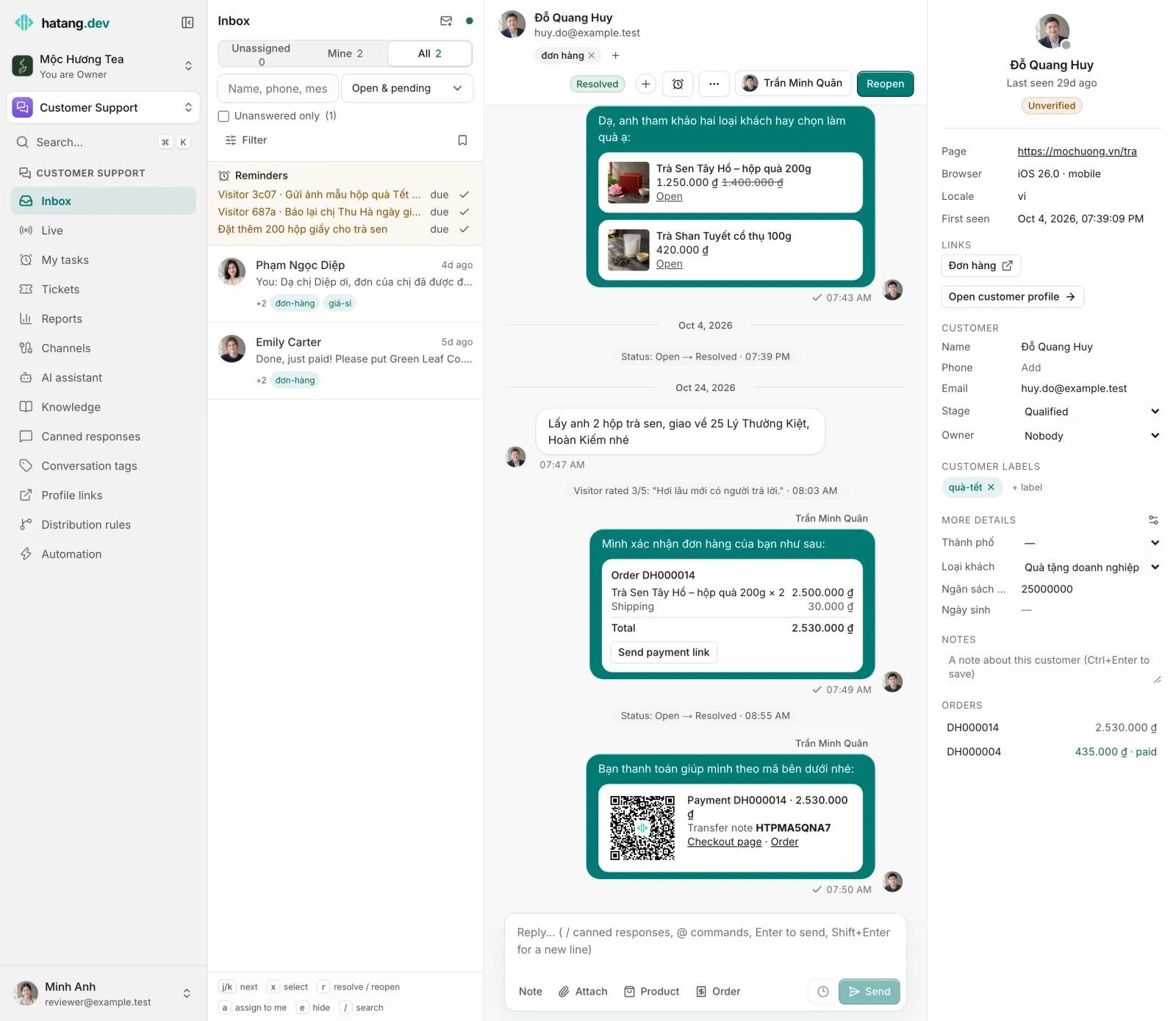
What the customer sees
| Channel | The payment card |
|---|---|
| Website chat widget and your app | The QR code, the amount, the Transfer note and a Pay now button that opens the checkout page |
| Messenger and Instagram | A message with a Thanh toán button that opens the checkout page |
| Zalo and other channels | Text with the amount, the checkout link and the transfer note |
The checkout page shows the same QR code and bank details, so a customer on any channel can pay from their phone or computer.
When the money arrives
- The customer transfers the exact amount with the transfer note.
- Your bank reports the transfer to Ha Tang, which matches it to the payment by its note and amount.
- The order is marked Paid, moves to Confirmed if it was New or Consulting, and the card in the conversation changes to "paid": the QR code disappears.
- The conversation gets a message "Đã nhận thanh toán … cho đơn …. Cảm ơn bạn!".
- If you ticked the e-invoice option, the e-invoice is issued (see Issue e-invoices).
The payment also appears in the Payments app with the order code in its description, so your accountant sees it with every other transfer. If the customer pays too much, the order is still marked paid; a partial payment leaves it unpaid. Both show in Payments for your team to sort out. See Transactions and matching.
Good to know
- One payment per order. Sending the link again re-sends the same waiting payment. If the order total changed, or the payment expired or was canceled, Ha Tang creates a new one.
- Links expire after 24 hours. On the order page, Send a new link makes a fresh one.
- Paid orders are locked. Their items, discount and shipping can no longer change.
- The amount must be more than 0. An order with a total of 0 ₫ cannot get a payment link.
- A transfer without the note, or with a different amount, cannot be matched by itself. It waits in Payments for someone to match it by hand.
Troubleshooting
| Symptom | Cause | What to do |
|---|---|---|
| "Link a bank account in Payments → Payments settings → Bank accounts before sending payment links" | No bank account is linked | Link one in Payments → Payments settings, see Link your bank account |
| "Order created, but the payment link failed" | The order exists but the payment could not be created | Open the order and click Send payment link; check the bank connection in Payments |
| The customer paid but the order is still unpaid | The note or amount did not match | Find the transfer in Payments and match it by hand |
| "This order is already paid" | The order was paid earlier | Nothing to do. For a new purchase, create a new order |
Was this article helpful?
Related articles
- Create and manage ordersBuild an order inside the conversation, send it to the customer as a card, and follow every order from new to delivered in one list.
- Create and follow paymentsCreate a payment with its own VietQR and transfer code, share it with the customer, and follow it until it is paid, partly paid, overpaid or expired.
- Link your bank accountConnect the bank account your customers pay into (MB Bank, BIDV, ACB or through Pay2S) so Ha Tang sees each transfer, and recover missed transfers from a statement.
- Transactions and automatic matchingHow Ha Tang reads each transfer's description to find the payment or order it pays, what happens when the customer forgets the code, and how to handle unmatched money.
Not finding what you are looking for?
Our team answers in the chat, in English or Vietnamese.