Create and follow payments
Create a payment with its own VietQR and transfer code, share it with the customer, and follow it until it is paid, partly paid, overpaid or expired.
Updated on
On this page
A payment is one order's request for money. It has an amount, its own transfer code, a VietQR code and a checkout page the customer can open on their phone. When a transfer carrying that code arrives in your bank account, the payment is marked paid by itself.
Most payments are created by your website or shop system at checkout. You can also create one by hand in the dashboard, for example for an order taken by phone or in a chat. Creating, canceling and marking payments needs the Work level on the Payments module.
Create a payment
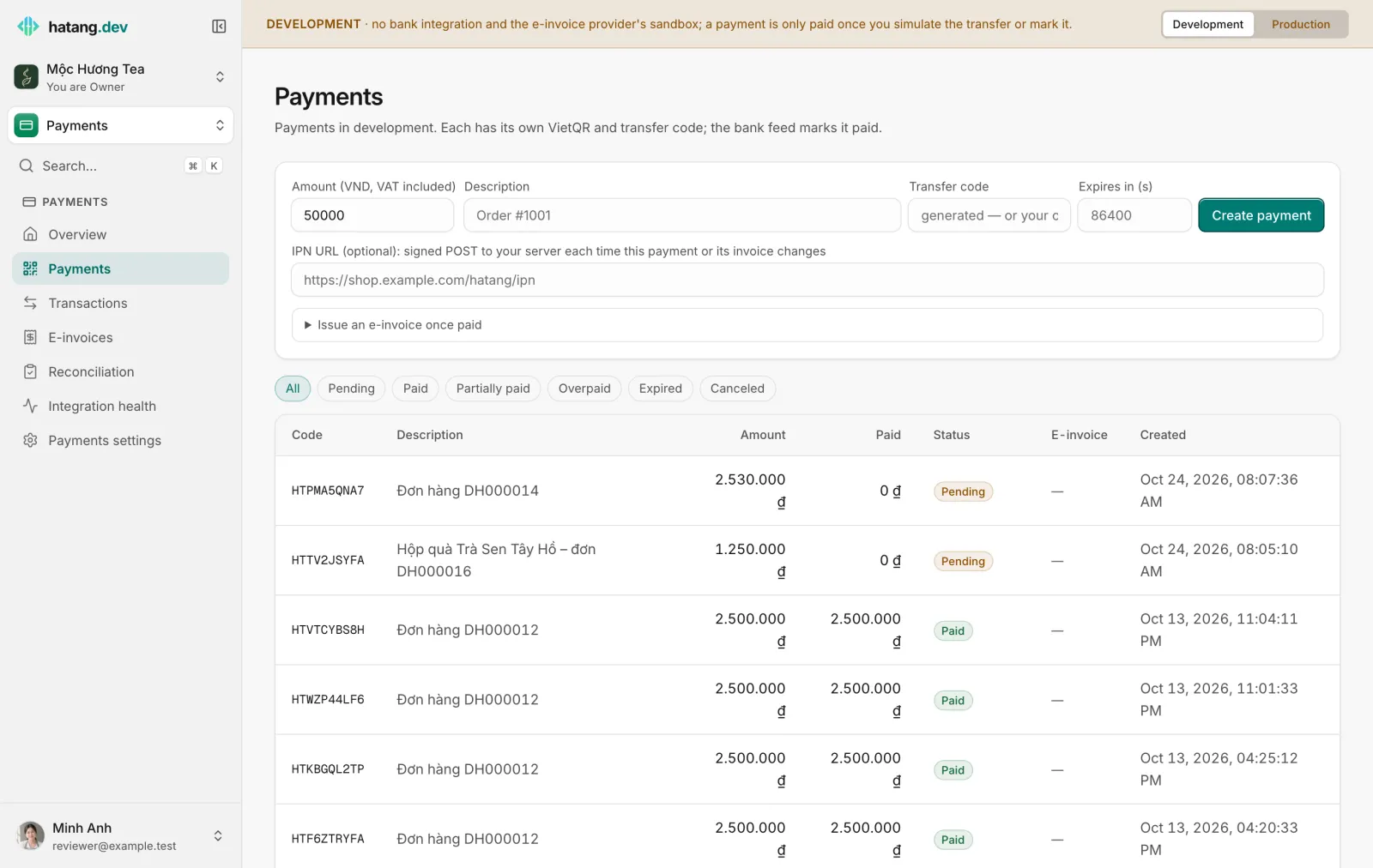
- Open Payments → Payments.
- Fill in:
- Amount (VND, VAT included): what the customer transfers.
- Description: shown to the customer on the checkout page, for example
Order DH000016. It is not the transfer description. - Transfer code (optional): leave it empty and Ha Tang generates one such as
HTBF7RDGVQ, or type your own order code (6 to 20 letters and digits) so your bank statement and your orders read the same. - Expires in (s): how long the customer has to pay, in seconds.
86400is 24 hours. - Pay into: which account, when several are linked.
- Optionally open Issue an e-invoice once paid. See Issue e-invoices.
- Click Create payment.
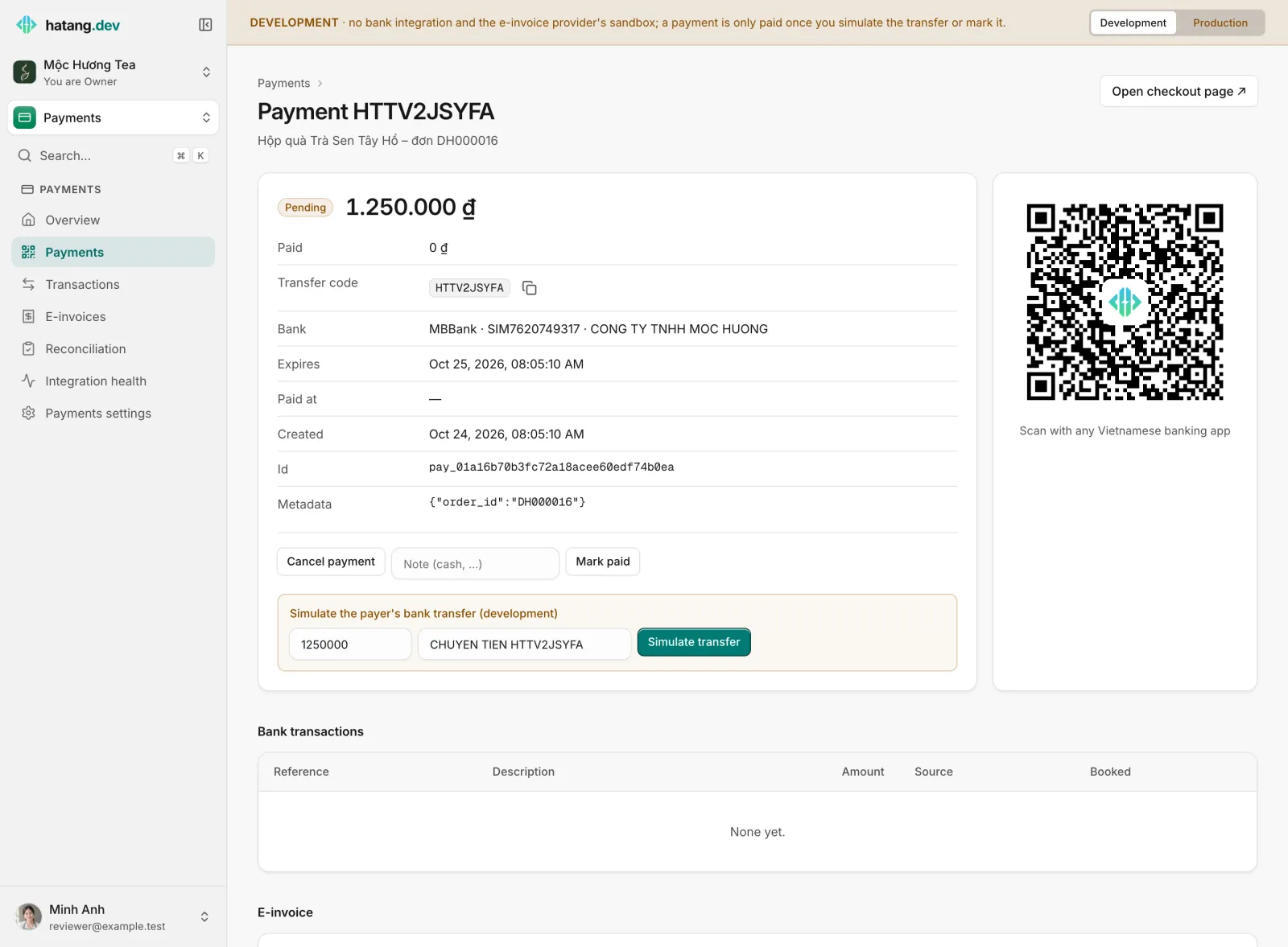
The payment page opens with the QR code, the transfer code and the account details.
Get paid
Send the customer the checkout page (Open checkout page), or show the QR code. They have three ways to pay:
- Scan the VietQR with any Vietnamese banking app (NAPAS 247, instant, day and night). The account, amount and transfer code are filled in; they only confirm.
- Use the checkout page: it shows the QR, the bank details with copy buttons and a countdown, and updates by itself the moment the money arrives.
- Transfer by hand, from any bank or internet banking, writing the transfer code in the transfer description.
Statuses
| Status | Meaning |
|---|---|
| Pending | Waiting for the transfer |
| Paid | The full amount arrived |
| Partially paid | Less than the amount arrived. Another transfer with the same code adds up |
| Overpaid | More than the amount arrived, or the customer paid twice |
| Expired | Nothing arrived in time |
| Canceled | You canceled it while it was pending |
What happens in the edge cases:
- Money after expiry is still recorded: an expired payment becomes Paid (or partly or overpaid). Decide whether you still deliver that order.
- A partly paid payment never expires; it waits for the rest or for you.
- A canceled payment no longer matches. A transfer with its code arrives as an unmatched transaction.
- Refunds of an overpayment are made from your own bank; Ha Tang only records money in.
The Timeline on the payment page lists each change, each transfer and who marked it paid. If your website asked to be notified, IPN calls lists every notification sent and its answer.
Mark a payment paid by hand
When the money arrived another way (cash at the counter, a transfer without the code), record it:
- Open the payment.
- Optionally type a note, for example
Tiền mặt tại cửa hàng. - Click Mark paid.
The payment moves exactly as if a transfer had arrived (to Paid, or Overpaid), the timeline records who did it, and your website is notified as usual. It works on pending, partly paid and expired payments.
Cancel a payment
Click Cancel payment on a payment that is still Pending, for example when the customer changed the order. Paid payments cannot be canceled.
In development
In the development environment, the payment page has Simulate the payer's bank transfer (development): change the amount or the description if you want, and click Simulate transfer. The simulated transfer goes through exactly the same matching and notifications as a real one. Try a smaller amount to see Partially paid, a larger one for Overpaid, or a description without the code to see an unmatched transfer.
Filter and find
The list filters by status (Pending, Paid, Partially paid, Overpaid, Expired, Canceled) and shows each payment's e-invoice status. Overview shows the payments waiting and the money paid in the last 7 days.
Developers create payments from the website with the API; see Create a payment in the developer hub.
Useful next steps
Was this article helpful?
Related articles
- Transactions and automatic matchingHow Ha Tang reads each transfer's description to find the payment or order it pays, what happens when the customer forgets the code, and how to handle unmatched money.
- Issue e-invoicesIssue an e-invoice automatically when a payment is paid, or by hand for any payment or transfer, follow it until the tax office accepts it, and fix the ones that fail.
- Get paid in the conversationSend a VietQR payment card for an order. The customer scans it with any banking app, and the order is marked paid by itself when the money arrives.
Not finding what you are looking for?
Our team answers in the chat, in English or Vietnamese.