Go live with real payments
Move from the development environment to production: link your real bank account, connect your real e-invoice account, test with a small real transfer, and know what to watch afterwards.
Updated on
On this page
You have tried everything in Development: payments get paid by simulated transfers, invoices reach the provider's sandbox. Going live means setting the same things up again in Production, where real money moves and invoices go to the tax office. Plan an hour, with the bank account holder and whoever looks after your website at hand.
1. Switch to production
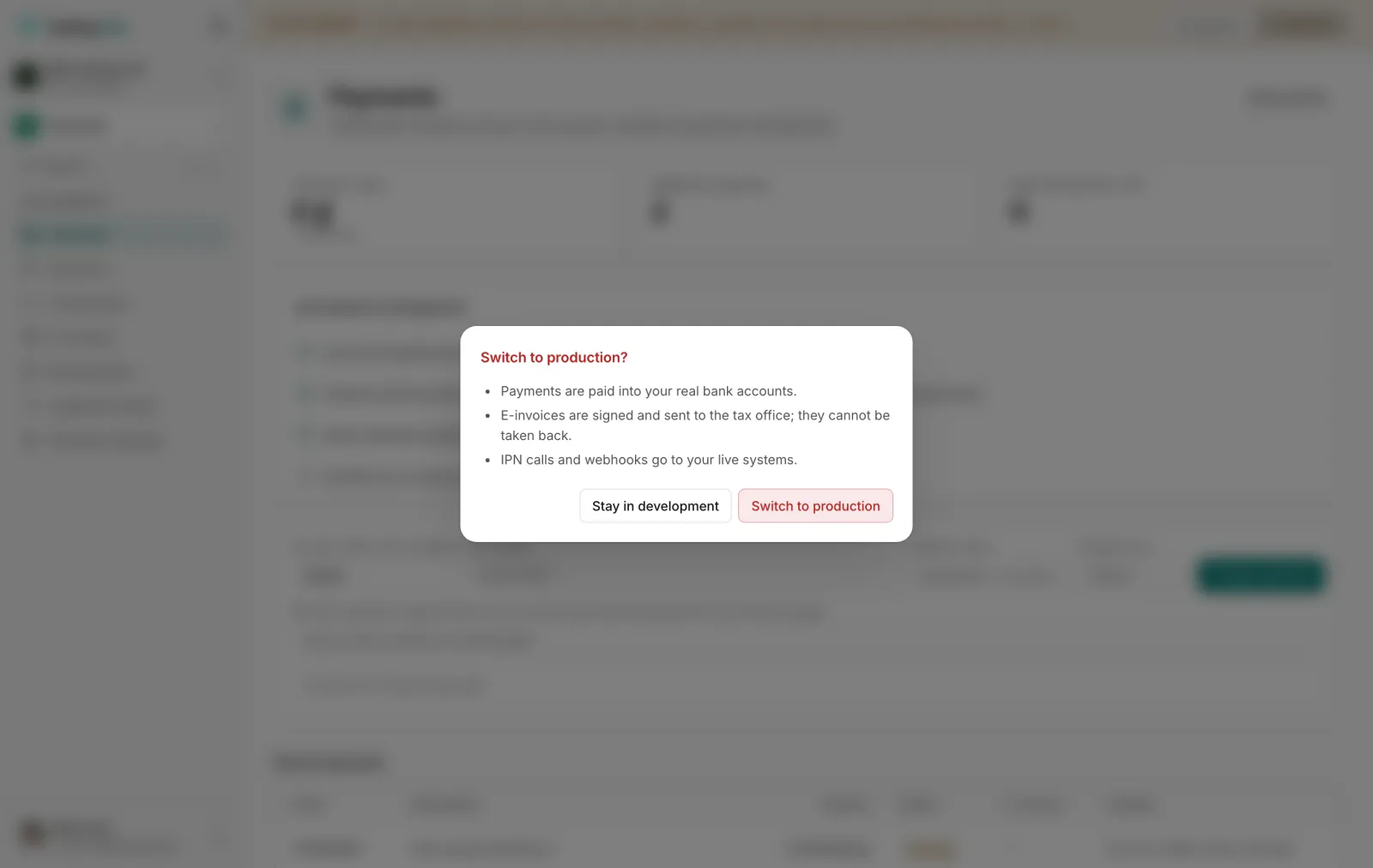
Click Production in the bar at the top of any Payments page. Ha Tang asks for confirmation, because from then on:
- payments are paid into your real bank accounts,
- e-invoices are signed and sent to the tax office, and cannot be taken back,
- notifications go to your live systems.
Click Switch to production. The bar turns red while you are in production. The choice is remembered on your browser; switch back with Development at any time.
2. Link your real bank account
Under Payments settings → Bank accounts, click Add bank account and link your real account: MB Bank, BIDV, ACB or through Pay2S. The holder must be available to receive the bank's code or approve. See Link your bank account.
Then open Matching and notifications for that account and set again what you used in development: the payment code prefix, your own order code format, and which transfers are reported.
3. Connect your real e-invoice account
If you issue e-invoices, open Payments settings → Invoice providers and connect your real Mắt Bão account with the credentials from Cấu hình API. Choose the template and series registered for your business, and whether paid orders stop at the draft or are sent for signing. Send the Callback URL to Mắt Bão support. See Connect your e-invoice provider.
4. Hand over to your developer
If your website creates payments or listens for notifications, your developer needs to:
- remove the development setting from the website, so it uses production,
- use the production Secret key from Payments settings → Integration keys (each environment has its own),
- make sure the notification addresses are public
httpsaddresses that answer quickly, - check that the website only fulfils orders whose payment is confirmed in production.
The step-by-step version for developers is Go live in the developer hub.
5. Test with a small real transfer
- Create a payment in production for a small amount, for example 10,000 VND.
- Pay it from your own banking app by scanning the QR.
- Check that the payment becomes Paid within seconds (for ACB, allow up to 10 minutes) and that the transfer is listed under Payments → Transactions as Matched.
- If the payment asked for an invoice, check that it reaches issued with a number.
- Then make a second small transfer without the code, and check that it appears as Unmatched.
The money lands in your own account; there is nothing to refund through Ha Tang.
6. Watch it once you are live
| What to watch | Where |
|---|---|
| A bank account that stops reporting | The account's status and last transaction under Payments settings → Bank accounts |
| ACB consent running out | ACB consent lasts up to 180 days: link the account again before it ends |
| Calls to the bank or the invoice provider that are stuck or failing | Payments → Integration health |
| Invoices that failed or were rejected | Payments → E-invoices, and the alert emails sent to owners and admins |
| Money in without an invoice | Payments → Reconciliation, and the daily email at 8:00 |
| Transfers the bank never reported | Import the statement for the missing days |
Launch checklist
- The real bank account is linked and Active in production, with its matching settings.
- The e-invoice provider is connected in production with the right template, and Mắt Bão has the callback URL.
- Your website uses production and its production keys.
- A small real transfer was paid, matched and, if needed, invoiced.
- Someone is responsible for checking failed invoices, unmatched transfers and reconciliation each week.
Useful next steps
Was this article helpful?
Related articles
- Link your bank accountConnect the bank account your customers pay into (MB Bank, BIDV, ACB or through Pay2S) so Ha Tang sees each transfer, and recover missed transfers from a statement.
- Connect your e-invoice providerConnect your own Mắt Bão e-invoice account so Ha Tang can issue invoices under your tax code, choose the template and series, and keep both sides in sync.
- Create and follow paymentsCreate a payment with its own VietQR and transfer code, share it with the customer, and follow it until it is paid, partly paid, overpaid or expired.
Not finding what you are looking for?
Our team answers in the chat, in English or Vietnamese.