Link your bank account
Connect the bank account your customers pay into (MB Bank, BIDV, ACB or through Pay2S) so Ha Tang sees each transfer, and recover missed transfers from a statement.
Updated on
On this page
Ha Tang learns about payments by reading the incoming transfers of your own bank account. You link that account once; from then on every transfer appears under Payments → Transactions, and transfers carrying a payment's code mark it paid. Ha Tang only reads the account: it can never move money out of it.
Linking needs the Manage level on the Payments module. Link the account in the environment you are working in: the simulated bank in Development, your real bank in Production (see How Ha Tang Payments works).
Before you start
- The account number and the holder's name exactly as the bank has it.
- For some banks, the national ID (CCCD) of a personal account holder or the tax code of a business account.
- The account holder, or someone they authorised, available at that moment: depending on the bank, they receive a code by SMS, approve on the bank's own page, or register a service at the bank.
Link the account
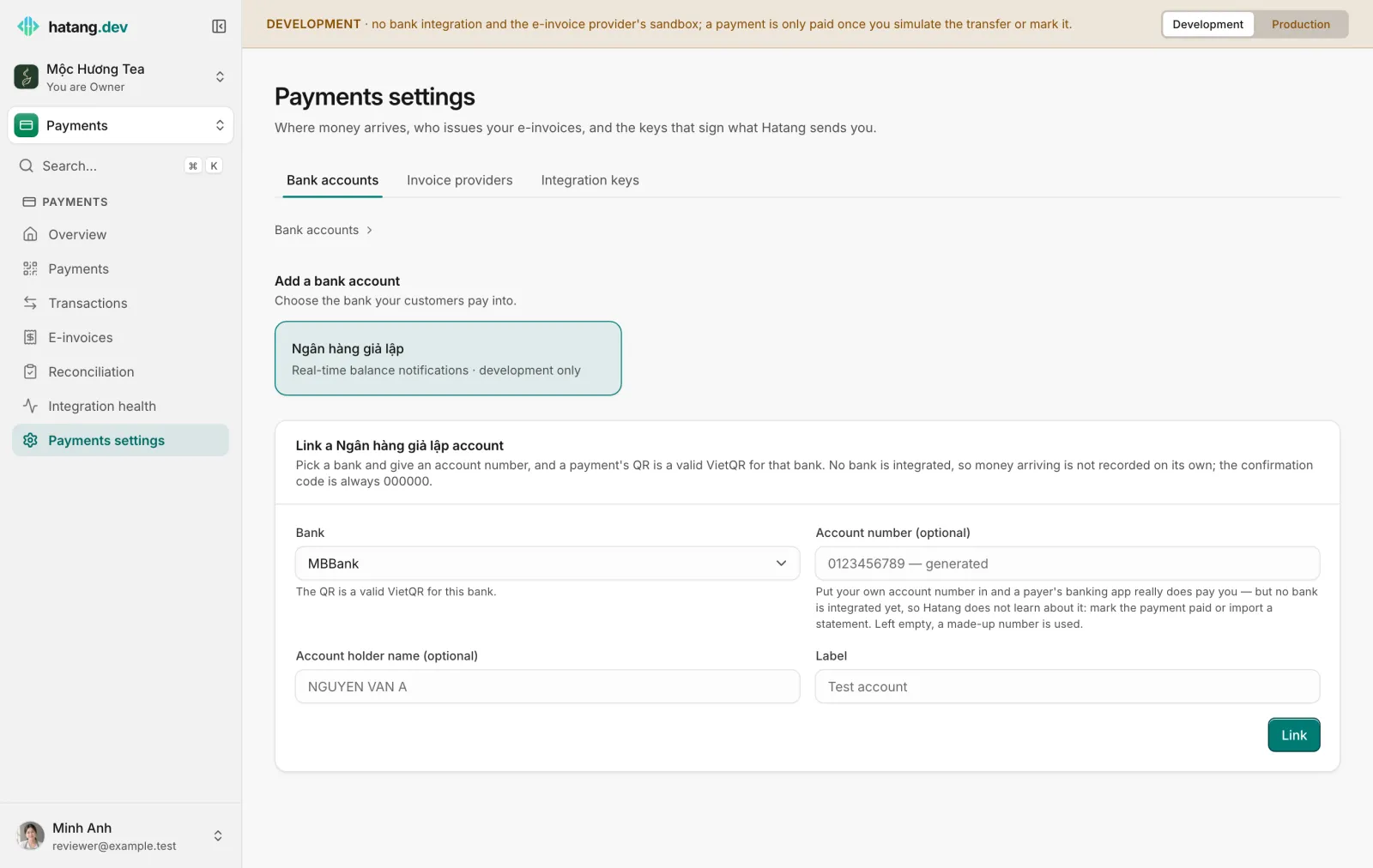
- Open Payments → Payments settings, tab Bank accounts, and click Add bank account.
- Pick your bank. Each bank links in its own way, and the form changes accordingly.
- Fill in the form, tick the consent box if there is one, and click Send code or Link.
- Finish with the bank, as described below.
| Bank | How it links | How Ha Tang learns about transfers |
|---|---|---|
| MB Bank | MB checks the holder's name and ID against the account, then texts a code to the phone number registered at MB. Enter it under Enter the code from your bank and click Link account | Real-time balance notifications |
| BIDV | First register BIDV's balance notification service for the account at BIDV. Then add the account in Ha Tang. It shows Waiting for the bank until BIDV sends its first message, which activates it | Real-time balance notifications |
| ACB | After you submit, the holder is sent to ACB's own page to consent. They come back to Ha Tang and the account is active. The consent lasts up to 180 days | ACB's account history, read every 10 minutes |
| Pay2S | Link the account on Pay2S first, then create a Hook there pointing at Ha Tang and paste the Hook's token (see below) | Real-time pushes from Pay2S |
| Simulated bank (development only) | Pick any bank, optionally your account number. The code is always 000000 |
Transfers you simulate with a button |
After 5 wrong codes, the code stops working and you start again.
Pay2S step by step
Pay2S reads accounts at Vietcombank, VietinBank, Techcombank, BIDV, ACB, MB and TPBank and forwards each transaction to Ha Tang.
- In Ha Tang, pick Pay2S. The form shows Endpoint for the Hook on Pay2S; copy it.
- On my.pay2s.vn: link your bank account, then go to Webhooks → Add webhook. Pick the account, the event "All" or "Money in", and paste the endpoint.
- Press the key icon in the Token column and copy the token. It is the long string, not the account number shown in that dialog's title.
- Back in Ha Tang, choose the Bank, enter the Account number as Pay2S writes it, the holder's name, paste the Pay2S webhook token and click Link.
- The account waits for Pay2S to send its first transaction, then becomes active. Make a small transfer into it if you want to activate it at once.
Account statuses
| Status | Meaning | What to do |
|---|---|---|
| Pending OTP | Waiting for the code, the holder's consent or the bank's first message | Finish the step with the bank |
| Active | Transfers arrive | Nothing |
| Needs reconnect | The bank asks for the account to be linked again, for example when ACB's consent expired | Link the account again |
| Error | The bank reported a problem with the link | Check with your bank, then link again |
| Revoked | Unlinked | Nothing |
Each account shows when it was linked and its last transaction. If customers say they paid but nothing appears for hours, look at that date first.
Matching and notifications
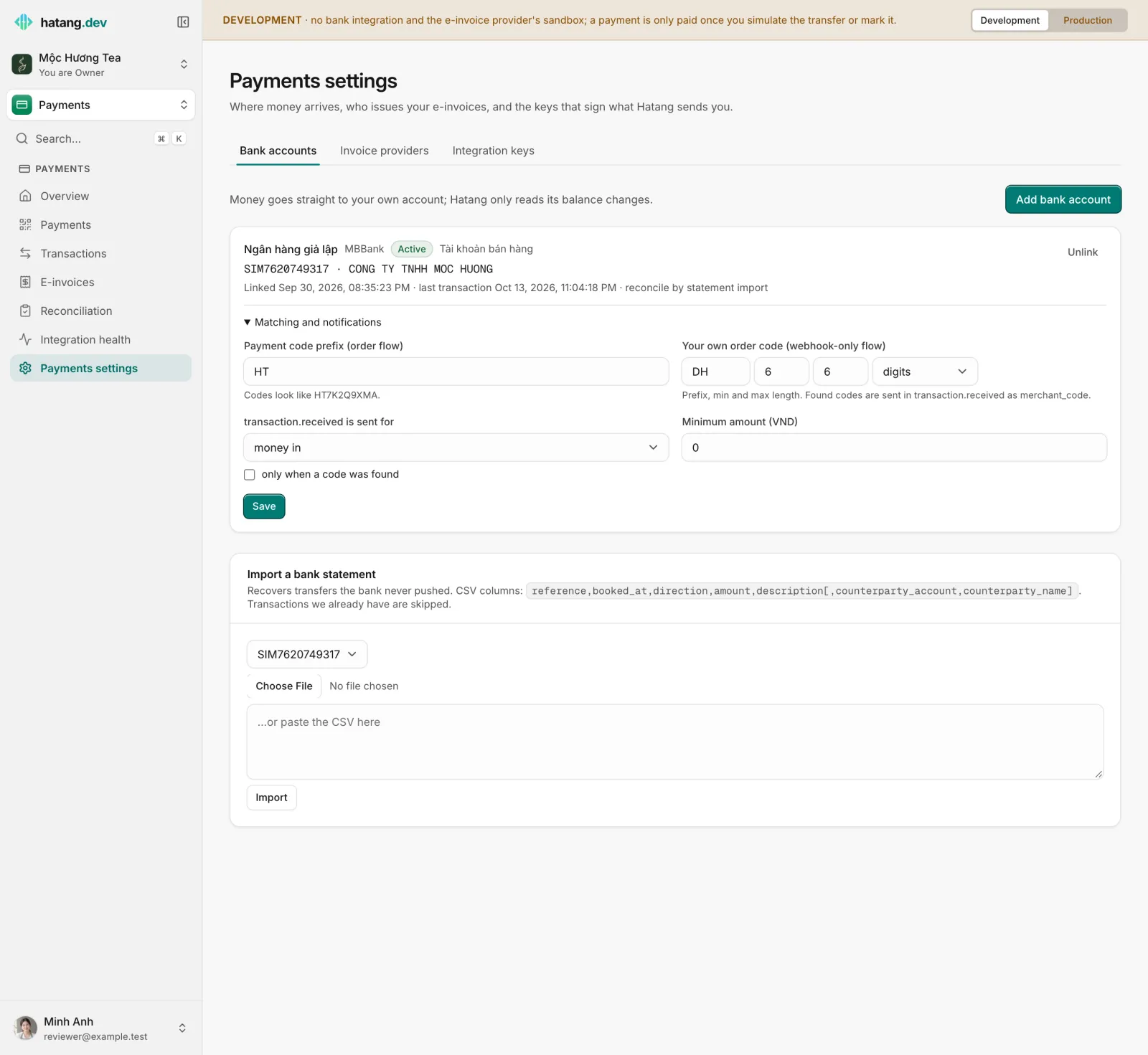
Under each account, open Matching and notifications:
| Setting | What it does |
|---|---|
| Payment code prefix (order flow) | The 2 to 5 capital letters that start every transfer code Ha Tang creates, HT by default. Codes look like HTBF7RDGVQ |
| Your own order code (webhook-only flow) | Your shop's order code format, for example prefix DH, 6 to 6 digits. Ha Tang then looks for it in every transfer, even without a payment. See Transactions and matching |
| transaction.received is sent for | Which transfers are reported to your systems: money in only, or money in and out; optionally only when a code was found |
| Minimum amount (VND) | Transfers below this amount are not reported |
These settings only change what is reported to your systems. Payments are always matched.
Recover transfers the bank missed
Banks occasionally fail to report a transfer. Under Import a bank statement, upload a CSV made from your bank's statement, or paste it, and click Import. The columns are reference, booked_at, direction, amount, description, and optionally counterparty_account and counterparty_name.
Transfers Ha Tang already has are skipped, so importing an overlapping period is safe. Imported transfers are matched exactly like reported ones: a transfer carrying a payment's code marks it paid.
Unlink an account
Click Unlink on the account. MB Bank confirms with a code, like linking; other banks are unlinked at once. Unlinking an ACB account also withdraws the consent at ACB. For BIDV and Pay2S, also turn off the notification service or the Hook on their side.
Payments already made are kept. New payments can no longer be created into that account.
Troubleshooting
| Symptom | Cause | What to do |
|---|---|---|
| The bank refuses the link | Name or ID does not match what the bank has, or the account is linked to another business | Copy the name exactly as on your bank statement (usually capitals without accents) |
| No SMS code from MB | The phone registered at MB is not the one you expected | Ask the holder; the code goes to the number MB has on file |
| BIDV or Pay2S stays Pending OTP | The bank or Pay2S has not sent its first message yet | Check the service or Hook on their side, then make a small transfer into the account |
| A transfer is in your banking app but not in Ha Tang | The bank did not report it | Import the statement for that day |
| Real banks are missing from the list | You are in Development | Switch to Production with the bar at the top |
Developers can link and configure accounts through the API; see Bank connections in the developer hub.
Useful next steps
Was this article helpful?
Related articles
- Transactions and automatic matchingHow Ha Tang reads each transfer's description to find the payment or order it pays, what happens when the customer forgets the code, and how to handle unmatched money.
- Go live with real paymentsMove from the development environment to production: link your real bank account, connect your real e-invoice account, test with a small real transfer, and know what to watch afterwards.
- How Ha Tang Payments worksCustomers pay by VietQR bank transfer straight into your own account; Ha Tang reads the transfers, matches them to orders and can issue the e-invoice.
Not finding what you are looking for?
Our team answers in the chat, in English or Vietnamese.