Connect your e-invoice provider
Connect your own Mắt Bão e-invoice account so Ha Tang can issue invoices under your tax code, choose the template and series, and keep both sides in sync.
Updated on
On this page
Ha Tang issues e-invoices (hoá đơn điện tử) under your own tax code, through your own account at your e-invoice provider. Your invoices, numbering and signing stay with the provider you already use and declare to the tax office; Ha Tang creates the drafts, sends them for signing and keeps track of each one. Today the supported provider is Mắt Bão.
Connecting a provider needs the Manage level on the Payments module. Do it once per environment: in Development with Mắt Bão's demo sandbox, in Production with your real account.
Before you start
- A Mắt Bão e-invoice account with API access. The tax code, API user and password are under Cấu hình API in the Mắt Bão invoice portal. Ask Mắt Bão to turn on API access if you do not see it.
- At least one template and series (mẫu số and ký hiệu) registered for your business at Mắt Bão.
- In development, the credentials of a Mắt Bão demo account (portal demo.matbao.in). Nothing created there reaches the tax office.
Connect
- Open Payments → Payments settings, tab Invoice providers.
- Under Add a provider, choose Mắt Bão as the Provider.
- Enter the Tax code (MST), the API user and the API password.
- Click Check connection. Ha Tang signs in and reads the templates of your account: the form says which tax code it signed in as and how many templates it found.
- Under Template and series, choose the one your invoices are issued on. The list shows how many invoice numbers each has left.
- Under When a paid order asks for an invoice, choose:
- create the draft, I send it for approval: Ha Tang stops at the draft and someone on your team checks and sends it, or
- create the draft and send it for approval: the invoice is signed automatically.
- Tick Also import invoices created on the provider's site if you also issue invoices directly in the Mắt Bão portal and want to see them in Ha Tang.
- Click Check and connect.
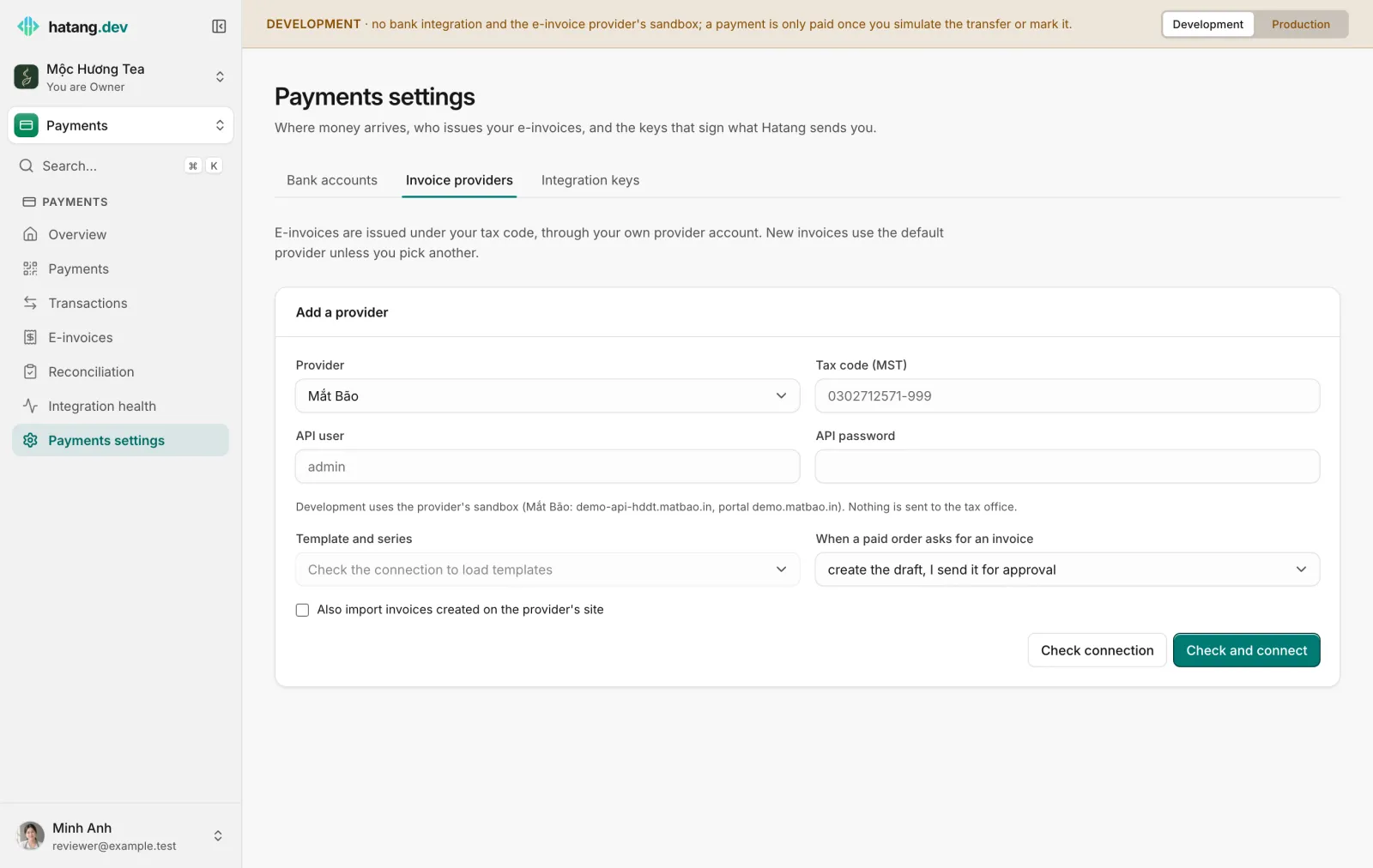
The password is stored encrypted and never shown again.
Send the callback URL to Mắt Bão
After connecting, the provider card shows a Callback URL. Send it to Mắt Bão support and ask them to set it for your account. Changes made on their side (signing, the tax office's code, cancellations, replacements) then reach Ha Tang at once. Without it, Ha Tang asks Mắt Bão for changes every minute, which also works but is slower; the card shows when it last checked.
Manage the connection
| Action | When |
|---|---|
| Make default | With several providers, new invoices use the default one unless you pick another |
| Change credentials | Mắt Bão refuses the saved password, for example after you changed it in their portal. A warning says invoices are paused; enter the current credentials and click Check and save. Paused invoices continue afterwards |
| Sync now (on E-invoices) | You want changes from Mắt Bão right away |
| Unlink | Ha Tang stops creating invoices with this account. Invoices already issued stay in Ha Tang and at Mắt Bão. The next provider becomes the default |
What Ha Tang does with the provider
- It creates drafts at Mắt Bão from your payments or from invoices you create, with the buyer, the items and VAT.
- It sends them for approval (signing), automatically or when you click, depending on the mode.
- It reads back what happens: the invoice number and lookup code, the tax office's code or rejection, and changes made in the Mắt Bão portal.
- It retries by itself when Mắt Bão is slow or unavailable. Payments → Integration health shows calls waiting and failing.
Ha Tang never cancels or deletes an invoice that has been sent to the tax office; that is done in the Mắt Bão portal, or by a replacement invoice.
Troubleshooting
| Symptom | Cause | What to do |
|---|---|---|
| Check connection fails | Wrong tax code, user or password, or API access not enabled | Copy them again from Cấu hình API; ask Mắt Bão to enable API access |
| No template in the list | No template registered for API use on the account | Register a template and series at Mắt Bão, then check again |
| Invoices stop with a credentials warning | The password changed at Mắt Bão | Change credentials |
| Changes in the Mắt Bão portal arrive late | The callback URL is not set | Send the Callback URL to Mắt Bão support |
| A paid payment's invoice is failed with "No e-invoice provider is connected in this environment" | The provider is connected in the other environment | Connect it in the environment the payment belongs to |
API details and invoice statuses for developers are in E-invoices in the developer hub.
Useful next steps
Was this article helpful?
Related articles
- Issue e-invoicesIssue an e-invoice automatically when a payment is paid, or by hand for any payment or transfer, follow it until the tax office accepts it, and fix the ones that fail.
- Reconcile money in against invoicesSee which transfers into your accounts still have no e-invoice, issue the missing ones, and mark refunds or internal transfers as needing none.
- Go live with real paymentsMove from the development environment to production: link your real bank account, connect your real e-invoice account, test with a small real transfer, and know what to watch afterwards.
Not finding what you are looking for?
Our team answers in the chat, in English or Vietnamese.