Create and manage orders
Build an order inside the conversation, send it to the customer as a card, and follow every order from new to delivered in one list.
Updated on
On this page
An order in Ha Tang starts where the sale happens: in the conversation. The agent picks the products, adds shipping, and the customer receives the order as a card with every line and the total. If you want, a VietQR payment card follows right away. Every order then lands in Products → Orders, where the team moves it from new to delivered.
Create an order in a conversation
You need Work access to Customer Support, and the Products app must be on.
- In the Inbox, open the conversation and click Order under the reply box.
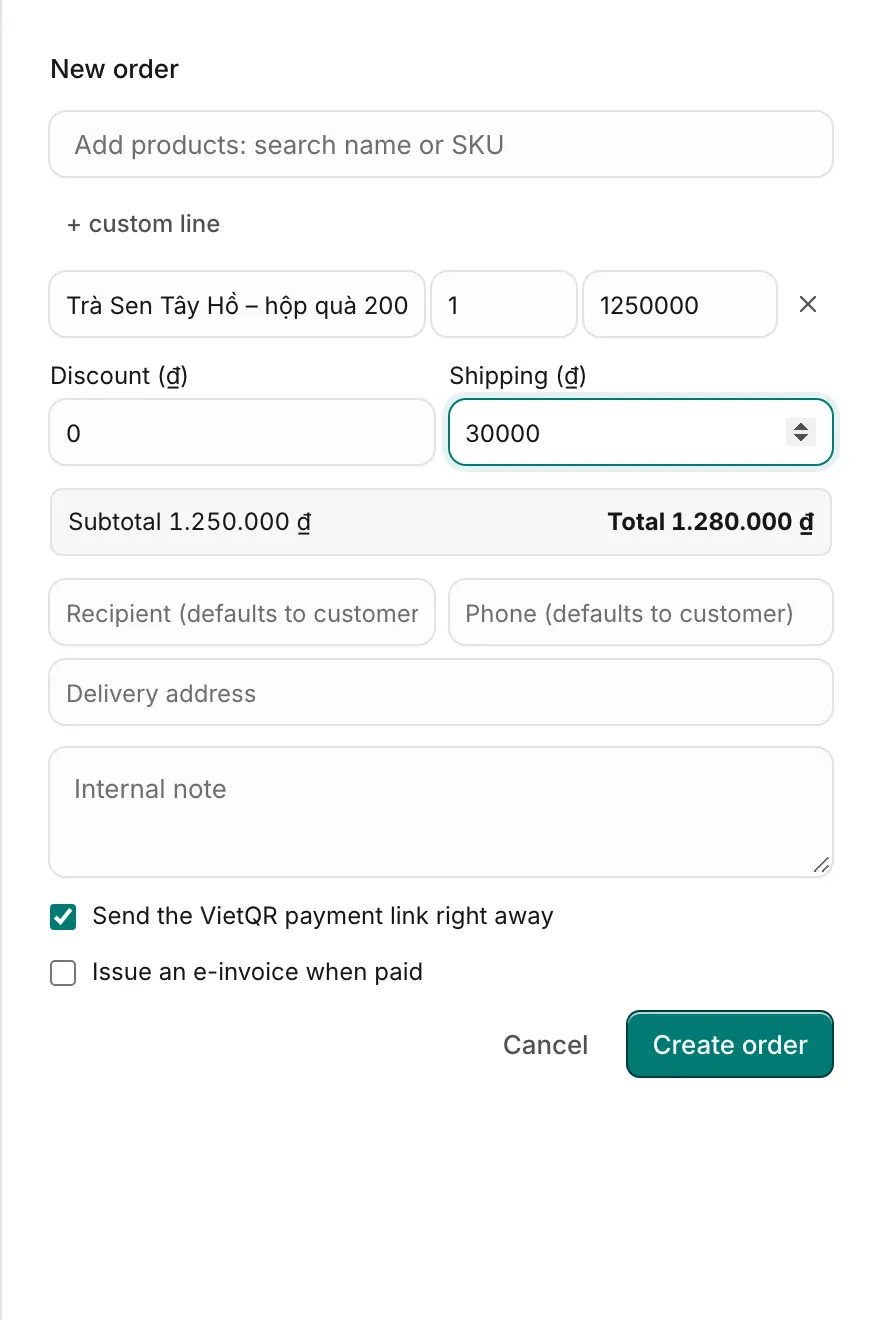
- In Add products: search name or SKU, type and click a product. Click it again to add one more. For something not in the catalog, click + custom line and type the item, quantity and price.
- Fill in Discount (₫) and Shipping (₫) if any. The panel shows the Subtotal and Total.
- Check the recipient: Recipient, Phone and Delivery address default to the customer's profile when left empty.
- Optional: an Internal note for the team (the customer never sees it).
- Leave Send the VietQR payment link right away on to ask for payment in the same step (see Get paid in the conversation).
- Tick Issue an e-invoice when paid if the customer needs a VAT invoice.
- Click Create order.
Ha Tang gives the order the next code (DH000001, DH000002…), posts the order card in the conversation, and links the order to the customer's profile. The order is attributed to you in the reports.
Drafts from the AI assistant
When the AI assistant hears a customer decide to buy, it records a draft order and leaves an internal note in the conversation. Drafts are not sent to the customer and do not count in the order list or reports until someone confirms them. They appear at the top of Products → Orders under Drafts from the assistant.
To confirm one, open it and click Confirm draft & send to customer (or Confirm & send to customer on the card in the conversation). The order card is posted in the conversation, and you can then send the payment link.
Follow orders
Products → Orders lists every order, newest first.
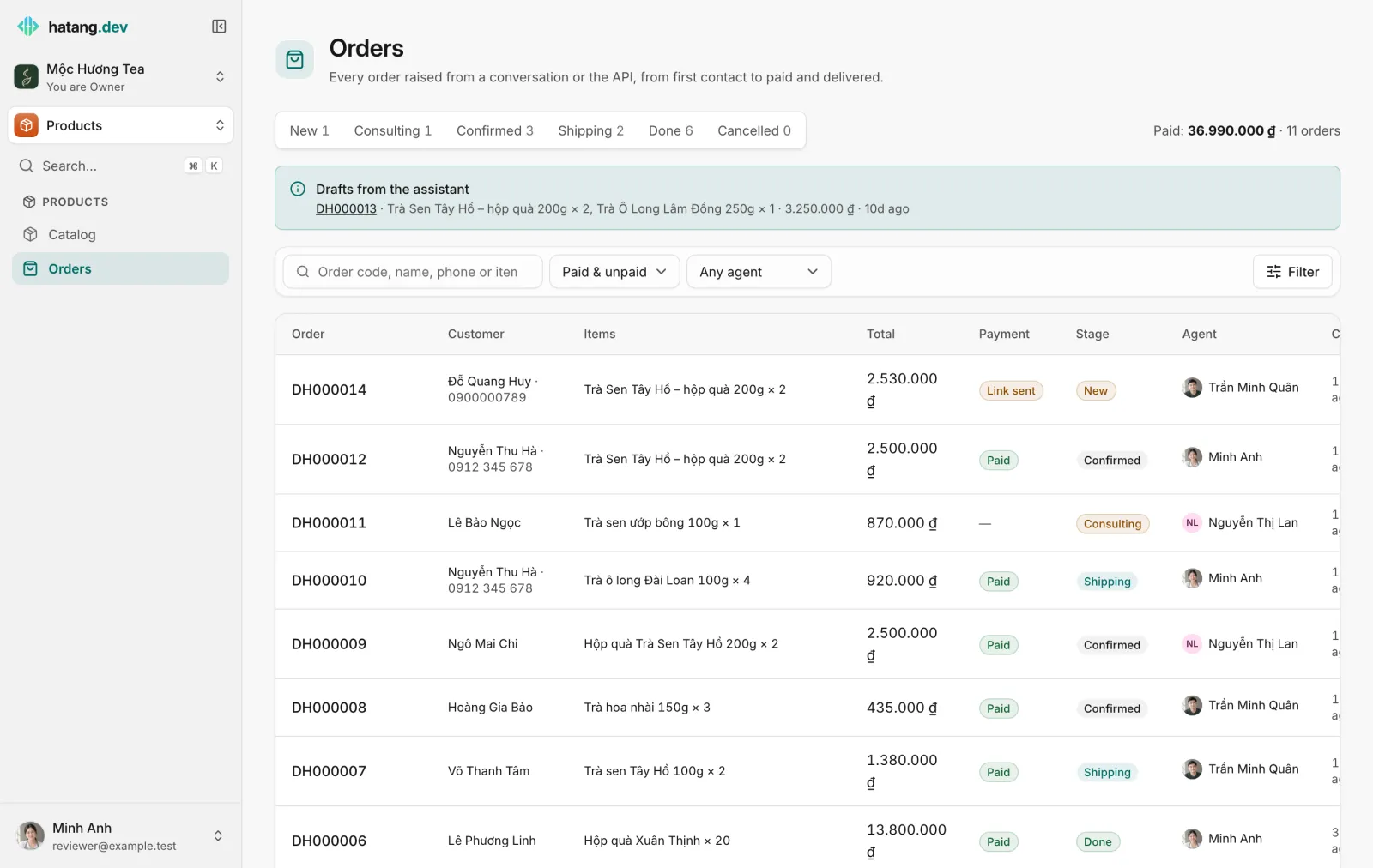
- The tabs at the top filter by stage and show how many orders are in each. On the right: the paid total and the number of paid orders.
- Search by order code, customer name, phone number or item, and filter by payment (Paid & unpaid) and by agent (Any agent).
- Payment shows Paid, Link sent (a payment link is waiting), or nothing yet.
- Orders that come from a marketplace, such as TikTok Shop, carry its name next to the code and keep the marketplace's status. See TikTok Shop.
Stages
| Stage | Meaning |
|---|---|
| New | Just created |
| Consulting | The customer is still deciding: changing items, asking about delivery |
| Confirmed | Agreed and, usually, paid |
| Shipping | On its way |
| Done | Delivered |
| Cancelled | Will not go ahead |
When the payment for an order arrives, Ha Tang marks it Paid and moves it from New or Consulting to Confirmed by itself. Every other move is yours.
Work on one order
Click an order code to open it. You need Work access to Products to change it.
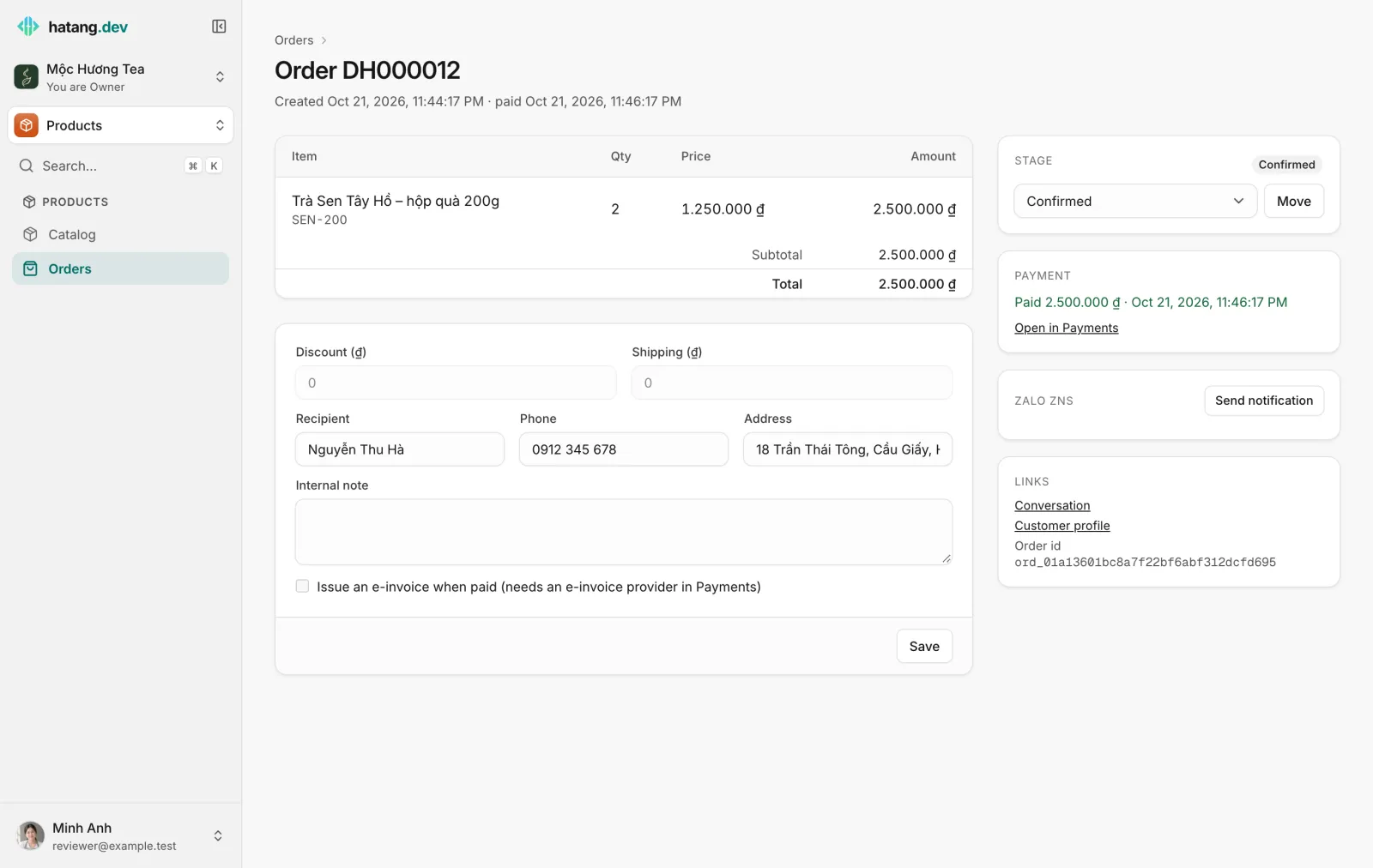
- Stage: pick the new stage and click Move.
- Discount, Shipping, Recipient, Phone, Address, Internal note and the e-invoice option: change them and click Save. Once an order is paid, its amounts are locked; create a new order if the customer wants something else.
- Payment: the payment status, the Transfer note and the Checkout page of a waiting payment, Send payment link or Send a new link, and Open in Payments.
- Zalo ZNS: Send notification sends a Zalo template message about this order to the customer's phone, if you have a Zalo OA with ZNS. See Zalo ZNS.
- Links: the Conversation the order came from, the Customer profile, and the order id your developers may ask for.
Orders elsewhere in Ha Tang
- The customer panel in the inbox lists the customer's orders, and their profile's Activity shows them too.
- Support reports and the Sales dashboards count orders and revenue per day and per agent. See Support reports.
- Your developers can receive
chat.order.created,chat.order.updatedandchat.order.paidwebhooks to send orders to your sales or delivery software. See Webhooks.
Useful next steps
Was this article helpful?
Related articles
- Get paid in the conversationSend a VietQR payment card for an order. The customer scans it with any banking app, and the order is marked paid by itself when the money arrives.
- Send product cards in chatSend up to four products from your catalog as cards with photo, price and a Buy button, on the website chat, your app, Zalo, Messenger and every other channel.
- Connect TikTok ShopAnswer TikTok Shop buyers from the inbox, and get every shop order in Orders with its TikTok status, kept up to date.
- Support reportsSee how many conversations your team handled, how fast it answered, what the AI did, how satisfied customers were and what it sold, for any period.
Not finding what you are looking for?
Our team answers in the chat, in English or Vietnamese.