Connect TikTok Shop
Answer TikTok Shop buyers from the inbox, and get every shop order in Orders with its TikTok status, kept up to date.
Updated on
On this page
Connect your TikTok Shop so chats from buyers land in the Inbox and your team answers them from Ha Tang. Every order of the shop is also copied into Products → Orders, with TikTok's own status next to the order stage, and kept up to date.
This guide covers the shop. For direct messages and comments on a TikTok account, see Connect TikTok.
What it supports
| Area | Supported |
|---|---|
| Incoming | Buyer text, images (copied into Ha Tang), videos (as a link), product and order cards (shown as a line with the product name or the order id) |
| Outgoing | Text (long messages are split into parts of 1,900 characters), images up to 5 MB; other files go out as a download link |
| Messages from Seller Center | Replies your staff send from TikTok Seller Center appear in the conversation as agent messages |
| Read status | When an agent reads the conversation in Ha Tang, it is marked read on TikTok |
| Orders | Every order, created and updated in Orders with its TikTok status |
| Reply window | None: you can reply at any time |
TikTok's system and bot notices are not brought into the inbox.
Before you start
- You can sign in to TikTok Shop Seller Center as the shop owner and approve apps.
- You have the Manage level on the Customer Support module.
- The business has at least one website under Customer Support → Channels. Without one, connecting fails with "Add a website under Customer Support → Channels first, then connect TikTok Shop."
Connect the shop
- Go to Customer Support → Channels, click Add channel and pick TikTok Shop under Social.
- If the business has several websites, choose one under Attach new connections to site.
- Click Connect shop. TikTok opens its authorization page.
- Sign in as the seller and approve the app for your shop or shops.
- Back in Customer Support → Channels, each authorized shop appears as its own row under Social with the status Active.
The shop's page shows its ID, its Region, when it was connected and the last message or event received.
Starting from TikTok's side
You can also approve the app from TikTok, for example from the app's listing in Seller Center. Sign in to the Ha Tang dashboard first, in the business that should own the shop: the shop joins that business, on its first active website. If you are signed out, Ha Tang asks you to sign in and then finishes the connection.
Orders
Each order of the shop is created in Products → Orders and updated when its status changes. TikTok's status sets the order stage:
| TikTok status | Order stage | Paid |
|---|---|---|
UNPAID, ON_HOLD |
New | ON_HOLD: yes; UNPAID: no |
AWAITING_SHIPMENT, AWAITING_COLLECTION |
Confirmed | Yes |
PARTIALLY_SHIPPING, IN_TRANSIT |
Shipping | Yes |
DELIVERED, COMPLETED |
Done | Yes |
CANCELLED |
Cancelled | No |
What each order holds:
- Items. TikTok lists one line per unit; Ha Tang groups them by SKU, so you see "× 3" instead of three lines.
- Amounts. Shipping fee and discounts (seller and platform). The total is what the buyer paid.
- Shipping address. Recipient name, phone and address.
- Note. The buyer's message, the tracking number and carrier, and the cancellation reason when there is one.
Ha Tang also re-reads every order updated in the last 24 hours once an hour, so an update TikTok failed to send is caught up. See Orders for working with orders.
Distribution and automation
To send shop chats to one team, tick TikTok Shop under a distribution rule's Channels (none ticked = any). Flows, canned responses, the AI assistant and reports work as on other channels.
Authorization and reconnecting
- Ha Tang renews the shop's access on its own every hour.
- When TikTok warns that the authorization expires soon, the shop's page shows "TikTok Shop authorization expires soon: click Reconnect to renew it." Click Reconnect next to the warning and approve the app again on TikTok. The shop keeps its conversations and orders.
- If the seller removes the app's authorization in TikTok Shop, the shop's status changes to Off. If TikTok rejects the access, it changes to Needs reconnecting. In both cases, click Reconnect on the shop's page.
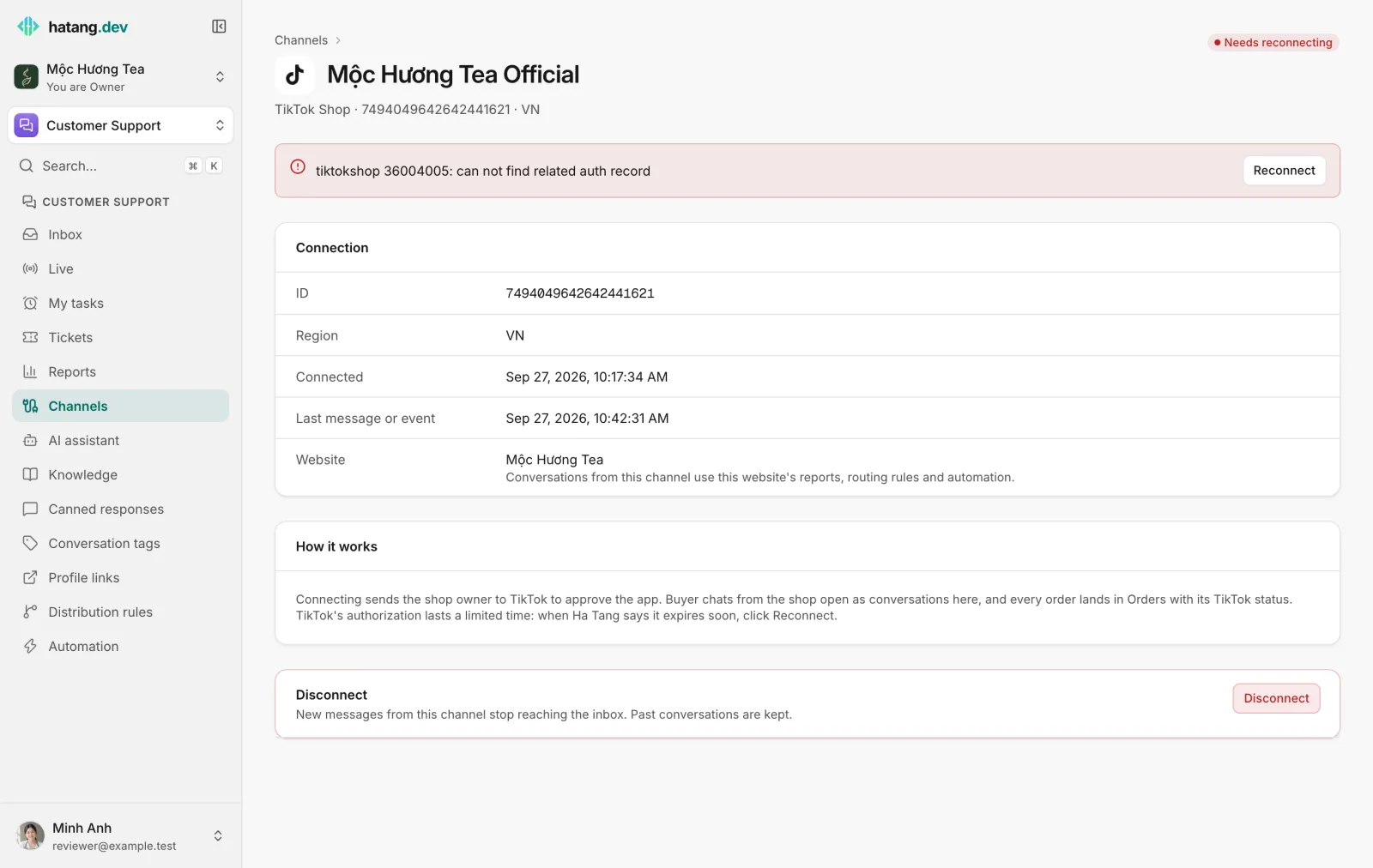
Connecting the same shop again in the same business keeps its conversations and orders. Click Disconnect at the bottom of the shop's page to stop new chats from reaching the inbox; past conversations are kept.
Limits
- You cannot start a conversation with a buyer from Ha Tang; the buyer writes first.
- Returns and cancellations are not separate events; a cancelled order shows as Cancelled with its reason.
- Product catalog sync and shipping labels are not available.
Troubleshooting
| Problem | Cause | What to do |
|---|---|---|
| "No shop was authorized for this app" | You approved the app without selecting a shop | Connect again and select the shop |
| "Connect session expired, start again" | More than 10 minutes passed during the authorization | Click Connect shop again |
| Status Off | The seller removed the app's authorization | Click Reconnect |
| Status Needs reconnecting | TikTok rejected the access | Click Reconnect |
| An order is missing or out of date | A status update did not arrive | Wait for the hourly catch-up |
Useful next steps
Was this article helpful?
Related articles
- Connect TikTokBring a TikTok Business account's direct messages into the inbox, and answer comments on your videos and ads automatically.
- Create and manage ordersBuild an order inside the conversation, send it to the customer as a card, and follow every order from new to delivered in one list.
- Reconnect a channelWhen a channel shows Needs reconnecting, messages stop arriving and replies fail. Here is why it happens and how to fix it for each channel.
Not finding what you are looking for?
Our team answers in the chat, in English or Vietnamese.