Connect Facebook Messenger and Instagram
Connect a Facebook Page and its linked Instagram account so Messenger and Instagram messages land in the inbox, and answer comments automatically.
Updated on
On this page
Connect a Facebook Page to bring its Messenger conversations into the Inbox. If an Instagram professional account is linked to the Page, its direct messages come in too, through the same connection. Each Page and Instagram account can also answer comments on its posts automatically, publicly and with a private message.
What it supports
| Area | Messenger | |
|---|---|---|
| Incoming | Text, images, videos, audio and files (up to 10 MB are copied into Ha Tang), locations (as a Google Maps link), shared links, button taps (shown as text) | Same as Messenger |
| Outgoing | Text, images, videos, audio and files; product cards (up to 10), payment-link buttons and quick replies (up to 13) | Text and attachments |
| Receipts | Delivered and read | Read, when Meta sends it |
| Replies from Meta's apps | Messages sent from the Page inbox or Meta Business Suite appear as agent messages | Messages sent from the Instagram app appear as agent messages |
| Comment auto-replies | Comments on the Page's posts, ads included | Comments on Instagram posts |
| Reply window | 24 hours; 7 days with the HUMAN_AGENT tag | Same |
The customer's name and profile picture come from Meta.
Before you start
- You are an admin of the Facebook Page, either with a Page role or with full control through a Meta business portfolio.
- For Instagram: the account is a professional account (business or creator) and is linked to the Page in Meta Business Suite.
- You have the Manage level on the Customer Support module.
- The business has at least one website under Customer Support → Channels. Conversations belong to a website, which decides their reports, distribution rules and automation.
Connect a Page
- Go to Customer Support → Channels, click Add channel and pick Facebook & Instagram under Social.
- If the business has several websites, choose one under Attach new connections to site.
- Click Connect Page. Facebook opens its login dialog.
- Sign in, select the Page and, if it has one, the Instagram account linked to it, and allow every permission Facebook asks for.
- Back in Customer Support → Channels:
- If you granted one Page, it is connected at once: "Connected Page name. Messages sent to it now land in the inbox."
- If you granted several, the page asks Which Facebook Page should be connected? Click one. To connect another Page, click Connect Page again.
The Page appears under Social as Facebook Messenger with the status Active. A linked Instagram account appears as its own row, Instagram, named @username, right under its Page. Send a message to the Page from another Facebook account (for example via m.me/your-page) to check that it lands in the Inbox.
The linked Instagram account
Instagram is not connected on its own: it comes with the Page's connection.
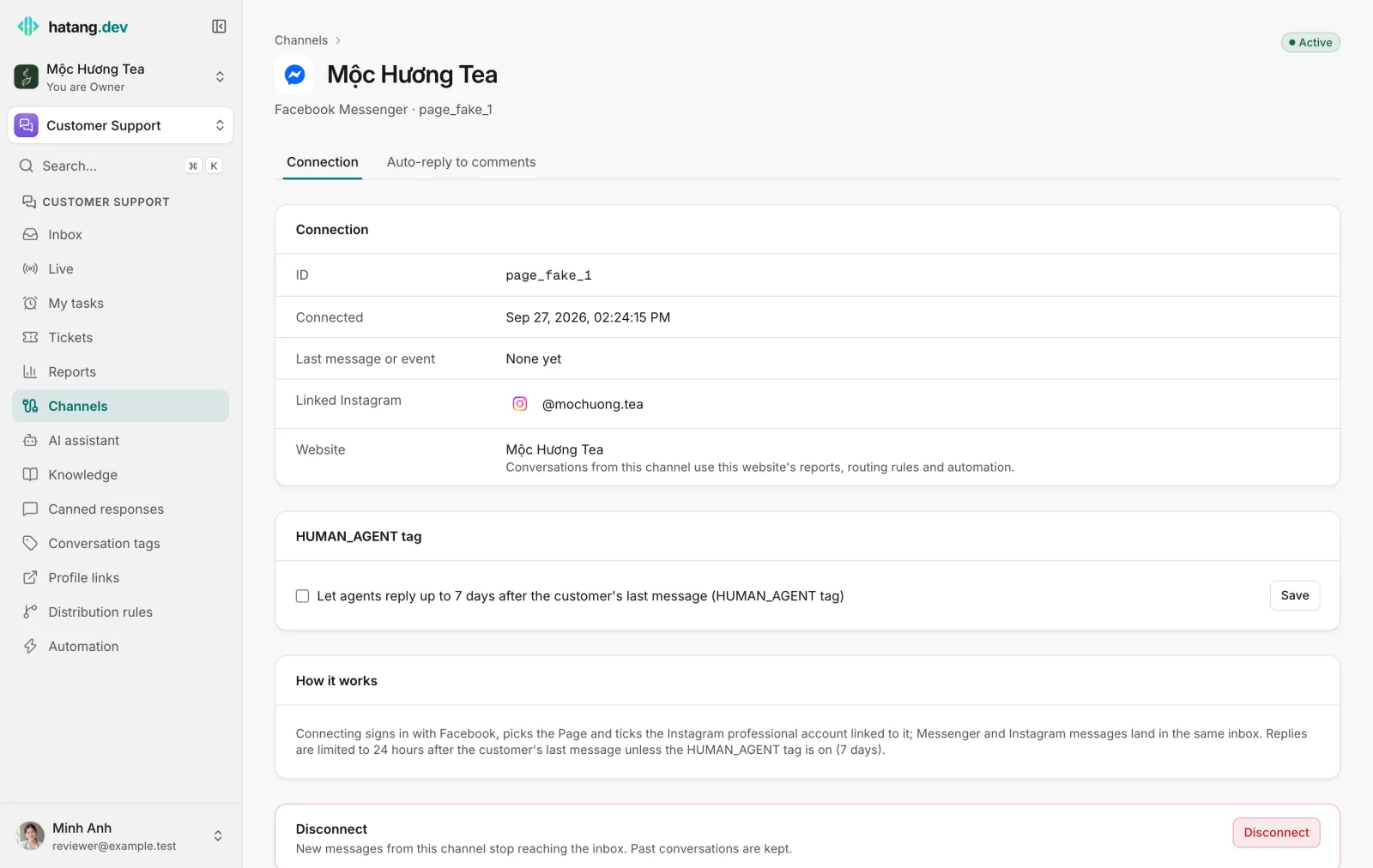
- The Page's page shows Linked Instagram with a link to the Instagram account, and the Instagram account's page shows its Facebook Page.
- If the Page shows "No Instagram linked yet", link an Instagram professional account to the Page in Meta Business Suite, click Connect Page again and tick Instagram in the Facebook dialog.
- If it shows "Could not read the Page's Instagram account: …", click Connect Page again and grant the Instagram permissions in the Facebook dialog.
The 24-hour window and the HUMAN_AGENT tag
Meta lets a Page or Instagram account reply freely for 24 hours after the customer's last message. The conversation header shows when the window closes. After that, the composer shows "The 24-hour Messenger reply window has closed" (or Instagram), until the customer writes again. Internal notes always work.
Meta's HUMAN_AGENT tag lets a person on your team reply up to 7 days after the customer's last message. Meta only accepts it from apps it has approved for that tag.
- Open the Page or the Instagram account under Customer Support → Channels.
- Under HUMAN_AGENT tag, tick Let agents reply up to 7 days after the customer's last message (HUMAN_AGENT tag) and click Save.
The Page and its Instagram account each have their own switch, so you can turn the tag on for Messenger, for Instagram, or for both. While it is on, replies a person types after 24 hours carry the tag; within 24 hours they are sent normally. Replies written by the AI or by automations never use it.
Comment auto-replies
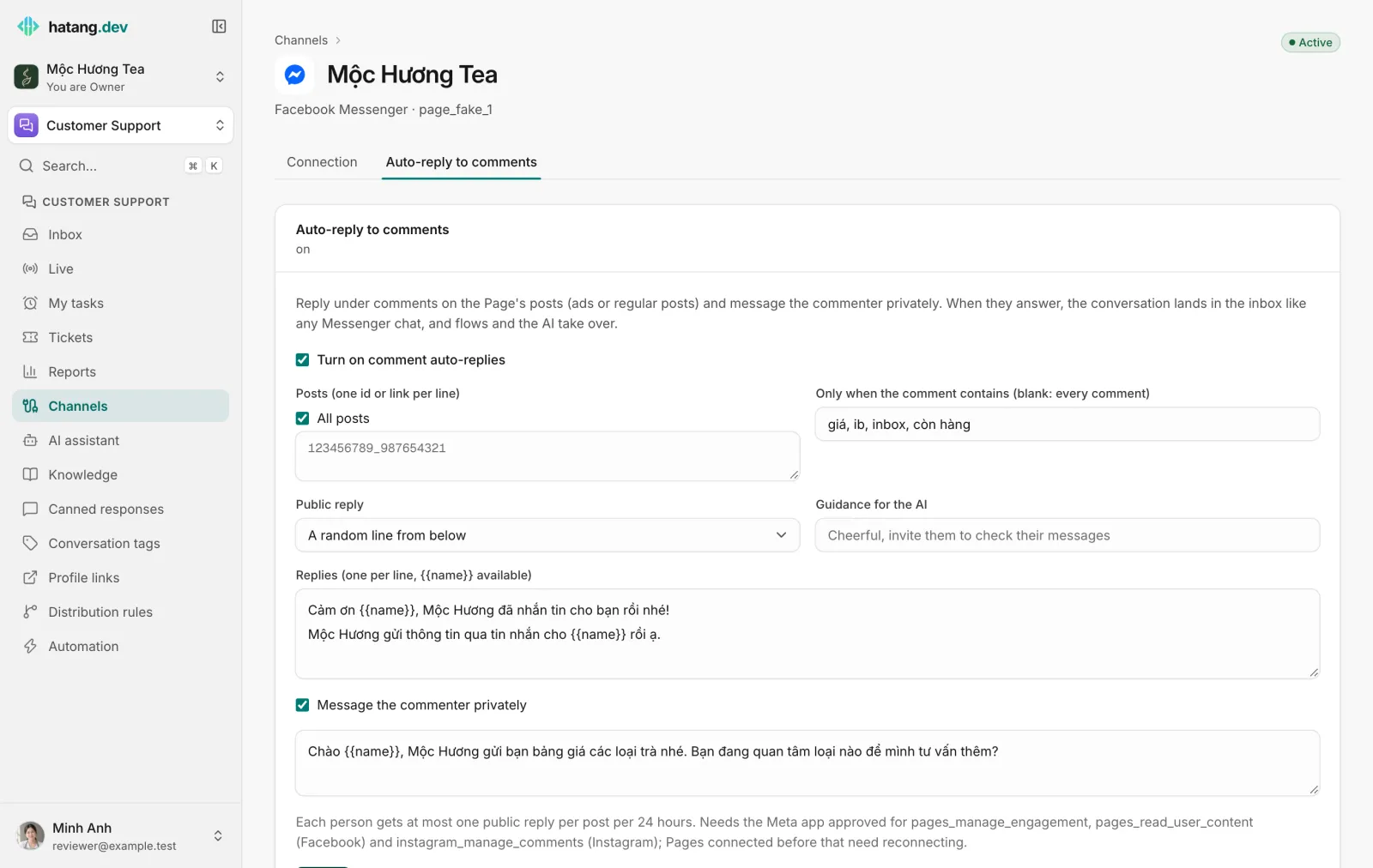
Each Page and Instagram account has an Auto-reply to comments tab next to Connection on its page. Use it to answer comments under your posts and ads, publicly (a random line from your list, or written by the AI) and with a private message that opens a conversation in the inbox.
What is specific to Facebook and Instagram:
- For a Page, enter the numeric post id (
123456789_987654321) or paste the post link when it contains that id. For Instagram, use the media id. Or tick All posts. - Each person gets at most one public reply per post per 24 hours. Only top-level comments are answered, and the Page's own comments are ignored.
- When the person answers the private message, the conversation lands in the inbox like any Messenger or Instagram chat, and flows and the AI take over.
See Comment auto-replies for every option.
Distribution and automation
To send these conversations to one team, tick Facebook Messenger or Instagram under a distribution rule's Channels (none ticked = any). Flows, canned responses, the AI assistant and reports work as on every other channel.
Reconnecting and disconnecting
If Facebook removes the Page's access (for example, a Page admin removed the app or changed their password), the status changes to Needs reconnecting. Click Reconnect on the Page's or the Instagram account's page; both go through Connect Page again. See Reconnect a channel.
Click Disconnect at the bottom of an account's page to stop new messages from reaching the inbox. Past conversations are kept. Connecting the same Page again in the same business keeps its conversations and settings. A Page can belong to only one business at a time.
Troubleshooting
When a reply cannot be delivered, the message shows Not delivered with the cause and a fix:
| The Inbox says | Cause | What to do |
|---|---|---|
| outside Messenger's 24-hour window, or another app controls the thread | The window closed, or another app holds the conversation | Turn on the HUMAN_AGENT tag if your app is approved, or wait for the customer to write again |
| this person can't receive messages right now | The person blocked the Page or deactivated their account | Reach the customer on another channel |
| Meta has restricted messaging for this Page | Meta restricted the Page | Check the Page in Meta Business Suite → Account quality |
| the Page's access token expired | Access was removed | Reconnect the Page under Customer Support → Channels |
| the app lacks permission to message for this Page | A permission was not granted | Reconnect the Page with an admin account and grant every permission |
Connection problems:
- "No Facebook Pages came back from Meta for that login." You did not select a Page in the Facebook dialog, or your account has no admin access to it. Try again and select the Page.
- "Connect session expired, start again" or "Page picker expired, start again": more than 10 minutes passed. Click Connect Page again.
- Messages reach the Page but not the inbox. Open the Page under Customer Support → Channels, check that its status is Active and look at Last message or event. If needed, click Connect Page again.
Useful next steps
Was this article helpful?
Related articles
- Auto-reply to commentsAnswer comments on your Facebook, Instagram, TikTok and X posts automatically, in public and by private message, so commenters end up in your inbox.
- Connect WhatsAppConnect a WhatsApp Business number so customer messages land in the inbox, while the WhatsApp Business app on your phone keeps working.
- Reconnect a channelWhen a channel shows Needs reconnecting, messages stop arriving and replies fail. Here is why it happens and how to fix it for each channel.
Not finding what you are looking for?
Our team answers in the chat, in English or Vietnamese.