Connect WhatsApp
Connect a WhatsApp Business number so customer messages land in the inbox, while the WhatsApp Business app on your phone keeps working.
Updated on
On this page
Connect a WhatsApp Business number and customer messages land in the Inbox, next to your other channels. The number stays in the WhatsApp Business app on your phone: messages you send from the phone show in the conversation too, and both stay in sync. Distribution rules, flows, the AI assistant and reports work as on every other channel.
What it supports
| Direction | Supported |
|---|---|
| Receiving | Text, images, video, voice and audio, documents, stickers, locations, contacts, button and list replies, quoted replies |
| Sending | Text (quoting the customer's message), images, video (MP4 up to 16 MB; larger ones go as a document), audio and documents; approved templates after 24 hours |
| From the phone | Messages you send in the WhatsApp Business app appear in the conversation as agent messages |
| Status | Sent, delivered and read ticks on your replies; the customer sees their message read when an agent opens the conversation |
Before you start
- A phone number that uses the WhatsApp Business app, version 2.24.17 or later. Regular WhatsApp numbers cannot connect: install WhatsApp Business and move the number to it first.
- A Facebook account. You pick or create a Meta business portfolio while connecting.
- A website under Customer Support → Channels, and the Manage level on the Customer Support module.
Connect a number
- Go to Customer Support → Channels, click Add channel and pick WhatsApp under Messaging apps.
- If the business has several websites, choose one under Attach new connections to site.
- Click Connect WhatsApp. A Facebook window opens.
- Sign in to Facebook and pick or create your business.
- Enter your WhatsApp Business number. The window shows a QR code.
- On the phone, open WhatsApp Business, confirm the connection and scan the QR code.
- Back on the computer, finish the steps in the Facebook window.
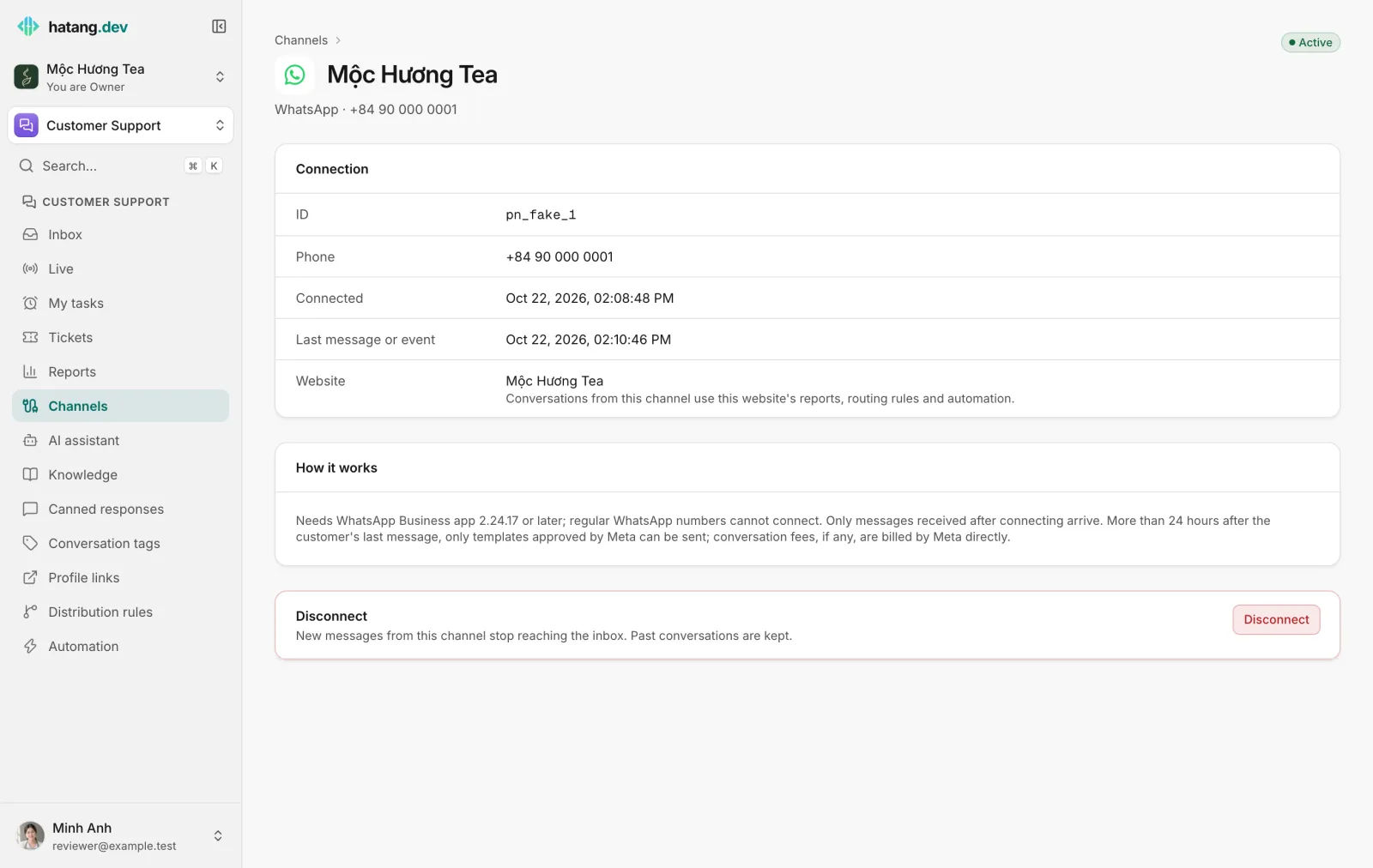
The number appears under Messaging apps with the status Active. Its page shows the phone number, when it was connected and the last message or event.
If the Facebook window closes before the end, the page shows "Not connected: the Facebook window closed before the end". If it says "Could not load the Facebook SDK", turn off ad blockers and try again.
The 24-hour window and templates
WhatsApp lets you reply freely only within 24 hours of the customer's last message. After that, the composer explains that WhatsApp only delivers templates approved by Meta, and a Send a template button appears. Internal notes still work.
To send a template:
- Click Send a template and pick one from the templates Meta approved for this number.
- Fill in the variables. The first one is filled with the customer's name, since it usually is the name. Check the Preview.
- Click Send. When the customer replies, the 24-hour window opens again.
Create templates and get them approved in Meta's WhatsApp Manager. The list in the Inbox refreshes every 10 minutes and as soon as Meta changes a template's status.
Costs
Ha Tang adds no WhatsApp message fees. Conversation fees, if any (for example when you send a template), are billed by Meta directly to your business at WhatsApp's prices.
Limits
| Item | Limit |
|---|---|
| Free-form replies | Within 24 hours of the customer's last message |
| Text per message | 4,096 characters |
| Caption | One file with a text of up to 1,024 characters goes as one captioned message, as in the WhatsApp app |
| Media received | Up to 10 MB for images, audio and stickers, 25 MB for video and documents; larger media becomes a note |
| Reactions | Not shown in the Inbox |
Ha Tang paces sending per number to stay under WhatsApp's speed limits.
Access and reconnecting
The access Meta grants for a number lasts 60 days. Ha Tang renews it on its own every day once it is within 10 days of expiring. If renewal fails, or you remove Ha Tang's access in Meta, the number shows Needs reconnecting: open its page and click Reconnect, which runs the same Facebook flow. See Reconnect a channel.
Disconnect on the number's page stops new messages from reaching the Inbox. Past conversations are kept, and reconnecting the same number keeps its history. A number can be connected to only one business at a time.
To send WhatsApp conversations to one team, tick WhatsApp under a distribution rule's Channels (none ticked = any).
Troubleshooting
| The Inbox says | Cause | What to do |
|---|---|---|
| more than 24 hours have passed since the customer's last WhatsApp message | The window is closed | Send an approved template, or wait for the customer to write again |
| WhatsApp could not deliver to this number | The number is not on WhatsApp, has not accepted the latest terms, or is limited by Meta | Check the number, or reach the customer on another channel |
| Meta refused the template | The template is paused, in the wrong language or missing variables | Check the template's status in WhatsApp Manager and pick another |
| the WhatsApp number is sending too fast | WhatsApp's speed limit | Wait a moment and send again |
| The number shows Needs reconnecting | The access was removed or could not be renewed | Click Reconnect on the number's page |
Useful next steps
Was this article helpful?
Related articles
- Connect Facebook Messenger and InstagramConnect a Facebook Page and its linked Instagram account so Messenger and Instagram messages land in the inbox, and answer comments automatically.
- Connect TelegramConnect your Telegram bot, and optionally your Telegram Business account, so customer chats on Telegram land in the inbox.
- Reconnect a channelWhen a channel shows Needs reconnecting, messages stop arriving and replies fail. Here is why it happens and how to fix it for each channel.
Not finding what you are looking for?
Our team answers in the chat, in English or Vietnamese.