Connect Telegram
Connect your Telegram bot, and optionally your Telegram Business account, so customer chats on Telegram land in the inbox.
Updated on
On this page
Connect your Telegram bot and customers who message it land in the Inbox, next to your other channels. With Telegram Premium you can also link the bot to your own account through Telegram Business: chats sent to your personal Telegram account then land in the Inbox too, and your team answers on your behalf.
Ha Tang uses Telegram's official Bot API: no sign-in session on your account and no app review.
What it supports
| Direction | Supported |
|---|---|
| Receiving | Text and captions, photos, videos, voice and audio, documents, animations, stickers (emoji stickers as text), locations, contacts, quoted replies |
| Sending | Text, photos, videos, voice, audio and documents up to 20 MB (larger ones go as a download link), quoting a customer's message; recalling a sent message |
| Edits and deletions | A customer's edited message is updated; a message deleted in a Telegram Business chat gets an internal note |
| From your Telegram app | With Telegram Business, replies you send from the Telegram app show in the conversation |
| Read receipts | Telegram Business chats only: the customer sees their message read when an agent opens the conversation |
Only private chats reach the Inbox. Group and channel messages are ignored.
Before you start
- A Telegram account to create the bot with.
- For Telegram Business: a Telegram Premium subscription on the account customers write to.
- A website under Customer Support → Channels, and the Manage level on the Customer Support module.
Step 1: Create a bot
- In Telegram, open @BotFather and send
/newbot. - Give the bot a name and a username that ends in
bot, for examplemochuong_tea_bot. - BotFather replies with a token like
123456789:AA…. Keep it secret, like a password.
Step 2: Connect the bot
- Go to Customer Support → Channels, click Add channel and pick Telegram under Messaging apps.
- If the business has several websites, choose one under Attach new connections to site.
- Paste the token in Bot token (from @BotFather) and click Connect bot.
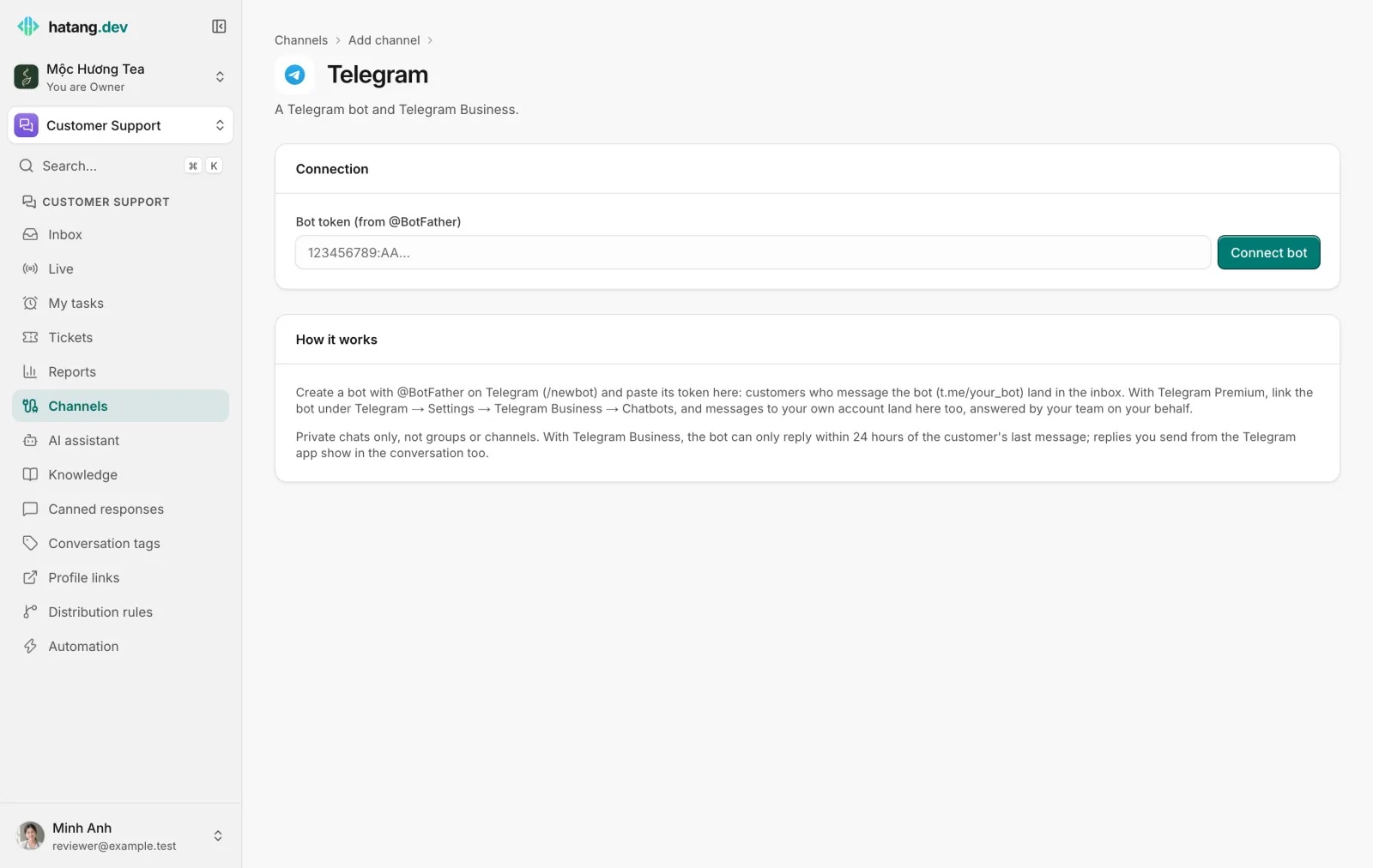
Ha Tang checks the token, connects the bot and lists it with the status Active. The bot's page shows its link, t.me/<username>. Put it on your website, social pages or a QR code so customers can write to it.
Step 3 (optional): Link Telegram Business
Customers often write to the shop owner's own account rather than to a bot. With Telegram Premium:
- In the Telegram app, open Settings → Telegram Business → Chatbots.
- Enter the username of the bot you connected, choose which chats it can access and allow it to reply.
- On the bot's page under Customer Support → Channels, the Telegram Business card shows Telegram Business: your name · can reply.
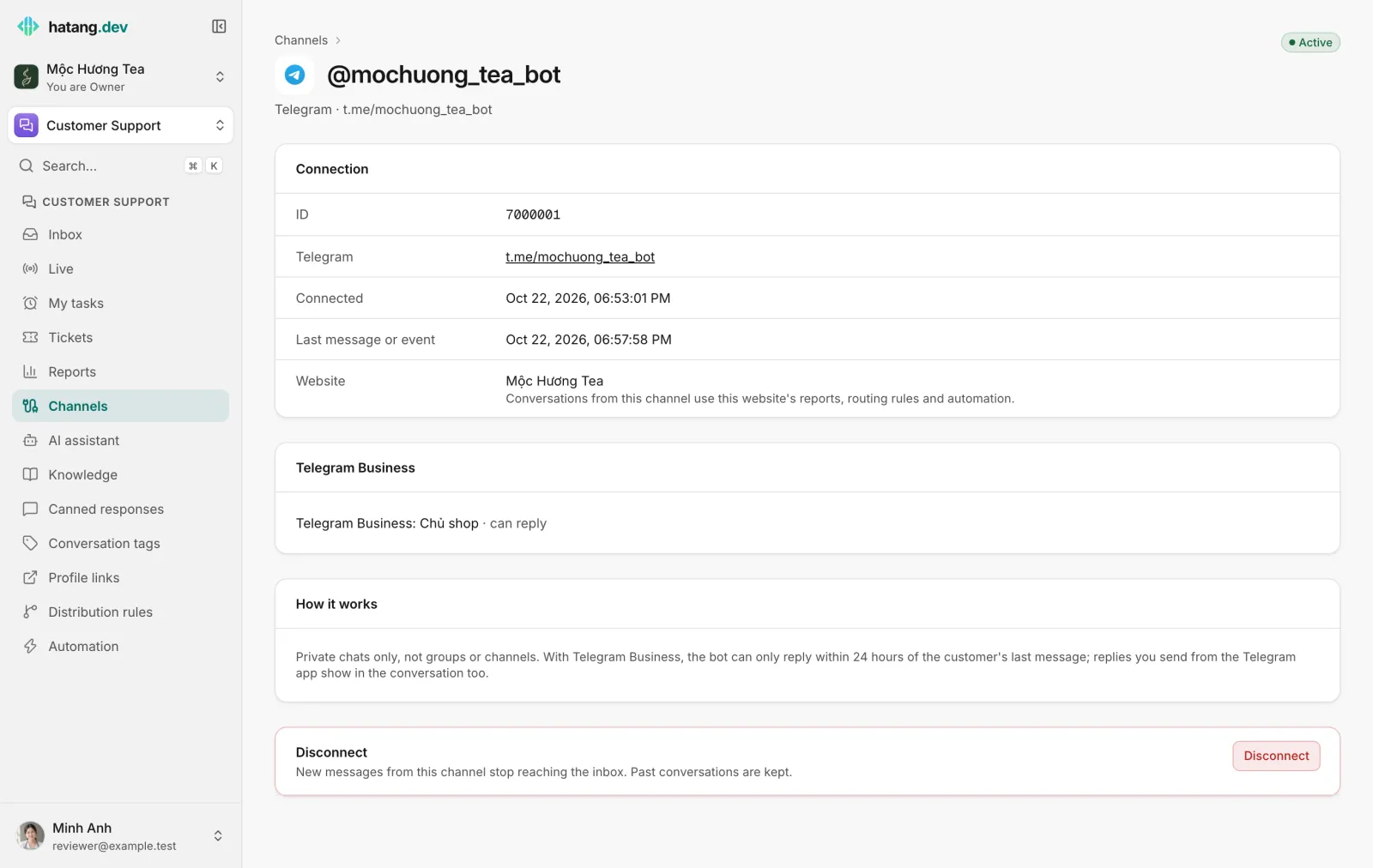
The card shows read-only (allow replies in Telegram) when the bot may read but not reply, and turned off when the link is paused. From then on, messages customers send to your account land in the Inbox. When an agent replies, the customer sees the message come from your account.
Limits
| Item | Limit |
|---|---|
| Replies in Telegram Business chats | Within 24 hours of the customer's last message. After that the Inbox does not send and adds an internal note; reply from the Telegram app or wait for the customer to write again |
| Replies in bot chats | No time limit |
| Files received | Up to 20 MB |
| Caption | One file with a text of up to 1,024 characters goes as one captioned message |
| Recalling a message | In bot chats, Telegram lets a bot delete its messages for 48 hours |
When a customer shares their own contact, their phone number is saved on their profile. To send Telegram conversations to one team, tick Telegram under a distribution rule's Channels (none ticked = any).
Changing the token and disconnecting
If you revoke the token in @BotFather (/revoke), the bot stops receiving messages, and the next reply that fails turns its status to Needs reconnecting. Open the bot's page, click Reconnect and paste the new token. Connecting the same bot again keeps its conversations.
Disconnect stops new messages from reaching the Inbox. Past conversations are kept.
Troubleshooting
| The Inbox says | Cause | What to do |
|---|---|---|
| the customer blocked the Telegram bot (or deleted their account) | The customer blocked the bot | Reach the customer on another channel; once they unblock the bot and write again, sending works |
| the Telegram bot's token is no longer valid | The token was changed in @BotFather | Get a new token from @BotFather and connect the bot again |
| the Telegram bot is sending too fast | Telegram's speed limit | Wait a few seconds and send again |
| outside the channel's reply window | A Telegram Business chat older than 24 hours | Reply from the Telegram app, or wait for the customer |
Other problems:
- "Telegram rejected this token" when connecting. The token was mistyped or revoked. Copy it again from @BotFather.
- No messages arrive. The bot is connected to another tool, or the chat is a group. Disconnect it there and connect it here again; only private chats are supported.
Useful next steps
Was this article helpful?
Related articles
- Connect WhatsAppConnect a WhatsApp Business number so customer messages land in the inbox, while the WhatsApp Business app on your phone keeps working.
- Connect LINEConnect a LINE Official Account through the Messaging API so customer chats on LINE land in the inbox.
- Reconnect a channelWhen a channel shows Needs reconnecting, messages stop arriving and replies fail. Here is why it happens and how to fix it for each channel.
Not finding what you are looking for?
Our team answers in the chat, in English or Vietnamese.