Connect LINE
Connect a LINE Official Account through the Messaging API so customer chats on LINE land in the inbox.
Updated on
On this page
Connect a LINE Official Account and the messages customers send it on LINE land in the Inbox, next to your other channels. It suits businesses that sell to customers in Thailand, Japan or Taiwan, where LINE is the main messaging app. Distribution rules, flows, the AI assistant and reports work as on every other channel.
What it supports
| Direction | Supported |
|---|---|
| Receiving | Text and emoji, stickers (shown as text with their keywords), images, video, audio, files, locations, quoted replies |
| Sending | Text (quoting a customer's message), JPEG and PNG images, MP4 video; other files are sent as links |
| Profile | The customer's name and picture come from their LINE profile |
| Events | An internal note when a customer unsends a message, adds the account as a friend, or blocks it |
| Read receipts | The customer sees their messages read when an agent opens the conversation (needs Chat turned on, see below) |
Only one-to-one chats reach the Inbox. Group and room messages are not handled.
Before you start
- A LINE Official Account, created in LINE Official Account Manager.
- The Messaging API turned on for that account: in LINE Official Account Manager, open Settings → Messaging API and enable it (choose or create a provider).
- A website under Customer Support → Channels, and the Manage level on the Customer Support module.
Step 1: Get the channel secret and access token
Open the LINE Developers console and select the account's Messaging API channel:
- On the Basic settings tab, copy the Channel secret (32 letters and digits).
- On the Messaging API tab, under Channel access token (long-lived), click Issue and copy the token.
Step 2: Connect in Ha Tang
- Go to Customer Support → Channels, click Add channel and pick LINE under Messaging apps.
- If the business has several websites, choose one under Attach new connections to site.
- Paste the Channel secret and the Channel access token, then click Connect LINE.
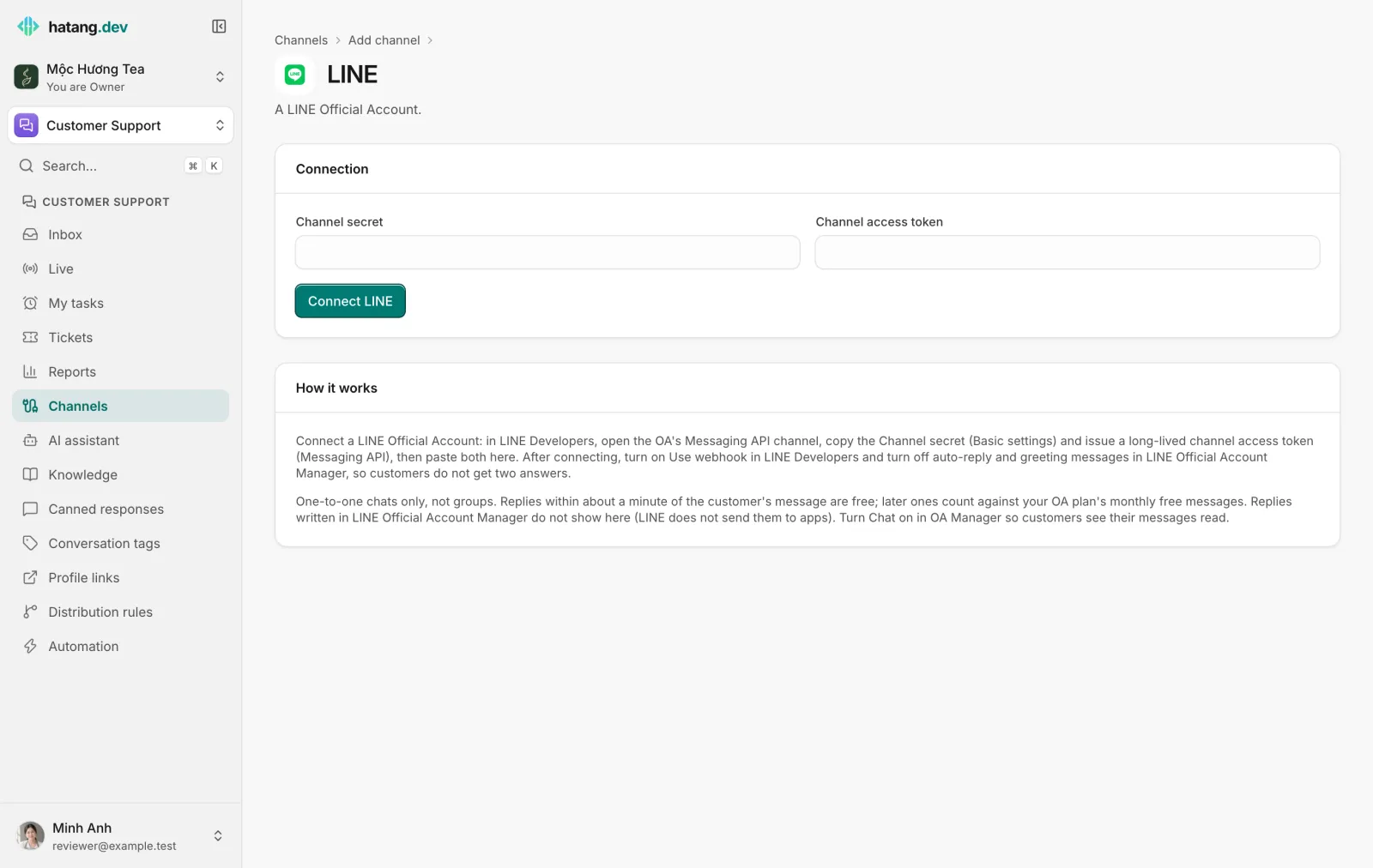
Ha Tang checks the token, sets the channel's webhook in LINE and asks LINE to test it. The account appears with its @basic ID and the status Active.
If the test fails, the account's page shows a warning such as Webhook test failed …: turn on "Use webhook" in LINE Developers → Messaging API. The webhook URL is also shown on the account's page under How it works, so you can paste it by hand if needed.
Step 3: Finish the setup in LINE
- In LINE Developers → Messaging API, turn on Use webhook.
- In LINE Official Account Manager → Response settings, turn off auto-reply messages and greeting messages, so customers do not get two answers.
- Turn Chat on if you want customers to see their messages read when an agent opens the conversation.
Send a message to the account from the LINE app to check that it arrives in the Inbox.
Message costs
| When you reply | Cost |
|---|---|
| Within about a minute of the customer's message | Free |
| Later | Counts against your OA plan's monthly free messages |
Ha Tang replies the free way whenever it can: a reply sent less than about 50 seconds after the customer's latest message is free. When the monthly allowance runs out, later replies are not delivered and the conversation gets an internal note.
Limits
- Long texts are split into messages of 5,000 characters.
- Files received are kept up to 25 MB.
- Replies written in LINE Official Account Manager do not show in the Inbox, because LINE does not send them to apps. Answer customers from Ha Tang.
- LINE does not let apps unsend messages, so recalling a sent message is not available.
- Rich menus and Flex messages are not handled.
To send LINE conversations to one team, tick LINE under a distribution rule's Channels (none ticked = any).
Disconnecting
Disconnect on the account's page stops new messages from reaching the Inbox. Past conversations are kept. LINE does not let apps clear the webhook URL, so remove it in LINE Developers if you stop using Ha Tang; messages to a disconnected account are ignored either way. Connecting the same account again keeps its history.
Troubleshooting
| Problem | Cause | What to do |
|---|---|---|
| The Inbox says "the LINE Official Account used up this month's free messages" | The plan's monthly allowance is used up | Upgrade the plan in LINE Official Account Manager, or reply right after the customer writes |
| The Inbox says "the LINE channel access token is no longer valid" | The token was revoked or reissued | Issue a new token in LINE Developers and reconnect LINE |
| No messages arrive | Use webhook is off, or the webhook is not set | Turn on Use webhook in LINE Developers and check the webhook URL |
| Customers get two answers | The OA's own auto-reply or greeting is on | Turn them off in LINE Official Account Manager |
| "LINE rejected this channel access token" when connecting | The token was mistyped or revoked | Issue a new one in LINE Developers |
| "The Channel secret is 32 hexadecimal characters" | The wrong value was pasted | Copy the Channel secret from Basic settings |
Useful next steps
Was this article helpful?
Related articles
- Connect TelegramConnect your Telegram bot, and optionally your Telegram Business account, so customer chats on Telegram land in the inbox.
- Connect WhatsAppConnect a WhatsApp Business number so customer messages land in the inbox, while the WhatsApp Business app on your phone keeps working.
- Reconnect a channelWhen a channel shows Needs reconnecting, messages stop arriving and replies fail. Here is why it happens and how to fix it for each channel.
Not finding what you are looking for?
Our team answers in the chat, in English or Vietnamese.