Send product cards in chat
Send up to four products from your catalog as cards with photo, price and a Buy button, on the website chat, your app, Zalo, Messenger and every other channel.
Updated on
On this page
When a customer asks "what do you have for a gift around one million?", answer with the products themselves. A product card shows the photo, name and price, and lets the customer open the product page or say they want to buy, without leaving the chat.
To send cards you need Work access to Customer Support, and the Products app must be on for the business with at least one visible product in the catalog (see Your product catalog).
Send product cards
- Open the conversation in the Inbox.
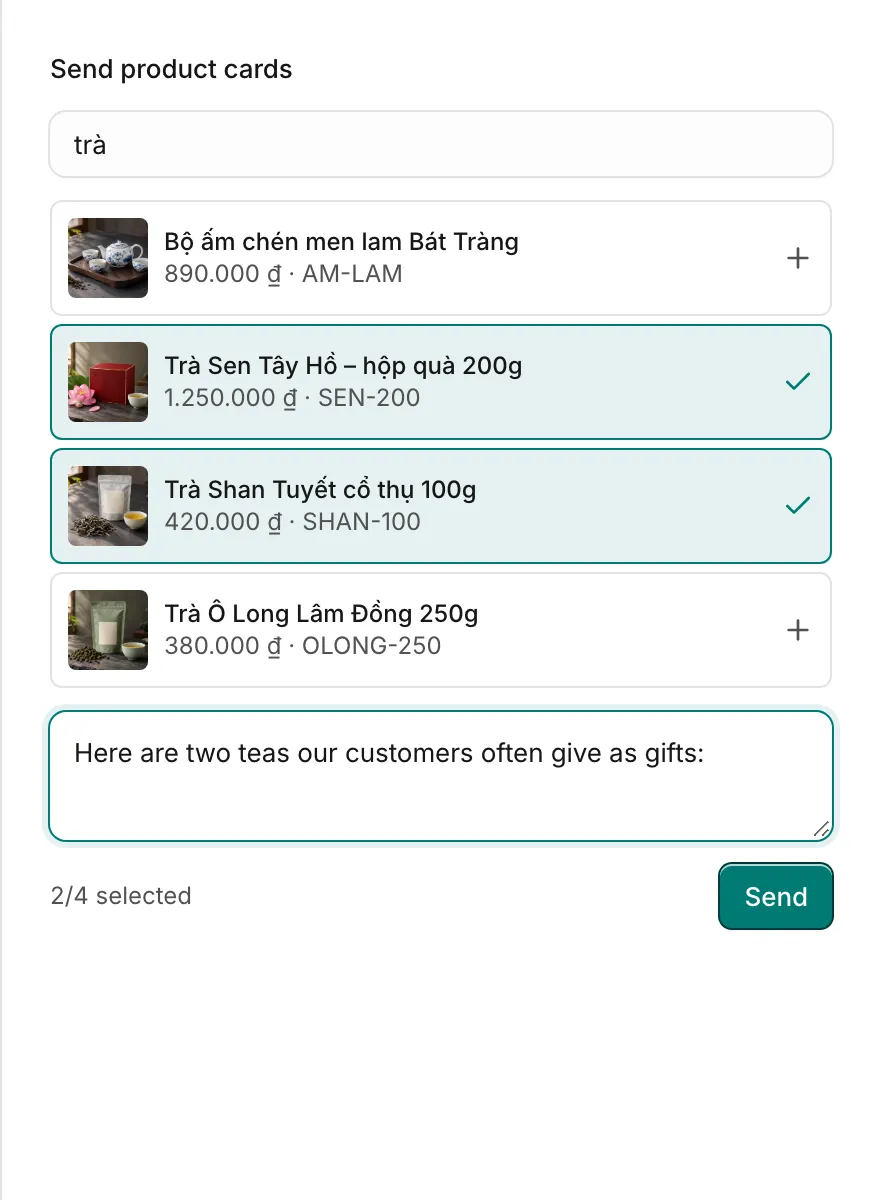
- Click Product under the reply box. The Send product cards panel opens with your newest products.
- Search by name, SKU or category, and click up to 4 products. Each one you pick is ticked.
- Optional: type a message in Optional message above the cards, for example "Here are two teas our customers often give as gifts:".
- Click Send.
The cards appear in the conversation as your message, and the customer receives them on their channel.
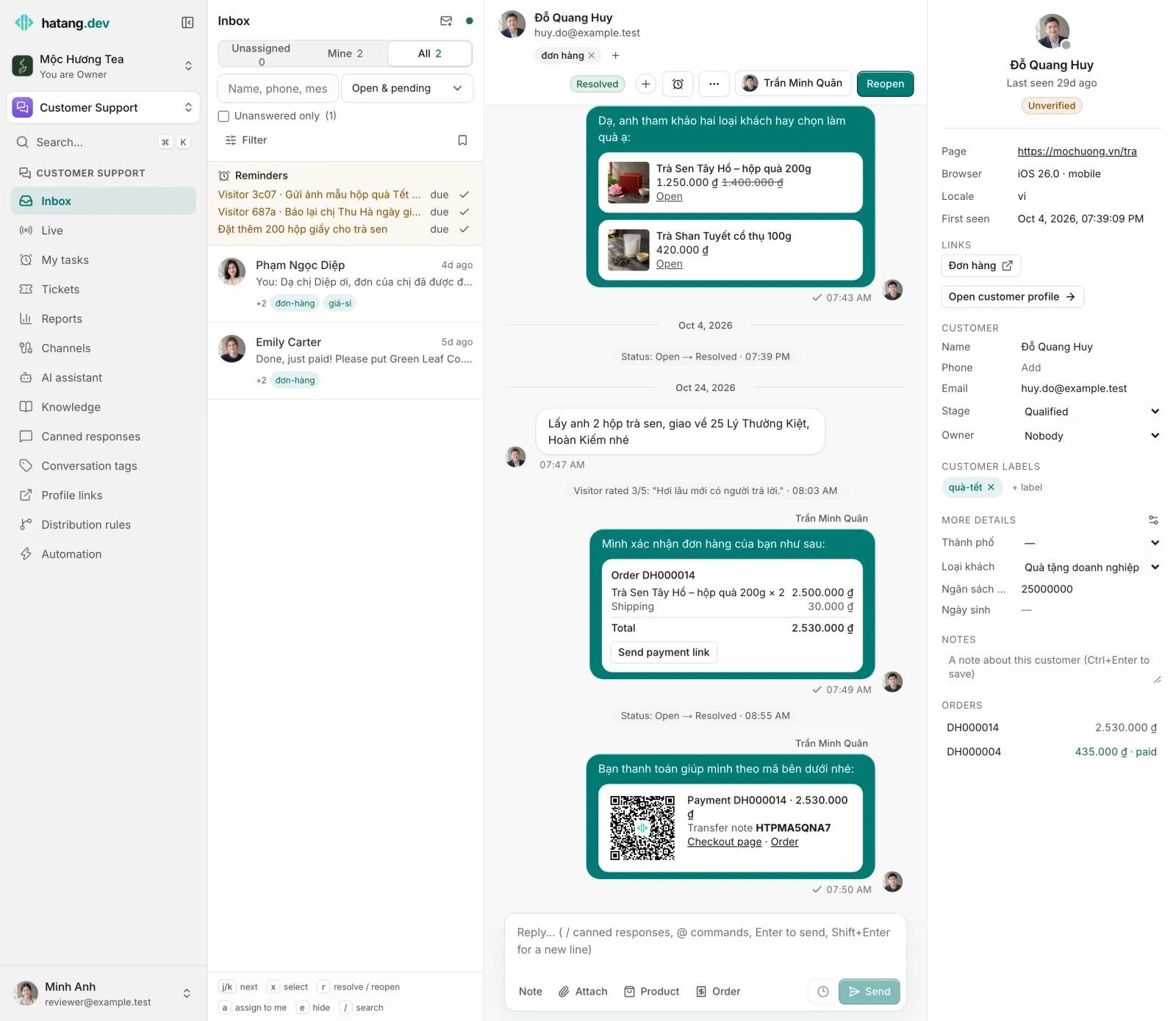
What the customer sees
How a card looks depends on what the channel can display. When a channel cannot show cards, the customer gets the same information as text: your message, then one line per product with its name, price and page link.
| Channel | What the customer gets |
|---|---|
| Website chat widget | A card per product with photo, price (old price struck through), View to open the product page, and Buy |
| Your mobile app (Ha Tang SDK) | The same cards, drawn by the app |
| Zalo OA | A Zalo product list (up to 5 products) with photos, when every product has a photo; otherwise text |
| Messenger and Instagram | A carousel with photo, price and a "Xem sản phẩm" button to the product page |
| Other channels (Zalo personal, TikTok, WhatsApp, Telegram, LINE, X, email) | Text with names, prices and links |
Buy on the website or in an app does not charge anything. It writes "I'd like to buy product name" (or the Vietnamese "Mình muốn mua …") into the customer's message box, so they only have to press send. Your agent then creates the order: see Create and manage orders.
In your own app, a product with App Store or Google Play product ids can start the store's in-app purchase instead. The card carries the price and id of the store the customer is using. See Selling software, subscriptions and in-app purchases.
The AI assistant sends cards too
When the AI assistant is on and a customer asks about products, prices or what to choose, it answers with up to four matching products as cards, quoting prices only from your catalog. When the customer clearly decides to buy, it records a draft order for your team to confirm. Hidden products are never offered. See The AI assistant.
Tips
- Give every product a photo. Cards without one look empty, and Zalo falls back to text.
- Fill in Product page URL, so View takes the customer to the full description.
- Two or three well-chosen products convert better than four. Add a line of advice above the cards.
- Out-of-stock products show "out of stock" in the picker. Think twice before sending them.
Troubleshooting
| Symptom | Cause | What to do |
|---|---|---|
| The panel says "No products yet" | The catalog is empty, or every product is hidden | Add or show products in Products → Catalog |
| A product does not come up in the search | It is hidden | Click Show on it in the catalog |
| The customer on Zalo got text instead of a list | One of the products has no photo | Add an Image URL to every product you send |
| Sending fails | The Products app is off, or the Zalo or Messenger reply window has closed | Turn Products on in business settings; for closed windows see Message not delivered |
Useful next steps
Was this article helpful?
Related articles
- Your product catalogAdd your products by hand or import them from a CSV file, a Google Sheet or your website, so agents can send them in chat and the AI can quote them.
- Create and manage ordersBuild an order inside the conversation, send it to the customer as a card, and follow every order from new to delivered in one list.
- Get paid in the conversationSend a VietQR payment card for an order. The customer scans it with any banking app, and the order is marked paid by itself when the money arrives.
- Reply to customersWrite replies, use canned responses and quick commands, quote a message, recall one, and understand reply windows and delivery ticks.
Not finding what you are looking for?
Our team answers in the chat, in English or Vietnamese.