Your product catalog
Add your products by hand or import them from a CSV file, a Google Sheet or your website, so agents can send them in chat and the AI can quote them.
Updated on
On this page
The catalog is the list of what you sell, inside Ha Tang. Once it is there, agents send products to customers as cards in any chat, build orders from it in a few clicks, and the AI assistant answers price and stock questions from it instead of guessing.
The catalog lives in the Products app, under Products → Catalog. You need View access to Products to see it and Work access to add or change products.
Import your catalog
You rarely need to type products one by one. The import box at the top of Products → Catalog has three tabs:
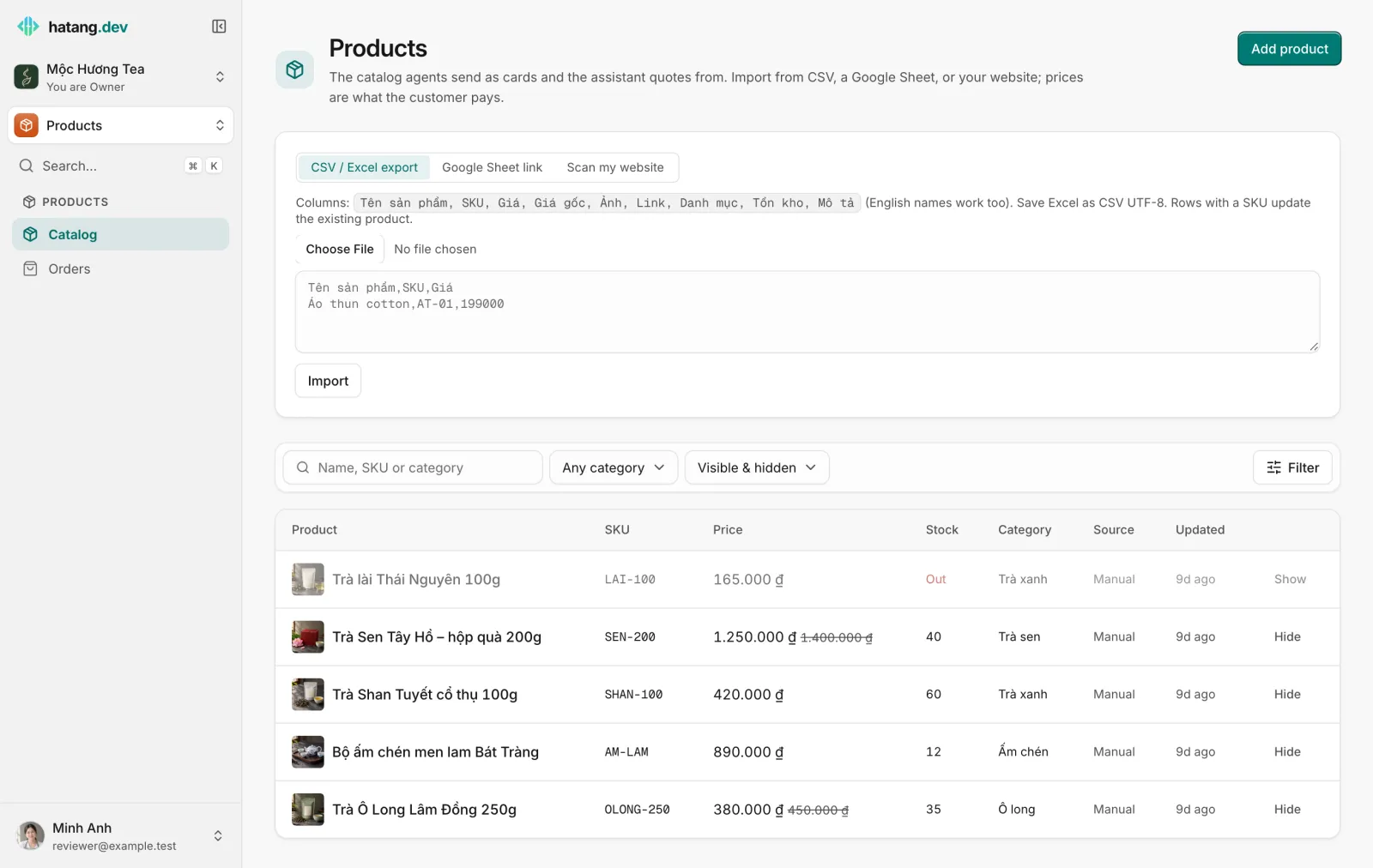
CSV / Excel export
- In Excel, save your product list as CSV UTF-8. The first row must be the column names.
- Click CSV / Excel export, then choose the file, or paste the rows into the box.
- Click Import.
Recognized columns, in Vietnamese or English: Tên sản phẩm (name, required), SKU, Giá (price), Giá gốc (compare-at price), Ảnh (image link), Link (product page), Danh mục (category), Tồn kho (stock), Mô tả (description). Other columns are ignored. Prices may be written as 199000, 199.000 or 199,000 đ.
A row with a SKU that already exists updates that product instead of adding a second one.
Google Sheet link
- In Google Sheets, click Share and set the link to "Anyone with the link can view".
- Click Google Sheet link, paste the link and click Import.
The sheet uses the same columns as a CSV file. To pick up changes, import the same link again: products are updated, and products you deleted from the sheet are hidden in Ha Tang (not deleted).
Scan my website
If your shop runs on Haravan, Sapo, Shopify or WooCommerce, or any site that publishes schema.org product data (the data Google Shopping reads), Ha Tang can read the products straight from your pages.
- Click Scan my website and type your shop's address.
- Leave Large site: scan in the background on for a shop with many pages.
- Click Import.
Ha Tang reads up to 60 pages. In the background, products appear while pages are read. Scanning again updates them and hides products no longer on the site.
After each import Ha Tang says how many products were added, updated and hidden.
Add or edit a product by hand
Click Add product, or a product's name to edit it.
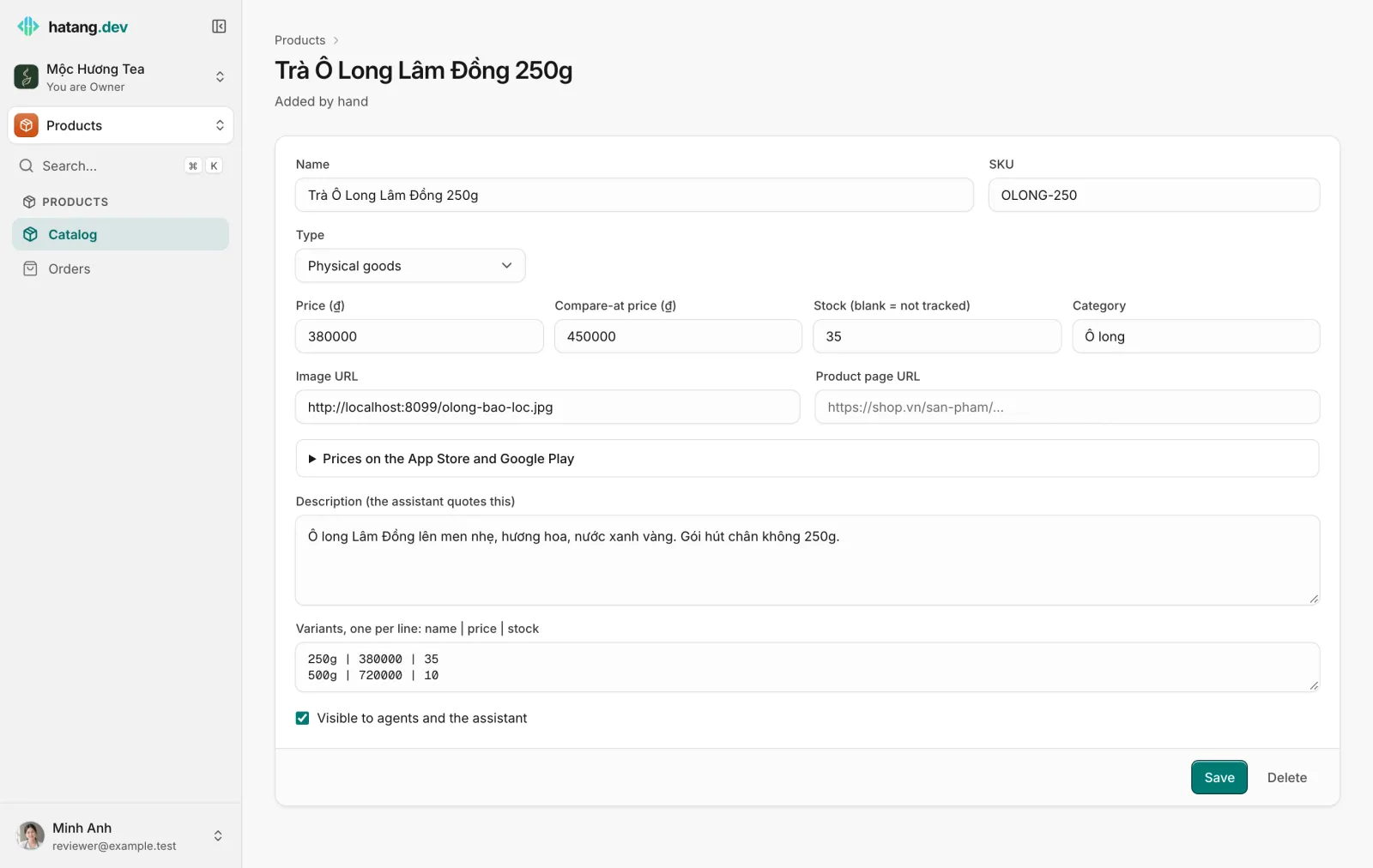
| Field | What it does |
|---|---|
| Name and SKU | How agents find it. The SKU is optional but lets imports update the product |
| Price (₫) | What the customer pays, VAT included |
| Compare-at price (₫) | The old price, shown struck through on the card |
| Stock (blank = not tracked) | When it reaches 0, the product shows Out in the list and "out of stock" in the picker |
| Category | For filtering the list; agents can also search by it |
| Image URL | The picture on the card. Zalo only shows product lists when every product has an image |
| Product page URL | The View button on the card opens it |
| Description (the assistant quotes this) | What the AI assistant tells customers about the product |
| Variants, one per line: name | price | stock | For example 500g | 720000 | 10 |
| Visible to agents and the assistant | Untick to hide the product without deleting it |
Click Save. Delete removes the product for good; past orders keep their lines.
Sold in your mobile app
If you sell digital goods inside your own app, App Store and Google Play require their in-app purchase. Open Prices on the App Store and Google Play and enter the product ID, price and currency you set in App Store Connect and the Play Console. Customers inside your app see that store's price; see Selling software, subscriptions and in-app purchases. When a customer taps Buy on the card in your app, the app receives these ids to start the store purchase. Your developers set this up with the Ha Tang SDK: see the SDK guides.
Hide or show products
In the list, Hide and Show switch a product's visibility. Hidden products stay in the list, greyed out, but agents cannot pick them and the AI does not offer them. Filter the list with Visible & hidden, Any category and the search box.
Tips
- Write descriptions for customers, not for the warehouse: origin, taste, size, who it suits. The AI answers with them.
- Keep stock up to date, or leave it blank. A wrong stock count is worse than none.
- Use the same SKUs as in your sales software, so a re-import from its export updates everything at once.
Useful next steps
Was this article helpful?
Related articles
- Send product cards in chatSend up to four products from your catalog as cards with photo, price and a Buy button, on the website chat, your app, Zalo, Messenger and every other channel.
- Create and manage ordersBuild an order inside the conversation, send it to the customer as a card, and follow every order from new to delivered in one list.
- Add knowledge for the AIGive the assistant your FAQs, policies, website, Google Docs, Notion pages and files, or push documents from your own system through the API, and write them so it finds the right answer.
Not finding what you are looking for?
Our team answers in the chat, in English or Vietnamese.