Add knowledge for the AI
Give the assistant your FAQs, policies, website, Google Docs, Notion pages and files, or push documents from your own system through the API, and write them so it finds the right answer.
Updated on
On this page
Knowledge is everything the assistant is allowed to say. It answers only from what you add on the Knowledge tab, on every channel of the business, and hands off when the answer is not there. Good knowledge is the single biggest lever on the quality of its answers.
Kinds of knowledge
| Type | What to add | Good for |
|---|---|---|
| FAQ (Q/A pairs) | Question and answer blocks, separated by a blank line | Shipping, prices, opening hours, returns: anything customers ask in one sentence |
| Text / markdown | Any text, with # headings if you like, up to 200,000 characters |
Policies, product guides, care instructions |
| Website, Google Doc / Sheet, or Notion link | A website address or sitemap.xml, a Google Doc or Sheet shared as "anyone with the link", or a Notion page or database |
Content you already keep up to date elsewhere |
| PDF / Word file | A PDF or DOCX up to 20 MB | Catalogs, price lists, handbooks |
| API | Documents your developer pushes from your help center, CMS or product docs (see below) | A large or often-changing set that must stay exactly in step with your own system |
Products are not knowledge: the assistant reads prices and descriptions straight from your catalog. See Your product catalog.
Add a source
- Go to Customer Support → Knowledge (or the Knowledge tab of Customer Support → AI assistant).
- Choose the Type.
- Enter a Title. For a file you can leave it blank to use the file name.
- Fill in the content, the link or the file:
- FAQ: write
Q:andA:(orHỏi:andĐáp:) blocks separated by a blank line. - Link: paste the address. For a website, set Re-crawl every (days, 0 = never); the default is 7.
- File: choose the PDF or DOCX.
- FAQ: write
- Click Add source.
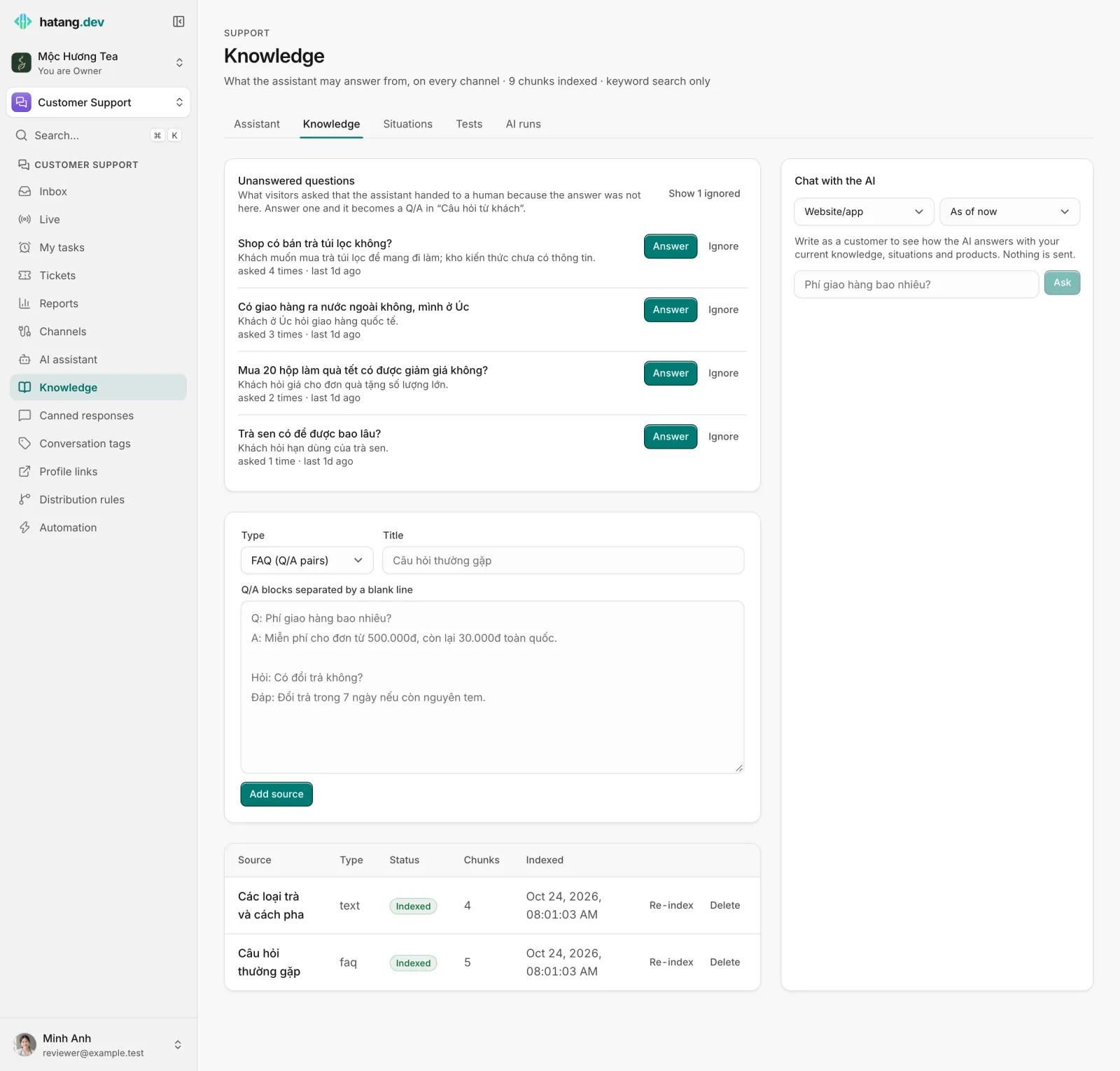
The source appears in the table with its status: Pending, then Indexing, then Indexed, or Error with the reason underneath. Chunks shows how many passages it was cut into, and for websites how many pages were read.
Push documents from your own system
If you already have a help center, a CMS or a product catalogue, your developer can push its documents straight into the knowledge through the Knowledge API instead of letting the assistant crawl your website. Each document keeps your id and its own language (the assistant prefers documents in the customer's language), and the whole set can be synced after every update: new and edited documents are indexed, removed ones are deleted. These documents show on the Knowledge page as kind API, one row per set, and are edited only through the API. Developer guide: Knowledge API.
How each kind is read
- Websites are read from the address you give, following links on the same site two levels deep, up to 50 pages. Ha Tang respects your
robots.txtand sitemap and skips pages markednoindex. The site is read again automatically every few days, as set in Re-crawl every. - Google Docs and Sheets must be shared as "anyone with the link can view".
- Notion needs a one-time connection: create an internal integration at notion.so/profile/integrations, paste its token in Notion integration token on the Assistant tab, then share each page or database with that integration in Notion.
- Files: the text is taken out when you upload. A scanned PDF with no text is read by the AI in the background, which counts toward your AI budget.
When you change a page or a doc outside Ha Tang, click Re-index to read it again. FAQ and text sources cannot be edited in place: to change one, add the new version and delete the old one.
How the assistant finds the answer
Every source is cut into passages: one per question and answer in an FAQ, and sections of about a paragraph or two for everything else, labeled with the headings above them. When a customer writes, the assistant looks up the six passages that best match the customer's last two messages and answers from those only.
The search ignores Vietnamese accents and tolerates typos, so "phi ship" finds "phí ship". The line under the page title says how many chunks are indexed and whether "semantic search on" (matching by meaning, not only by words) or "keyword search only" applies.
Write knowledge the AI can use
- One question, one answer. "Q: Do you ship to the provinces? A: Yes, 2 to 4 working days, 35,000đ" beats a paragraph that mixes shipping, returns and payment.
- Use your customers' words. If they write "ship" and "COD", write "ship" and "COD" in the questions.
- Give exact figures. The assistant never invents prices, delivery times or promotions. If a number is missing, it hands off.
- Headings in long texts.
## Trà sen Tây Hồabove a section keeps each passage meaningful on its own. - Teach from your replies. When an agent answers something the AI could not, Teach the AI turns that reply into a Q/A in one click.
- Remove what is out of date. Old promotions in the knowledge are old promotions in the answers.
- Test after each change with Chat with the AI, and keep a few tests for the questions that matter most.
Troubleshooting
| Symptom | Cause | What to do |
|---|---|---|
| A website source shows Error | The site blocks crawlers in robots.txt, or the address cannot be reached |
Allow the crawler, or add the content as text or a file |
| "No Q/A pairs found" | The FAQ blocks are not in Q: / A: form or not separated by blank lines |
Fix the format and add the source again |
| A Notion source shows Error | No integration token, or the page is not shared with the integration | Connect Notion on the Assistant tab and share the page in Notion |
| A scanned PDF stays in Error | The AI budget is used up, or the scan has no readable text | Raise the cap and click Re-index, or upload a text version |
| The AI answers with old information | The website or doc changed after the last reading | Click Re-index |
Useful next steps
Was this article helpful?
Related articles
- Answer the questions the AI could notTurn the questions the assistant handed off into new knowledge, and correct a reply straight from the inbox.
- Teach the AI from your repliesAfter you answer a customer, let the AI turn your reply into a knowledge entry, so it can answer the same question itself next time.
- Set up the AI assistantAdd knowledge, try the assistant, choose when it answers and give it a name and tone, in about fifteen minutes.
- Your product catalogAdd your products by hand or import them from a CSV file, a Google Sheet or your website, so agents can send them in chat and the AI can quote them.
Not finding what you are looking for?
Our team answers in the chat, in English or Vietnamese.