Teach the AI from your replies
After you answer a customer, let the AI turn your reply into a knowledge entry, so it can answer the same question itself next time.
Updated on
On this page
When you answer a question the AI could not, your reply is the answer it was missing. Teach the AI reads the conversation, writes the question and answer as a knowledge entry for you to check, and saves it in one click. The next customer who asks gets that answer from the AI.
When to use it
Use it after a reply that answers something customers are likely to ask again: a price, a delivery time, a policy, how a product works. It is not worth it for replies about one customer's order or account, which the AI should not repeat to anyone else.
Teach the AI from a reply
- In the conversation, hover over your reply and click Teach the AI (the graduation cap).
- Wait while the AI reads the conversation. It takes a few seconds.
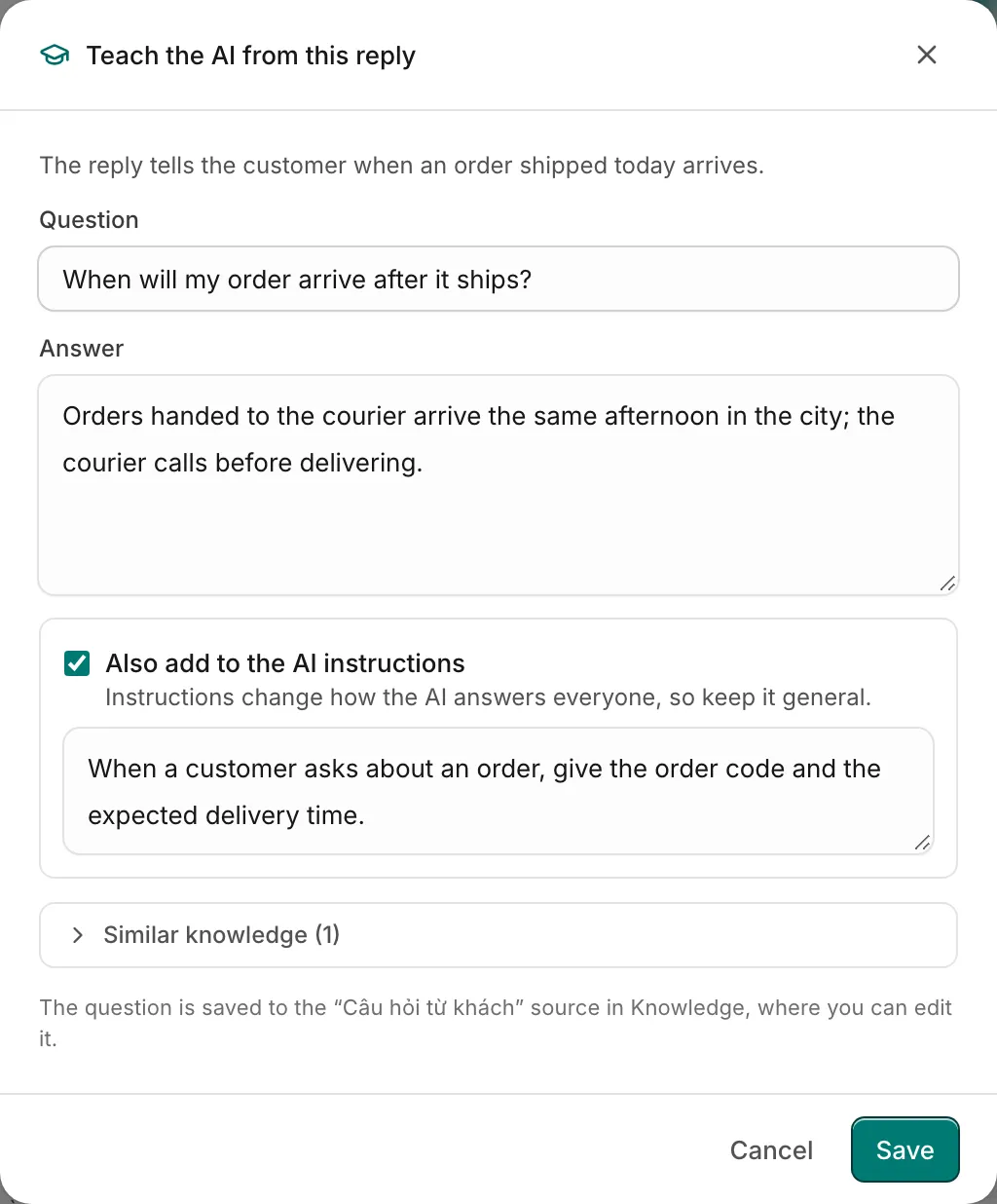
- Check what it drafted, and correct it if needed (see below).
- Click Save.
A message confirms "Added to the AI's knowledge". Your reply now shows Taught to AI, and the action is no longer offered on it, for you or for your colleagues.
The AI's own replies have the same action, so you can teach from a good AI answer too.
What the AI drafts
The AI drafts from the customer's question and your answer only. It is asked to write the entry so it reads well on its own: the question in general words, the answer without the customer's name, order number or other personal details. Check the draft before you save it, since everything you save is used in answers to every customer. You get one of three results.
| Result | What you see | What to do |
|---|---|---|
| Something new | An editable Question and Answer, and the Similar knowledge it found, if any | Tidy the wording and check the figures, then click Save |
| Already known | Why it thinks so, and the passages of your knowledge that already say this | Click Close. If your answer is newer or more exact, click Add anyway to edit and save it |
| Nothing to learn | Why: a greeting, a reply about one customer's order, a question that was not answered | Click Close, or Write it myself to fill in the question and answer yourself |
Checking for knowledge that already exists keeps the AI from collecting the same answer twice, worded differently. When your answer contradicts what is in the knowledge, fix the original source instead: two different answers to the same question confuse the AI.
Add to the AI instructions
Sometimes your reply shows how the AI should behave rather than what it should know, for example "Always offer to call back when a customer complains about a late delivery". The AI then also proposes a sentence for Instructions for the assistant, under a checked box Also add to the AI instructions.
The instructions apply to every conversation the AI has, on every channel. Keep the sentence general and about manner, not about this customer. Untick the box if the sentence is only true for this case, or edit it until it holds for everyone. When it is saved, the message reads "Added to the AI's knowledge and instructions", and you see the sentence at the end of Instructions for the assistant on the Assistant tab (see Give it a name and a tone).
Where the entries go
Each saved question and answer is added to the FAQ source named "Câu hỏi từ khách" on Customer Support → Knowledge, the same source that unanswered questions and Improve this reply save to. It is created the first time and indexed again right away, so the AI uses the new answer from the next message on. Review the source from time to time: it is where you change or remove what was taught.
Who can use it
Anyone with Work access to Customer Support, the access needed to reply, can teach the AI and save both the knowledge entry and the instruction. Drafting an entry is an AI call and counts toward your AI budget.
Teach the AI is in the dashboard inbox and in the Ha Tang apps for phone and Mac (in the menu of a message).
Troubleshooting
| Symptom | Cause | What to do |
|---|---|---|
| Teach the AI is not shown on a reply | The reply is an internal note, was already taught, or you have only View access | Teach from a public reply, or ask a manager for Work access |
| The draft fails with a budget message | The AI budget for the month is used up | Raise the cap in the AI settings, or write the entry yourself on the Knowledge tab |
| The draft fails with a message about the AI key | The AI is not set up for this business | Set it up in the AI settings, see Set up the AI assistant |
| The AI still answers the old way | Another source says something different | Find it under Knowledge used on the AI's reply and correct that source |
Useful next steps
Was this article helpful?
Related articles
- Answer the questions the AI could notTurn the questions the assistant handed off into new knowledge, and correct a reply straight from the inbox.
- Add knowledge for the AIGive the assistant your FAQs, policies, website, Google Docs, Notion pages and files, or push documents from your own system through the API, and write them so it finds the right answer.
- Set up the AI assistantAdd knowledge, try the assistant, choose when it answers and give it a name and tone, in about fifteen minutes.
Not finding what you are looking for?
Our team answers in the chat, in English or Vietnamese.