Set up the AI assistant
Add knowledge, try the assistant, choose when it answers and give it a name and tone, in about fifteen minutes.
Updated on
On this page
This guide takes you from an empty assistant to one that answers customers on every channel. Plan for about fifteen minutes, most of it spent writing down what your customers usually ask.
Before you start
- You need the Manage access level for Customer Support (owners and admins have it). See Module access.
- Have the answers to your common questions at hand: shipping, prices, opening hours, returns, payment. A page on your website or a Google Doc works too.
- Connect the channels where the assistant should answer first. See How channels work.
Step 1: Add knowledge
The assistant answers only from what you add here. With nothing added, it hands every conversation to your team.
-
Go to Customer Support → Knowledge.
-
Under Type, keep FAQ (Q/A pairs).
-
Give it a Title, for example "Câu hỏi thường gặp".
-
Write each question and answer as a block, with a blank line between blocks:
Q: How much is shipping? A: Free from 500,000đ. Below that, 25,000đ in Hanoi and 35,000đ elsewhere. Q: When is the shop open? A: Every day from 8:00 to 21:00, weekends included. -
Click Add source. The source appears in the list and changes from Pending to Indexed within a few seconds.
You can also add policies as text, your website, Google Docs and Sheets, Notion pages and PDF or Word files. See Add knowledge for the AI.
Step 2: Try it before customers do
The Chat with the AI panel on the right of the Knowledge tab lets you write as a customer and see how the assistant answers, with your current knowledge, situations and products. Nothing is sent to anyone.
- Pick a channel (for example Zalo OA) and whether to pretend you are Within office hours or Outside office hours.
- Ask the questions your customers ask, in their words: "ship ra Đà Nẵng bao nhiêu", "mấy giờ mở cửa".
- Under each answer, open the line that counts the knowledge chunks used to see which passages it relied on. Would hand off tells you it would pass this one to your team, and why.
If an answer is wrong or missing, fix the knowledge and ask again. Each answer here counts toward your AI budget.
Step 3: Choose when it answers
Go to the Assistant tab and pick a Mode.
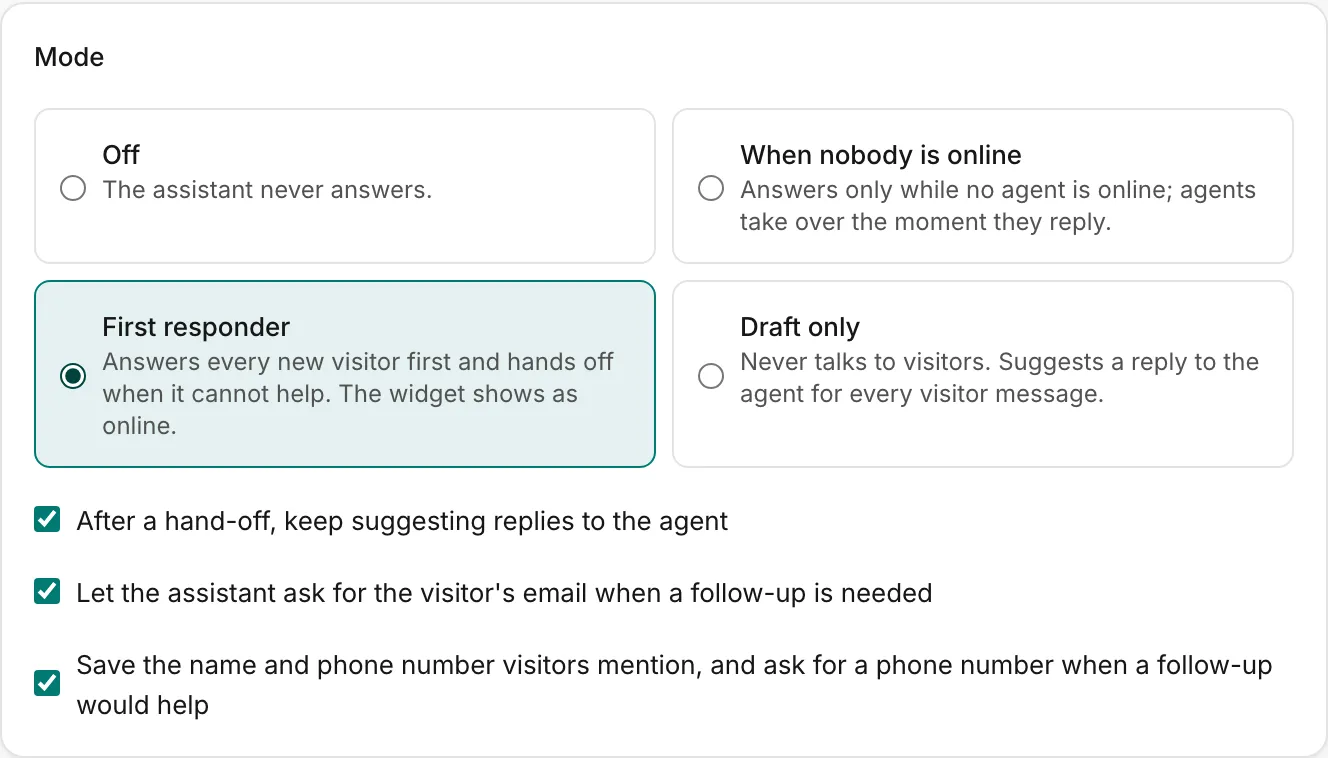
- Pick Draft only to start safely: the assistant suggests a reply for every customer message, and your agents decide whether to send it. Drafts are written only while at least one agent is online.
- Pick When nobody is online to cover evenings and weekends.
- Pick First responder when you trust the answers: it replies to every new customer first and hands off when it cannot help.
The three checkboxes below the modes are on by default:
- After a hand-off, keep suggesting replies to the agent: once the assistant hands off, it keeps drafting replies for the agent.
- Let the assistant ask for the visitor's email when a follow-up is needed: in website chats, it can show an email form when someone on your team needs to get back to the customer.
- Save the name and phone number visitors mention: it saves those details on the customer's profile, and asks for a phone number once when a follow-up would help (never as its first question).
Step 4: Give it a name and a tone
In the Persona card:
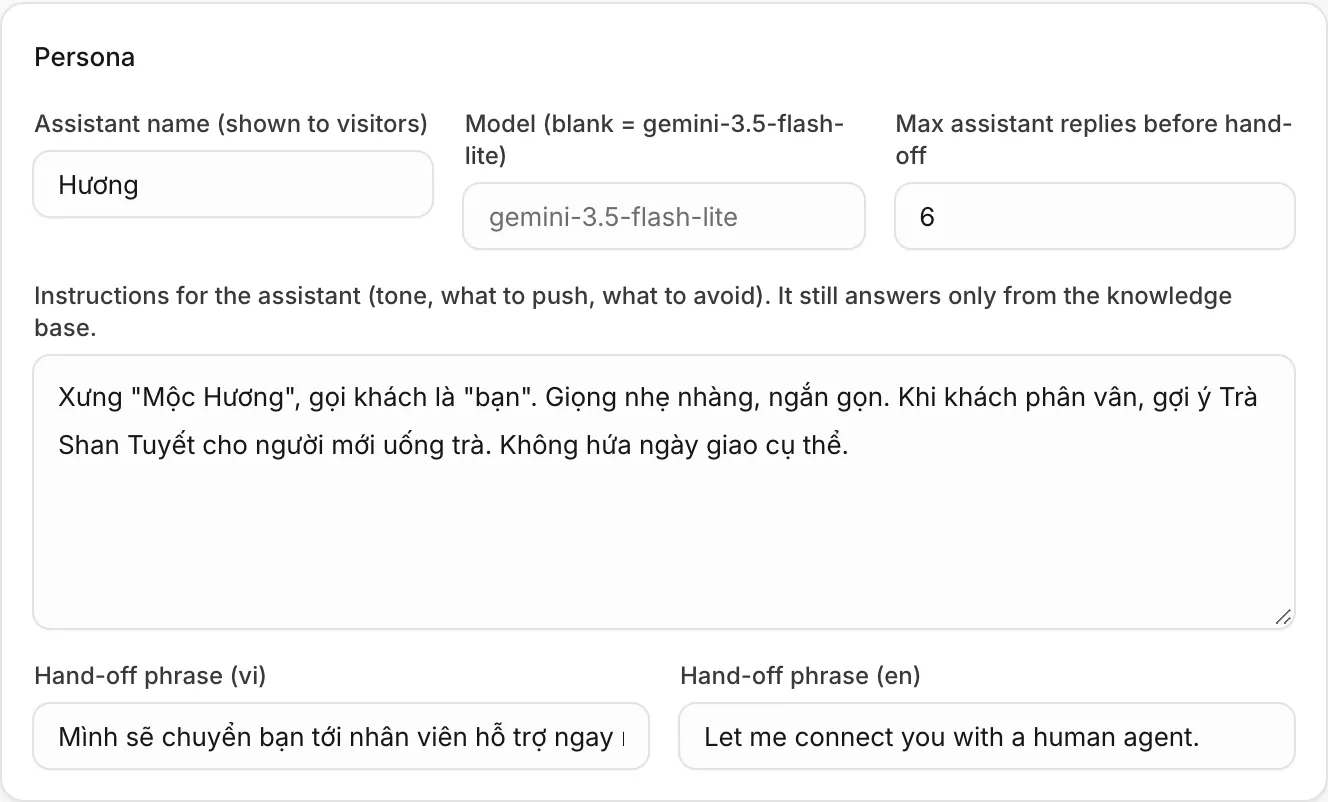
| Field | What to put |
|---|---|
| Assistant name (shown to visitors) | The name customers see on its messages. Up to 60 characters. |
| Model | Leave it blank to use the default model. |
| Max assistant replies before hand-off | How many replies it may send in one conversation before passing it to your team. 6 by default, 1 to 20. |
| Instructions for the assistant | How to speak and what to stress: how to address customers, what to recommend, what never to promise. Up to 4,000 characters. Facts belong in the knowledge, not here: the assistant still answers only from the knowledge. |
| Hand-off phrase (vi) and (en) | What it says when it passes the conversation to your team without writing its own message. |
Click Save AI settings.
Step 5: Set the budget
The Team budget and key card on the right controls cost:
- Daily cap, USD and Monthly cap, USD. Leave them blank for the platform defaults shown in the label. When a cap is reached the assistant stops answering, owners and admins get one email per day, and customers fall back to the offline experience.
- Your own AI provider API key (optional). Without it, the platform key is used. Tick Remove the team key and use the platform key to switch back.
- The Notion integration token, needed only for Notion knowledge sources.
Click Save budget. The cards at the top of the Assistant tab show what was spent today and this month, and the runs, hand-offs and cost of the last 30 days.
Troubleshooting
| What you see | Why | What to do |
|---|---|---|
| A red warning that no AI provider key is configured | The server has no key for the model and the business has none | Add your own key in Team budget and key, or ask your Ha Tang administrator |
| It hands every conversation off | Nothing is indexed yet | Add knowledge and wait for Indexed |
| It never answers | Mode is Off, an agent is online in When nobody is online mode, someone on your team owns the conversation, or an agent clicked Stop AI | Check the mode and the conversation's assignee; click Resume AI in the conversation |
| No suggestions in Draft only | No agent is online | Drafts need at least one agent online |
| It stopped answering everywhere | The daily or monthly cap was reached | Raise the cap, or wait; AI runs shows what used the budget |
Useful next steps
Was this article helpful?
Related articles
- How the AI assistant worksWhat the AI assistant answers, what it knows, when it hands a conversation to your team, and what it costs.
- Add knowledge for the AIGive the assistant your FAQs, policies, website, Google Docs, Notion pages and files, or push documents from your own system through the API, and write them so it finds the right answer.
- When the AI hands off to your teamWhy the assistant passes a conversation to a person, what the customer and your agents see, and how to take over or give it back.
Not finding what you are looking for?
Our team answers in the chat, in English or Vietnamese.