Set an employee's module access
Change an employee's role, or give a member None, View, Work or Manage in each module. Changes apply at once.
Updated on
On this page
Members get access module by module, so an accountant can manage Payments without reading every chat, and a part-time agent can answer customers without touching your bank settings. Owners and admins set this access; owners and admins themselves always reach every module.
Change someone's access
- Open Settings → Employees.
- Click Edit access in the person's row.
- Under Role, keep Member to set access per module, or pick Admin (or Owner, if you are an owner) for full access.
- For a member, click a template under Quick templates, or pick a level for each module: None, View, Work or Manage.
- Set Developer (API keys, webhooks) to Manage only for people who build integrations.
- Check the summary at the bottom, then click Save.
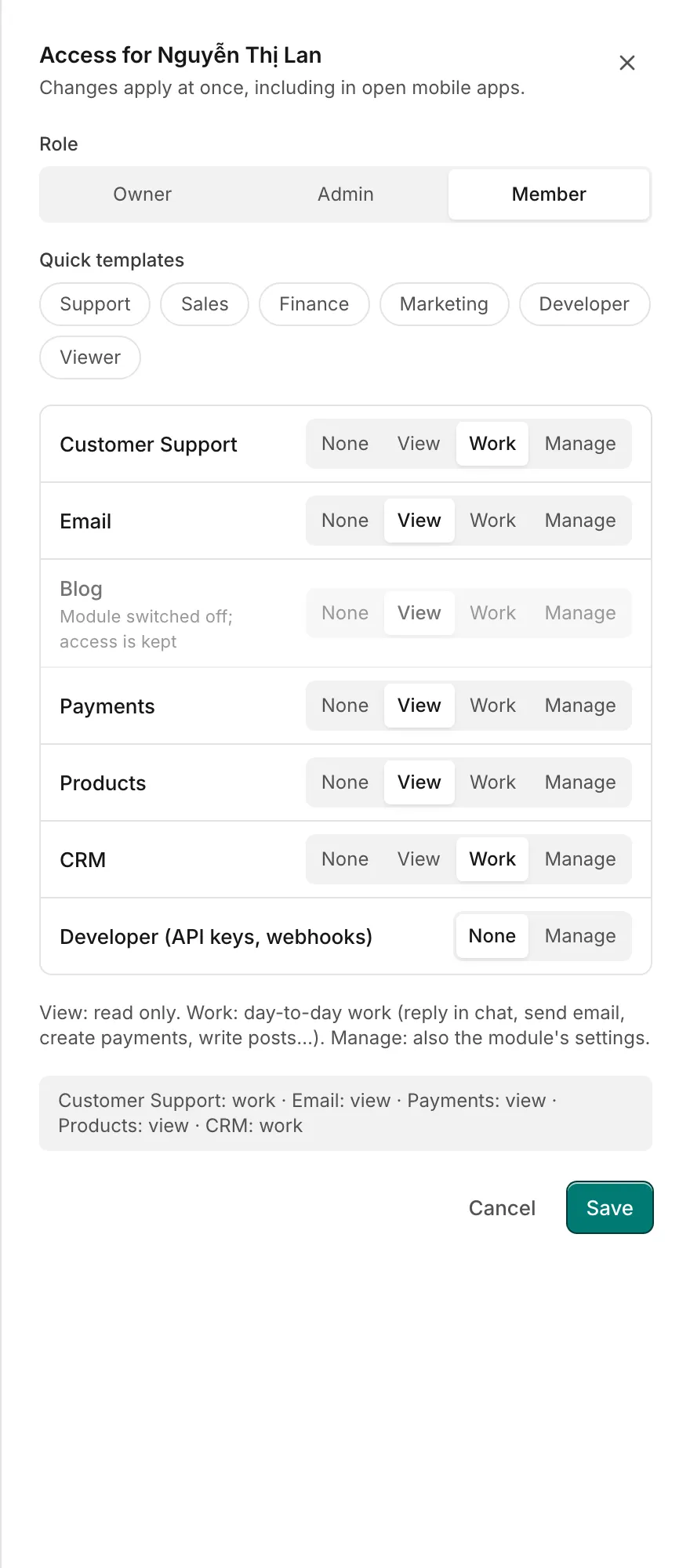
The change applies immediately, including in the inbox the person has open and in the Ha Tang apps on their phone or Mac. They do not need to sign out.
You cannot edit your own access, and an admin cannot edit an owner's.
Choose the right level
| They need to… | Give them |
|---|---|
| Answer chats and handle tickets | Customer Support: Work |
| Also connect channels, edit the widget, set up the AI assistant or distribution rules | Customer Support: Manage |
| Look at reports or conversations without replying | Customer Support: View |
| Send broadcasts to your audiences | Email: Work |
| Create payment requests and invoices | Payments: Work |
| Issue refunds or change bank and e-invoice settings | Payments: Manage |
| Edit products and orders | Products: Work |
| Edit customer profiles | CRM: Work |
| Send ZNS to many customers or edit custom fields | CRM: Manage |
| Create API keys and webhooks | Developer: Manage |
Start low and raise a level when someone asks. A level that is too high is easy to miss; a level that is too low shows up as Your role cannot open this page the first time they need it.
Modules that are switched off
A module that is off for the whole business appears dimmed in the editor with Module switched off; access is kept. You can still set levels for it. They have no effect while the module is off and apply again as soon as an owner or admin turns it back on (Turn modules on and off).
Templates and the Employees list
On the Employees page, each member's access is shown as small labels such as Customer Support · work. When their levels match a template exactly, the template's name (for example Support or Finance) is shown in front. If you adjust one level, the template name disappears; nothing else changes.
Troubleshooting
| Problem | Cause | What to do |
|---|---|---|
| There is no Edit access button | You are a member, the row is you, or the row is an owner and you are an admin | Ask an owner |
| A member cannot see Channels in Customer Support | Channels need Manage | Raise Customer Support to Manage |
| A member set to Work cannot open a module | The module is switched off for the business | Turn the module on in Settings → Business settings |
Useful next steps
Was this article helpful?
Related articles
- Employees and rolesWho can do what in your business. Owners, admins and members, the four access levels and the quick templates.
- Turn modules on and offChoose which parts of Ha Tang your business uses. A module that is off disappears for everyone, and its data is kept until you turn it back on.
- Keep employee access safeGood habits for who can see and change what in your business, and a checklist for when someone joins or leaves.
Not finding what you are looking for?
Our team answers in the chat, in English or Vietnamese.