Employees and roles
Who can do what in your business. Owners, admins and members, the four access levels and the quick templates.
Updated on
On this page
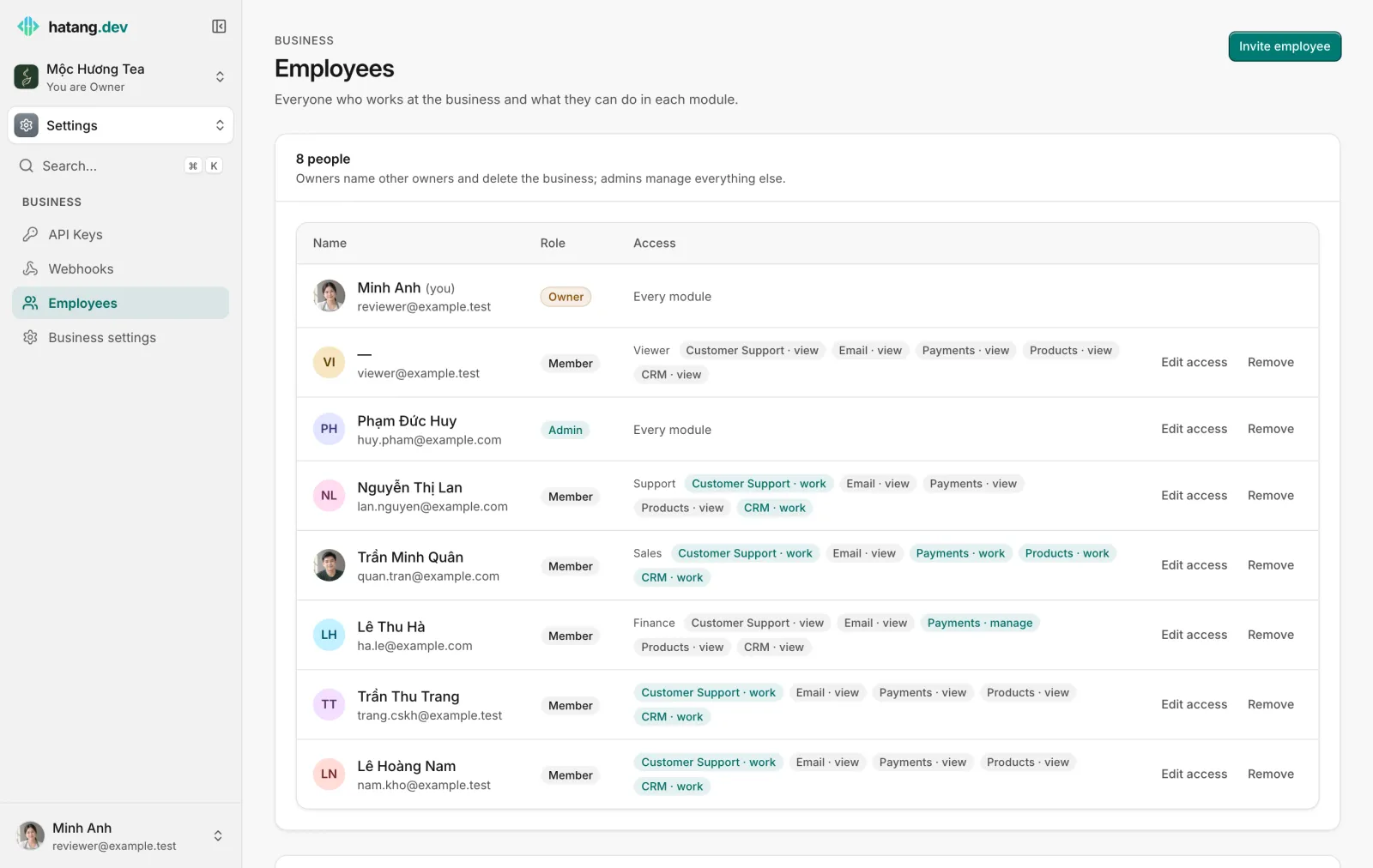
Everyone who works at your business has their own Ha Tang account and a role in the business. The role decides what they see and what they can change. You find everyone, with their role and access, under Settings → Employees.
The three roles
| Role | What they can do |
|---|---|
| Owner | Everything, including deleting the business and naming other owners. |
| Admin | Manage modules, employees, channels, API keys and webhooks; full access to every module. An admin cannot delete the business, and cannot name, change or remove an owner. |
| Member | Only what you allow, set separately for each module. |
A business always keeps at least one owner. Only an owner can make someone else an owner. If you are the only owner, name a second owner before you take a holiday: an owner is the only person who can delete the business or change another owner.
Access levels for members
For each module, a member has one of four levels:
| Level | Meaning |
|---|---|
| None | The module is hidden from them, in the dashboard and in the Ha Tang apps. |
| View | Read only. |
| Work | Day-to-day work, without the module's settings. |
| Manage | Work, plus the module's settings. |
What Work and Manage allow in each module:
| Module | Work | Manage adds |
|---|---|---|
| Customer Support | Reply to and take conversations, handle tickets, their own canned responses | Channels, widget, distribution rules, automation, AI assistant, the team's canned responses, tags |
| Send email and broadcasts | Domains, audiences, email settings | |
| Payments | Create payments and invoices | Refunds, payments settings |
| Products | Edit products and orders | Nothing more: Work is the highest level that adds anything |
| CRM | Edit customers | Custom fields, bulk ZNS sends |
There is one more line, Developer (API keys, webhooks), with only None or Manage. It lets the member create API keys and webhook endpoints. Give it only to people who build integrations.
How to set these levels is explained in Set an employee's module access.
Quick templates
When you invite a member or edit their access, a template fills in all the levels at once. You can adjust any level afterwards.
| Template | Customer Support | Payments | Products | CRM | Developer | |
|---|---|---|---|---|---|---|
| Support | Work | View | View | View | Work | None |
| Sales | Work | View | Work | Work | Work | None |
| Finance | View | View | Manage | View | View | None |
| Marketing | View | Work | View | View | View | None |
| Developer | Manage | Manage | Manage | Work | View | Manage |
| Viewer | View | View | View | View | View | None |
When a member's levels match a template exactly, the template's name appears next to their access on the Employees page.
What everyone can see
Every employee can open Settings → Employees and see who works at the business. Only owners and admins see the Invite employee button, the Pending invitations list and the Edit access and Remove buttons. Nobody can change their own role.
A member who opens a page their access does not allow sees Your role cannot open this page, with the access the page needs. Ask an owner or admin to change your access.
Changes apply at once
When an owner or admin changes someone's role or access, it applies immediately: in the dashboard, in the inbox that is open in their browser, and in the Ha Tang apps for iPhone, Android and Mac. They do not need to sign out.
Access belongs to a person, not to API keys. An API key keeps working when the person who created it leaves, until someone revokes it. See Keep employee access safe.
Useful next steps
Was this article helpful?
Related articles
- Invite employeesAdd your staff to the business by email, choose their role and access, and manage invitations that are still waiting.
- Set an employee's module accessChange an employee's role, or give a member None, View, Work or Manage in each module. Changes apply at once.
- Keep employee access safeGood habits for who can see and change what in your business, and a checklist for when someone joins or leaves.
Not finding what you are looking for?
Our team answers in the chat, in English or Vietnamese.