Invite employees
Add your staff to the business by email, choose their role and access, and manage invitations that are still waiting.
Updated on
Give every person who answers customers, sends email or handles payments their own Ha Tang account. You then see who did what, and you can change or remove their access at any time without sharing a password. Only owners and admins can invite.
Invite someone
- Open Settings → Employees.
- Click Invite employee.
- Enter the person's work Email.
- Choose a Role: Owner, Admin or Member. Only an owner sees Owner.
- For a member, click one of the Quick templates (for example Support for a customer care agent), then adjust the level of any module.
- Click Invite.
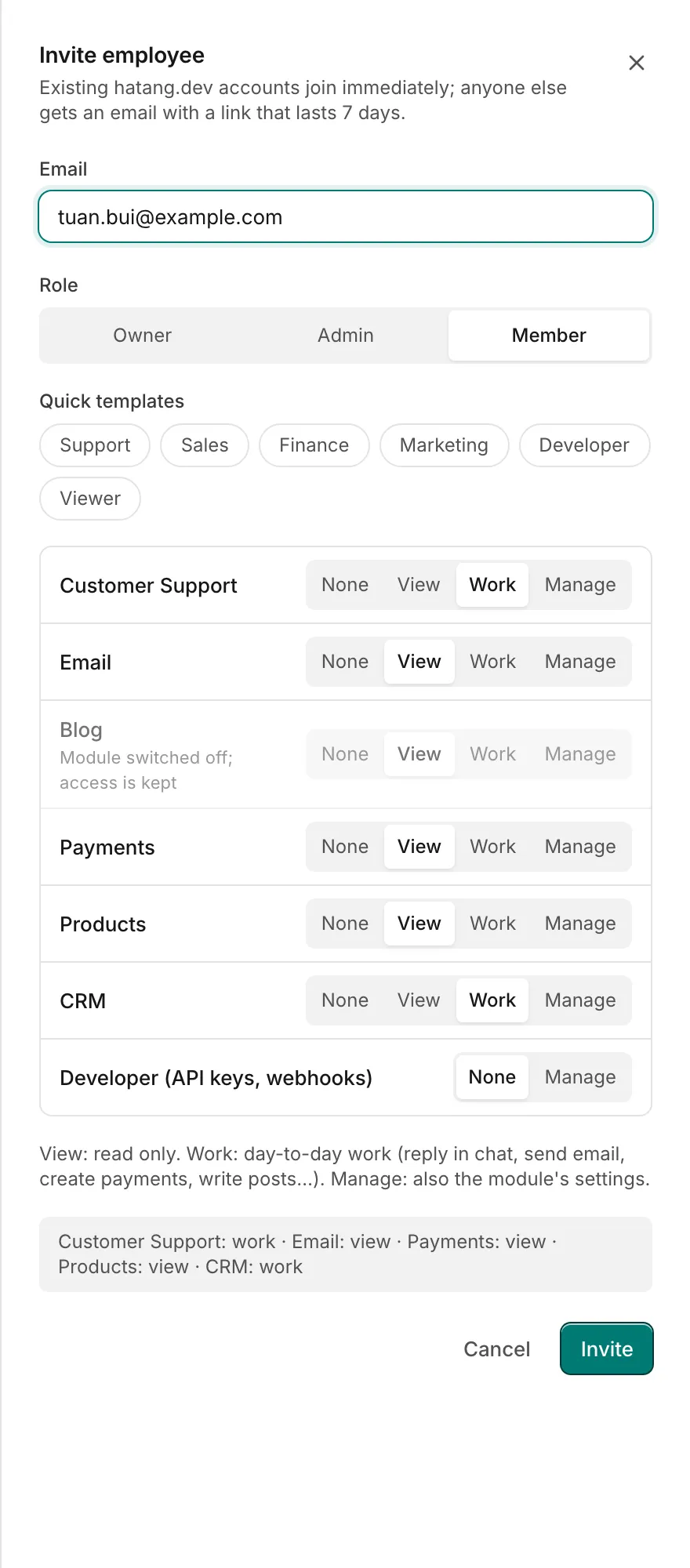
The summary at the bottom of the panel shows what the person will be able to do before you send the invitation.
What happens next
- The person already has a Ha Tang account with that email: they join the business at once and the business appears in their business menu. No email is sent.
- Anyone else gets an email with a link that is valid for 7 days. The invitation is listed under Pending invitations with its expiry date.
When the person opens the link, they sign in (or create their account by signing in for the first time) with the same email address the invitation was sent to. They see Join the business with their role, and click Accept. They land in the business straight away; they do not need to create a business of their own.
Cancel an invitation
Under Pending invitations, click Revoke next to the invitation. The link stops working. To change the role or access of a pending invitation, revoke it and invite the person again.
Remove an employee
- Open Settings → Employees.
- Click Remove in the person's row.
They lose access to the business immediately, including in the Ha Tang apps. Their open conversations go back through your distribution rules to the rest of the team, and their reminders move to you. Their past messages and notes stay in the conversations.
Admins cannot remove an owner, and nobody can remove the last owner of a business.
Troubleshooting
| Problem | Cause | What to do |
|---|---|---|
| The email never arrived | It is in spam, or the address has a typo | Check spam. If the address is wrong, Revoke and invite again |
| This invitation is no longer valid | The 7 days passed, the invitation was revoked, or it was already accepted | Ask an owner or admin to send a new invitation |
| Sent to … with You are signed in as … | The person is signed in with another email | Click Sign out, then sign in with the invited address |
| Owner is missing from the role choices | You are an admin | Ask an owner to make the person an owner |
| The person sees almost nothing after joining | They are a member with None on most modules | Click Edit access and raise their levels (Set an employee's module access) |
Useful next steps
Was this article helpful?
Related articles
- Employees and rolesWho can do what in your business. Owners, admins and members, the four access levels and the quick templates.
- Set an employee's module accessChange an employee's role, or give a member None, View, Work or Manage in each module. Changes apply at once.
- Assign and transfer conversationsGive a conversation an owner, take one yourself, hand it to a teammate, or send it back through the distribution rules.
Not finding what you are looking for?
Our team answers in the chat, in English or Vietnamese.