Your notification settings
Choose how you hear about customer conversations - browser push, inbox sounds and email - in which language, and set your personal email signature.
Updated on
On this page
Ha Tang can tell you about customer conversations in three ways: a push notification on your computer, a sound in the open inbox, and an email when a conversation is still waiting. Each has its own switch: turning emails off does not turn off pushes or sounds. These settings are yours alone: every employee chooses their own, separately for each business they work at.
To open them, click your name at the bottom of the sidebar and choose Settings, or go to Settings → Business settings and open the Notifications tab.
Browser push
Push notifications reach you even when the Ha Tang tab is closed, as long as the browser is running.
- In the Browser push card, click Enable on this device.
- Allow notifications when the browser asks.
The card then says Push notifications are on for this browser. Push is set per browser and per device: turn it on separately on each computer you use. You get a push when a customer writes, when a conversation is assigned to you or you are invited into one, when a colleague mentions you in a note, when one of your reminders is due and when a ticket of yours breaches its SLA.
On an iPhone or iPad, push from a website only works once the site is on the Home Screen: open the dashboard in Safari, tap Share, then Add to Home Screen, open Ha Tang from the Home Screen, sign in and turn notifications on there. The Ha Tang app for iPhone is usually the simpler choice (Ha Tang apps for phone and Mac).
Inbox sounds
These sounds play in the inbox page while it is open in your browser.
| Setting | What it does |
|---|---|
| Play a sound for new customer messages | Turns the message sound on or off |
| Tone and Volume | Pick Chime, Bell, Pop or Ding; click Preview to hear it |
| Repeat every 30 s until the message is read (up to 10 times) | Useful when you work away from the screen |
| Also while the inbox tab is in front | Without it, you only hear the sound when you are on another tab or window |
| When someone arrives on the website | Don't tell me, First-time visitors only, or New and returning visitors |
Click Save in the card. Browsers block sound on a page you have not clicked yet, so click anywhere in the inbox once after opening it.
Emails cover conversations that wait for an answer while nobody is online, and mentions while you are not online. The other settings in this card also apply to pushes.
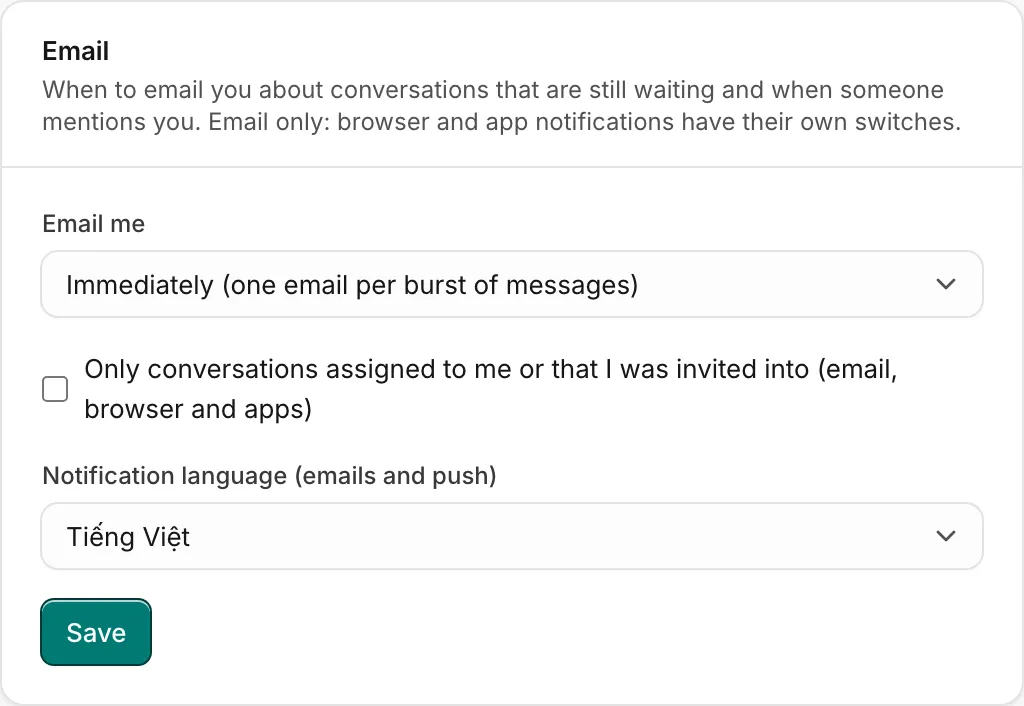
- Under Email me, choose Immediately (one email per burst of messages), Hourly digest of waiting conversations or Never. This only decides about emails: Never leaves browser and app notifications on.
- Tick Only conversations assigned to me or that I was invited into (email, browser and apps) if you only want to hear about your own conversations, by email and by push. Mentions still reach you.
- Choose the Notification language (emails and push): Tiếng Việt or English. It is the language of your emails and of push titles such as "Assigned to you", "Reminder" or "SLA breached".
- Click Save.
Until you change it, you get emails immediately, about every conversation, and everything in Vietnamese.
With Immediately, a colleague who mentions you in a note also emails you, unless you are online in the inbox at that moment.
Your email signature
Your email signature is added to the emails you send to customers from the inbox, above the support mailbox's shared signature. Write your name and role, for example Lan · Customer care, and click Save.
Notifications on your phone
The Ha Tang apps for iPhone, Android and Mac have their own notification settings: mute a device, snooze for an hour or until 8:00 tomorrow, quiet hours, and which events to push (New customer messages, Assigned to me, which also covers mentions, Reminders, SLA breaches). See Ha Tang apps for phone and Mac.
Troubleshooting
| Problem | Cause | What to do |
|---|---|---|
| Notifications are blocked for this site in your browser settings. | You (or your browser) blocked notifications for the dashboard | Allow notifications for the dashboard in the browser's site settings, then reload |
| This browser does not support push notifications. | Private window or an old browser | Use a normal window of a current Chrome, Edge, Firefox or Safari |
| No sound | The inbox tab has not been clicked yet, or the volume is at 0 | Click in the inbox once; check Volume and your computer's sound |
| Too many emails | Email me is set to Immediately | Choose Hourly digest of waiting conversations, or tick Only conversations assigned to me or that I was invited into |
| Still getting pushes after choosing Never | Never only stops emails | Turn push off in the Browser push card above and in the app's notification settings |
More causes are listed in Notifications are not arriving.
Useful next steps
Was this article helpful?
Related articles
- Notifications are not arrivingCheck, step by step, why you are not hearing about new messages, assignments, mentions or reminders in the browser, on your phone or by email.
- Ha Tang apps for phone and MacAnswer customers from your iPhone, Android phone or Mac, with push notifications, quiet hours and the same inbox as the dashboard.
- Sign in and sign outHa Tang has no passwords. Sign in with a 6-digit code sent to your email, or with Apple, Google or GitHub.
Not finding what you are looking for?
Our team answers in the chat, in English or Vietnamese.