Stages, owners and labels
Track where each customer is in your sales flow, who looks after them, and group them with labels you can filter, export and message.
Updated on
On this page
Three fields on every profile turn the customer list into a simple sales pipeline:
- Stage: where the person is, from first contact to paying customer.
- Owner: the employee who looks after them.
- Labels: free words that group customers, such as
vip,wholesaleortet-gift.
You set them on the profile page or in the customer panel of the Inbox. You need Work access to CRM to change them.
Stages
| Stage | Use it when |
|---|---|
| New | Every profile starts here: the person has written to you, nothing more |
| Contacted | Your team has answered and the conversation is going |
| Qualified | They have a real need and a budget: a quote is on its way |
| Customer | They have bought |
| Lost | They decided not to buy, or stopped answering |
Ha Tang never moves a stage by itself, not even when an order is paid, so the stage always means what your team decided. Agree in the team on when to move a customer, then keep to it: the list and the exports are only as useful as the stages are consistent.
Owners
The owner is the person responsible for the relationship, which is not the same as who answers a given conversation. A customer can have one owner, or Nobody.
- Any employee of the business can be an owner.
- Routing rules can send a returning customer's new conversation to their owner first: tick Prefer the customer's owner on the rule (on by default for new rules). The owner still has to be among the rule's agents and, if the rule says so, online. See Distribution rules.
- Filter the list by Owner, or by No owner to find customers nobody is following up.
Labels
Type labels in Labels (comma separated) on the profile, or click + label in the inbox panel.
- Labels are saved in lower case, and repeats are removed:
VIP, vipbecomesvip. - On the profile page, a space or comma ends a label, so join words with a hyphen:
tet-gift, nottet gift. - There is no list to set up in advance: a label exists as soon as one customer has it, and it appears in the Label filter.
Labels on customers are different from conversation tags, which describe a single conversation (a complaint, a price question). See Conversation tags.
Work with a group
- Go to CRM → Customers.
- Pick a Stage, Owner, Channel or Label, and click Filter.
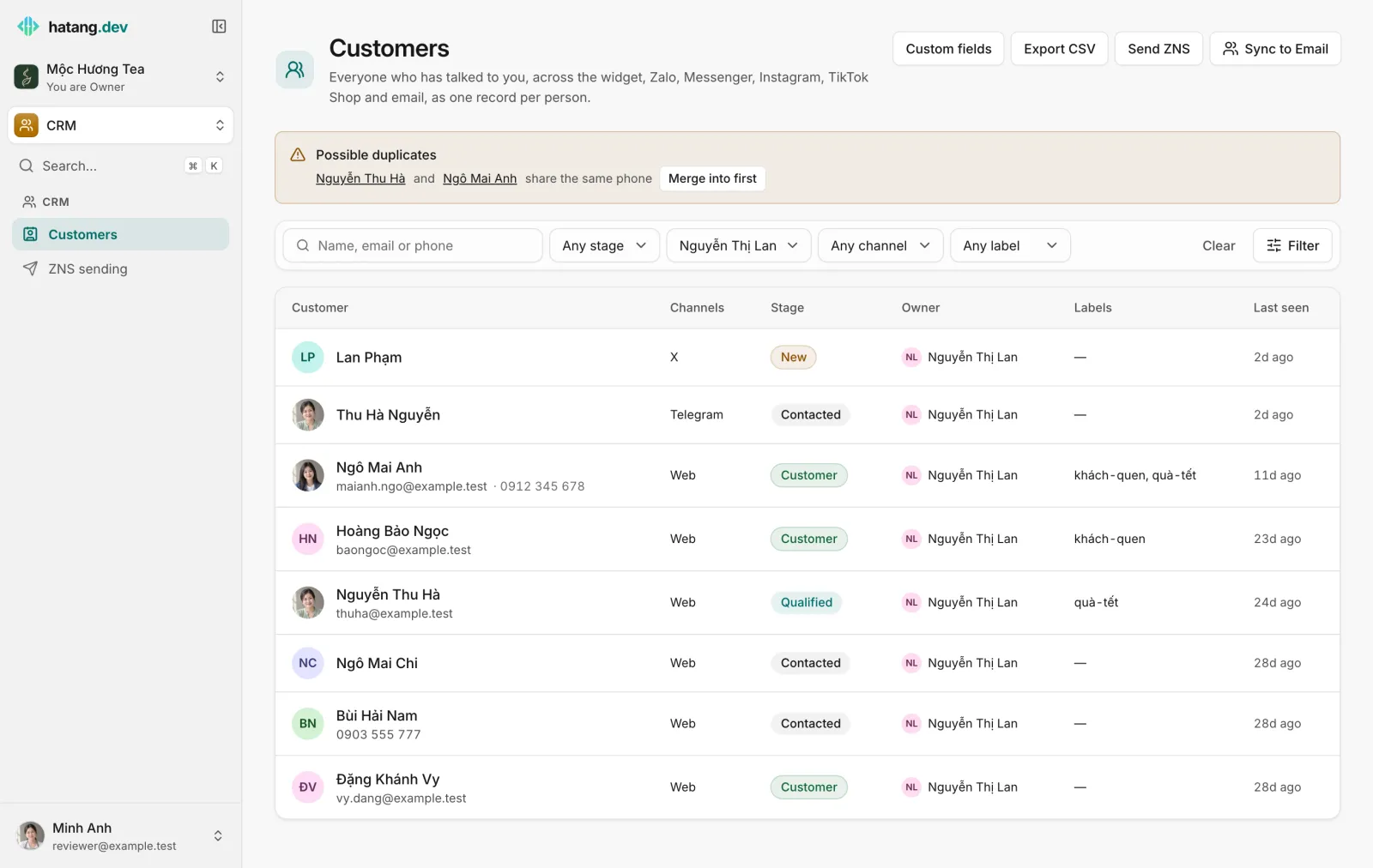
The buttons at the top then act on exactly that group:
- Export CSV downloads it (see Export customers and sync them to email).
- Send ZNS sends a Zalo template message to everyone in it with a phone number (see Send ZNS to a group of customers).
- Sync to Email copies everyone with an email address into an email audience for broadcasts.
Examples
| Goal | Filter |
|---|---|
| Follow up on open quotes | Stage Qualified, Owner: your name |
| Find customers nobody owns | Owner No owner |
| Invite last year's gift buyers to this year's Tết campaign | Label tet-gift, Stage Customer |
| See who came from Zalo and has not bought | Channel Zalo, Stage Contacted |
Useful next steps
Was this article helpful?
Related articles
- Customer profilesEvery person who writes to you gets one profile across all channels, with contact details, stage, owner, labels, notes and history.
- Distribute conversations with rulesDecide automatically who gets each new conversation, by channel, keywords, tags and office hours, with round robin or the least busy agent.
- Send ZNS to a group of customersSend one Zalo template message (ZNS) to every customer in a filtered list who has a phone number, with their own name and details filled in.
- Export customers and sync them to emailDownload your customers as a CSV file that opens in Excel, copy them into an email audience, and bring an existing contact list into Ha Tang.
Not finding what you are looking for?
Our team answers in the chat, in English or Vietnamese.