Custom fields
Add your own fields to every customer profile, such as city, customer type or budget, and let the AI assistant fill them in from the conversation.
Updated on
On this page
Every business wants to know something different about its customers: a tea shop asks which city to deliver to and whether the buyer is ordering gifts for a company, a training center asks which course and which class time. Custom fields add those questions to every customer profile, as real fields your team can fill in, filter on in exports, and have the AI assistant fill in for them.
To add or change fields you need Manage access to CRM. Anyone with Work access can fill them in on a profile.
Add a field
- Go to CRM → Customers and click Custom fields.
- Type the Label your team will see, for example "City".
- Leave Key (optional) empty unless your developers need a specific name. Ha Tang makes one from the label, without accents: "Thành phố" becomes
thanh_pho. - Pick the Type (see below). For Choice, type the Choices (comma separated).
- Optionally tick AI fills it in and write a Hint for the AI (what this field means).
- Click Add field.
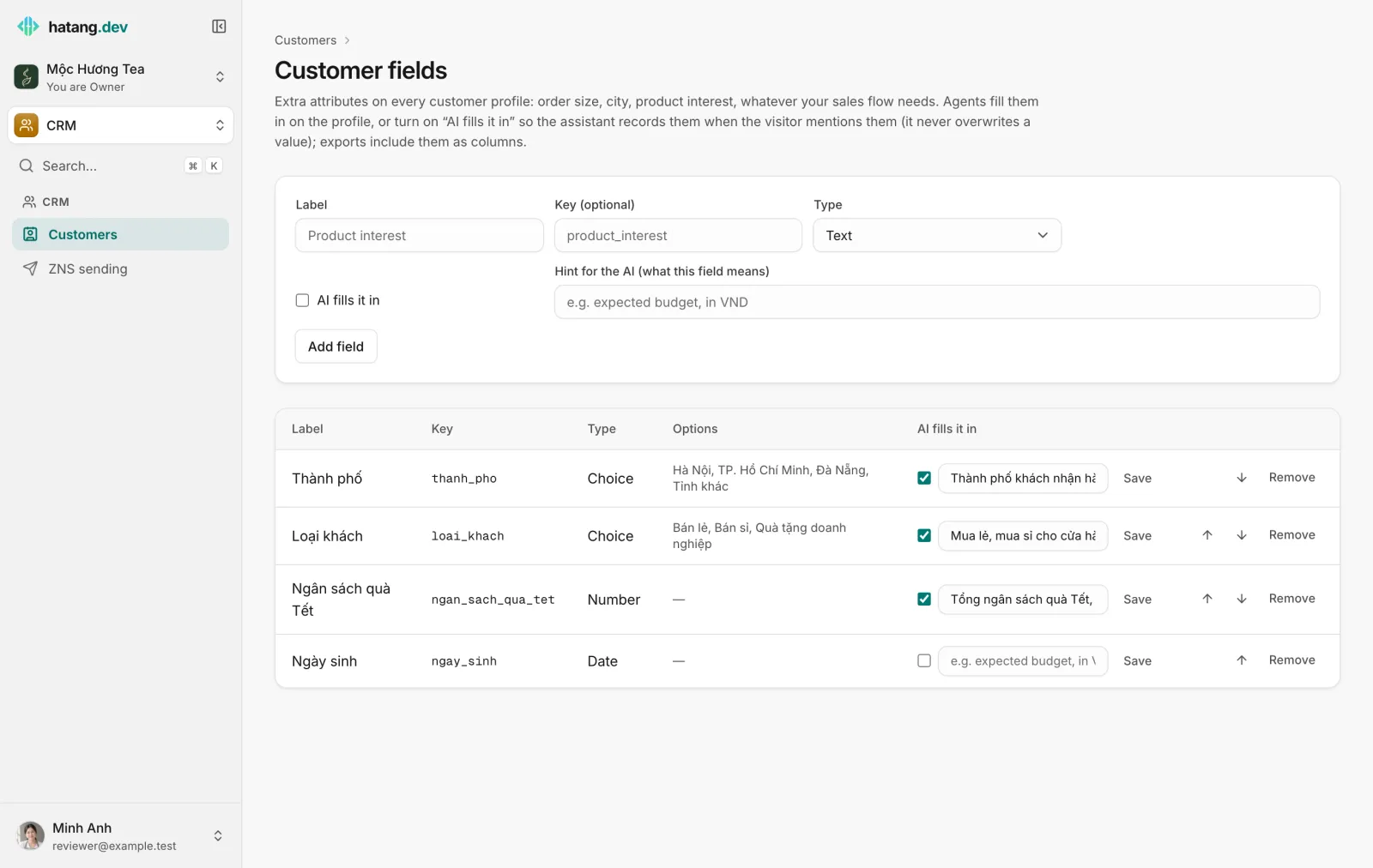
The field appears on every profile, in the customer panel of the inbox and as a column in Export CSV.
Field types
| Type | On the profile | Good for |
|---|---|---|
| Text | A text box | Address, company name, product interest |
| Number | A number box | Budget, number of employees, order size |
| Date | A date picker | Birthday, contract end date |
| Choice | A drop-down list of the choices you set | City, customer type, source |
| Yes / no | A checkbox | Wants an e-invoice, agreed to be called |
Let the AI assistant fill fields in
With AI fills it in on, the AI assistant records the value when the customer mentions it in a conversation it answers. If a customer writes "send it to my office in Đà Nẵng", the assistant sets City to Đà Nẵng.
- The assistant only fills empty fields. It never overwrites a value your team or the customer already gave.
- The hint tells it what the field means. Be specific, and give the unit for numbers: "Total budget for Tết gifts, in VND".
- For a Choice field, the assistant can only pick one of your choices; a Date is saved only when it is a full date.
- It works while the assistant setting Save the name and phone number visitors mention, and ask for a phone number when a follow-up would help is on, which it is by default. See Set up the AI assistant.
- To turn it on or off for an existing field, tick or untick the box in the AI fills it in column, edit the hint, and click Save on that row.
Flows can fill fields too: a question step can save the customer's answer into a field. See Flows.
Change the order or remove a field
- Use the up and down arrows on a row to change the order. Profiles, the inbox panel and exports follow it.
- Click Remove to delete a field. It disappears from profiles and exports at once.
You cannot rename a field or change its type after adding it. Add a new field instead, and remove the old one when nobody needs it.
Fields in the inbox
In the customer panel of a conversation, the fields are under More details. Each agent can choose which fields they see there with the settings icon next to the heading (Choose fields): hidden fields stay on the profile. This choice is saved in that agent's browser only.
Tips
- Keep the list short. Five fields people actually fill in beat twenty that stay empty.
- Prefer Choice to Text when you will filter or count on a field later: "HCMC", "TP.HCM" and "Sài Gòn" are three different texts.
- Give each AI field a hint, even when the label seems obvious: "City" could be where the customer lives or where the order goes.
Useful next steps
Was this article helpful?
Related articles
- Customer profilesEvery person who writes to you gets one profile across all channels, with contact details, stage, owner, labels, notes and history.
- Set up the AI assistantAdd knowledge, try the assistant, choose when it answers and give it a name and tone, in about fifteen minutes.
- Greet and qualify customers with flowsA flow is a scripted bot that greets customers, asks questions, shows buttons and products, and passes the conversation to the AI or your team.
- Export customers and sync them to emailDownload your customers as a CSV file that opens in Excel, copy them into an email audience, and bring an existing contact list into Ha Tang.
Not finding what you are looking for?
Our team answers in the chat, in English or Vietnamese.