Greet and qualify customers with flows
A flow is a scripted bot that greets customers, asks questions, shows buttons and products, and passes the conversation to the AI or your team.
Updated on
On this page
A flow is a script the bot follows step by step: say hello, ask what the customer needs with buttons, collect a phone number, show a few products, then hand the conversation to the AI assistant or to your team. Flows answer instantly and always say exactly what you wrote, which makes them a good front door for every channel.
Where flows fit
When a customer writes, Ha Tang tries in this order:
- Flows. If an enabled flow matches the message, or a flow is waiting for this customer's answer, the flow replies.
- The AI assistant, if no flow replied and the assistant is on. See How the AI assistant works.
- Your team, through your distribution rules.
Flows never run in a closed conversation or after an agent clicked Stop AI in that conversation. In a conversation a person on your team owns, only a flow that person ran by hand runs (see Run a flow from the inbox).
Start from a template
Go to Customer Support → Automation. Under Templates you find ready-made flows: Chào hỏi & phân luồng (greet and route with buttons), Xin số điện thoại (collect name and phone), Ngoài giờ làm việc (after hours), Tư vấn sản phẩm (product cards then the AI), Kiểm tra đơn hàng (order status), Đặt lịch hẹn (booking), Menu câu hỏi thường gặp (FAQ menu) and Xin đánh giá (ask for a rating).
- Click Install on a template. It is added to the list, turned off, so you can edit the wording first.
- Click its name to open it and adjust the texts.
- Tick Enabled and click Save flow, or click Turn on in the list.
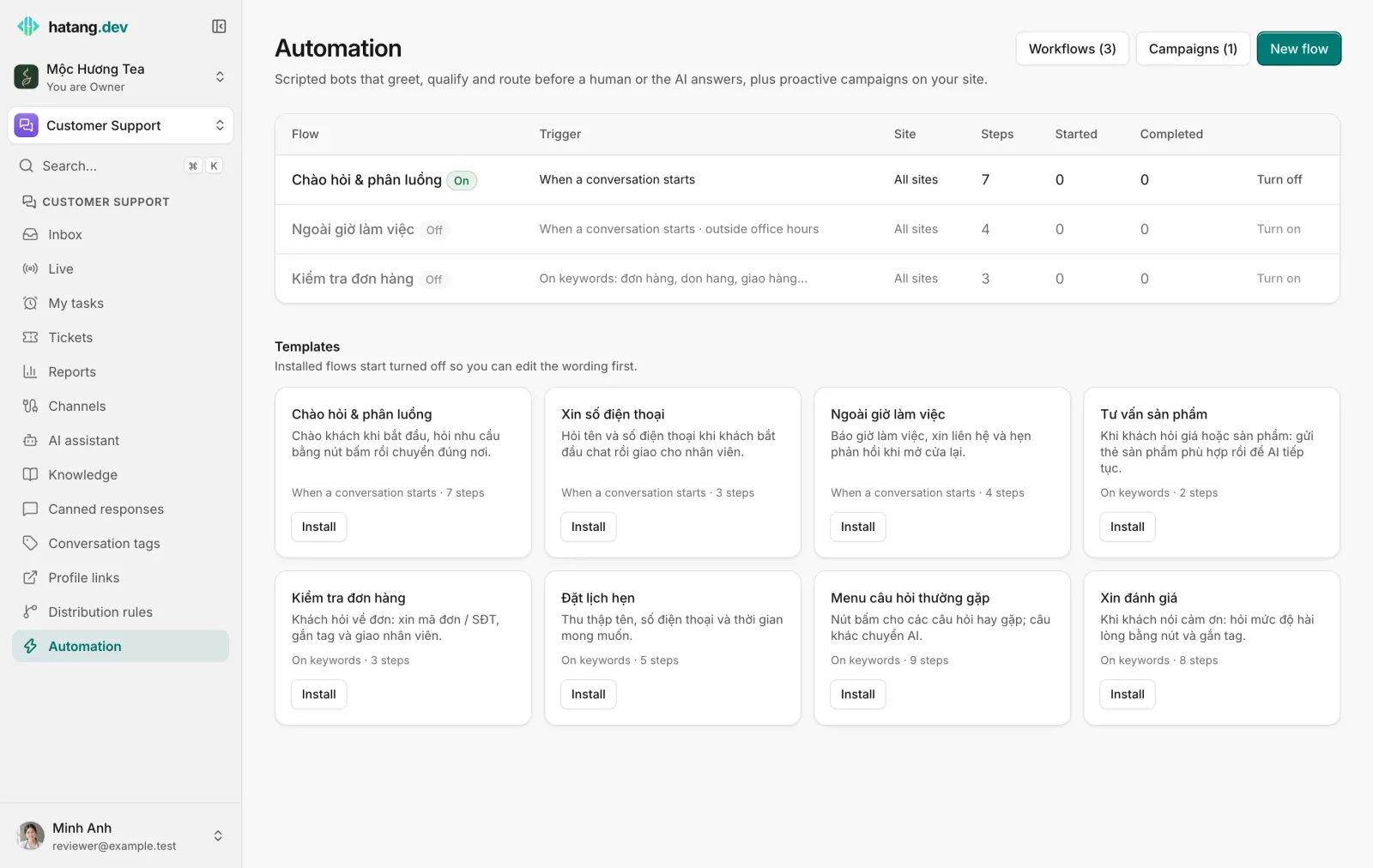
The list shows for each flow its trigger, website, number of steps, and how many times it Started and Completed.
Create a flow
- Go to Customer Support → Automation and click New flow.
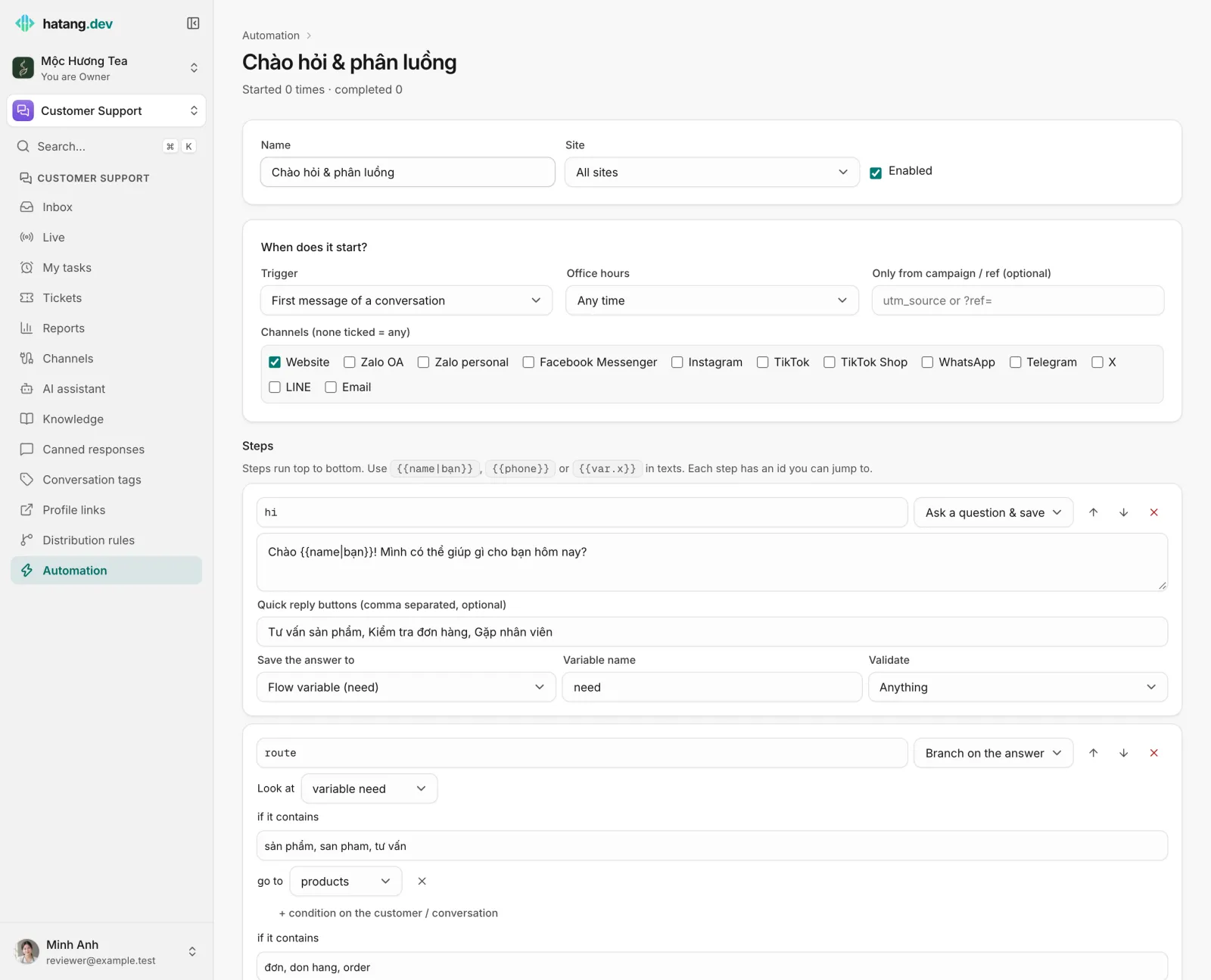
- Enter a Name, choose the Site (or All sites) and tick Enabled.
- Under When does it start?, choose the Trigger and narrow it if needed (see below).
- Under Steps, add steps with Add step: and fill them in.
- Click Create flow.
Triggers
| Trigger | Starts when |
|---|---|
| First message of a conversation | The customer sends the first message of a new conversation |
| Visitor's message contains a keyword | The message contains one of the keywords, ignoring accents and capitals |
| Visitor is on a page | The visitor's page address contains the text you enter (website widget) |
| Manual / from the inbox only | Never on its own: an agent runs it from a conversation (see Run a flow from the inbox), or your developers start it through the API (developer hub) |
Every trigger can be narrowed by Office hours (any time, only within, only outside), by Channels (none ticked = any) (tick the channels it applies to), and to visitors who came from a campaign link with Only from campaign / ref (optional) (matches utm_source or ?ref= in the page address). When several flows match, the first one in the list wins.
Steps
Steps run from top to bottom. Each has a Step id that other steps can jump to. A flow has up to 60 steps.
| Step | What it does |
|---|---|
| Send a message | Sends a text, with optional quick reply buttons |
| Ask a question & save the answer | Asks, waits for the reply and saves it to the visitor's name, phone or email, a customer field, or a flow variable. Validate can require a phone number or an email address; the question is asked again up to twice if the answer does not fit. |
| Send product cards | Sends products from your catalog, chosen by id or by a search such as {{last}} (the customer's last message) |
| Branch on the answer | Goes to a step when the last answer (or a variable) contains certain words, or when conditions on the customer or the conversation hold; otherwise goes to another step |
| Wait | Pauses up to 86,400 seconds (one day) before the next step |
| Add tags | Adds tags to the conversation |
| Assign to an agent | Gives the conversation to one agent, or to the distribution rules; the flow ends |
| Notify a webhook | Sends an event to your webhooks, for developers. See Webhooks. |
| Jump to a step | Continues at another step |
| Hand to the AI assistant | Ends the flow and lets the AI take over (the assistant must be on) |
| Hand to a human | Optionally says something, then hands the conversation to the distribution rules. In a flow an agent ran by hand, the conversation simply stays with that agent |
| End | Ends the flow; the next message goes to the AI or an agent as usual |
In texts, {{name}}, {{phone}} and {{email}} insert the customer's details, {{last}} their last answer and {{var.order_ref}} a saved variable. Add a fallback after a bar: {{name|bạn}} writes "bạn" when the name is unknown.
Run a flow from the inbox
A flow with the Manual / from the inbox only trigger is a script your agents start when they need it, for example to collect a phone number or an order code in the middle of a chat. You need the Work level on the Customer Support module.
- Open the conversation in Customer Support → Inbox.
- Click More at the top of the conversation, then Run a flow.
- Click Run next to the flow.
The list shows the enabled manual flows of the conversation's website. The flow's messages go to the customer at once, and when it asks a question, the customer's answer goes to the flow, not to the AI. The conversation stays yours the whole time, and a Hand to a human step leaves it with you. Run a flow is not offered in a closed conversation.
Tips
- Keep the first message short and give two or three buttons. Customers on Zalo and Messenger tap more than they type.
- End every branch with Hand to the AI assistant or Hand to a human, so no one is left talking to a script.
- Use Only outside office hours for an after-hours flow, and a separate greeting for working hours.
- Check Started and Completed after a week: a flow that many start but few complete asks too much.
Useful next steps
Was this article helpful?
Related articles
- Automate follow-up work with workflowsRun a series of steps when something happens in a conversation, such as an order being paid, a low rating or a customer left waiting.
- How the AI assistant worksWhat the AI assistant answers, what it knows, when it hands a conversation to your team, and what it costs.
- Distribute conversations with rulesDecide automatically who gets each new conversation, by channel, keywords, tags and office hours, with round robin or the least busy agent.
Not finding what you are looking for?
Our team answers in the chat, in English or Vietnamese.