Automate follow-up work with workflows
Run a series of steps when something happens in a conversation, such as an order being paid, a low rating or a customer left waiting.
Updated on
A workflow runs on its own when something happens in a conversation: thank the customer when an order is paid, remind them gently when it is still unpaid two hours later, alert the right person after a one-star rating, or hand a waiting customer to someone else. Flows talk with the customer step by step; workflows react to events in the background.
Start from a template
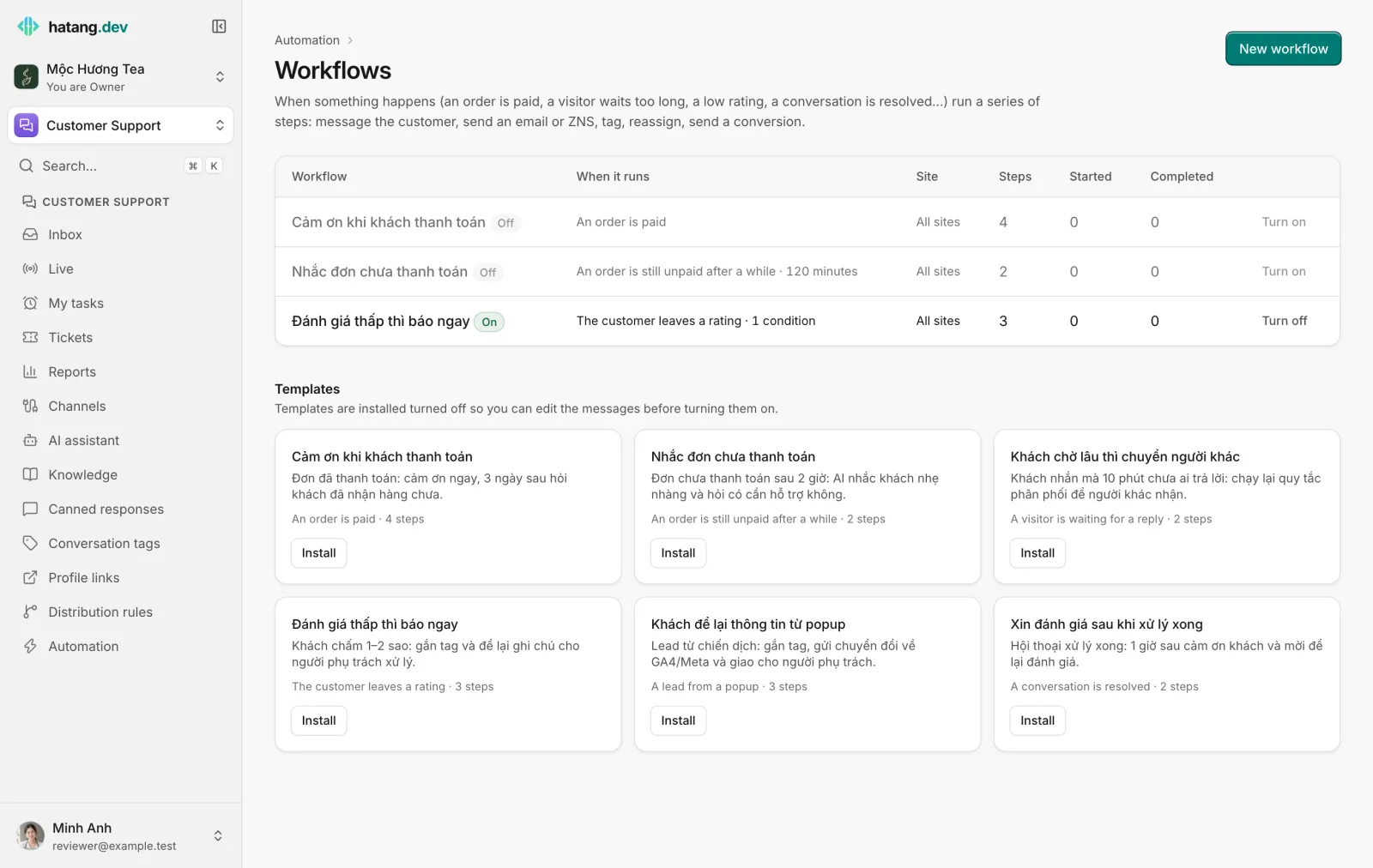
Go to Customer Support → Automation and click Workflows. Under Templates:
| Template | What it does |
|---|---|
| Cảm ơn khi khách thanh toán | Thanks the customer when an order is paid, and asks three days later whether it arrived |
| Nhắc đơn chưa thanh toán | Two hours after an unpaid order, the AI writes a gentle reminder |
| Khách chờ lâu thì chuyển người khác | When a customer has waited 10 minutes for a reply, runs the distribution rules again |
| Đánh giá thấp thì báo ngay | After a rating under 3 stars, tags the conversation and leaves a note for the assignee |
| Khách để lại thông tin từ popup | When a campaign form brings a lead, tags it, sends a lead conversion and assigns it |
| Xin đánh giá sau khi xử lý xong | An hour after a conversation is resolved, thanks the customer and asks for a review |
Click Install. Templates are installed turned off so you can edit the messages, then click Turn on in the list.
Create a workflow
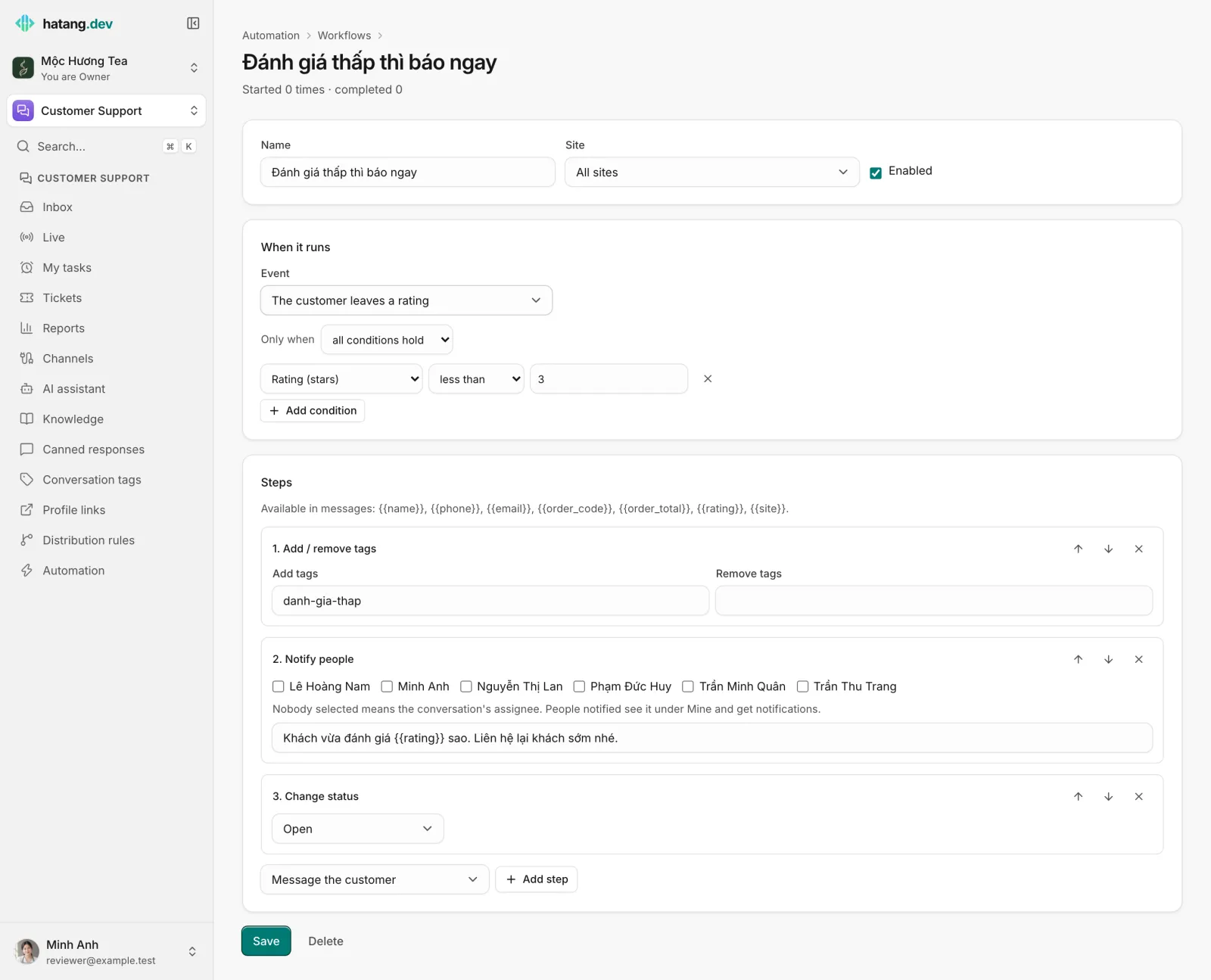
- In Customer Support → Automation → Workflows, click New workflow.
- Enter a Name, choose the Site and tick Enabled.
- Under When it runs, pick the Event (see below).
- Optional: under Only when, click Add condition to run only for some conversations, and choose whether all conditions hold or any condition holds.
- Under Steps, pick a step type and click Add step. Repeat. A workflow has up to 30 steps.
- Click Save.
Events
| Event | Runs when |
|---|---|
| A conversation starts | A new conversation is created |
| A conversation is resolved | Someone (or an automation) resolves it |
| The AI hands off to an agent | The AI assistant passes the conversation to your team |
| A conversation is assigned | Someone is assigned |
| A conversation is tagged | A tag is added; Only this tag (blank: any tag) limits it to one |
| The customer leaves a rating | A satisfaction rating arrives |
| An order is created / An order is paid | An order linked to the conversation is created or paid |
| A lead from a popup | A visitor submits a campaign form |
| A visitor is waiting for a reply | The customer's last message has had no reply for Waiting longer than (minutes), 10 by default |
| An order is still unpaid after a while | An order linked to the conversation is still unpaid after Unpaid after (minutes), 120 by default |
The two time-based events are checked every minute. When you turn such a workflow on, it only picks up conversations and orders that became due within the last hour, not your whole history.
Conditions
A condition compares a Field with a Value using a Comparison (is, is not, contains, greater than, less than, is set, is empty). Fields: Channel, Conversation status, Tag, Assignee (bot, human or none), Office hours (within or outside), Has a phone number, Has an email, Source (utm_source / ref), Rating (stars), Order total, Order status, and your customer fields.
Steps
| Step | What it does |
|---|---|
| Message the customer | Sends a message in the conversation |
| AI writes a message | The AI writes the message from the conversation, following What the AI should write. The Fallback (when the AI cannot run) text is sent if the AI cannot run (no budget, an error). Counts toward the AI budget. |
| Email the customer | Sends an email when the customer has an address; skipped otherwise |
| Send ZNS | Sends a Zalo ZNS template to the customer's phone; skipped when there is no phone number. See Zalo ZNS. |
| Add / remove tags | Changes the conversation's tags |
| Assign the conversation | Gives it to one agent, or By routing rules |
| Notify people | Adds people to the conversation with an internal note; nobody selected means the assignee |
| Create a reminder | A reminder about the conversation after the minutes you set, for someone or the assignee |
| Change status | Open, pending or resolved |
| Send a conversion (GA4/Meta) | Sends a lead or purchase conversion, when conversion tracking is set up on the website |
| Send a webhook event | Sends an event to your webhooks. See Webhooks. |
| Wait | Waits up to 43,200 minutes (30 days) before the next step |
| Condition | Continues only if the conditions still hold; otherwise the run ends |
Messages can use {{name}}, {{phone}}, {{email}}, {{order_code}}, {{order_total}}, {{rating}} and {{site}}.
Follow the runs
Open a workflow to see its Recent runs: when, which conversation, the status (Running, Waiting, Done, Stopped, Failed) and What it did at each step. Click Stop to cancel a waiting run, or Run again to repeat it for that conversation.
Safety rules:
- A workflow runs at most once per event.
- If the same workflow starts five times in one conversation within ten minutes, Ha Tang treats it as a loop and skips further runs.
- Turning a workflow off stops its runs at their next step.
Useful next steps
Was this article helpful?
Related articles
- Greet and qualify customers with flowsA flow is a scripted bot that greets customers, asks questions, shows buttons and products, and passes the conversation to the AI or your team.
- Send Zalo ZNS notificationsSend approved Zalo template messages, such as order confirmations and payment reminders, to customers' phone numbers through your Official Account.
- Distribute conversations with rulesDecide automatically who gets each new conversation, by channel, keywords, tags and office hours, with round robin or the least busy agent.
Not finding what you are looking for?
Our team answers in the chat, in English or Vietnamese.