Invite visitors with campaigns
Show a proactive message or a lead form next to the chat button when a website visitor matches the page, time, scroll or source you choose.
Updated on
A campaign is a small message that appears next to the chat button on your website when a visitor matches the conditions you set: twenty seconds on the price page, scrolling halfway down a product, about to leave, or arriving from a Facebook ad. It can invite them to chat with buttons, or collect their name and phone number with a short form. Campaigns work in the website widget only.
Create a campaign
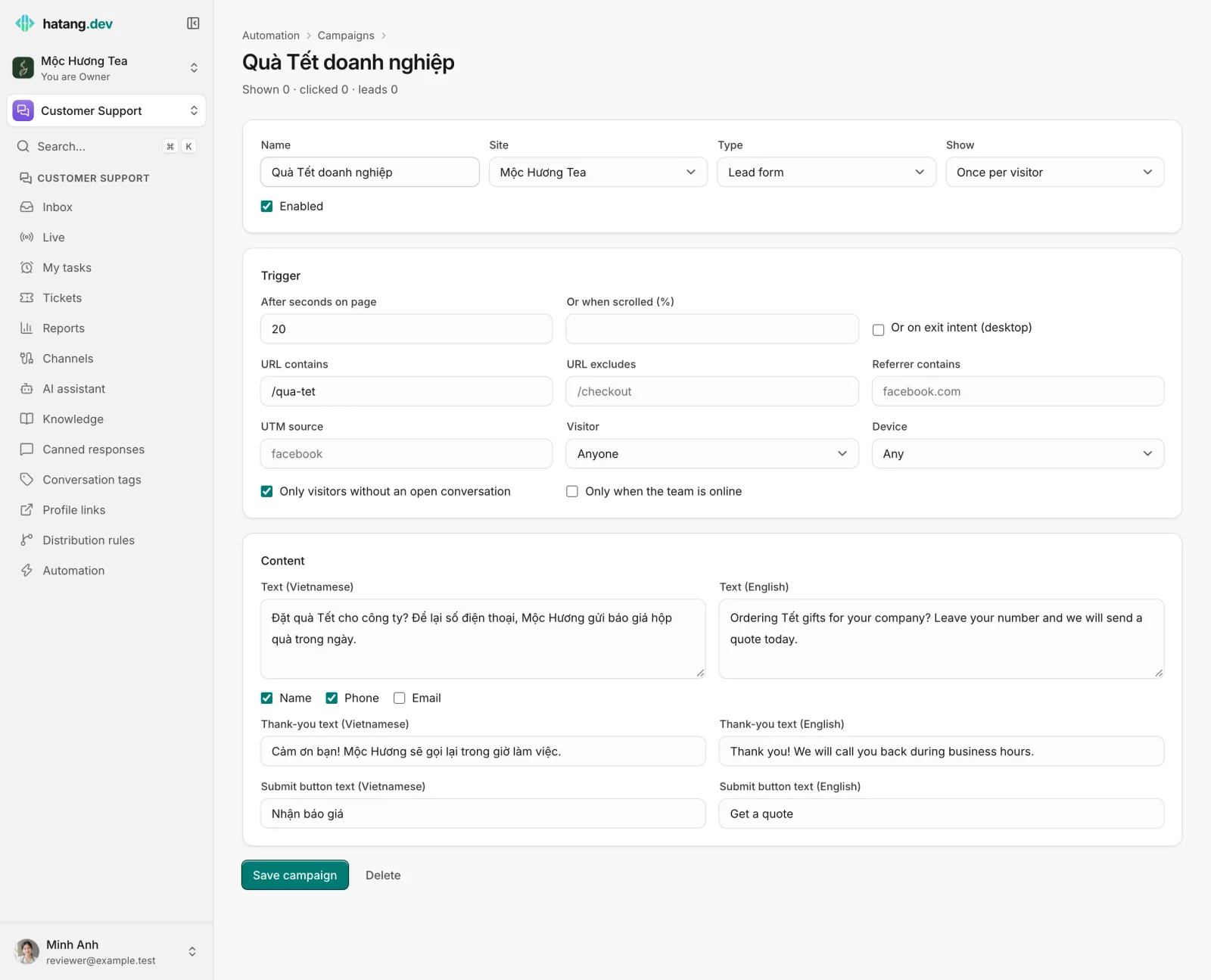
- Go to Customer Support → Automation and click Campaigns, then New campaign.
- Enter a Name and choose the Site.
- Choose the Type:
- Message with buttons: a message with up to 3 buttons. Clicking a button sends its text as the visitor's first message. Without buttons, a "Reply" button is shown.
- Lead form: a message with name, phone and email fields (tick the ones you want).
- Choose how often to Show it: Once per visitor, Once per visit or Every page.
- Set the Trigger (see below).
- Write the Content in Vietnamese and English. Visitors see the language of their widget.
- For a form, also write the Thank-you text and the Submit button text.
- Tick Enabled and click Create campaign.
When it shows
| Setting | Effect |
|---|---|
| After seconds on page | Shows after the visitor has spent that many seconds on the page |
| Or when scrolled (%) | Shows when the visitor scrolls past that share of the page |
| Or on exit intent (desktop) | Shows when the mouse heads out of the window, on computers only |
| URL contains / URL excludes | Only on pages whose address contains, or does not contain, this text |
| Referrer contains | Only for visitors coming from a site containing this text, such as facebook.com |
| UTM source | Only for visitors whose link carries this utm_source |
| Visitor | Anyone, First visit only or Returning only |
| Device | Any, Mobile or Desktop |
| Only visitors without an open conversation | On by default, so you do not interrupt someone already chatting |
| Only when the team is online | Off by default. Turn it on for invitations that promise an immediate answer |
Without any of the first three, the campaign shows shortly after the page loads. The widget shows at most one campaign per page: the first in the list whose conditions are met.
What happens when a visitor responds
- A button: a conversation opens with your message and the button text as the visitor's first message. Flows, the AI and your team take it from there.
- A form: Ha Tang saves the details on the visitor and customer profile, opens a conversation with your thank-you text, routes it with your distribution rules, and starts any workflows on A lead from a popup. If conversion tracking is on for the website, a lead conversion is sent too.
Measure
The campaign list and each campaign's page show how many times it was Shown, Clicked and how many Leads it brought. A campaign shown often but rarely clicked needs a better message or a better moment; one that is never shown has conditions that are too narrow.
Useful next steps
Was this article helpful?
Related articles
- Automate follow-up work with workflowsRun a series of steps when something happens in a conversation, such as an order being paid, a low rating or a customer left waiting.
- Add the chat widget to your websiteCreate a website channel, paste its code on every page and check that visitors can chat with your team from the Inbox.
- Greet and qualify customers with flowsA flow is a scripted bot that greets customers, asks questions, shows buttons and products, and passes the conversation to the AI or your team.
Not finding what you are looking for?
Our team answers in the chat, in English or Vietnamese.