Merge duplicate customers
Fold two profiles of the same person into one, from the duplicate suggestions, the profile page or the inbox, and undo a merge if it was a mistake.
Updated on
On this page
The same person sometimes ends up with two profiles: they chatted on your website as a guest, then messaged your Zalo OA from their phone. Merging folds the two into one profile, so the whole history is in one place and reports count them once.
To merge or unmerge you need Work access to CRM.
What Ha Tang merges on its own
- Same email address: two profiles with the same email are merged automatically, as soon as the second one gets that address. The older profile is kept.
- Same phone number: never merged automatically, because families and shops often share a number. These pairs are suggested to you instead.
- A contact typed in the chat: when a customer writes a phone number or email that belongs to another profile, the inbox asks the agent "Same person?" and waits for an answer.
Merge from the duplicate suggestions
When two profiles share a phone number, CRM → Customers shows Possible duplicates above the list (up to five pairs at a time).

- Click each name to check that they really are the same person.
- Click Merge into first. The second profile is folded into the first one, and its page opens.
Merge from a profile
Use this when you know two profiles belong together, whatever they share.
- Open the profile you want to keep.
- Under Merge on the right, type a name, email or phone number of the other profile and click Find.
- Click Merge here next to the right person.
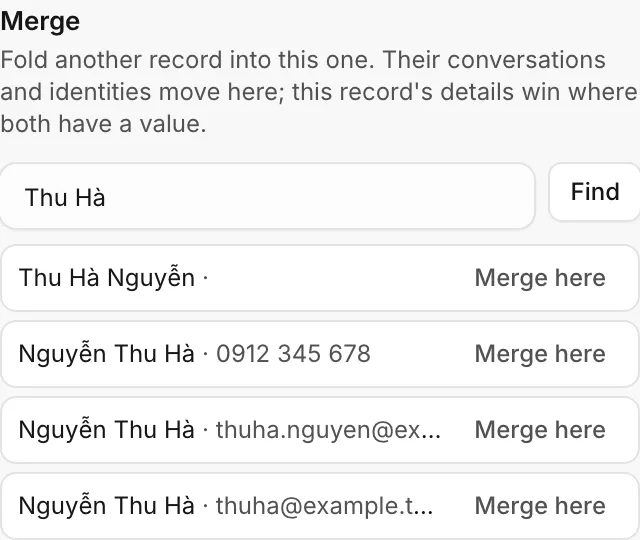
The other profile is folded into the one you are on, and the page reloads with everything together.
Merge from the inbox
When a customer types a phone number or email that belongs to another profile, the customer panel in the conversation shows "The customer just sent … which belongs to «name». Same person?".
- Merge folds that profile into this conversation's customer.
- Not them dismisses the question.
- View that record opens the other profile first, so you can check.
What happens to the data
| Data | After the merge |
|---|---|
| Conversations and identities | All move to the profile you keep, on every channel |
| Notes | Move to the profile you keep |
| Name, email, phone, owner | The kept profile's values stay; empty ones are filled from the other profile |
| Labels | Both profiles' labels are kept |
| Custom fields | The kept profile's values win; fields it had empty take the other profile's values |
| First seen and last seen | The earliest first visit and the latest last visit |
| Orders, tickets and ZNS messages | Move to the profile you keep, so its Activity lists them (payments follow their orders) |
The merged profile disappears from the list. Links to it, from the API or an old bookmark, open the profile it was merged into.
Undo a merge
- Open the profile you kept. It shows Records merged into this one on the right.
- Click Unmerge next to the record you want back.
The record comes back with the identities, notes, orders, tickets and ZNS messages the merge moved. Contact details the kept profile took over during the merge (for example an email address it did not have) stay on the kept profile, so check both profiles afterwards.
Tips
- Merge before you start a campaign or export, so each person gets one message and is counted once.
- Agents can avoid most duplicates by asking for the phone number or email early in the conversation: Ha Tang links the profiles as soon as it can.
- Customers who sign in on your website or app with a verified identity are never merged with someone who only typed their email address. See Identify your users.
Was this article helpful?
Related articles
- Customer profilesEvery person who writes to you gets one profile across all channels, with contact details, stage, owner, labels, notes and history.
- The customer panelEverything about the customer beside the conversation: contact details, what they did before writing, attributes, CRM fields, notes, tickets and orders.
- Export customers and sync them to emailDownload your customers as a CSV file that opens in Excel, copy them into an email audience, and bring an existing contact list into Ha Tang.
Not finding what you are looking for?
Our team answers in the chat, in English or Vietnamese.