Send ZNS to a group of customers
Send one Zalo template message (ZNS) to every customer in a filtered list who has a phone number, with their own name and details filled in.
Updated on
On this page
ZNS (Zalo Notification Service) sends a template message, approved by Zalo, to a customer's phone number, even if they never chatted with your Official Account. From the customer list you can send one to a whole group at once: everyone who bought last month, every wholesale customer in Hà Nội, everyone with the label tet-gift.
ZNS is the right tool for notices customers expect: order updates, appointment reminders, a thank-you after a purchase. Zalo reviews every template and only approves the kinds of content it allows.
Before you start
- A Zalo Official Account is connected under Customer Support → Channels. See Connect a Zalo Official Account.
- The OA has at least one approved ZNS template in Zalo's ZNS console. Templates are created and approved on Zalo's side; Ha Tang lists the ones that are approved.
- The customers you want to reach have a phone number on their profile.
- You have Manage access to CRM. Customer Support access is not needed to send; it is needed only to open the Zalo ZNS page with the sending log.
Send to a group
- Go to CRM → Customers and filter the list down to the people you want to reach (stage, owner, channel, label or search), then click Filter.
- Click Send ZNS. The page keeps your filters.
- Pick the Zalo OA (if you have several) and the Template.
- Fill in Template parameters: what goes into each blank of the template, for each customer (see below).
- Set Max messages if you want to stop after a number of messages.
- Read the line "… customers match the filters · … have a phone number and will receive the message."
- Click Queue … ZNS messages.
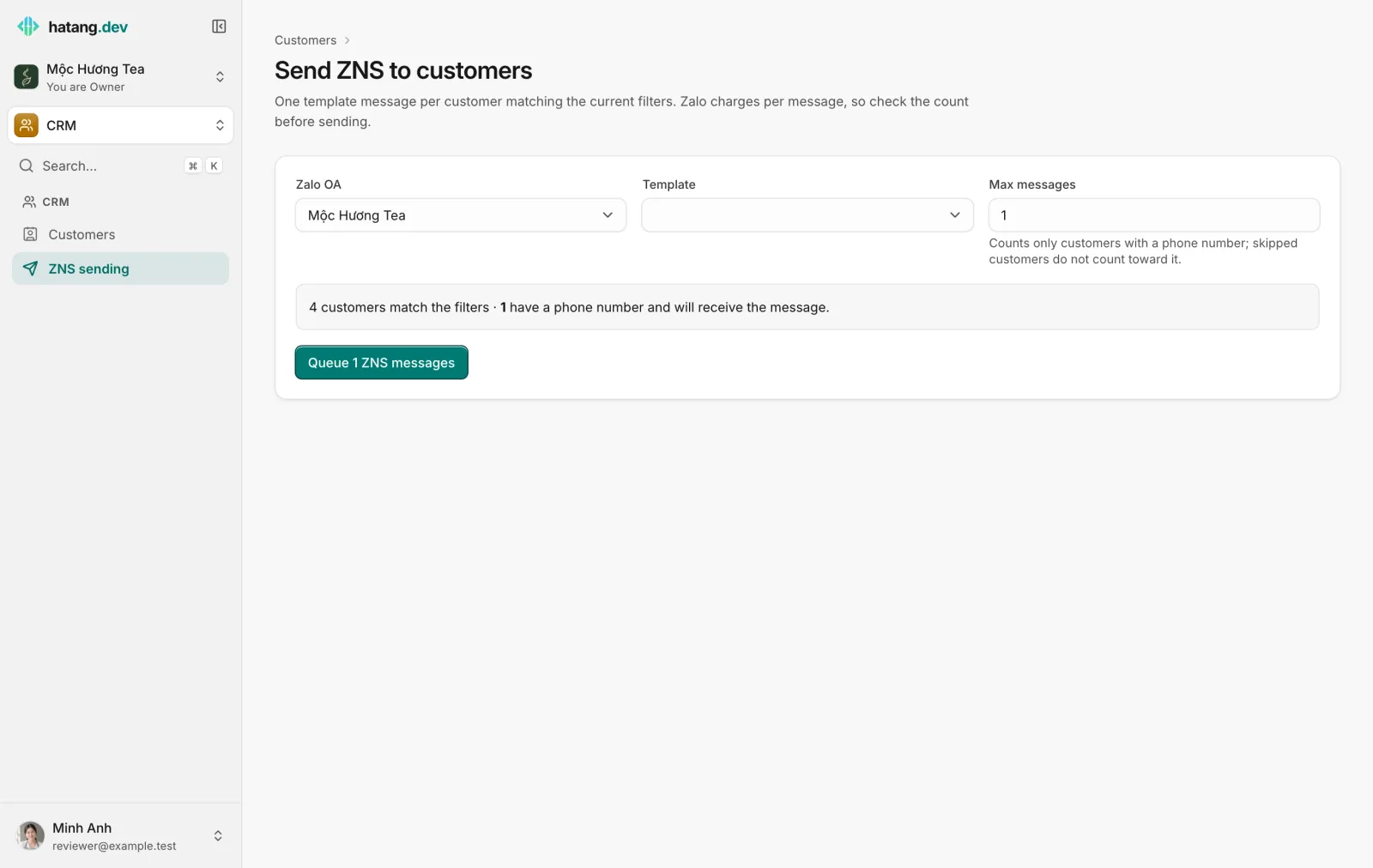
Ha Tang queues one message per customer and the page reloads with how many were queued and skipped. Each message then shows on the customer's Activity, and on the Zalo ZNS page of Customer Support (linked from the notice if you have Manage access to Customer Support), as sent or failed.
You can also open the page from CRM → ZNS sending; it then targets every customer, so set the filters on the customer list first.
Fill in the template parameters
Each parameter gets one of these values:
| Value | Each customer gets |
|---|---|
customer.name |
Their name |
customer.phone |
Their phone number |
customer.email |
Their email address |
field:<key> |
The value of a custom field, for example field:thanh_pho |
text: followed by your text |
The same fixed text for everyone, for example text:Tết 2027 |
Ha Tang suggests a value from the parameter's name (customer_name gets customer.name, phone gets customer.phone), and the box lists your custom fields as you type. Check every suggestion: a parameter left as text: with nothing after it sends an empty value, and Zalo rejects messages whose required parameters are empty.
Who receives it
- Only customers with a phone number. The others are skipped.
- Zalo delivers the message to the Zalo account registered with that number. If the number has no Zalo account, or the person blocked messages from businesses, Zalo reports the message as failed.
- Max messages counts only the messages queued. Customers skipped for having no phone number do not count toward it.
Good practice
- Send a test first: filter the list to your own profile (search your phone number) and send to just that one.
- Keep templates for what customers expect from you. Zalo can suspend a template, or the OA's ZNS, after complaints.
- For a single customer, or a message triggered by an order, use ZNS from the order page or a workflow instead. See Zalo ZNS.
Troubleshooting
| Problem | Cause | What to do |
|---|---|---|
| Sending ZNS to customers needs Manage access to Customers | Your CRM access is below Manage | Ask an owner or admin to raise it (Set an employee's module access) |
| Connect a Zalo Official Account first | No active Zalo OA | Connect one under Customer Support → Channels |
Was this article helpful?
Related articles
- Send Zalo ZNS notificationsSend approved Zalo template messages, such as order confirmations and payment reminders, to customers' phone numbers through your Official Account.
- Stages, owners and labelsTrack where each customer is in your sales flow, who looks after them, and group them with labels you can filter, export and message.
- Custom fieldsAdd your own fields to every customer profile, such as city, customer type or budget, and let the AI assistant fill them in from the conversation.
- Connect a Zalo Official AccountMessages customers send to your Zalo OA land in the inbox, and your team replies from Ha Tang within Zalo's 48-hour window.
Not finding what you are looking for?
Our team answers in the chat, in English or Vietnamese.