Open the customer in your own admin
Add buttons beside every conversation that open the customer's page in your own admin or tools, filled with their user id, email or phone.
Updated on
On this page
Profile links are buttons beside a conversation that open the person you are talking to in your own tools: their user page in your admin, an order search, your billing system. Instead of copying the customer's email from Ha Tang and searching for it, the agent clicks Admin profile and lands on the right page.
You set them up once for the whole business, as web addresses with blanks such as {{user_id}} that Ha Tang fills in for each conversation. You need Manage access to Customer Support.
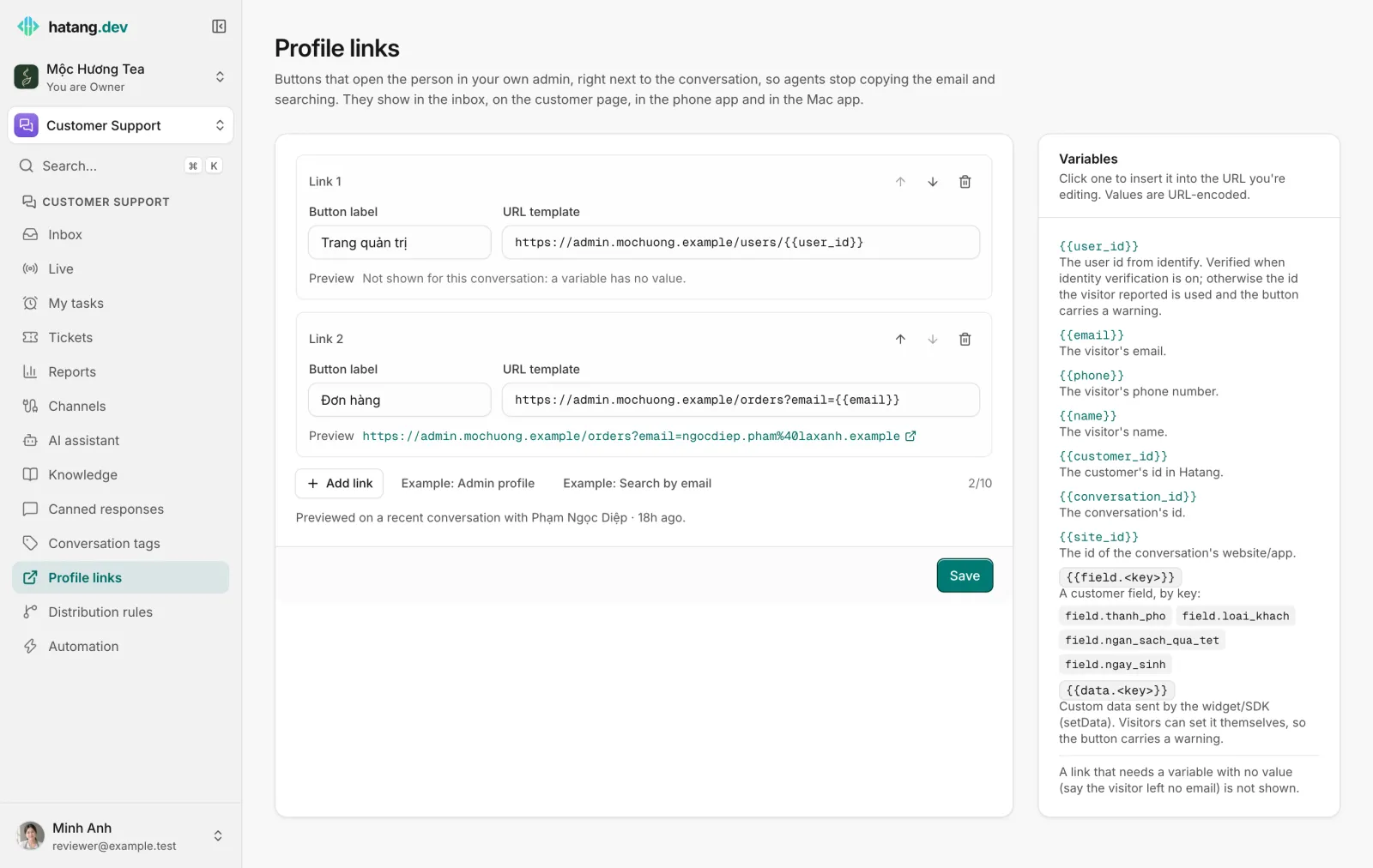
Add a link
-
Go to Customer Support → Profile links.
-
Click Add link, or Example: Admin profile or Example: Search by email to start from a ready-made address.
-
In Button label, type what agents see, for example
Admin profile. -
In URL template, type the address of the page in your admin and put a variable where the customer's value goes, for example:
https://tatca.ai/admin/users/{{user_id}}Click a variable in the Variables card to insert it.
-
Click Save.
Under each link, Preview shows the address it would open for a recent conversation (one with a known customer, when there is one), so you can click it and check it lands on the right page. You can add up to 10 links and change their order with the arrows; agents see them in that order.
The address must start with https://, and variables may only come after the domain: https://{{site_id}}.example.com is refused, so a link always opens your own site. The page tells you what to fix before you can save.
Variables
| Variable | Filled with |
|---|---|
{{user_id}} |
The user id your website or app sent when it identified the customer (see below) |
{{email}} |
The customer's email |
{{phone}} |
The customer's phone number |
{{name}} |
The customer's name |
{{customer_id}} |
The customer's id in Ha Tang |
{{conversation_id}} |
The conversation's id |
{{site_id}} |
The id of the website or app the conversation came from |
{{field.<key>}} |
A customer field, by its key, for example {{field.member_no}} |
{{data.<key>}} |
A detail your website or app sent about the visitor (shown under Attributes), for example {{data.plan}} |
Values are encoded for web addresses, so an email such as [email protected] arrives intact. When a link needs a value the customer does not have (no email yet, say), the link is not shown for that conversation.
Verified and unverified user ids
{{user_id}} is the id your website or app uses for its signed-in customer. How far you can trust it depends on how it was sent:
- With identity verification on, your server signs the id, so it really is that customer. The link is shown normally.
- Without it, the id comes from the visitor's browser, which anyone can change. Ha Tang still fills the link, but marks it with a warning sign: "User id not verified — the visitor reported it themselves". Links using
{{data.<key>}}carry the same warning, since visitors can set those details too.
Before acting on an unverified link (sharing order details, changing an account), check that the person in the chat is the account holder. To show verified ids, ask your developer to turn on identity verification; see Recognise logged-in users.
Only for some websites or apps
If your business has more than one website or app, each link has Only for websites/apps. Tick the ones it applies to, for example an admin link only for conversations from your shop. With none ticked, the link is shown for every website and app.
Where agents see the links
- Inbox: under Links in the customer panel, right below the customer's details. When the panel is hidden on a narrower screen, the same links are under Links in the conversation's More menu.
- Customers: under Links on the customer's page, filled from the customer's details and the user id of their verified visitor.
- The Ha Tang apps for phone and Mac: under Links in the customer's details (Customer profile in the conversation's menu).
Each link opens in a new tab or in your browser; agents still sign in to your admin as usual, so a link gives nobody access they did not already have.
Was this article helpful?
Related articles
- The customer panelEverything about the customer beside the conversation: contact details, what they did before writing, attributes, CRM fields, notes, tickets and orders.
- Recognise logged-in usersLet your website tell the widget who a signed-in customer is, so your team sees their name and history and the inbox marks them as verified.
- Custom fieldsAdd your own fields to every customer profile, such as city, customer type or budget, and let the AI assistant fill them in from the conversation.
Not finding what you are looking for?
Our team answers in the chat, in English or Vietnamese.