Block customers and handle spam
Stop a customer, phone number, email address or IP from reaching your inbox, and clean up spam.
Updated on
On this page
When someone keeps sending advertising or abuse, block them. A blocked customer's messages are still kept, but they go straight to Spam: they are not assigned to anyone, nobody is notified, and they do not count as waiting.
Block a customer from a conversation
You need Work access to Customer Support.
- Open the conversation in Customer Support → Inbox.
- Click ⋯ (More) in the header.
- Choose Block this customer.
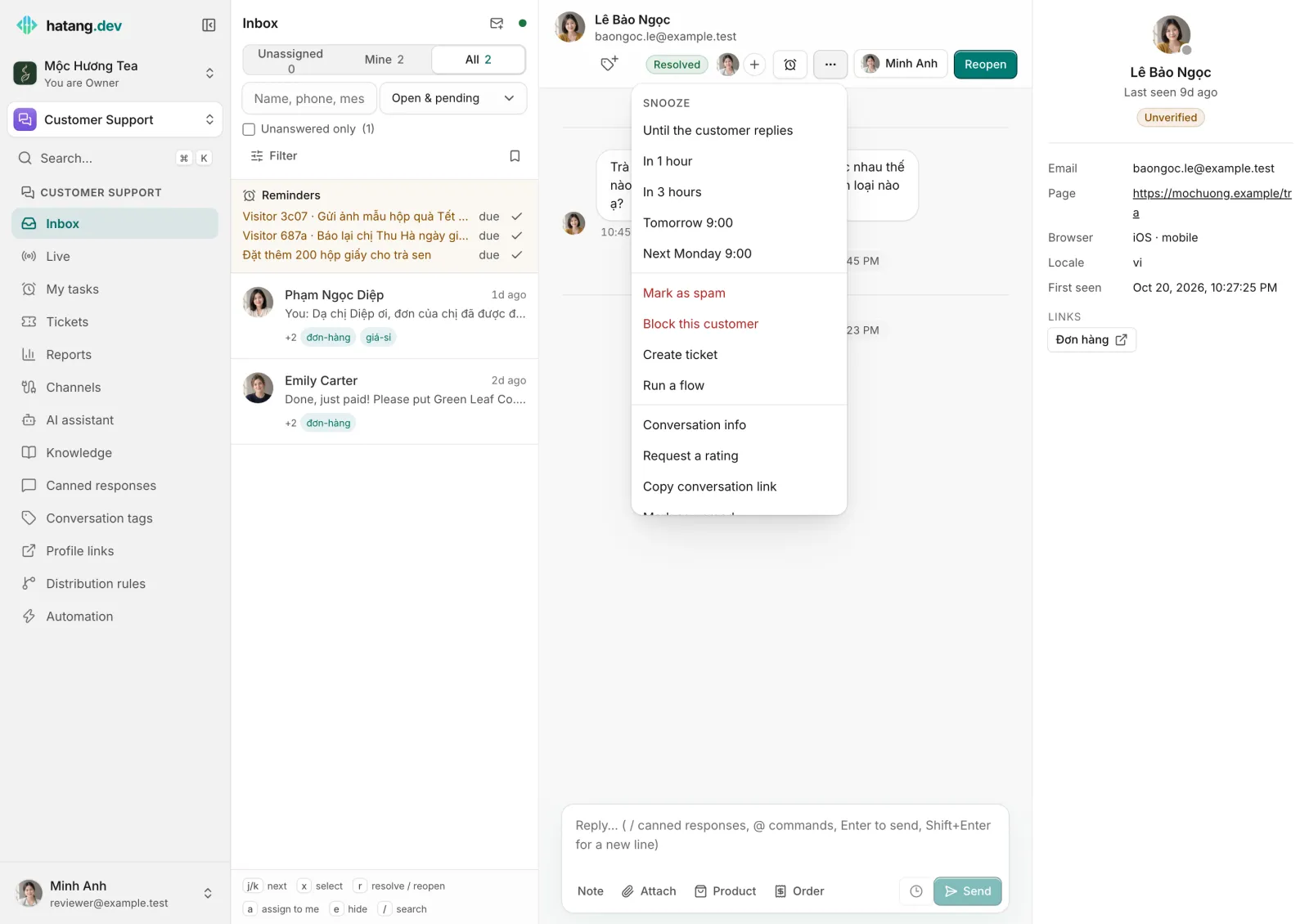
"Blocked. Their next messages go to Spam." appears, and the conversation moves to Spam right away. The customer is added to the blocklist under their name.
The customer is not told that they are blocked. On the website chat they can still write; their messages simply land in Spam.
Block a phone number, email address or IP
To block someone before they write, or on every channel they might use, add them to the blocklist. You need Manage access to Customer Support.
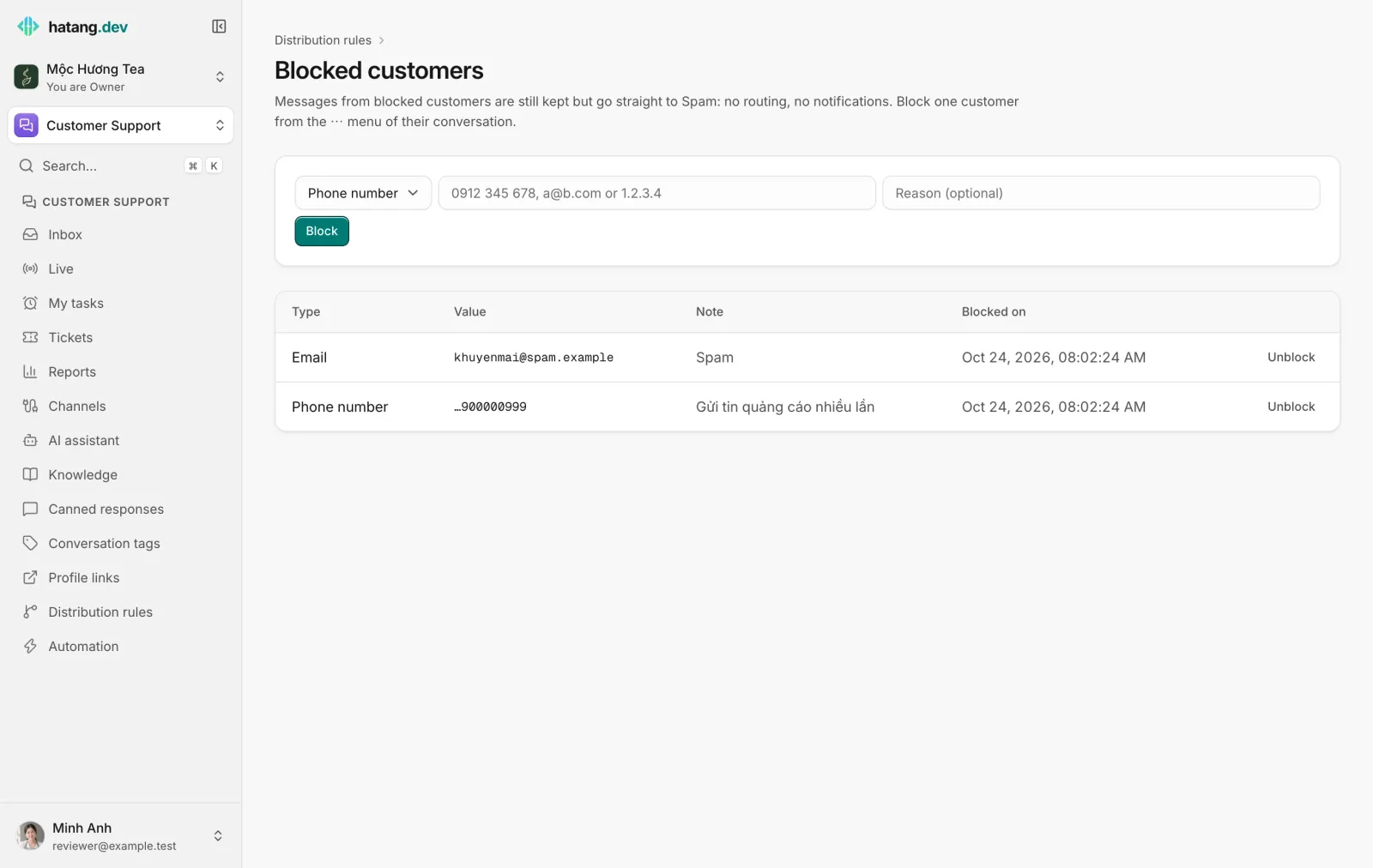
- Go to Customer Support → Distribution rules and click Blocked customers.
- Choose Phone number, Email or IP address.
- Enter the value, for example
0912 345 678, and a reason if you like. - Click Block.
How entries match:
| Type | Matches |
|---|---|
| Customer | That one customer, added with Block this customer |
| Phone number | Any customer with that number. The last 9 digits are compared, so 0912 345 678, +84 912 345 678 and 912345678 are the same number |
| Any customer with that address, whatever the capitals | |
| IP address | Website visitors connecting from that address |
Click Unblock to remove an entry. New messages from that customer are routed and notified normally again; conversations already in Spam stay there until you restore them.
Spam without blocking
To move a single conversation out of the way without blocking the person, choose ⋯ (More) → Mark as spam, or tick conversations in the list and click Spam. Their next message does not come back on its own.
Emails that fail sender authentication are marked as spam automatically.
Review and restore spam
Choose Spam in the status menu above the conversation list. Open a conversation and click ⋯ → Restore to inbox, or tick several and click Restore. A restored conversation goes back to the list; restoring does not unblock the customer.
Was this article helpful?
Related articles
- Get to know the inboxOne list for every conversation from your website, Zalo, Facebook, TikTok, email and the other channels, with filters, statuses and team views.
- See who is on your website and greet themThe Live board shows who is browsing your website right now, what they are reading and where they came from, and lets you start the chat.
- Resolve, snooze, close and reopen conversationsMark a conversation done, park it until later, close it for good, and what happens when the customer writes again.
Not finding what you are looking for?
Our team answers in the chat, in English or Vietnamese.