First steps with Email
Verify your domain, send a test email, and get ready for order emails and newsletters from your own address.
Updated on
On this page
The Email module sends email from your own domain, for example [email protected] for order confirmations and [email protected] for newsletters. To protect your reputation, mailbox providers only trust email from a domain that proves it allows Ha Tang to send for it. So the first step is always your domain. You need Email: Manage, or to be an owner or admin.
Before you start, make sure Email is on in Settings → Business settings → Modules (Turn modules on and off).
1. Add your domain
- Open Email → Domains.
- Under Domain, type a domain you own. A subdomain such as
mail.mochuong.vnis a good choice: it keeps the reputation of your main domain separate. - Click Add domain.
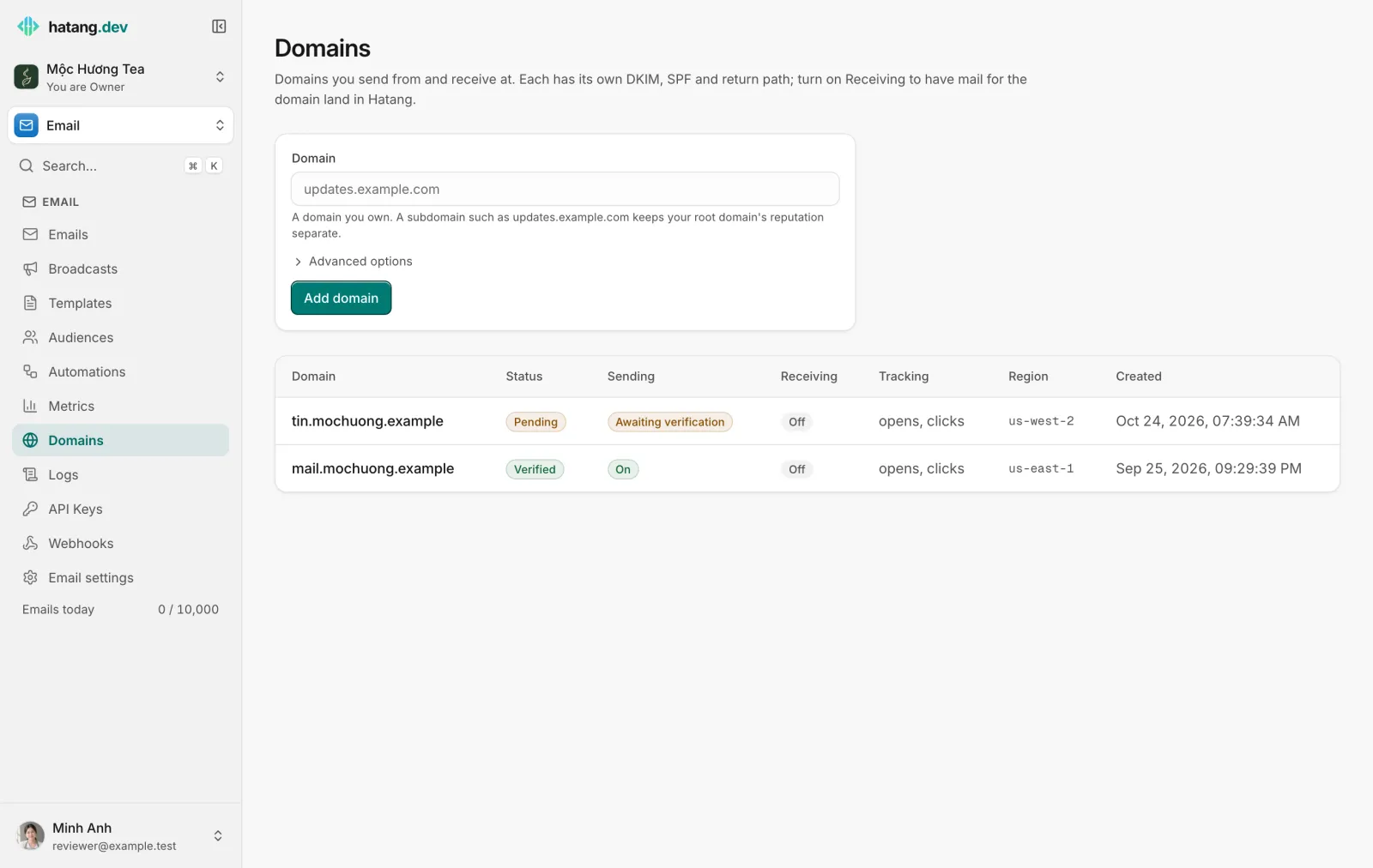
Ha Tang shows the DNS records to add at the company where you bought the domain (DKIM, SPF and a return path). Add and verify a domain explains each record, and DNS by provider shows where to paste them at common Vietnamese providers.
2. Wait for verification
Once the records are published, the domain's Status changes from Pending to Verified. How long it takes depends on your DNS provider; Ha Tang keeps checking. You cannot send from the domain before it is verified.
3. Send a test email
Open the domain and click Send test email to send a message to yourself. Check that it arrives in your inbox and not in spam. If it lands in spam, see Keep your email out of spam.
4. Choose what you will send
| You want to… | Next |
|---|---|
| Send order confirmations, password resets or receipts from your website or shop system | Ask your developer to create an API key (API keys) or use the SMTP relay |
| Design reusable emails | Templates |
| Keep a list of customers who agreed to hear from you | Contacts and audiences |
| Send a newsletter or a promotion | Broadcasts |
| Send a series of emails automatically, such as a welcome series | Automations |
5. Keep an eye on results
Email → Metrics shows deliveries, opens, clicks, bounces and complaints. Addresses that bounce or complain are added to your suppression list so you do not keep sending to them (Suppressions and bounces). The Emails today counter at the bottom of the Email menu shows how much of your daily sending you have used.
Useful next steps
Was this article helpful?
Related articles
- Add and verify a sending domainAdd the domain you send from, publish its DKIM, SPF, return-path and DMARC records, and get it verified so your email reaches the inbox.
- Send a broadcastWrite a newsletter or promotion once and send it to a segment, now or at a set time, with each contact's name filled in and unsubscribes handled for you.
- Keep your email out of spamWhy email lands in spam or Promotions and how to fix it, with SPF, DKIM and DMARC, a careful start on a new domain, clean lists and the numbers to watch.
Not finding what you are looking for?
Our team answers in the chat, in English or Vietnamese.