API keys
Create keys that let your developers' software use Ha Tang, give each one only the permissions it needs, and revoke a key that leaked.
Updated on
An API key lets software use Ha Tang on behalf of your business: your website sending order emails, your sales system reading conversations, your backend creating payment requests. Each key is a long secret string that the software sends with every request.
You usually create keys for a developer. You do not need to understand the API, but you decide what each key may do, and you can stop any key at once.
To manage keys you need the Developer (API keys, webhooks) access, which owners and admins always have.
Create a key
- Go to Settings → API Keys (the same page is also in the Email app under Email → API Keys).
- Click Create key.
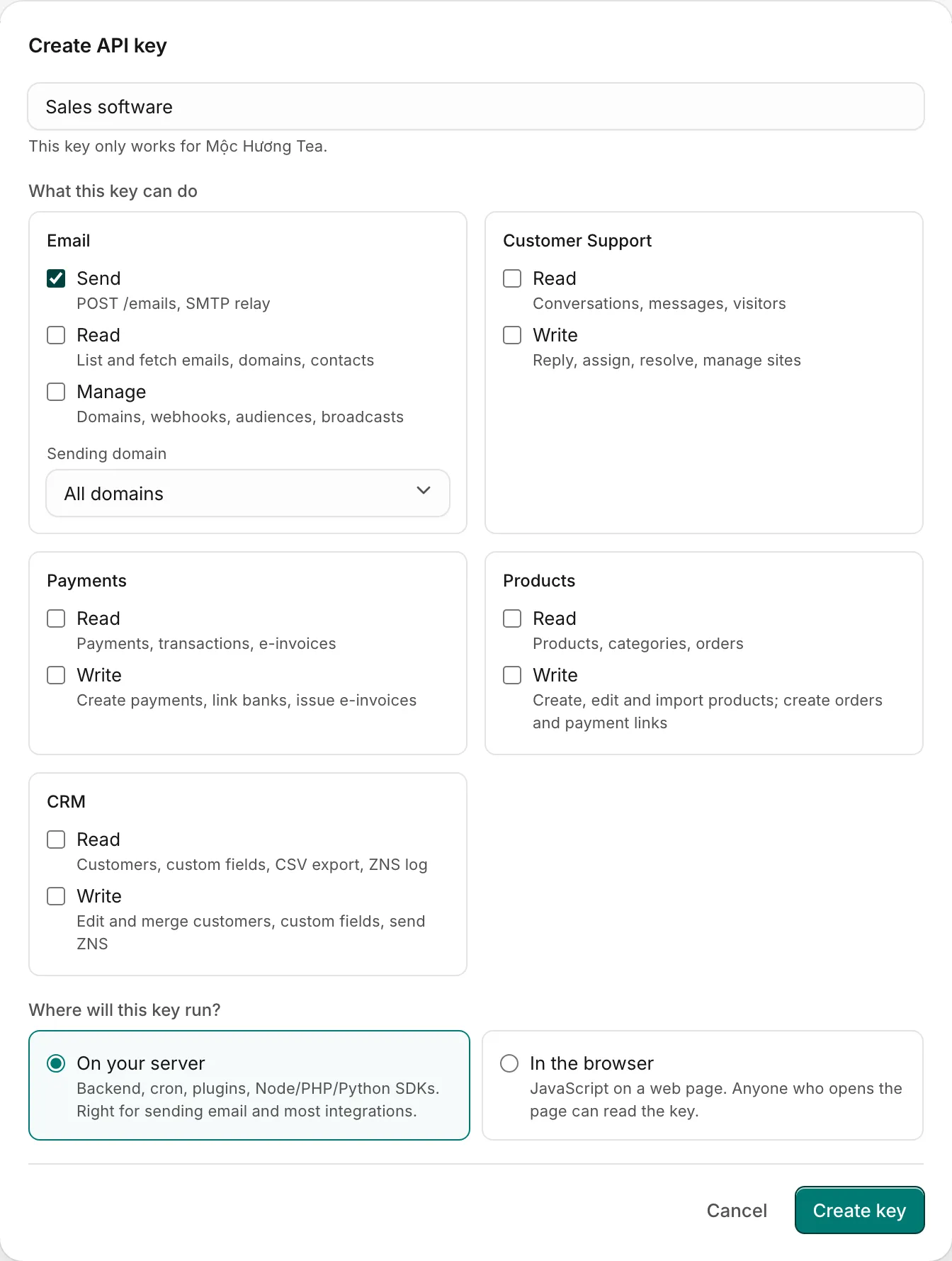
- Give it a name that says where it will be used, for example "Website production" or "Sales system". The dialog reminds you that the key only works for this business.
- Under What this key can do, tick only what the software needs (see below).
- For an email key, you can limit sending to one Sending domain. Leave All domains otherwise.
- Under Where will this key run?, keep On your server for nearly everything: sending email, your sales software, plugins, scheduled jobs. Choose In the browser only when your developer says the key will sit in a web page's JavaScript; then list the website addresses that may use it, one per line, like
https://shop.vn. A browser key is refused when it is used from a server. - Click Create key.
The key appears once, under Key created. Click the copy button and hand it to your developer through a safe channel (a password manager, not a group chat). Click Done. Ha Tang never shows the full key again; if it is lost, create a new one and revoke the old one.
What a key can do
Each app that is on offers its permissions. A key needs at least one.
| App | Permission | Allows |
|---|---|---|
| Send | Sending emails with the API and through the SMTP relay | |
| Read | Listing and reading emails, domains and contacts | |
| Manage | Domains, webhooks, audiences and broadcasts | |
| Customer Support | Read | Conversations, messages and visitors |
| Customer Support | Write | Replying, assigning and resolving, managing sites |
| Payments | Read | Payments, transactions and e-invoices |
| Payments | Write | Creating payments, linking banks and issuing e-invoices |
| Products | Read | Products, categories and orders |
| Products | Write | Creating, editing and importing products; creating orders and payment links |
| CRM | Read | Customers, custom fields, the CSV export and the ZNS log |
| CRM | Write | Editing and merging customers, custom fields, sending ZNS |
| Blog | Read | Posts, categories, media and the content API |
| Blog | Write | Writing and publishing posts, uploading media |
Write includes Read. Keys created before Products and CRM had their own permissions keep working there through their Customer Support permissions; for new keys, tick Products or CRM directly. Give each piece of software its own key with the fewest permissions it needs: a key that only sends order confirmations needs Email Send and nothing else.
A key with Send also works as the password for the SMTP relay, with the username hatang. See SMTP relay.
The key list
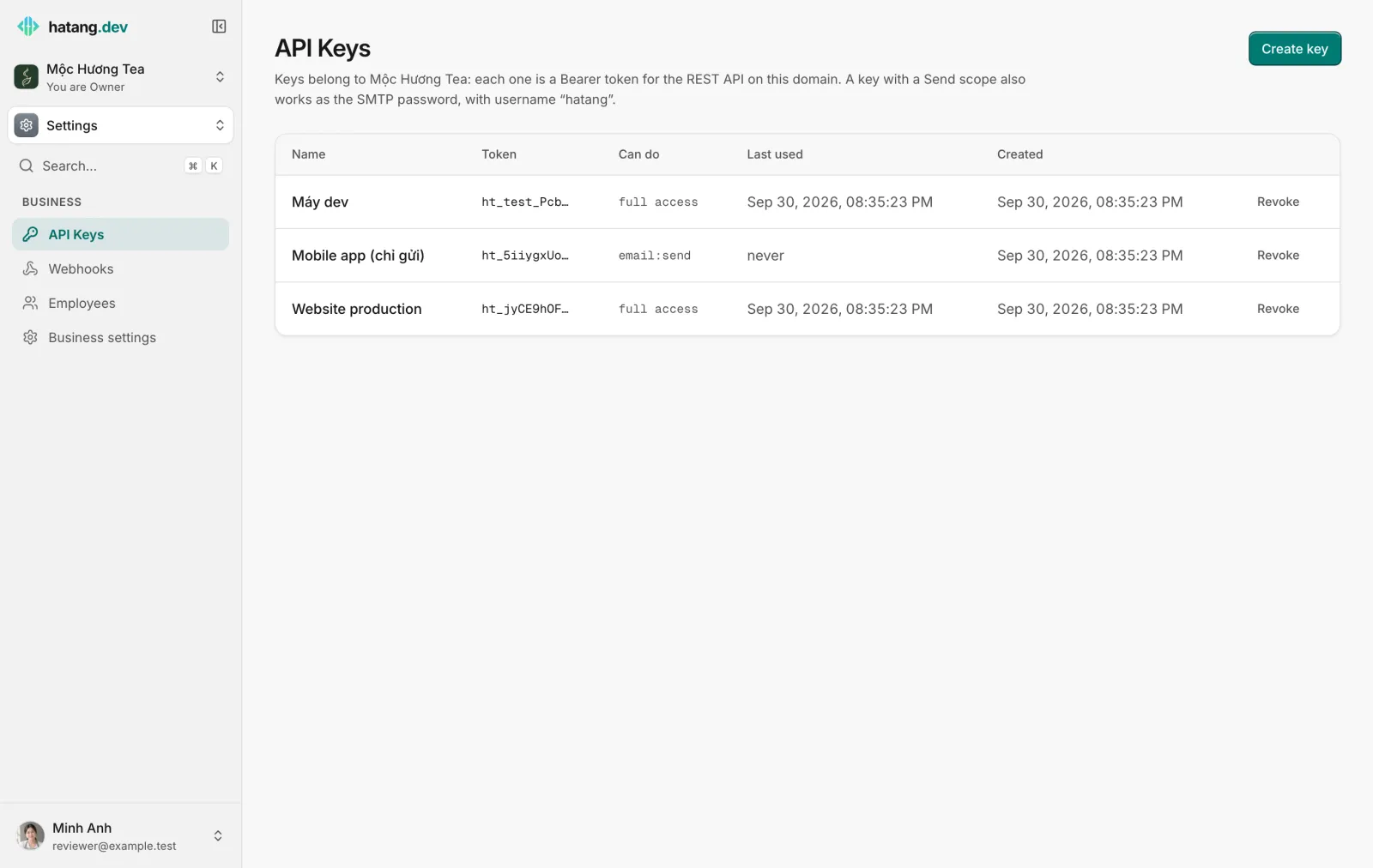
For each key you see its Name, the first characters of the Token (enough to recognize it, never the whole key), what it Can do (full access for older keys that may do everything), when it was Last used and when it was Created. A browser key also shows browser only with its website addresses.
If your software reports restricted_api_key with only accepts browser requests, that key is limited to the browser but is being used from a server. Create a new key with On your server, put it in the software, then revoke the old one.
Keys created here are live keys: they start with ht_ and act on your real data. Keys starting with ht_test_ are test keys that only reach the test environment of Payments.
Revoke a key
Click Revoke next to a key. It stops working at once and disappears from the list: any software still using it gets an error. Revoke a key:
- when the person or company who had it no longer works with you,
- when it may have leaked (posted in a chat, committed to code, sent by email),
- when the software that used it is retired.
To replace a key without downtime, create the new key first, let your developer switch to it, check that Last used of the old key stops changing, then revoke the old one.
Keep keys safe
- A key acts as your business. Anyone who has it can do what its permissions allow, without signing in.
- Never put a key in a website's public code, unless your developer set Browser origins for it and it only has the permissions a browser needs.
- Check Last used from time to time. A key nobody has used for months can usually be revoked.
For developers: authentication, errors and rate limits are in the developer hub.
Was this article helpful?
Related articles
- Webhooks for Zapier, Make and n8nSend Ha Tang events, such as a new order, a paid payment or a new conversation, to Zapier, Make, n8n or your own server the moment they happen.
- Apps and integrationsFind every Ha Tang app on the Apps page, and see the ways to connect Ha Tang to your website, your shop, your app and the tools you already use.
- Send through the SMTP relayConnect WordPress, your shop software or any app that sends email over SMTP to Ha Tang with smtp.hatang.dev, port 5870 and an API key.
- Keep employee access safeGood habits for who can see and change what in your business, and a checklist for when someone joins or leaves.
Not finding what you are looking for?
Our team answers in the chat, in English or Vietnamese.