Create email templates
Write an email once with variables such as the order number, publish it, and reuse it from your website, broadcasts and automations.
Updated on
On this page
A template is an email your team writes once and sends many times: an order confirmation, a shipping notice, a welcome email. Marketers edit the wording in the dashboard while your website or app keeps sending the same template, with the order number and total filled in for each customer. Broadcasts and automations can start from templates too.
Creating and editing templates needs the Work level on the Email module.
Create a template
- Open Email → Templates and click New template.
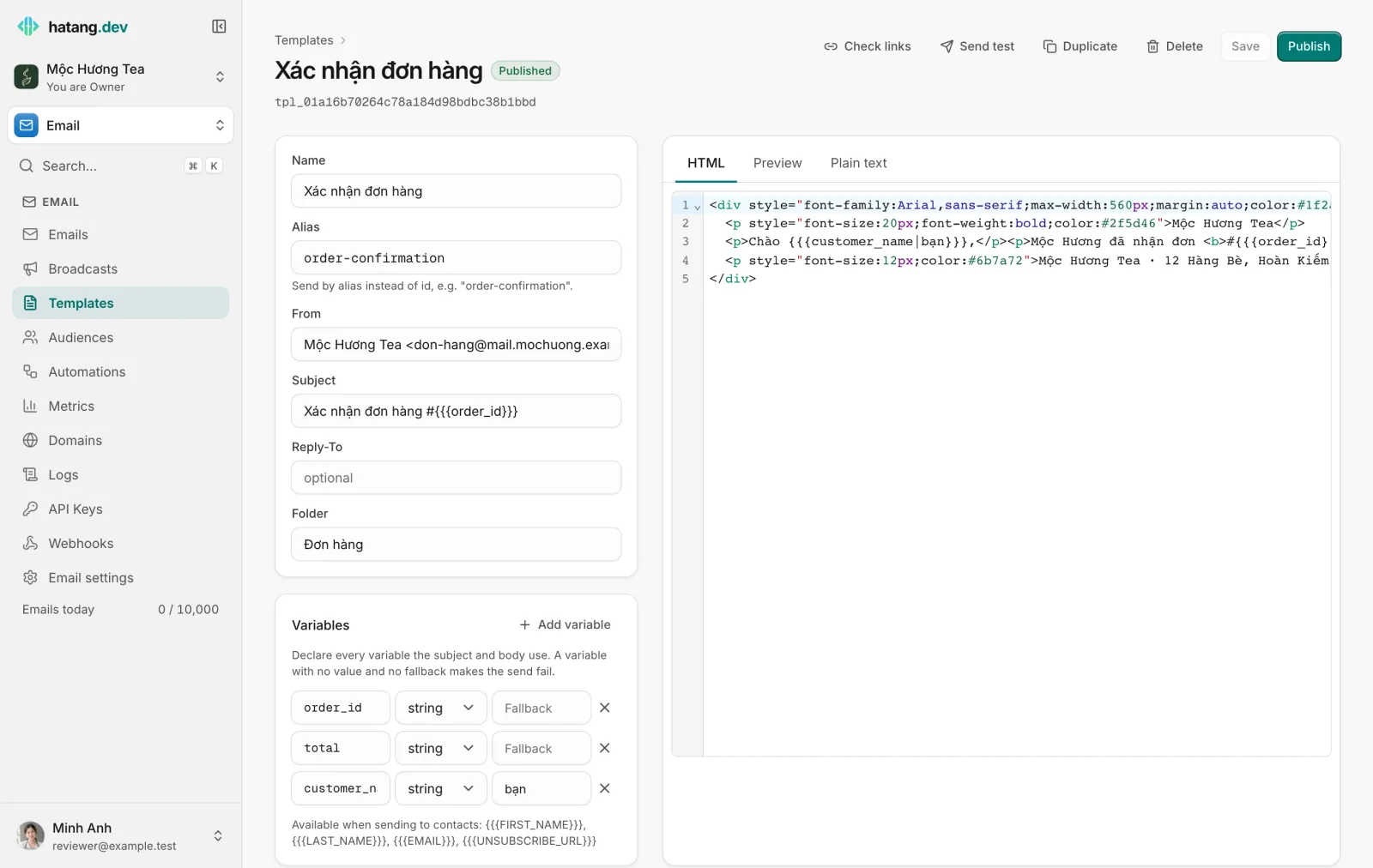
- Fill in the defaults at the top. Each send can override them:
- Name: for your team, for example "Order confirmation".
- Alias: a short name such as
order-confirmationthat your developer uses instead of the template id. Lowercase letters, digits,-and_. - From: an address on a verified domain, for example
Mộc Hương Tea <[email protected]>. - Subject, Reply-To and Folder (to group templates in the list).
- Write the email in the HTML tab. Check it in Preview, which fills each variable with its fallback.
- Leave Plain text empty unless you want to write it yourself: Ha Tang generates it from the HTML. A plain-text part helps deliverability.
- Click Save. The template is a Draft.
Use variables
Variables are written with three braces: {{{order_id}}}. Add a default after a vertical bar for when no value is sent: {{{customer_name|bạn}}}.
- Under Variables, click Add variable for each one, or Declare all to add every variable Ha Tang finds in the subject and body.
- Give each a type, string or number, and optionally a Fallback.
Rules to know:
- Every variable used in the subject or body must be declared before you can publish. Missing ones are listed under Not declared.
- When a send has no value for a variable, Ha Tang uses the inline default, then the fallback. If there is neither, the send is refused and nothing goes out, so give a fallback to any variable your website might leave out.
- These are filled automatically when sending to contacts and need no declaring:
{{{FIRST_NAME}}},{{{LAST_NAME}}},{{{EMAIL}}},{{{UNSUBSCRIBE_URL}}}, and contact properties as{{{contact.city}}}. - Values are made safe for HTML automatically, so a customer name cannot break your layout.
Check, test and publish
- Click Check links. Ha Tang flags links that are empty, only
#, on a placeholder domain (example.com,yourdomain.com,localhost…), nothttp(s), unreachable, or answering with an error page. - Click Send test to receive the current draft in your own mailbox, with
[Test]before the subject. Variables show their fallback, or their name in brackets ([order_id]) when they have none. The draft needs a From address for this. - Click Publish. Link problems hold publishing back until you fix them or choose Publish anyway.
Only the published version is sent. You can keep editing: the API, broadcasts and automations keep using the last published version until you publish again, and the list shows Unpublished changes in the meantime. This lets you prepare a new wording without changing what customers receive today.
Duplicate copies the template into a new draft, for example to make a variant for another product line.
Where templates are used
| Where | How |
|---|---|
| Your website or app | Your developer sends the template's id or alias with the variable values. See the templates guide in the developer hub |
| Broadcasts | Start from a template copies a published template into the broadcast. Later changes to the template do not change a broadcast already created. See Send a broadcast |
| Automations | Each Send email step sends a published template. See Automations |
Troubleshooting
| Symptom | Cause | What to do |
|---|---|---|
| Publish fails with an undeclared variable | The content uses a variable that is not in Variables | Click Declare all, then publish |
| A send fails with "is not published yet" | The template has never been published | Publish it |
| A send fails with "Missing value for template variable" | A variable got no value and has no default or fallback | Add a fallback, or ask your developer to send the value |
| Customers still get the old wording | The changes are saved but not published | Publish; the list shows Unpublished changes until you do |
| An automation cannot be enabled | One of its templates is not published, or has no From | Publish the template and set From |
Useful next steps
Was this article helpful?
Related articles
- Send a broadcastWrite a newsletter or promotion once and send it to a segment, now or at a set time, with each contact's name filled in and unsubscribes handled for you.
- Automated email sequencesSend a welcome series, a thank-you after payment or a review reminder automatically, one contact at a time, when something happens in your shop.
- Contacts and audiencesAdd the people you email one by one, from a CSV file or from your CRM, store custom properties on them and keep their consent.
Not finding what you are looking for?
Our team answers in the chat, in English or Vietnamese.