Automated email sequences
Send a welcome series, a thank-you after payment or a review reminder automatically, one contact at a time, when something happens in your shop.
Updated on
On this page
An automation is a sequence of steps that runs for one contact when something happens: a welcome email when someone joins your list, a thank-you after a payment, a reminder to leave a review three days later if they have not. You build the sequence in the dashboard; Ha Tang runs it for every contact, with the right waits in between.
Building and enabling automations needs the Manage level on the Email module.
How it starts: events
Every automation starts from an event, a named moment in your business such as order.paid or review.submitted.
- Built-in:
hatang:contact.createdfires whenever a contact is added, from the dashboard, a CSV import or the API. Use it for welcome series. - Your own events are sent by your website or app, usually by your developer, through the API. A shop sends
order.paidwith the order number and total, for example.
To define your own events:
- Open Email → Automations and go to Events.
- Enter the event Name, for example
order.paid. - Optionally describe its Payload: the fields that come with it and their type (
string,number,boolean,date), such asorder_idandtotal. Ha Tang then checks incoming values and converts them. - Click Add event.
Your developer finds how to send events in the automations guide of the developer hub.
Build the flow
- Open Email → Automations, enter a name and click New automation.
- Click Start from an event and pick the event.
- Click + under a step to add the next one, and set it up in the panel on the right.
- Click Save, then Enable.
| Step | What it does | Set up |
|---|---|---|
| Send email | Sends a published template to the contact | Pick the template; optionally override From and the subject |
| Delay | Waits before the next step | A number of minutes, hours, days or weeks, up to 30 days |
| Wait for event | Waits until another event arrives for this contact, or gives up | Until this event arrives and Give up after (30 days by default). Two exits: Event received and Timed out |
| Condition | Goes one way or the other | A field, a comparison (equals, greater than, contains, is set…) and a value. Two exits: Yes and No |
| Update contact | Changes the contact | Set property values, or unsubscribe or resubscribe the contact |
| Add to segment | Puts the contact in a segment | Pick the segment |
Conditions can look at the event that started the run (event.total), the contact (contact.city, contact.tier…) and the event a Wait for event step received.
Inside Send email, template variables are filled from the event first, then from the contact, so a template with {{{order_id}}} receives the order number your shop sent with order.paid.
Ha Tang refuses to enable an automation without a starting event, with a template that is not published, or with an email that has no sender address.
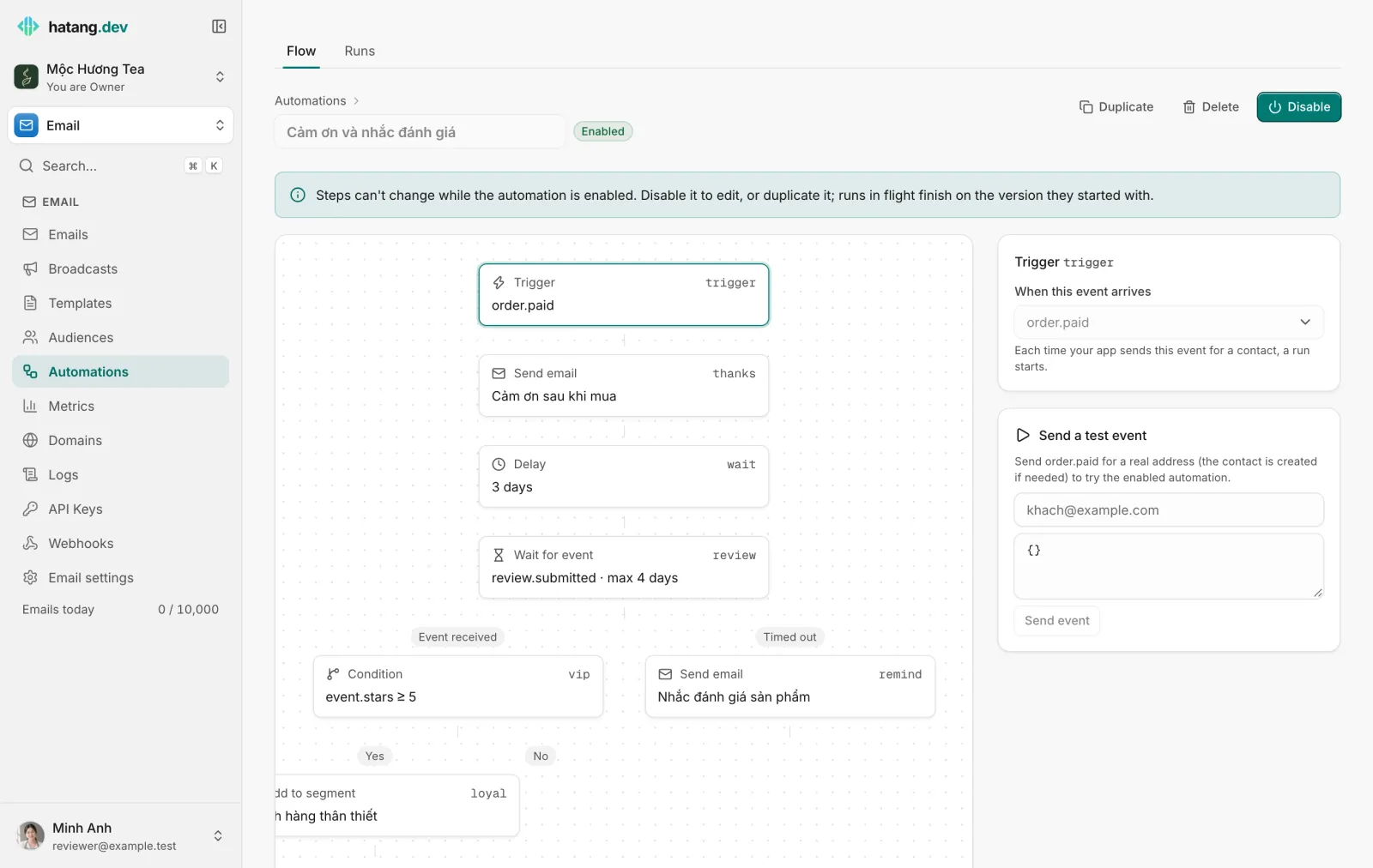
Example: thank-you and review reminder
- Start from an event:
order.paid. - Send email: the "Thank you for your order" template.
- Delay: 3 days.
- Wait for event:
review.submitted, Give up after 4 days. - On Timed out: Send email with the "How was your tea?" template.
- On Event received: Condition
event.starsat least5, and on Yes, Add to segment "Loyal customers".
Test it
At the bottom of the flow, Send a test event sends the starting event for an address you type, with an optional payload. The contact is created if needed and the enabled automation runs for real, so use your own address.
Change a running automation
- The steps of an Enabled automation are locked. Click Disable to edit them, or Duplicate to build a new version beside it.
- Disabling cancels the runs still in progress.
- A run keeps the version of the flow it started with, even if you edit the automation later.
Follow the runs
Each time a contact enters the automation, Ha Tang creates a run. The Runs tab lists them by status:
| Status | Meaning |
|---|---|
| Running | Executing steps |
| Waiting | In a delay, or waiting for an event |
| Completed | Reached the end of the flow |
| Failed | A step failed; open the run to see the error |
| Cancelled | Stopped, for example because the automation was disabled |
Open a run to see each step, when it ran and its result. A contact who has unsubscribed from everything is not emailed: the Send email step shows Skipped. Emails sent by automations also appear under Email → Emails like any other email.
Useful next steps
Was this article helpful?
Related articles
- Create email templatesWrite an email once with variables such as the order number, publish it, and reuse it from your website, broadcasts and automations.
- Contacts and audiencesAdd the people you email one by one, from a CSV file or from your CRM, store custom properties on them and keep their consent.
- Automate follow-up work with workflowsRun a series of steps when something happens in a conversation, such as an order being paid, a low rating or a customer left waiting.
Not finding what you are looking for?
Our team answers in the chat, in English or Vietnamese.