Customise the unsubscribe page
Brand the page your recipients open from the unsubscribe link, where they pick topics or unsubscribe from all your email.
Updated on
On this page
Every broadcast and automation email can carry the {{{UNSUBSCRIBE_URL}}} link. It opens a page hosted by Ha Tang where the recipient chooses which topics they still want, or unsubscribes from everything. You can give that page your title, description, logo and colours, so it looks like your shop and not like a generic form.
There is one page per business. Changing it needs the Manage level on the Email module.
Customise the page
- Open Email → Email settings and the Unsubscribe page tab.
- Fill in:
- Title, for example
Email preferencesorChọn email bạn muốn nhận. - Description: one or two sentences, for example what each kind of email contains and how often you send.
- Logo (https link): the address of your logo image. It must start with
https://. - Accent, Background and Text colours.
- Title, for example
- Check the preview next to the form. It shows your topics as checkboxes, Unsubscribe from all emails and Save preferences.
- Click Save.
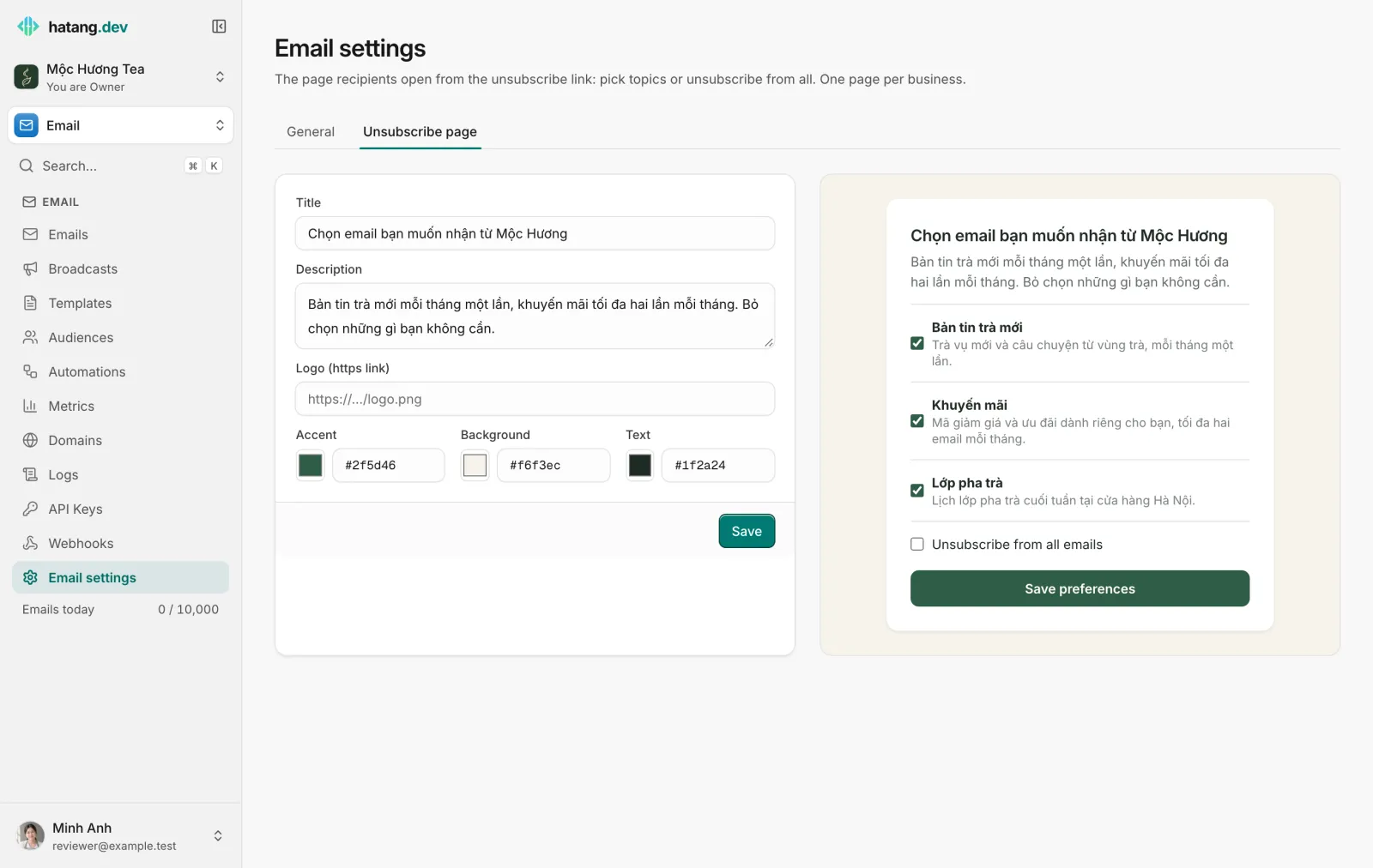
What the recipient sees
- Each public topic, with its description, and each private topic the recipient is subscribed to. A ticked box means they receive it.
- Unsubscribe from all emails, to stop all marketing email.
- Save preferences to confirm.
Opening the page changes nothing by itself. Email security scanners that open every link in a message cannot unsubscribe anyone by accident; only the recipient's click on Save preferences does.
The page is shown in English when the recipient's browser prefers English, and in Vietnamese otherwise.
What happens after they save
| The recipient… | Result |
|---|---|
| Unticks a topic | They stop receiving broadcasts with that topic. Their other topics are unchanged |
| Ticks a topic | They receive broadcasts with that topic from now on |
| Chooses Unsubscribe from all emails | The contact is marked Unsubscribed, receives no more broadcasts or automation emails, and the address is added to the suppression list with the reason unsubscribe, which also blocks your other email to it |
You see each contact's choices on its page under Email → Audiences.
One-click unsubscribe in Gmail and Apple Mail
Broadcasts and automation emails also carry a one-click unsubscribe header, which Gmail, Apple Mail and others show as their own Unsubscribe button next to the sender's name. Gmail and Yahoo require it from bulk senders, and Ha Tang adds it for you. That button does not open your page:
- from a broadcast with a topic, it removes the recipient from that topic only;
- from a broadcast without a topic, it unsubscribes them from everything.
Tips
- Keep the description short and honest: "Bản tin trà mới mỗi tháng một lần, khuyến mãi tối đa hai lần mỗi tháng" reassures people who were about to leave.
- Offer two or three topics. Someone who can say "no promotions, but keep the newsletter" stays on your list instead of reporting spam.
- Put the
{{{UNSUBSCRIBE_URL}}}link in every marketing email footer where people can find it. - Use a logo with a transparent or matching background, so it looks right on your Background colour.
Was this article helpful?
Related articles
- Segments and topicsGroup contacts into segments to choose who gets a broadcast, and offer topics so subscribers pick the kinds of email they want.
- Send a broadcastWrite a newsletter or promotion once and send it to a segment, now or at a set time, with each contact's name filled in and unsubscribes handled for you.
- Suppressions and bouncesWhy Ha Tang stops sending to some addresses (hard bounces, spam complaints, unsubscribes, manual blocks), what happens when you send to them, and when to remove one.
Not finding what you are looking for?
Our team answers in the chat, in English or Vietnamese.