Send a broadcast
Write a newsletter or promotion once and send it to a segment, now or at a set time, with each contact's name filled in and unsubscribes handled for you.
Updated on
On this page
A broadcast is a marketing email, such as a monthly newsletter, a sale or a new-product announcement, sent to every subscribed contact of a segment. Ha Tang creates one email per contact, fills in their name and properties, skips everyone who unsubscribed or is suppressed, and adds an unsubscribe link and Gmail's one-click unsubscribe button.
Creating, editing and sending broadcasts needs the Work level on the Email module.
Before you start
- A verified domain for the sender address. See Add and verify a sending domain.
- A segment with contacts, and topics if recipients should be able to choose. See Segments and topics.
- Enough daily quota left: every email of a broadcast counts. Check Email → Email settings.
Write the broadcast
- Open Email → Broadcasts and click New broadcast.
- Choose the Segment that receives it.
- Choose a Topic, or No topic (everyone subscribed).
- Enter an Internal name (only your team sees it), the From address, an optional Reply-To and the Subject.
- Write the HTML body, or pick a template under Start from a template to copy a published template's content, sender and subject.
- Optionally fill in Plain text (optional).
- Check the result in Preview, then click Create draft.
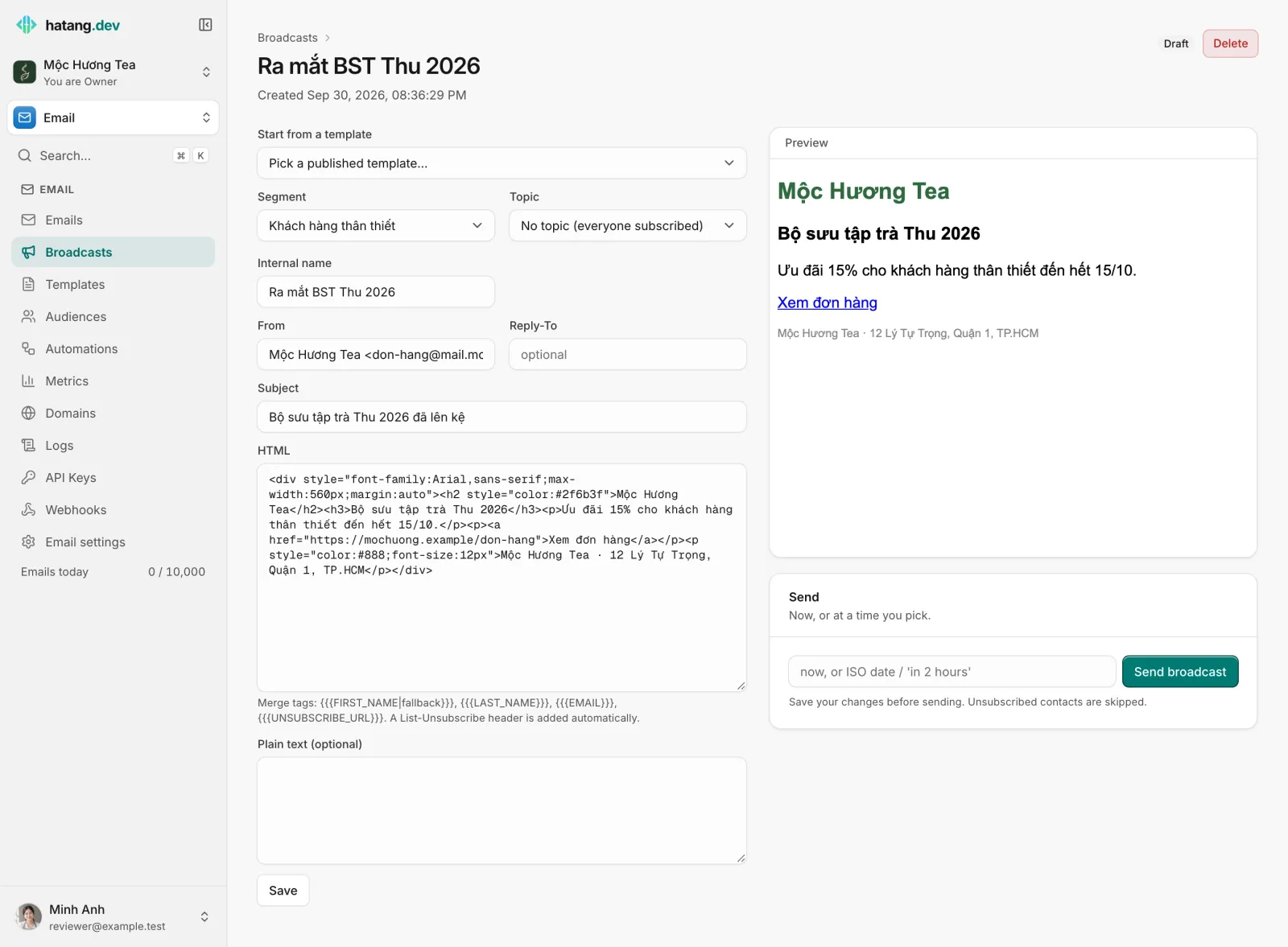
You can change a broadcast as long as it is a draft or scheduled. Click Save after each change. An existing draft also offers Start from a template: Ha Tang first asks Replace the content with a template?, and after Replace content the draft's HTML, plain text, subject and sender come from the template. Nothing is saved until you click Save.
Personalise with merge tags
| Tag | Becomes |
|---|---|
{{{FIRST_NAME}}}, {{{LAST_NAME}}}, {{{EMAIL}}} |
The contact's name and address |
{{{contact.city}}}, {{{contact.tier}}}… |
The contact's properties |
{{{UNSUBSCRIBE_URL}}} |
The link to the contact's preferences page |
Add a default after a vertical bar: Chào {{{FIRST_NAME|bạn}}}. A property without a value uses its fallback. A tag with no value at all becomes empty; it never stops the send.
Send or schedule
- Save your last changes first: the send uses the saved version.
- In the Send box, type when to send:
now,- a date and time such as
2026-11-20T09:00:00+07:00, - or a delay such as
in 2 hoursorin 3 days(up to 30 days ahead).
- Click Send broadcast.
A scheduled broadcast can still be edited or canceled with Cancel until it starts. Sending it again with another time replaces the schedule. Once it is sending, it can no longer be canceled or deleted.
There is no separate test button: to see the real email in your mailbox, create a small segment with your own address and send the broadcast to it first.
Who receives it
A contact receives the broadcast when all of these are true:
- The contact is in the broadcast's segment.
- The contact has not unsubscribed from everything.
- With a topic: the contact is subscribed to it.
- The address is not on the suppression list (hard bounce, spam complaint, manual block).
Suppressed addresses are skipped and counted as bounced; nothing is sent to them. See Suppressions and bounces.
Follow the results
| Status | Meaning |
|---|---|
| Draft | Not sent yet; you can edit it |
| Scheduled | Waiting for its time; you can still edit or cancel it |
| Queued | About to start |
| Sending | Emails are being created, one per contact |
| Sent | Every recipient has been handled |
| Canceled | Canceled before it started |
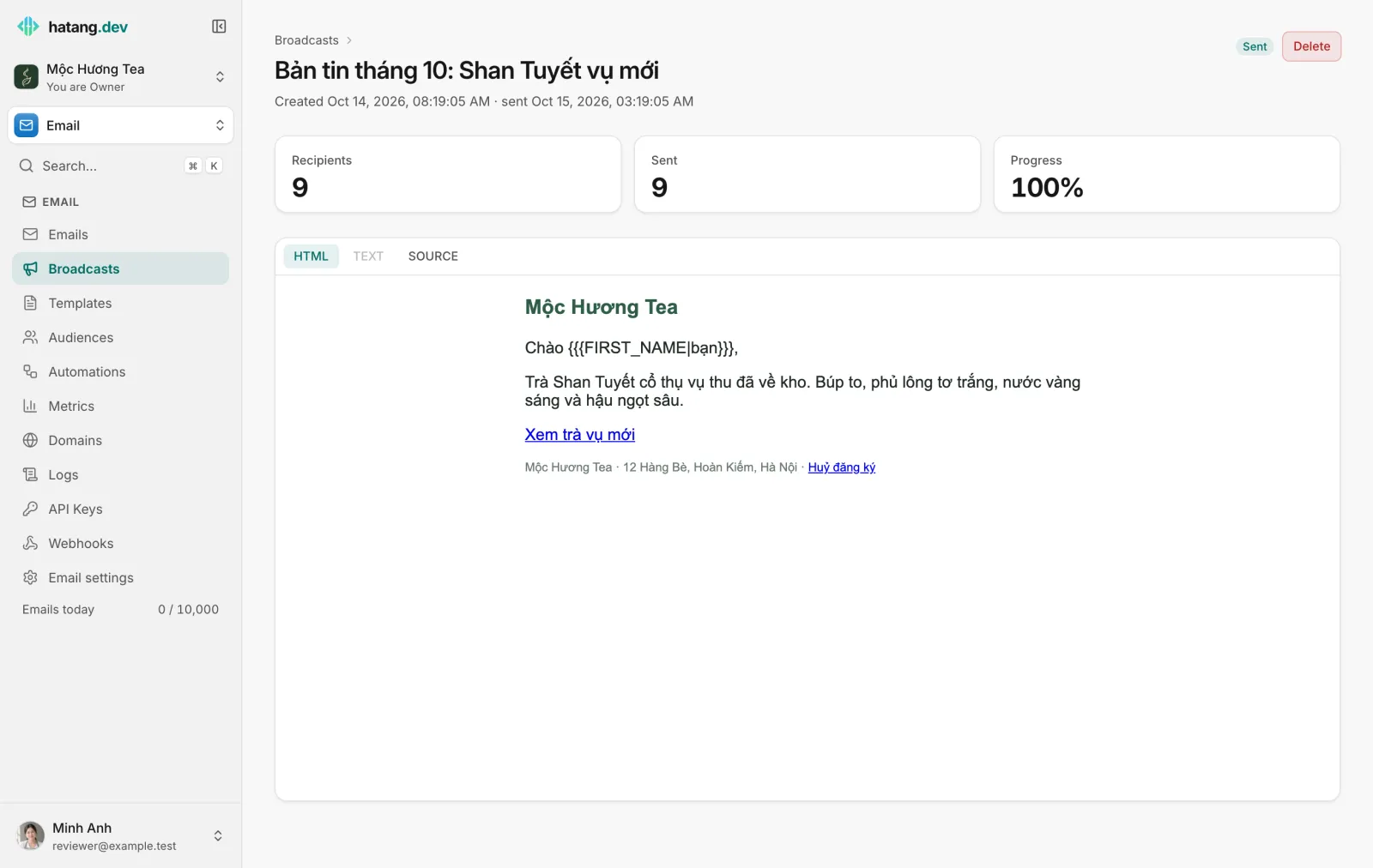
The broadcast page shows Recipients (contacts selected), Sent (emails created) and Progress. If sending is interrupted, Ha Tang continues where it stopped and never sends a contact the same broadcast twice.
Every email of the broadcast is listed under Email → Emails: filter the source by Broadcast to see who received, opened or clicked it. Overall open, click, bounce and complaint rates are under Email → Metrics.
Checklist before a big send
- The sender domain is verified and the From name is one your customers recognise.
- The subject is honest; avoid all capitals and long rows of exclamation marks or emoji.
- Every link works and points to your own website.
- The footer has
{{{UNSUBSCRIBE_URL}}}and your shop's address. - The segment only holds people who agreed to receive your email.
- You sent it to yourself first and read it on a phone.
For the API, see the broadcasts guide in the developer hub.
Useful next steps
Was this article helpful?
Related articles
- Segments and topicsGroup contacts into segments to choose who gets a broadcast, and offer topics so subscribers pick the kinds of email they want.
- Create email templatesWrite an email once with variables such as the order number, publish it, and reuse it from your website, broadcasts and automations.
- Keep your email out of spamWhy email lands in spam or Promotions and how to fix it, with SPF, DKIM and DMARC, a careful start on a new domain, clean lists and the numbers to watch.
Not finding what you are looking for?
Our team answers in the chat, in English or Vietnamese.