Segments and topics
Group contacts into segments to choose who gets a broadcast, and offer topics so subscribers pick the kinds of email they want.
Updated on
On this page
Segments and topics answer two different questions:
- A segment answers who is this broadcast for? It is a fixed group of contacts, such as "Loyal customers" or "Wholesale buyers". You choose the members.
- A topic answers what kind of email is this? It is a category such as "Promotions" or "New tea arrivals". Each recipient chooses, on the preferences page, which topics they receive.
A broadcast goes to one segment and, optionally, one topic: it reaches the segment's contacts who are subscribed to that topic. Both are managed under Email → Audiences and need the Manage level on the Email module.
Segments
Create a segment
- Open Email → Audiences and the Segments tab.
- Enter a Segment name, for example
Wholesale buyers, and click Create segment. - Open the segment and click Add contacts from the list to pick its members.
Other ways to fill a segment:
- Choose the segment when you add a contact or import a CSV file. See Contacts and audiences.
- In the contacts list, tick contacts and use Add to segment.
- Let an automation add contacts with an Add to segment step, for example everyone who leaves a five-star review. See Automations.
A contact can be in any number of segments. Remove from segment takes a contact out without deleting it, and deleting a segment never deletes its contacts. Rename changes the name only.
Examples
| Segment | Members |
|---|---|
| Loyal customers | Contacts with several orders, added from your CRM or by an automation |
| Wholesale buyers | Cafés and resellers, imported from your sales spreadsheet |
| Signed up at the shop | People who left their email at the counter |
Topics
Create a topic
- Open the Topics tab.
- Enter the Name (for example
Promotions) and a Description that recipients will read on the preferences page, for example "Discount codes and offers, at most two emails a month". - Choose the Default:
- Opt-in: every contact receives this topic until they leave it. Use it for the email people expect from you, such as your monthly newsletter.
- Opt-out: contacts receive it only after they subscribe. Use it for occasional or niche email, such as workshop invitations.
- Choose the Visibility: Public topics show on the preferences page to everyone; Private topics show only to contacts already subscribed.
- Click Create topic.
The default cannot be changed after the topic is created, so choose carefully.
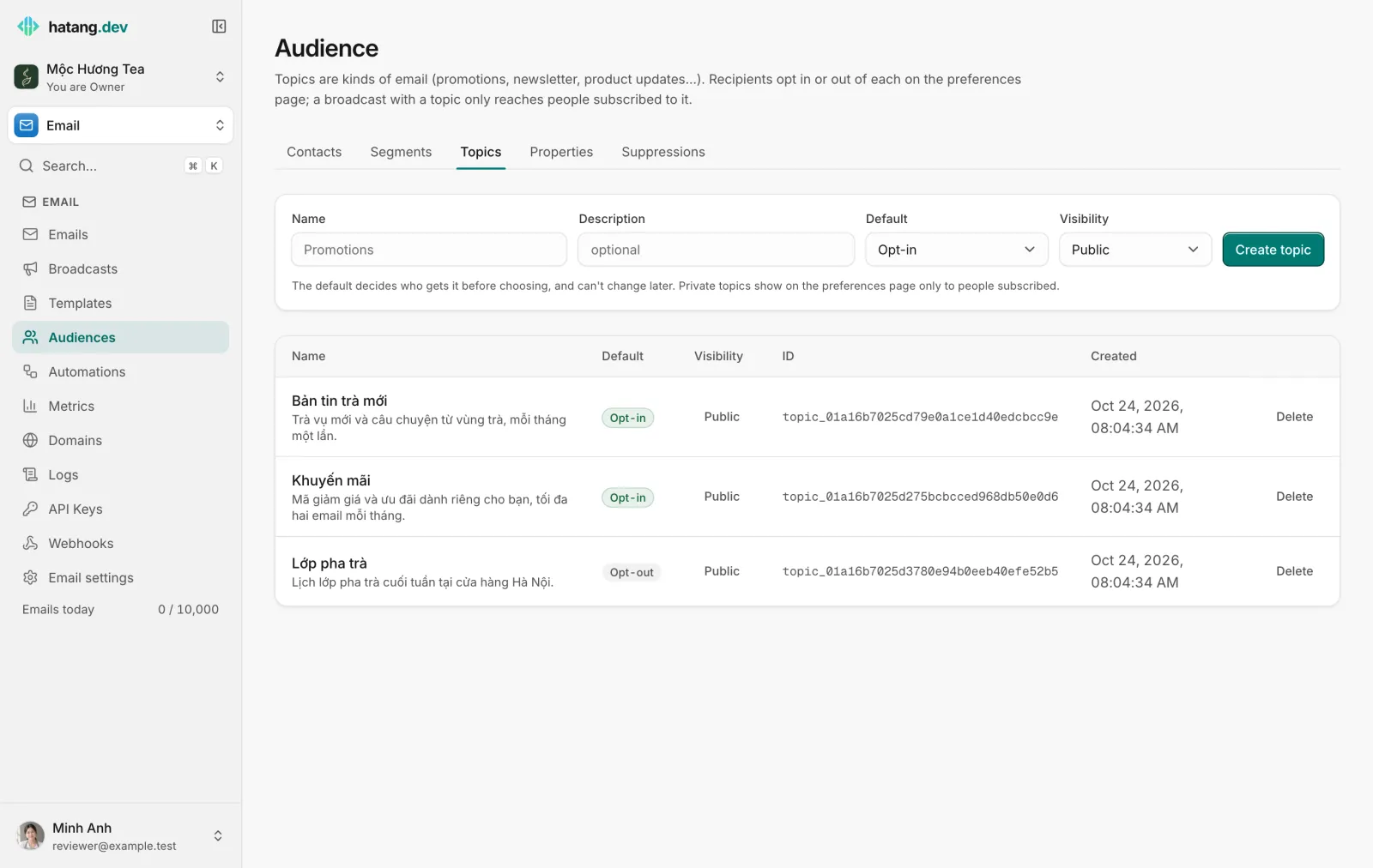
How topics filter email
- A broadcast with a topic reaches only the segment's contacts who are subscribed to it: for an opt-in topic, everyone who has not left it; for an opt-out topic, only those who joined.
- A broadcast with No topic (everyone subscribed) reaches every contact of the segment who has not unsubscribed from everything.
- One-click unsubscribe in Gmail or Apple Mail, from a broadcast with a topic, removes the contact from that topic only. From a broadcast without a topic, it unsubscribes them from everything.
- Each contact's page lists its choice per topic, or default when it has not chosen.
Why topics matter
People who can say "fewer promotions, but keep the newsletter" stay on your list. People who can only unsubscribe from everything, or cannot find how, press "Report spam" instead, and spam reports are what hurts your sender reputation most. Offering two or three clear topics is one of the simplest ways to keep complaint rates low.
Recipients reach their choices through the {{{UNSUBSCRIBE_URL}}} link in your email, which opens your unsubscribe page.
Segments, topics or properties?
| You want to… | Use |
|---|---|
| Send a broadcast to a specific group of customers | A segment |
| Let recipients choose what they receive | Topics |
| Personalise the content ("your nearest shop in {{{contact.city}}}") | A contact property |
| Branch an automation on a value | A contact property in a Condition step |
Useful next steps
Was this article helpful?
Related articles
- Contacts and audiencesAdd the people you email one by one, from a CSV file or from your CRM, store custom properties on them and keep their consent.
- Send a broadcastWrite a newsletter or promotion once and send it to a segment, now or at a set time, with each contact's name filled in and unsubscribes handled for you.
- Customise the unsubscribe pageBrand the page your recipients open from the unsubscribe link, where they pick topics or unsubscribe from all your email.
Not finding what you are looking for?
Our team answers in the chat, in English or Vietnamese.