Contacts and audiences
Add the people you email one by one, from a CSV file or from your CRM, store custom properties on them and keep their consent.
Updated on
On this page
A contact is one email address your business sends marketing email to, with a first and last name, your own properties (city, membership tier, number of orders…) and its consent. Each address exists once in the business, and the same contact can belong to many segments. Everything lives under Email → Audiences, in the Contacts, Segments, Topics, Properties and Suppressions tabs.
Viewing contacts needs the View level on the Email module; adding, importing and changing them needs Manage.
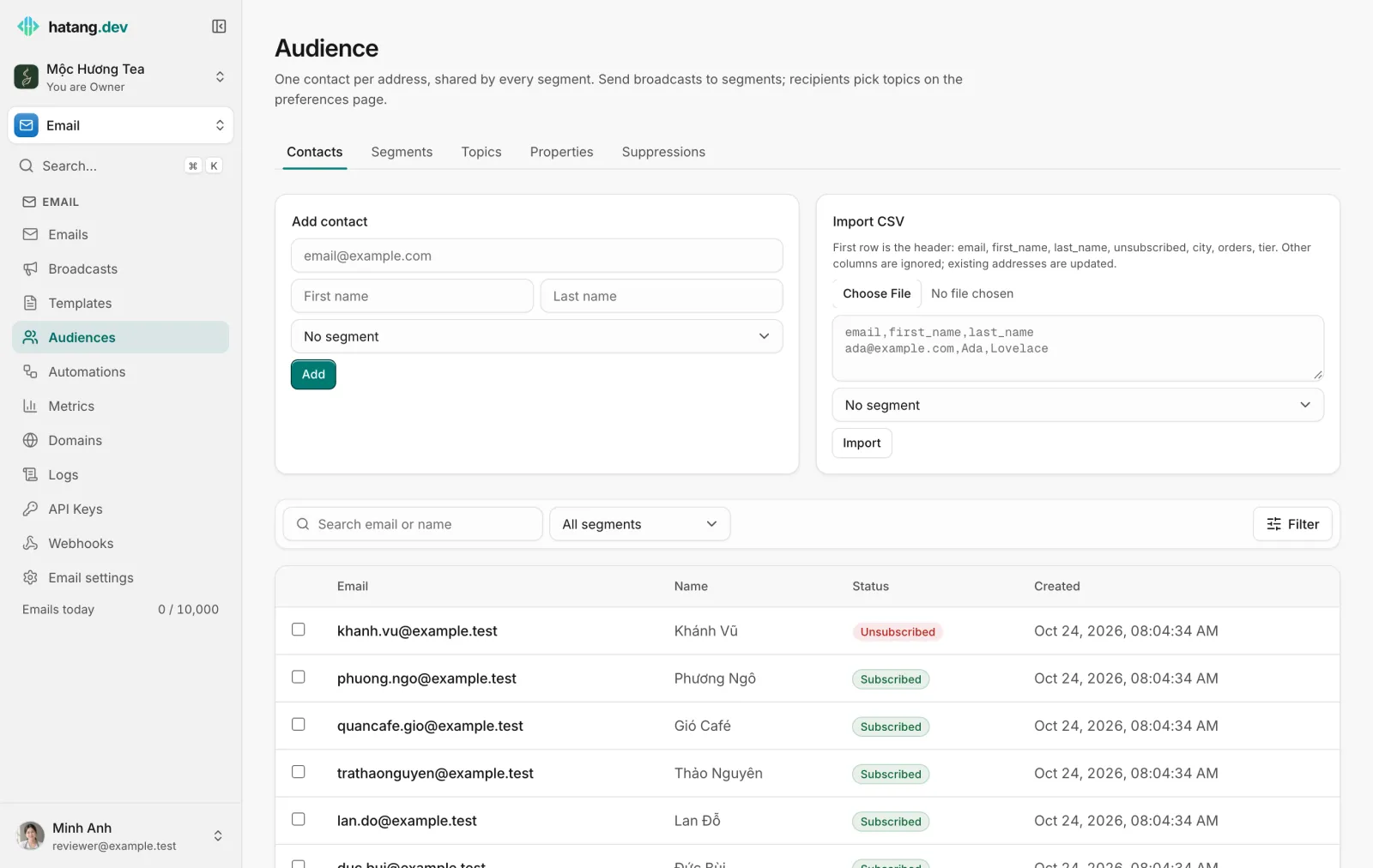
Add contacts
One by one
- Open Email → Audiences.
- Under Add contact, enter the email address, First name and Last name.
- Optionally pick a segment to add the contact to.
- Click Add.
Adding an address that already exists updates that contact instead of creating a second one.
Import a CSV file
- Prepare a CSV file whose first row names the columns. Ha Tang reads
email(required),first_name,last_name,unsubscribedand the key of each of your properties, in any order. Other columns are ignored. - Under Import CSV, choose the file or paste its content, and optionally a segment to put everyone in.
- Click Import.
The result says how many contacts were imported and how many rows were skipped (rows without a valid address). Existing addresses are updated, not duplicated.
email,first_name,last_name,city,tier
[email protected],Hà,Nguyễn,Hà Nội,Vàng
[email protected],Quân,Trần,TP. Hồ Chí Minh,Bạc
In the unsubscribed column, true, 1, yes or có marks the contact as unsubscribed from everything; use it to carry over unsubscribes from your previous email tool.
From your CRM
If you use Ha Tang's Customers module, Customers → Sync to Email copies customers with an email address into contacts. Syncing never resubscribes someone who unsubscribed.
From your website
Your developer can create or update contacts through the API whenever someone signs up. See the contacts guide in the developer hub.
Custom properties
Properties are your own fields on contacts, used to personalise email and to decide who gets what.
- Open the Properties tab.
- Enter a Key (letters, digits and
_, for examplecity), choose the Type (stringornumber) and optionally a Fallback. - Click Add property.
Use a property in a template or broadcast as {{{contact.city}}}. A contact without a value gets the fallback, so "Xin chào khách ở {{{contact.city}}}" never shows a gap. A property must exist before you import or set it on contacts. Deleting a property removes its value from every contact.
Work with one contact
Click an address in the list to open the contact. There you can:
- change the name and property values under Details,
- see and change the segments it belongs to,
- see its choice for each topic (or the topic's default when it has not chosen),
- read every email sent to it, with its status,
- Unsubscribe or Resubscribe it.
To add many contacts to a segment at once, tick them in the list and use Add to segment under Selected contacts.
Unsubscribed contacts
A contact who clicks "unsubscribe from everything", or whom you unsubscribe, is shown as Unsubscribed and:
- receives no more broadcasts or automation emails,
- is added to the suppression list with the reason unsubscribe, which also blocks order confirmations and other emails to that address.
If the person asks to receive your email again, open the contact and click Resubscribe. That also removes the suppression entry. Someone who only wants fewer emails should leave a topic instead; see Segments and topics.
Good habits
- Use one contact list for the whole business, and segments to divide it. Deleting a segment never deletes its contacts.
- Fill in first names: "Chào chị Hà" is opened more often than "Chào bạn".
- Remove or stop emailing people who have not opened anything for months. They lower your engagement and your reputation with Gmail and others. See Keep your email out of spam.
Useful next steps
Was this article helpful?
Related articles
- Segments and topicsGroup contacts into segments to choose who gets a broadcast, and offer topics so subscribers pick the kinds of email they want.
- Send a broadcastWrite a newsletter or promotion once and send it to a segment, now or at a set time, with each contact's name filled in and unsubscribes handled for you.
- Export customers and sync them to emailDownload your customers as a CSV file that opens in Excel, copy them into an email audience, and bring an existing contact list into Ha Tang.
Not finding what you are looking for?
Our team answers in the chat, in English or Vietnamese.