First steps with Payments
Try VietQR payments safely in Development, link your bank account, then switch to Production and take your first real transfer.
Updated on
On this page
The Payments module lets customers pay by bank transfer with a VietQR code. The money goes straight into your own bank account, and Ha Tang matches each transfer to the right payment, so you do not have to check your bank app. You can also issue e-invoices. To set it up you need Payments: Manage, or to be an owner or admin.
Before you start, make sure Payments is on in Settings → Business settings → Modules (Turn modules on and off).
Development and Production
Payments has two separate environments, shown in the coloured bar at the top of every Payments page:
| Environment | What happens |
|---|---|
| Development (amber bar) | No real bank and the e-invoice provider's test system. A payment is only marked paid when you simulate the transfer or mark it yourself. Use it to learn and to test. |
| Production (red bar) | Your real bank accounts and real money; e-invoices go to the tax office. |
Switch with the Development and Production buttons in the bar. Switching to Production asks for confirmation. Each environment has its own payments, bank links and settings.
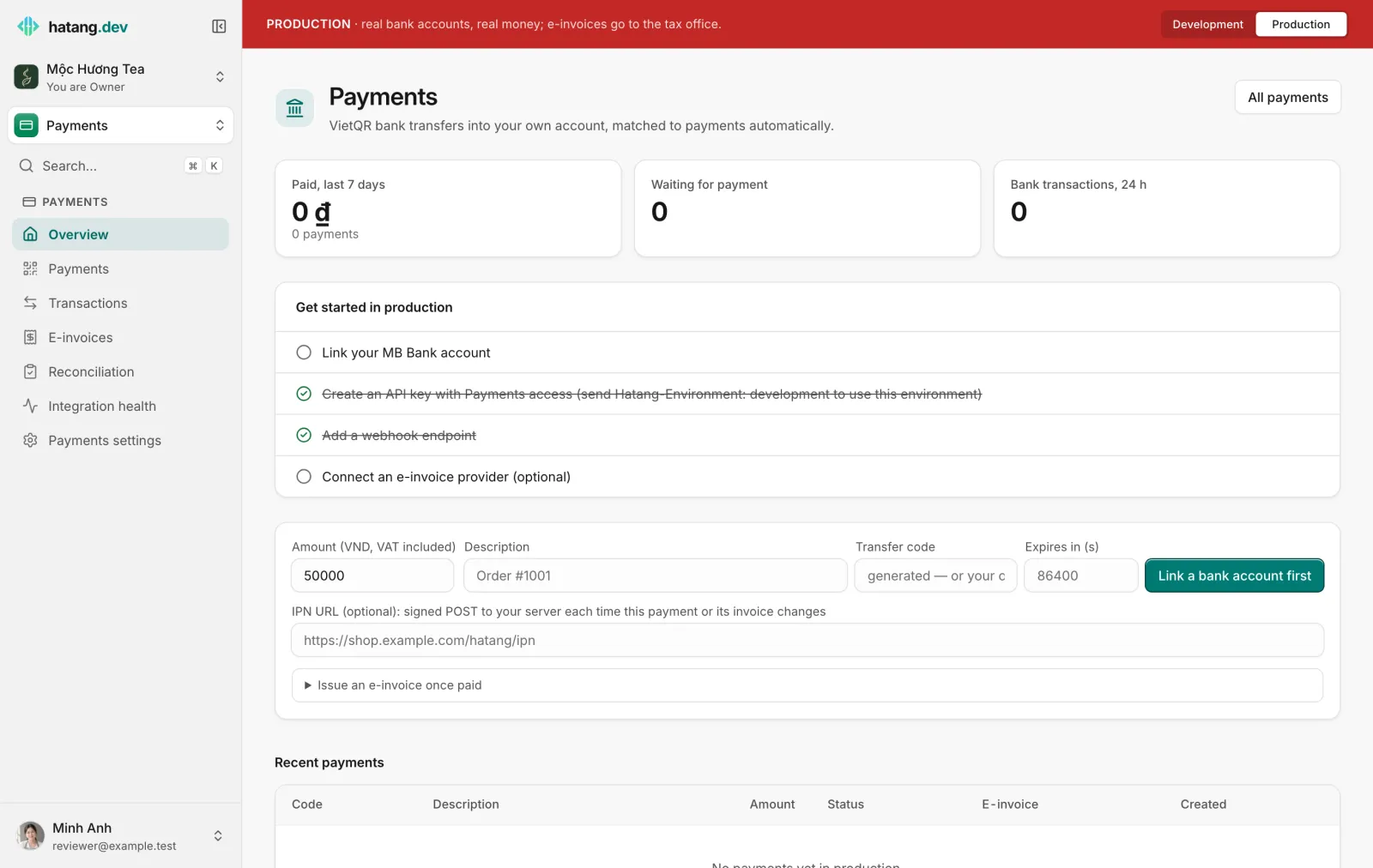
1. Try it in Development
- Open Payments → Overview and make sure the bar says Development.
- Follow the Get started in Development checklist: link the simulated bank account first.
- Create a test payment with an amount and a description, and simulate the transfer.
You see the whole flow, from the QR code to the payment marked as paid, without moving any money.
2. Link your real bank account
- Switch the bar to Production.
- In Payments → Payments settings, add your bank account (Add bank account) and follow your bank's steps.
Link a bank account lists the banks Ha Tang works with and what each one needs.
3. Go live
Check Go live with payments before your first real customer: the account the money goes to, who on your team may create payments and refunds, and, if you need them, e-invoices (E-invoice providers).
4. Take payments every day
- Create a payment request and send its QR code or link to the customer.
- Send a payment request right inside a chat conversation (Payment in chat).
- Follow incoming money in Payments → Transactions (Transactions and matching).
Who does what
| Task | Level needed |
|---|---|
| See payments and transactions | Payments: View |
| Create payments and invoices | Payments: Work |
| Refunds, bank accounts, e-invoice providers, settings | Payments: Manage |
Give your accountant the Finance template (Employees and roles).
Useful next steps
Was this article helpful?
Related articles
- How Ha Tang Payments worksCustomers pay by VietQR bank transfer straight into your own account; Ha Tang reads the transfers, matches them to orders and can issue the e-invoice.
- Link your bank accountConnect the bank account your customers pay into (MB Bank, BIDV, ACB or through Pay2S) so Ha Tang sees each transfer, and recover missed transfers from a statement.
- Go live with real paymentsMove from the development environment to production: link your real bank account, connect your real e-invoice account, test with a small real transfer, and know what to watch afterwards.
Not finding what you are looking for?
Our team answers in the chat, in English or Vietnamese.